
🌱 Instructions
Tools:
USB 2.0 Flash drive (recommended brand SanDisk, Format FAT32)
Procedure
(0) Make sure the IFP is switched off.
(1) Format the USB Flash Drive [minimum 4GB] stick as FAT32.
(2) Extract the upgrade file to the USB Flash Drive (FAT32) in the root directory. You will get the "upgrade_3588" folder. Insert the USB Flash Drive into the USB 1 port [right bottom side, see marked picture below] of the display.
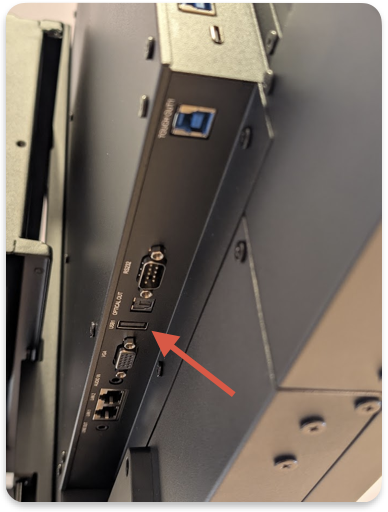
(3) Power on the ASPEN4. Press the POWER button and hold until the boot screen disappears and the power LED blinks slowly red and blue.
The display will compare the version you are trying to install with the already installed version. When they are the same, it won't install. It might be necessary to install another version first to achieve your desired installed version.
The TV will upgrade first. When finished, the screen will reboot and upgrade the MCU automatically. It will take +- 15 minutes to complete the upgrade procedure.
Do not interrupt the firmware upgrade process in any way:
-
Do not touch the i3TOUCH display (due to potential touch recalibration)
-
Do not disconnect the i3TOUCH from power.
-
Do not pull out the USB drive
📁 Files
Choose the correct size of your display. Find out by reading the serial number. For example, I3T065A4********* is 65 inches.
|
|
v1.1.0 (10/2025) |
v1.2.0 (12/2025) |
|---|---|---|
|
A4 - 65 |
||
|
A4 - 75 |
||
|
A4- 86 |