
🌱 Instructions
-
Download the zipped firmware file below.
-
Unzip the zipped folder. Inside you should find an “upgrade_8386” folder.
-
Copy the “upgrade_8386” folder to the root directory of an empty USB drive, which is FAT32 formatted.
-
Turn off the display and change the ON/OFF switch to OFF.
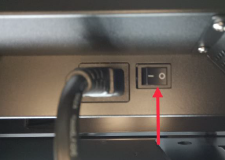
-
Insert the USB drive into any USB 2.0 port (black) of the i3TOUCH EX.
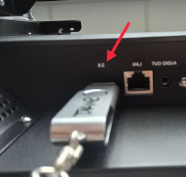
-
Turn the ON/OFF switch to ON.
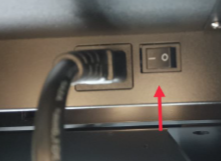
-
Press and hold the power switch until the power LED blinks red/white.
-
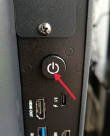
Keep holding the power button until you see below upgrading screen.
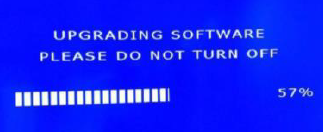
-
Installing the FW takes +- 10 minutes and might restart a couple of times.
-
Wait until the i3TOUCH has fully finished installation. It brings you into the wizard.
Do not interrupt the firmware upgrade process in any way:
-
Do not touch the i3TOUCH display (due to potential touch recalibration)
-
Do not disconnect the i3TOUCH from power.
-
Do not pull out the USB drive
📁 Files
Choose the correct size of you display. Find out reading the serialnumber. For example i3TEX75XXXXXXX is 75 inch.
|
|
version 3.0.15 |
version 3.0.18 |
version 3.1.3 [July 2023] |
version 3.1.5 (Aug 2024) |
|---|---|---|---|---|
|
65inch |
||||
|
75inch |
||||
|
86inch |