
The files you need to download can be found at the bottom of the page
📘 Instructions
-
Download KTC tool en the touch firmware
-
Connect you pc with HDMI + USB touch cable to the display
-
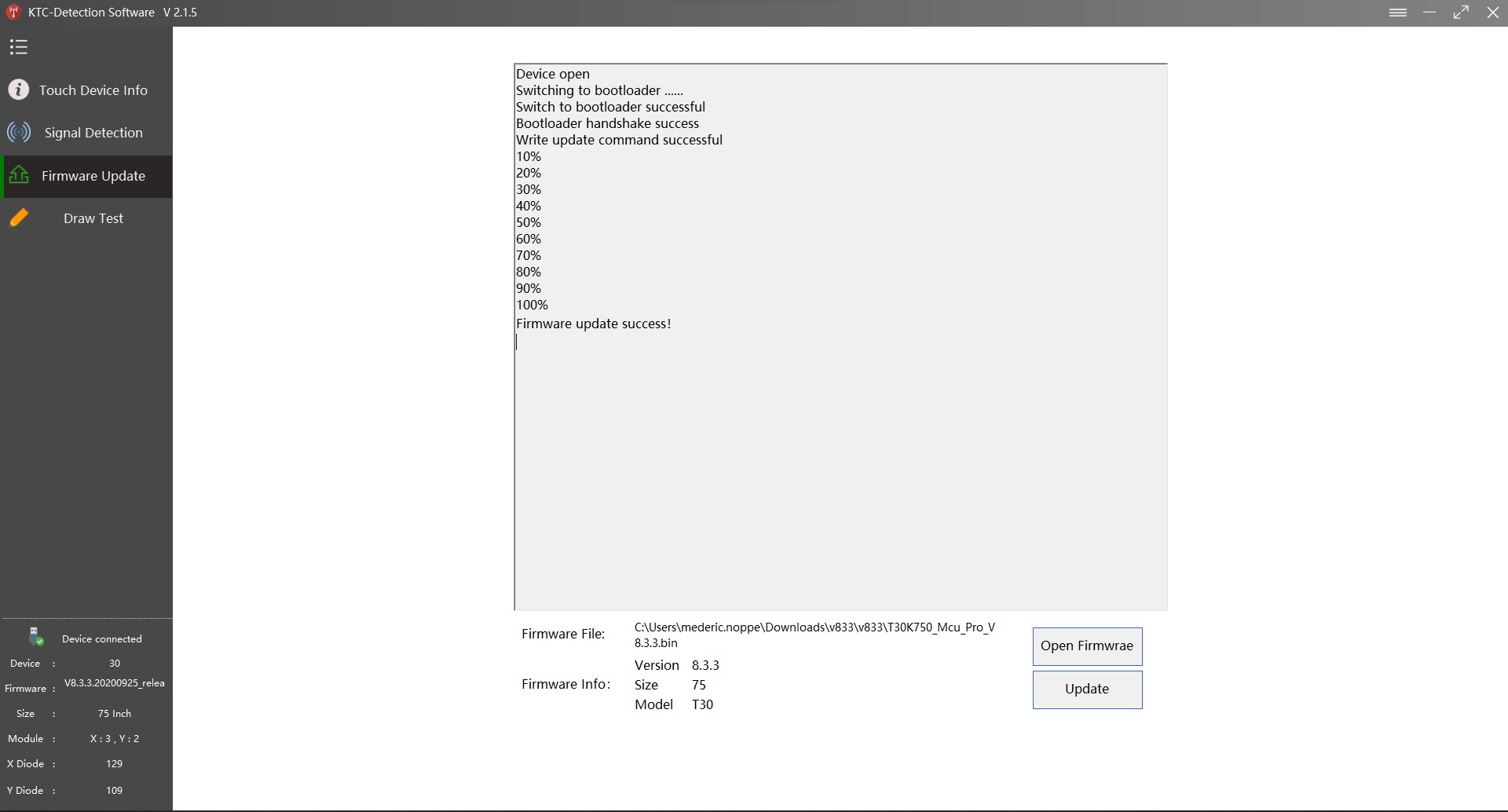
Open KTC tool

-
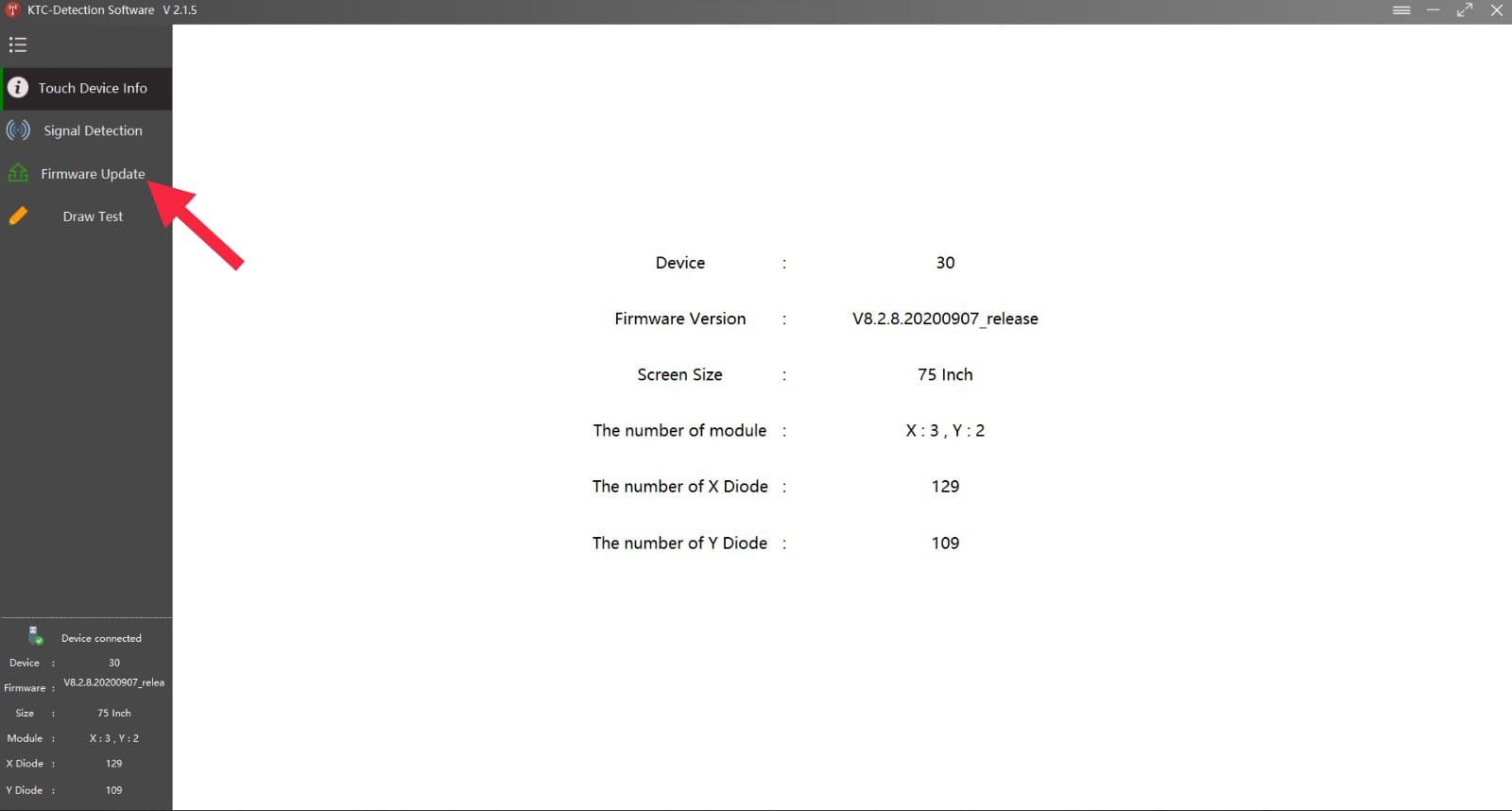
Click on “firmware update”
-
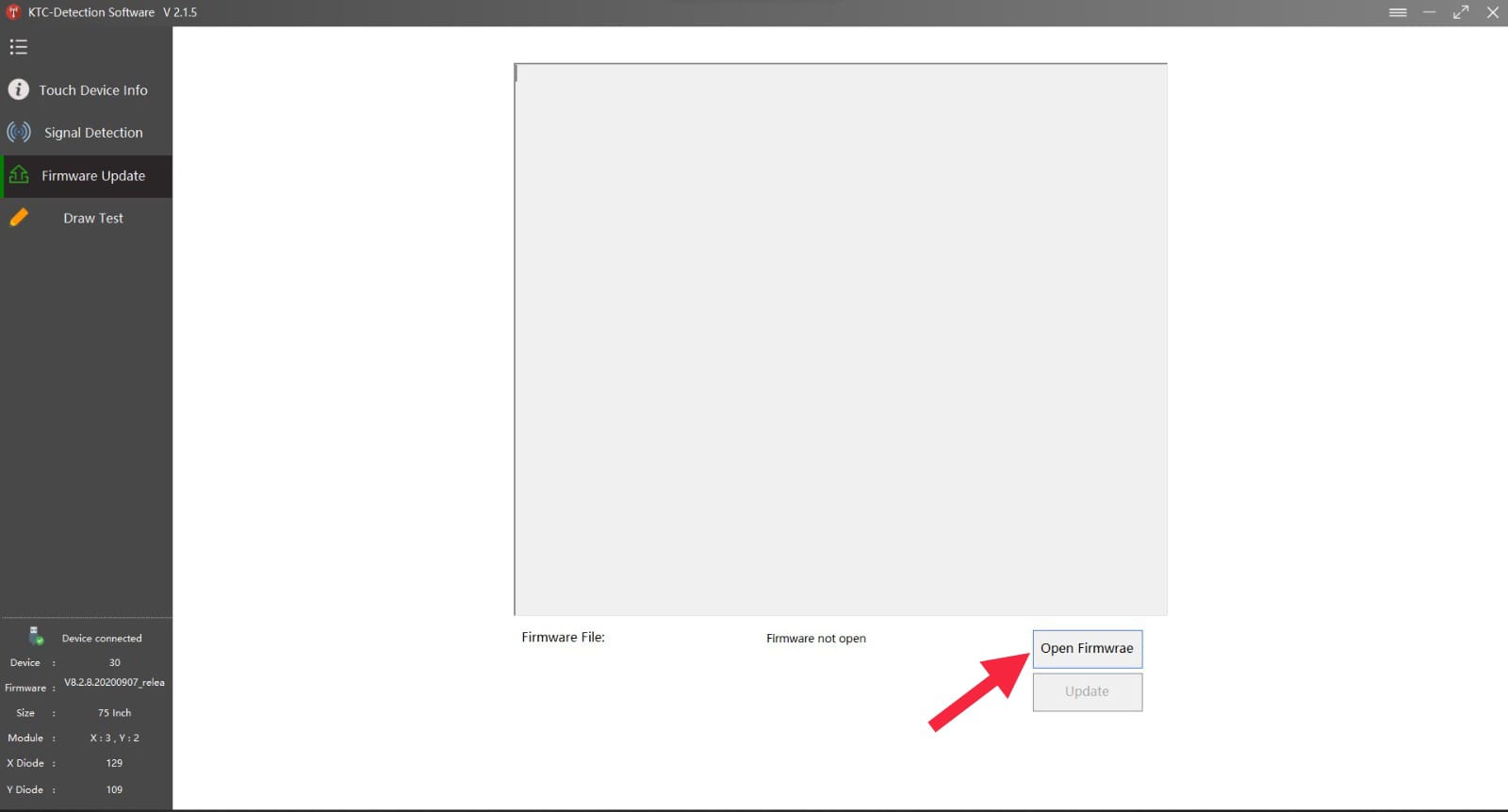
Click on “open firmware”
-
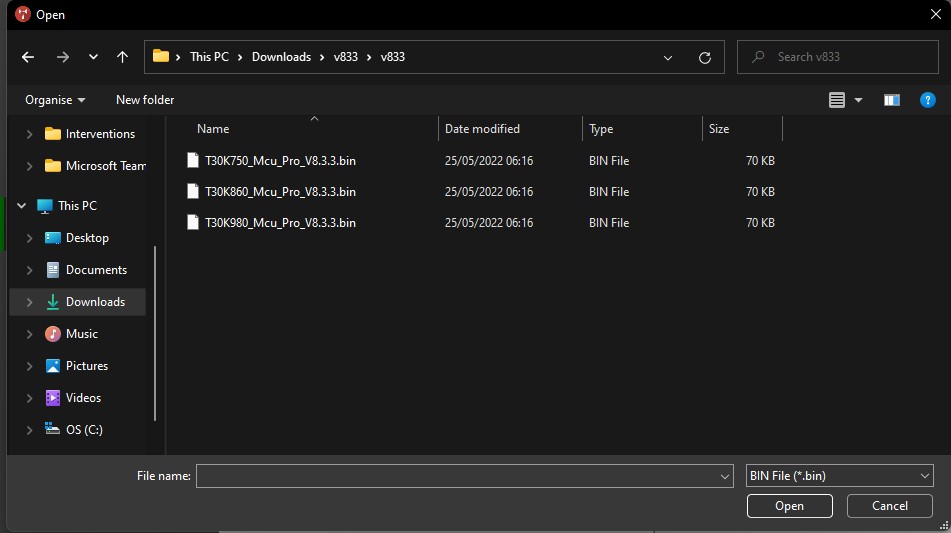
Select the right touch firmware file
-
Click on “Update”
-
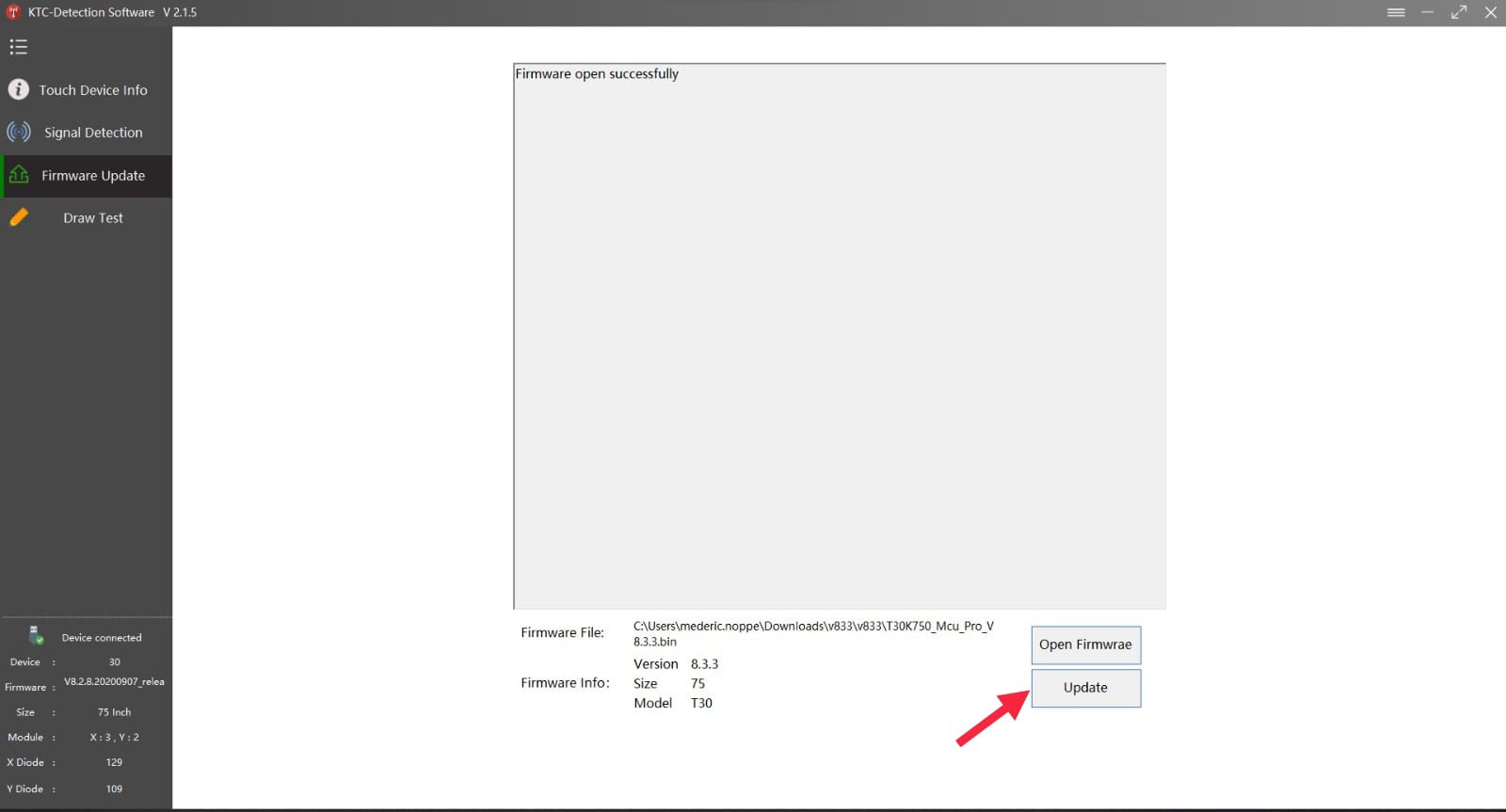
When the update is finished restart your display and open KTC tool again
-
When opening click on “draw test”
-
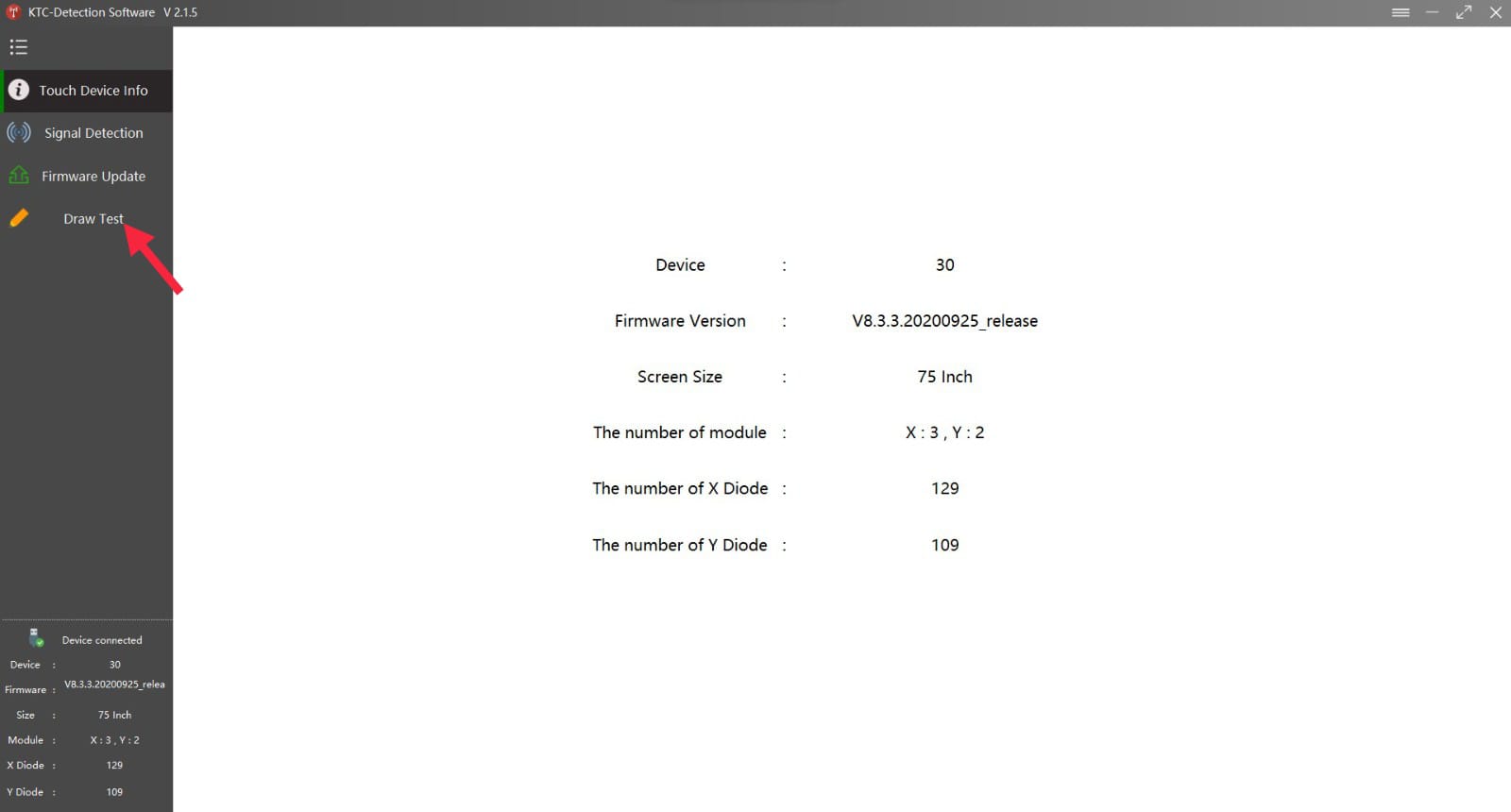
in this you draw horizontal and vertical lines
During touch firmware update, do not touch the display
If you still experience problems after the update, please film the “draw test” and take a picture of the “touch device info” page
 Files
Files
Choose the correct size of you display. Find out reading the serialnumber. For example i3TES75XXXXXXX is 75 inch.
|
Display size |
Touch Firmware |
|---|---|
|
75inch |
|
|
86inch |
|
|
98inch |
|
|
KTC tool |