🤔 Problem
i3Touch displays are often used with external RS232 control boxes form manufacturers like Neets and Extron. While these pre-programmed devices are very convenient to use, it makes troubleshooting a bit more difficult when something is not working.
🌱 RS232 Solution
To confirm if the display is working correctly, we advise to use a laptop with RS232 cable and testing software instead, so you can see the commands you are sending and the display response in real-time. You can use a standard USB to Serial cable, like this generic example:
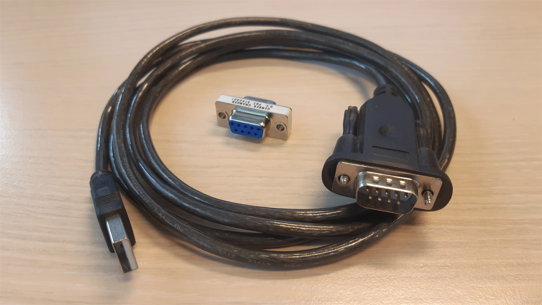
Use a gender changer if necessary to adapt Male to Female connections if necessary.
-
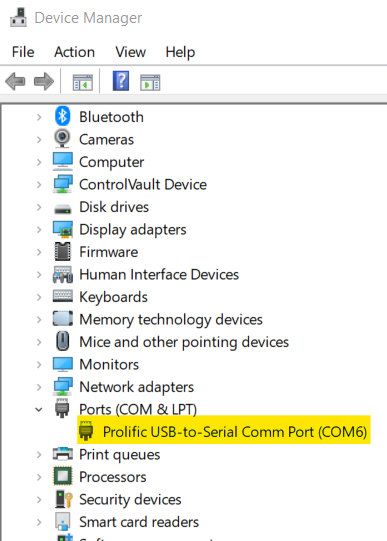
After connecting the USB cable, first check which COM port is assigned in Windows Device Manager for this cable:
-
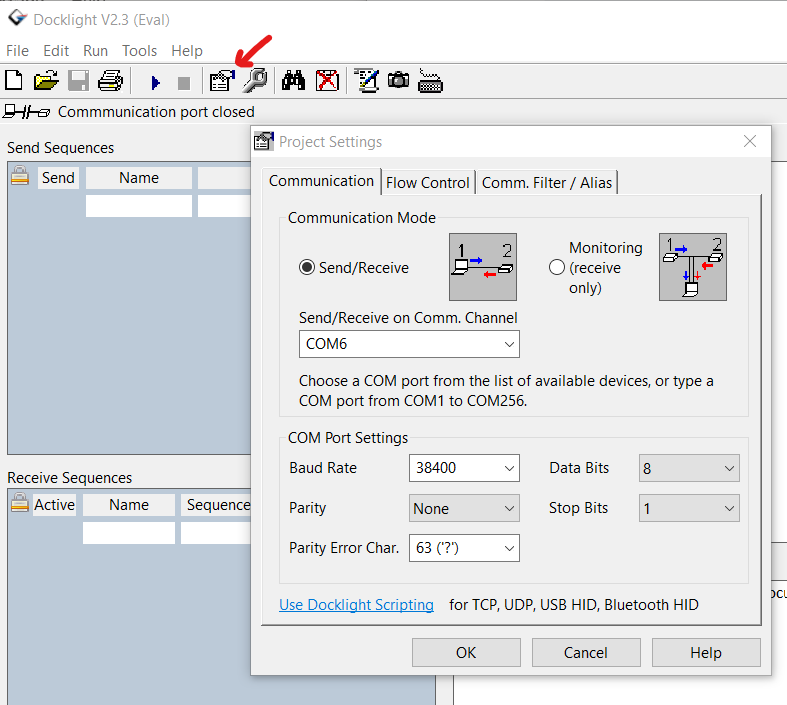
Start your serial communication testing software and configure it according to the setting in the display manual and the COM port you just looked up. We recommand using a free evaluation version of Docklight (https://docklight.de/ ).
-
Check the display manual to see if the commands need to be given in ASCII or HEX commands, and select the corresponding section of your testing tool:

-
Then enter a few commands from the display manual here and send them to the display, as in below example for an i3Touch EX display:
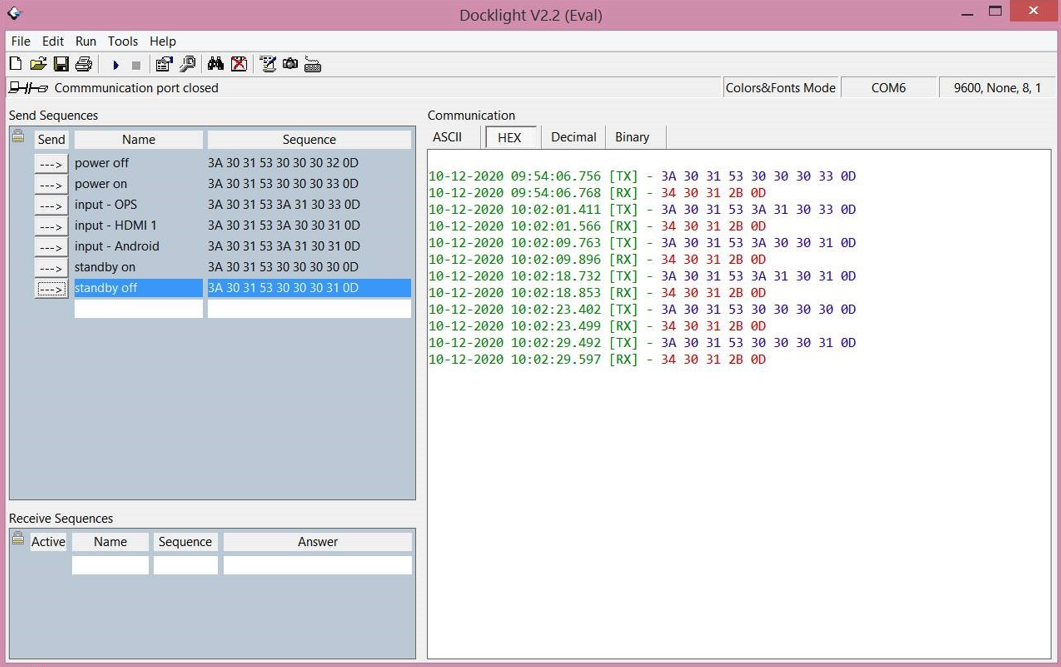
-
When contacting i3-Technologies for support, please make sure to provide screenshots of the device manager, the testing tool configuration and the commands sent, like the screenshots included above.
Manufacturers of RS232 control units often publish programming for specific manufacturers and display models on their site to help with programming. For testing, it is best not to trust this predefined programming, it is better to stick to the command sheets and specifications from the website of the manufacturer of the display itself. i3-Technologies publishes this information in the user manuals on https://docs.i3-technologies.com/
For RS232 commands in HEX format, the 0X prefix in the codes is an indicator that the code is written in HEX, you do not enter that in the command string.
For example, the Power on command for an i3Touch EX is this:
0x3A 0x30 0x31 0x53 0x30 0x30 0x30 0x30 0x0D
This translates to the following command to enter into your testing tool:
3A 30 31 53 30 30 30 30 0D
🌱 TCP-UDP Solution
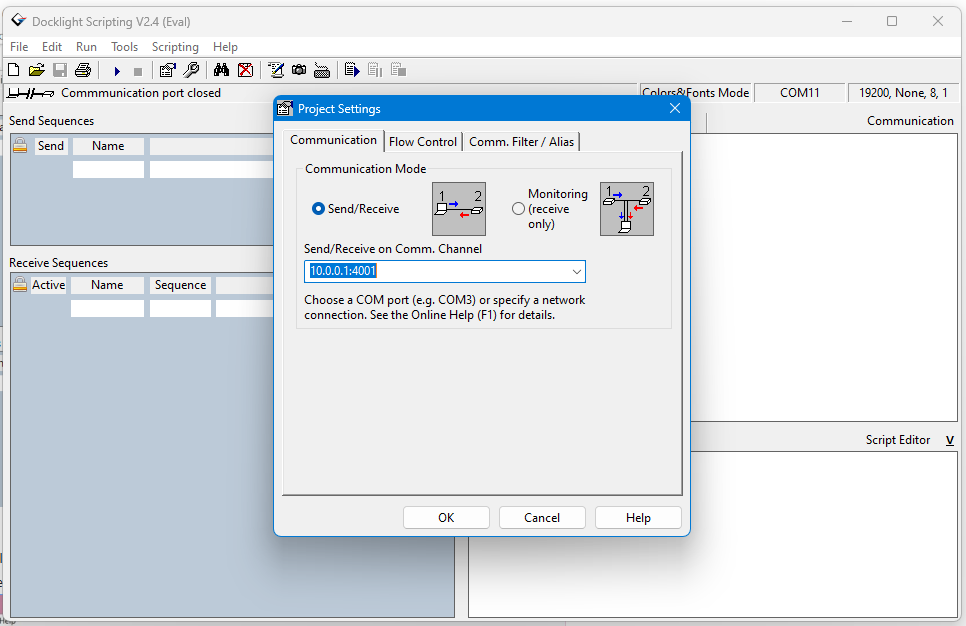
Other than using Docklight for RS232, use Docklight Scripting to check TCP-UDP.
Similar like above, go through the steps, but in step2, run Docklight Scripting. The communication channel is the IP address from the device, and the port which you can find in the manual.
For example, for i3TOUCH X3 this is 192.168.1.11:6688
Where the IP address is 192.168.1.11
Port is 6688
Example i3TOUCH X3 https://docs.i3-technologies.com/x3/rs232-command-sheet-tbc#RS232CommandSheet-TelnetPortSetup