
🤔 Problem
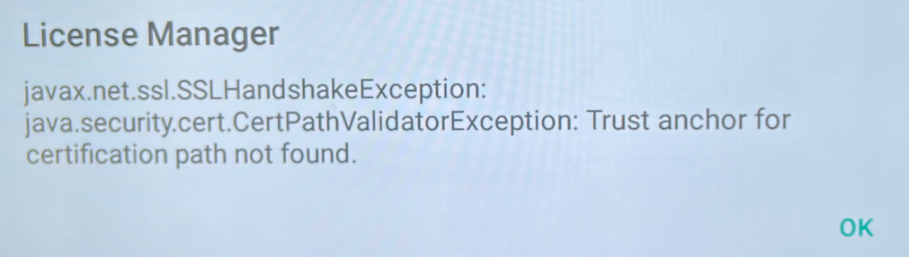
A certification issue when using an i3APP on your i3TOUCH device like the example below:

🌱 Solution
The root certificate in this ticket can be installed manually and will re-enable secure connections and you must also manually update i3Allsync RX on the display
isrgrootx1.pemi3ALLSYNC Receiver-v3.8.1.041-007-generic-release.apk
-
Download the certificate and the Allsync RX apk, and place them both on the root folder of a flash drive, and insert the flash drive into the USB port of the E10r.
-
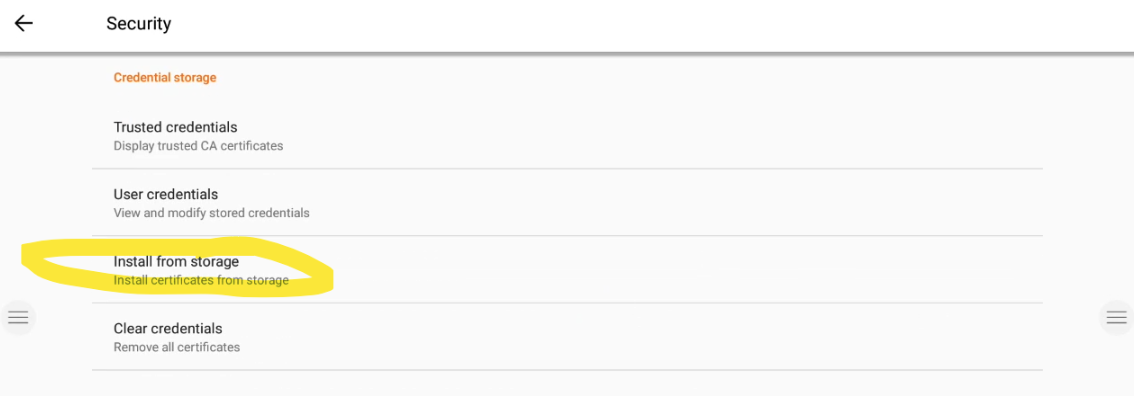
To install the certificate, you must navigate to “settings - security - install from storage”
-
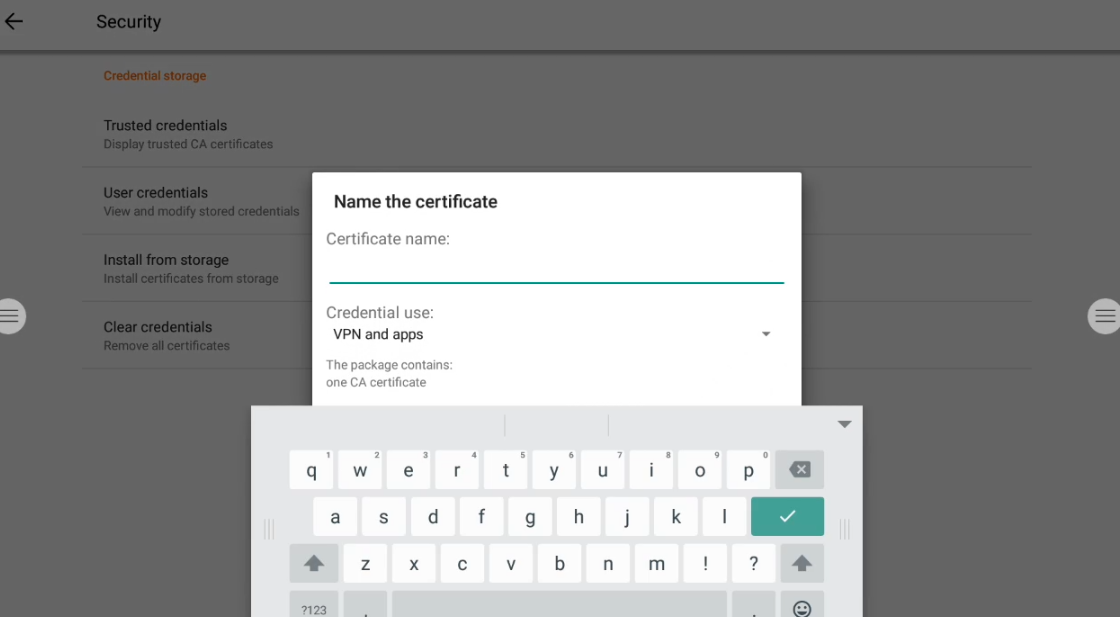
Select the pem file (provide any name) and press install.
-
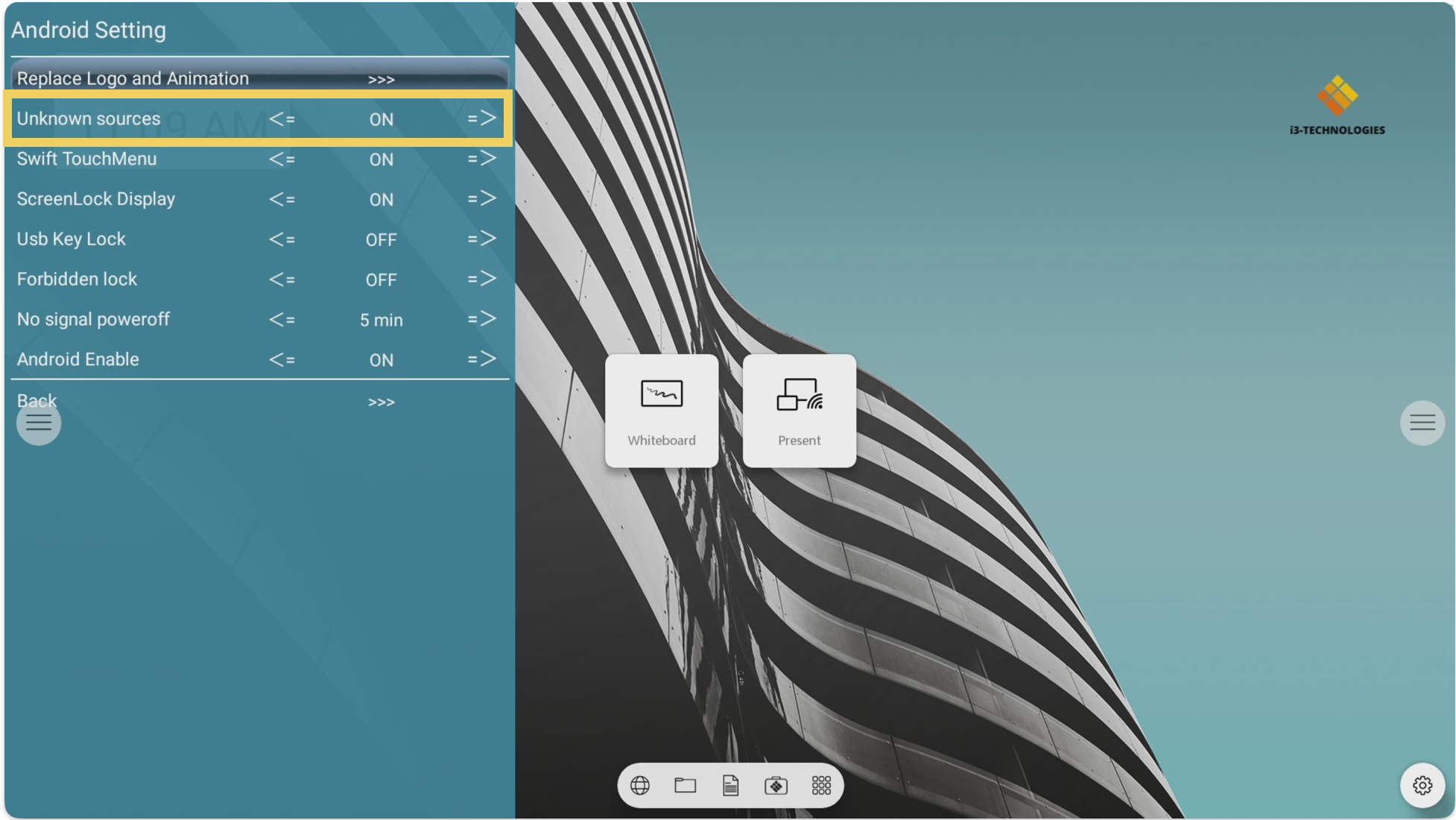
Open the debug menu by pressing “input - 1 - 3 - 7 - 9” on the remote and navigate to “Android settings” and change the settings from “Unknown sources” to “On” and close the debug menu.
-
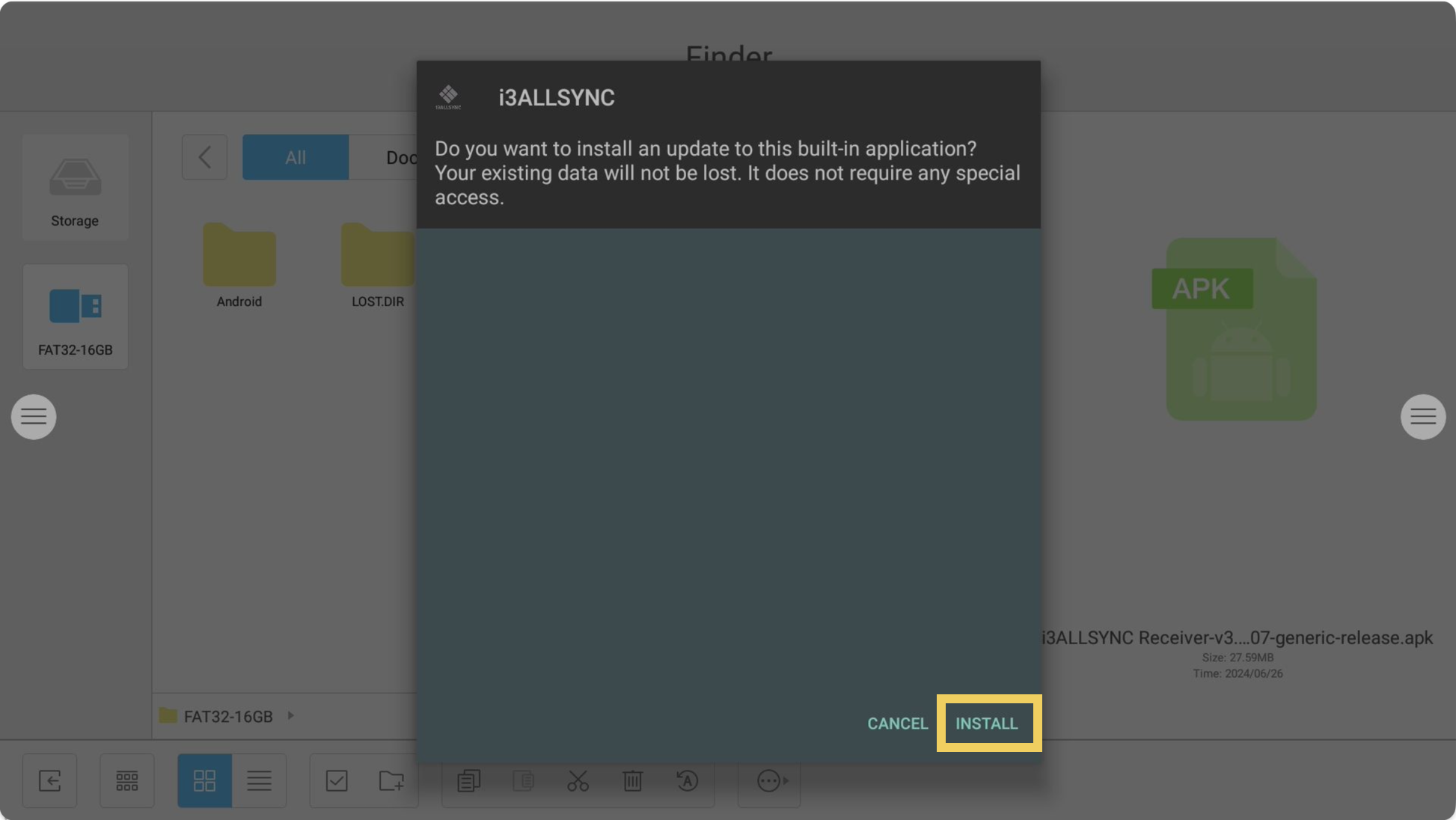
Navigate to “Finder - External flash drive” and open “i3ALLSYNC Receiver-v3.8.1.041-007-generic-release.apk” and press “Install”
-
Reboot your device after the certificate and Allsync RX installation
When you perform a factory reset of the E10r, the SSL issue will occur again.
You will have to manually update the certificate and Allsync again after a factory reset.