
When you cannot enter the debug menu, and you need to rewrite the systemFW.
Make sure all 3rd party devices are disconnected before you continue
8.1 systemFW Power button method
STEP1: Prepare a USB 2.0 drive and format it with FAT32, copy the .IMG file to the root folder of USB drive
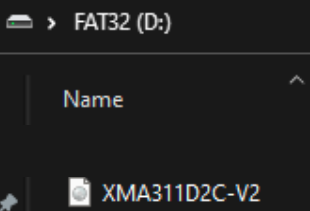
Make sure that there are no other files and folders on the USB stick besides the files you explained above.
STEP2: Make sure the IFP is switched off. Connect the USB drive to rear Android USB port. When are in front of the display, the usb port is in the bottom-bottom left corner.
STEP3: Press and hold the power button of the IFP. Then flip the power switch ON (at the back of the IFP).
STEP4: The upgrading process starts. Let go the power button when you see the android (robot) logo.
STEP5: Wait until the process is finished and the display reboots. The first boot will take longer than usual, but this is normal.
When you dont see any image on the display or via HDMI out while rewriting the systemFW, please wait. You can see the statusLED blinking slowly until reboot. This takes about 5mins. After reboot you will have image. The device will reboot a second time with image. Dont interrupt the procedure until you are in the wizard. The entire process takes max 10mins.
After the manual installation, the display is always recognized as an X-One 86, but here we will explain how to change the Model type to the correct model type.
STEP1: Download the correct model type according to the display size
|
65” display |
75” display |
86” display |
|---|---|---|
STEP2: After downloading, place the XMA zip file and MD5.txt in the root folder of a USB 2.0 drive
STEP3: Plug the USB 2.0 drive into the Android USB port at the bottom of the display
STEP4: After inserting the USB drive, the display will automatically reboot after which the model type will be adjusted.
a SECOND reboot is required
(first one gets triggered automatically, second one has to be done manually)
See the video below how to adjust the model type