
A few customers experience that the HDMI labels on the X-ONE casing dont match with what is expected. Please follow the below procedure and write down the results for us to be able to verify.
Brief Testing Instructions
-
Open the Settings Application and write down Serial Number and Firmware Version.
-
In the Settings Application, go to Display Settings and select Input Source Renaming. Select all input sources one after the other and clear their input boxes (when applicable).
-
Look at the Silk Print on the side of the display. Is the order from top to bottom HDMI 1, 2, DP, Type-C?
--> YES: Write Matches the specification
--> NO: Write Does not match the specification. -
Insert a signal source into the HDMI port labeled by Silk Screen Print as HDMI 1. The display will automatically switch to the signal.
-
In the top right corner, the OSD Notification appears. Does it say “HDMI 1” ?
--> YES: Write “Matches the specification”
--> NO: Write “Does not match the specification”. -
Press HOME and check the Side Menu of i3LAUNCHER. Is the HDMI 1 Tile lit orange?
--> YES: Write “Matches the specification”
--> NO: Write “Does not match the specification”. -
In the Settings Application, go to Display Settings and select Input Source Renaming. Give the HDMI 1 source the nickname “ONE” and the HDMI 2 source the nickname “TWO”.
-
Pull out the HDMI cable, and reinsert the HDMI cable in the same port. Does “ONE” appear in the OSD notification?
--> YES: Write “Matches the specification”
--> NO: Write “Does not match the specification”. -
Press HOME on the Remote Control, then HDMI 1 on the Remote Control. Does the HDMI signal appear on the display?
--> YES: Write “Matches the specification”
--> NO: Write “Does not match the specification”. -
Connect your laptop to the display via RS232-USB cable and send the command 0x7F 0x08 0x99 0xA2 0xB3 0xC4 0x02 0xFF 0x01 0x53 0xCF via a terminal application. Does the HDMI signal appear on the display?
--> YES: Write “Matches the specification”
--> NO: Write “Does not match the specification”.
Suggested terminal application for RS232: Termite: a simple RS232 terminal (compuphase.com)
(Either download and install the “complete setup”, or the “program only” with the “hexadecimal view filter”).
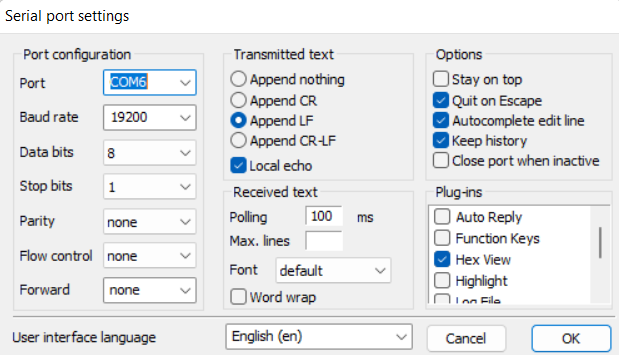
In the Termite settings, on the right, make sure the Hex View plugin is ticked.
See Device Manager in Windows for your correct port number. Baud rate = 19200
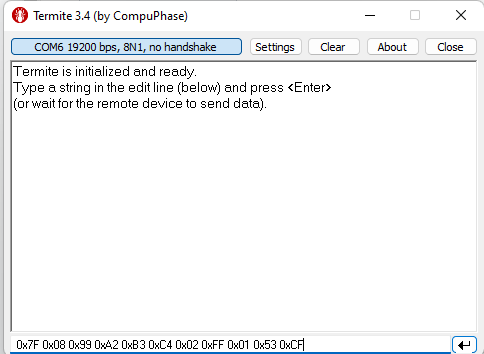
Hex notation in Termite is with 0x in front.
(You can copy-paste the command from the RS232 sheet. The sheet has correct notation).