
Breadcrumbs

CASE 1-B Airplay Connection issue

First of all, make sure to cover the basic prerequisites:

  1. Check and confirm that both the display firmware and the i3Allsync app are updated to the latest version.

  2. Kindly enable the Wi-Fi hotspot function on the display. Make sure this hotspot network is selected in the i3Allsync (Present) app. Then connect an Airplay device to the same Wi-Fi hotspot network. Please test first if you are now able to connect normally.


If you can connect normally when using the display’s Wi-Fi hotspot, the cause of the issue needs to be found in the network configuration:

https://docs.i3-technologies.com/i3ALLSYNC/Chapter-5:-i3ALLSYNC-Advanced-Network-Configurations.239763531.html


Most importantly:

  1. The router needs to enable Broadcast and MDNS multicast packages.

  2. Receiver and Transmitter need to be under the same subdomain netmask.

  3. Receiver and Transmitter need to be connected to the same router, cannot be “redirected“ from other routers. meaning both Receiver and Transmitter need to be directly under the same router.


If you have confirmed that the above conditions were met, please proceed with the following steps. When contacting i3-Technologies Service & Support, please provide the following mandatory information to aid with troubleshooting:

  1. Display firmware version and i3Allsync receiver app version.

  2. Display serial number.

  3. Apple device type and generation and iOS/macOS version.

  4. Detailed description of the below troubleshooting steps, preferably accompanied by pictures/video of the issues.
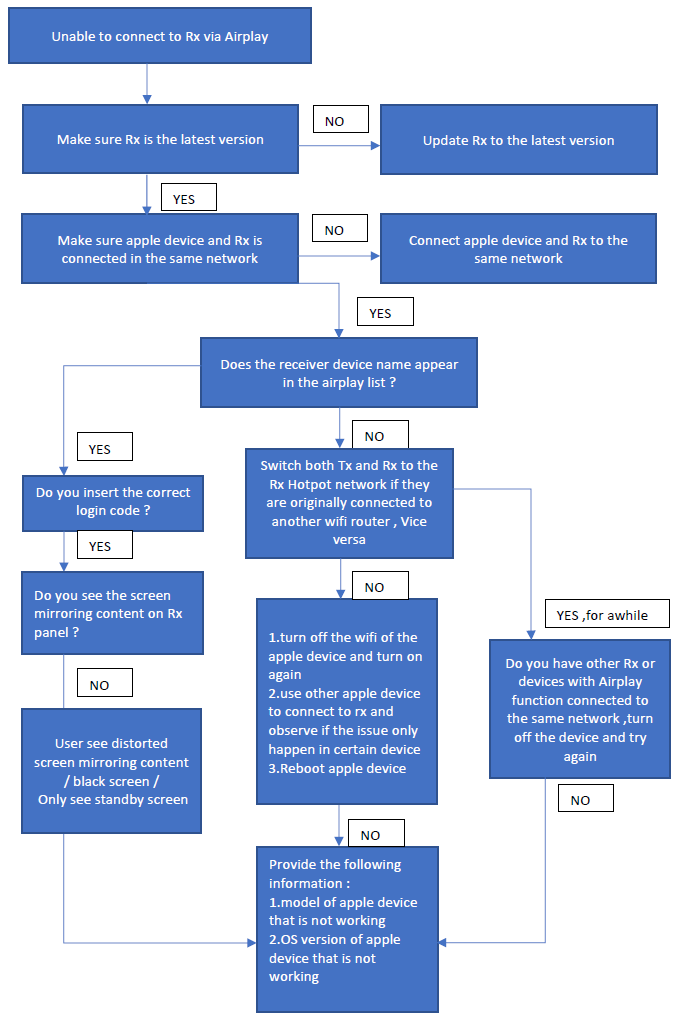

The Receiver can’t be found in the Airplay device list
  1. Check first if all i3Allsync receivers (displays) have a unique device name. If multiple devices in the network have the same device name, Airplay will always have trouble finding the correct devices.

  2. If you have other devices using Apple Airplay (like Apple TV for example), please turn them off, as they may interfere with the Airplay discovery process.

  3. Turn off the Wi-Fi on the Apple device and turn it back on again. When searching for receivers in Airplay, please give it sufficient time. Depending on signal reception, this can sometimes take up to a few minutes.

  4. Reboot the Apple device to reset Airplay services.

  5. Use other Apple devices and determine if the problems are linked to an individual device or more devices.

The Receiver can be found in the Airplay device list, but you are unable to connect

If the Receiver can be found in the Airplay device list, but you are unable to connect, then additional troubleshooting is required. Please follow this three-part troubleshooting guide and provide the log file to the i3-Technologies Service & Support team for further analysis. 

Capture a network traffic log from i3Allsync while reproducing the error

  1. Change the i3Allsync Android storage permissions (to enable i3Allsync to write the logfile to local storage). https://i3group.atlassian.net/servicedesk/customer/kb/view/826146908 . Follow i3ALLSYNC ANDROID RX instructions.

  2. Once permission is given, the i3ALLSYNC app will be able to write a logfile. So, now it is important to start using the i3ALLSYNC app until it you have reproduced the error. When done, please note down the time of attempt, so our developers can scan the logfile later and find the fault information.

  3. Insert a USB stick in the display and find the file “PMPlayer.txt” in the root of the local storage. Copy this file to the USB stick using the Finder app.

  4. Please send us the PMPlayer.txt file.


image-20230615-092801.png