
🌱 Instructions
Tools:
USB disk 2.0 (SanDisk, Format FAT32)*1PCS.
Procedure
STEP1: Save the firmware file in a folder on your computer (not the USB drive). Extract the files in a folder on your computer.
Prepare an USB flash drive 2.0 (FAT32 format) and copy the firmware files to the USB flash
drive (root folder). You can insert it into the display first to see if the USB flash drive can be
recognized.
Make sure that there are no other files and folders on the USB stick besides the files you explained above.
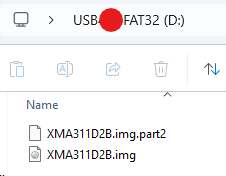
STEP2: Power off the machine and insert the USB flash drive.
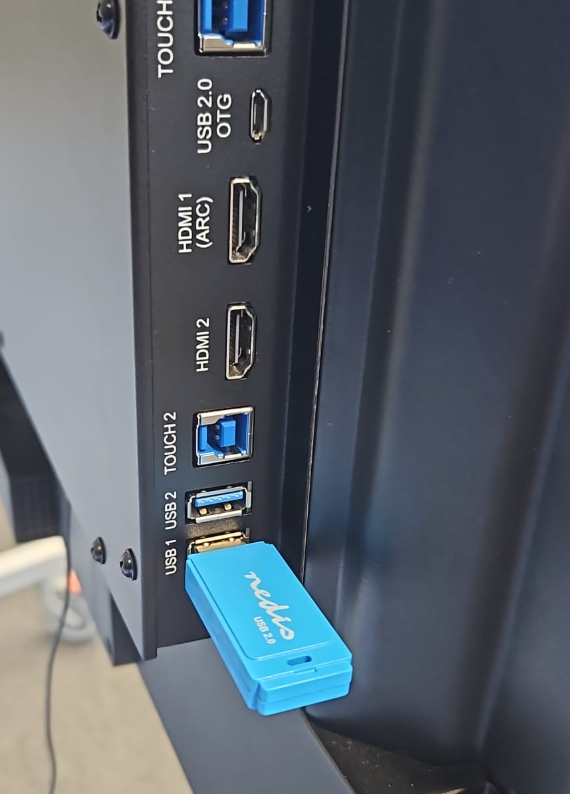
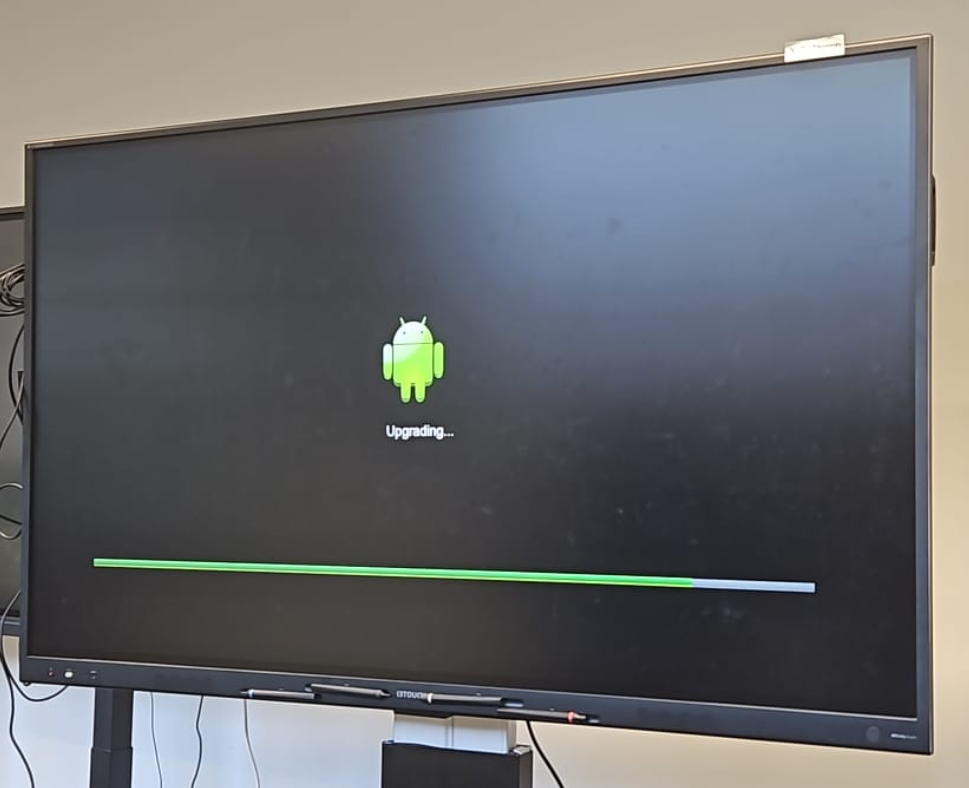
STEP3: Press and hold the power button of the IFP. Then flip the power switch ON (at the back of the IFP). keep holding the power button until the machine shows the image below. Release the power button.
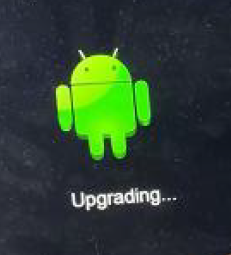
STEP4: At this time, there is no need to do any operation. Check whether the following
interface appears on the machine.
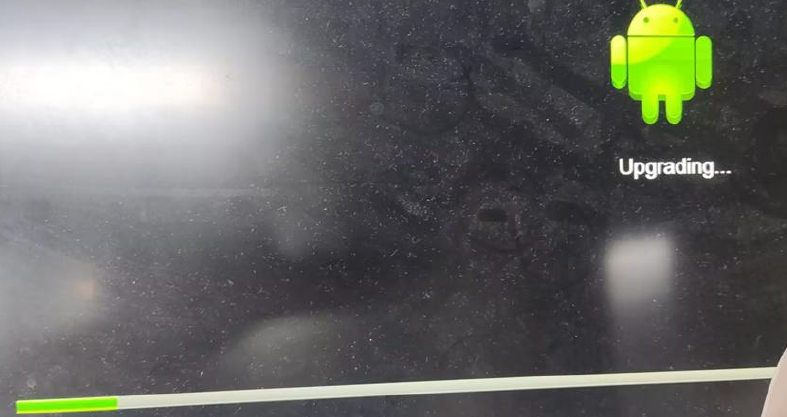
STEP5: After the progress bar completed (takes max 5mins), the display will automatically restart and finish the upgrade.
STEP6: When you reach the start of the wizard, the firmware installation is completed. Please follow the steps in the wizard.
Do not interrupt the firmware upgrade process in any way:
-
Do not touch the i3TOUCH display (due to potential touch recalibration)
-
Do not disconnect the i3TOUCH from power.
-
Do not pull out the USB drive
STEP7: After the Setup Wizard is completed, because this is an EDLA display, the Google
Play System Services will update. During this update by Google, all the applications and
services on your system will be restarted one by one. This may cause the screen to be dark
and empty for a couple seconds .
This update by Google should take approximately 70 seconds to complete, and will restart
all services and applications. (If something did not reload properly, please reboot the
system).
📁 Files
Choose the correct size of you display. Find out reading the serialnumber. For example i3TX375XXXXXXX is 75 inch.
|
|
v1.2.4 (06/2024) |
v2.0.4 (11/ 2024) |
v2.1.0 (02/ 2025) |
v3.0.0 (07/2025) |
v3.0.1 (8/2025) |
v3.0.3 (10/2025) |
v3.0.4 (12/2025) |
|---|---|---|---|---|---|---|---|
|
65inch |
unavailable |
||||||
|
75inch |
|||||||
|
86inch |
|||||||
|
98inch |