-
Airplay Working Model and Protocol
Airplay receiver uses the following ports:
TCP: 7000
UDP: 5353 -
User Scenarios
a. Cannot discover or see i3ALLSYNC device on Airplay list
b. Cannot connect to i3ALLSYNC device after selecting on Airplay list -
Checking Steps
a. The first thing you should try is powering of and restarting your i3Touch panel, Airplay devices (e.g. Mac, iPhone, etc.), and your router. Make sure your device and panel are under the same network.
b. Try to run all available updates on your Apple device and i3ALLSYNC. Please also check if the firmware on your router is up to date by visiting manufacturer’s website.
c. Checking your firewall settings on your Apple device. Make sure Airplay has been added into enabled APP list.
If the issue still remains, then it might be caused by your router and network settings:
a. Make sure that Bonjour/mDNS and multicast are enabled in your router settings.
b. If your Wi-Fi router supports interface isolation or Wi-Fi isolation, make sure that these settings are turned off. These settings prevent wireless devices from communicating with each other.
c. If you are behind a multi-subnet or Layer 3 network, as is common on larger networks and schools, please ensure that multi-casting is enabled and Bonjour is discoverable across the network. In most cases Bonjour will not be accessible across the network, as it's blocked by default, however, there is a guide you can look over or send to your networking Administrator to look over regarding Bonjour across Layer 3 Networks and Multiple Subnets. -
The following 3rd party tools can help you to check the network
Simple check with Bonjour service browser:
a. Download the Flame Services Browser application (available on iOS, iPadOS & macOS, can be downloaded from APP Store).
b. Connect to the same network as your i3Touch panel.
c. After opening the application, you can see the list of all devices that visible in your network. Find the name with your i3 device (here we take i3SIXTY2 for example):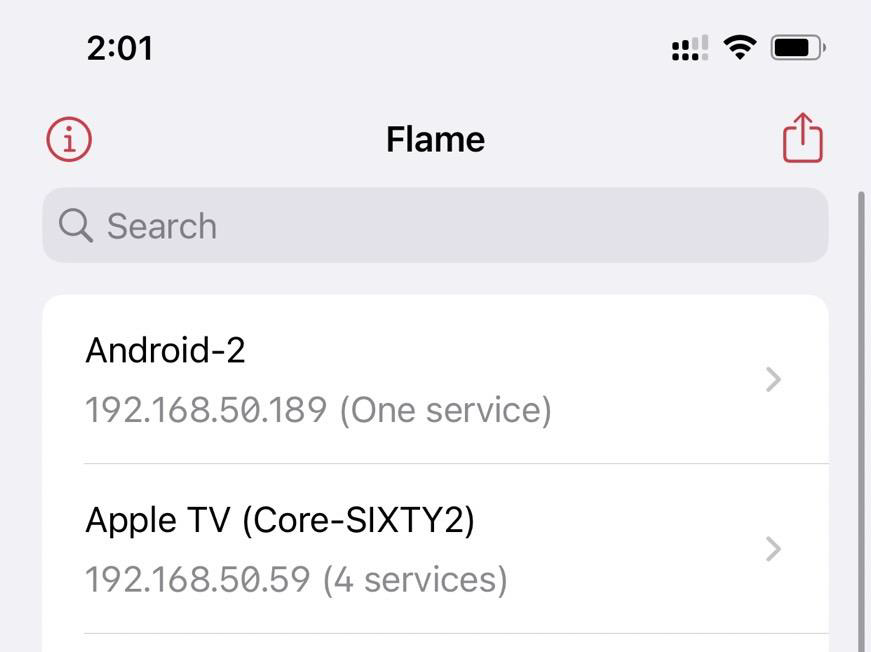
d. Press your device on Flame. If you can see the following services, then your device should be visible on your Airplay list:
_airplay._tcp.
_raop._tcp.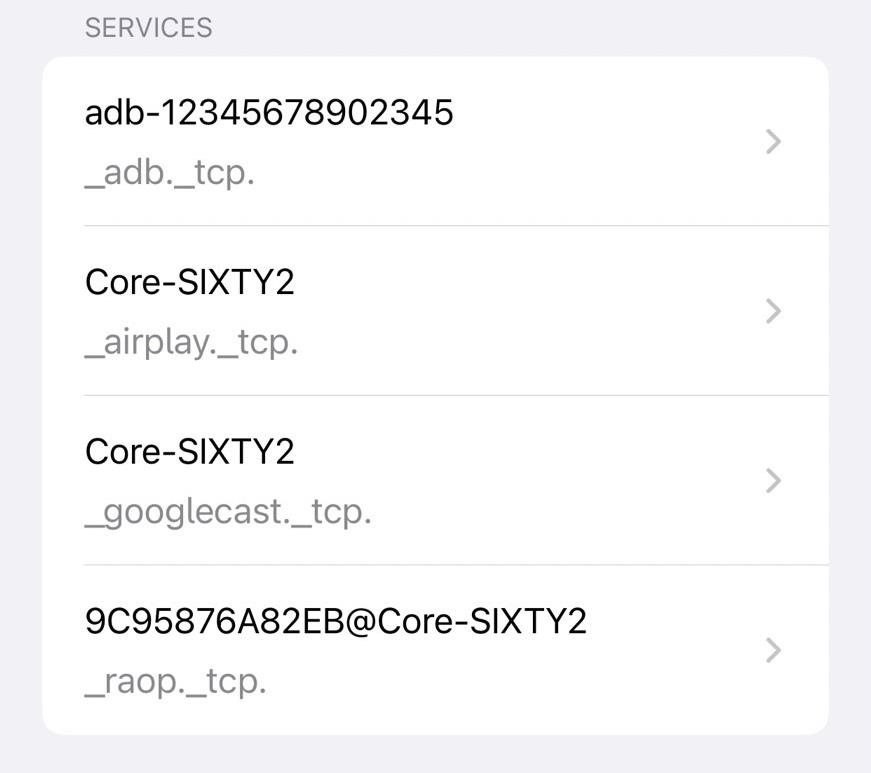
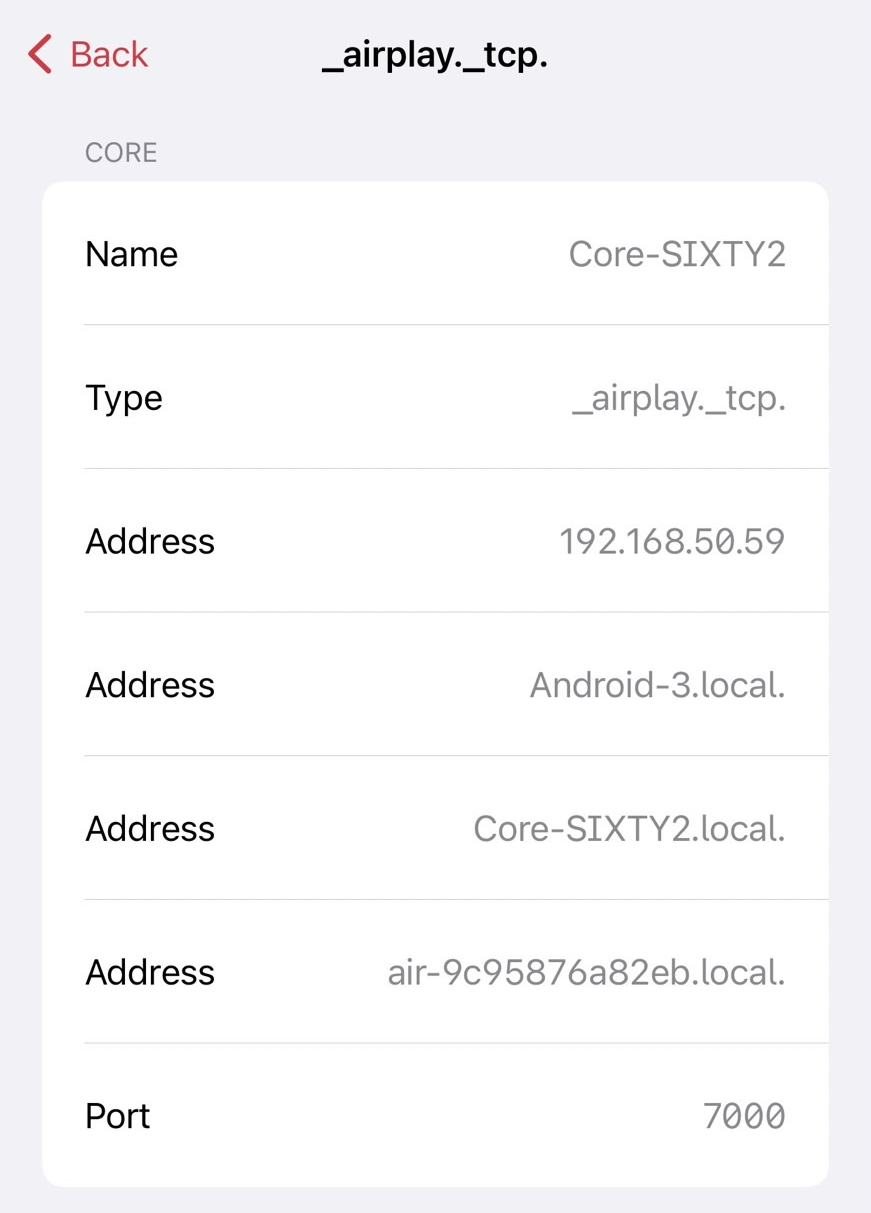
If you didn’t see these record, please try to change to hotspot and repeat the steps above:
a. If you can see the record, that means the network has some issue to block the mDNS packet. Reset the router or cleaning the record of proxy service(e.g. Airgroup on ARUBA router) might be helpful.
b. If you still cannot see the record, then Rx might encounter some problems. Try to restart the network of the panel or even restart the panel.
5. If the issue still remains, then please follow the steps below to provide the information of network environment.
Checking mDNS packet by Wireshark
a. Download and install Wireshark on a Macbook.
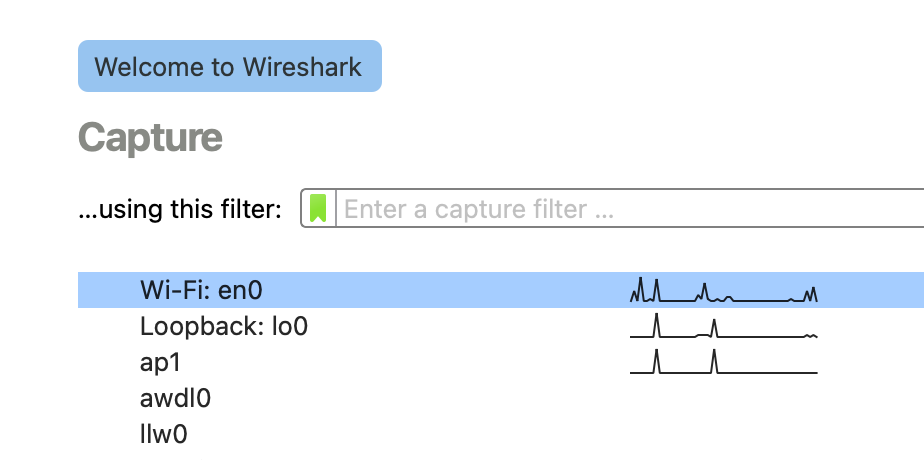
b. Run Wireshark on your Macbook, select WiFi as the network interface controller you want to check.
c. Type “mdns” in the filter
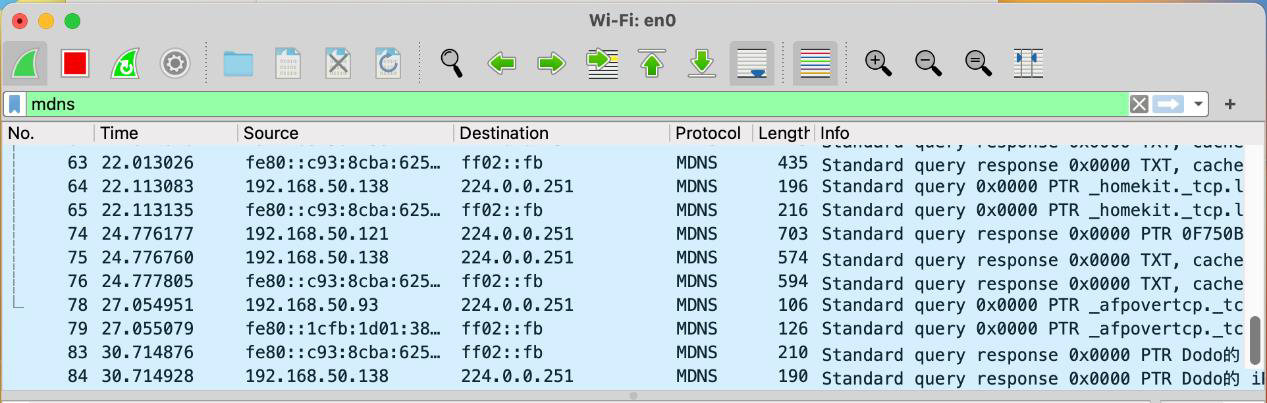
d. Disable and enable WiFi on your Macbook
e. Wait for some seconds to let mDNS packet show on the list, then press stop.
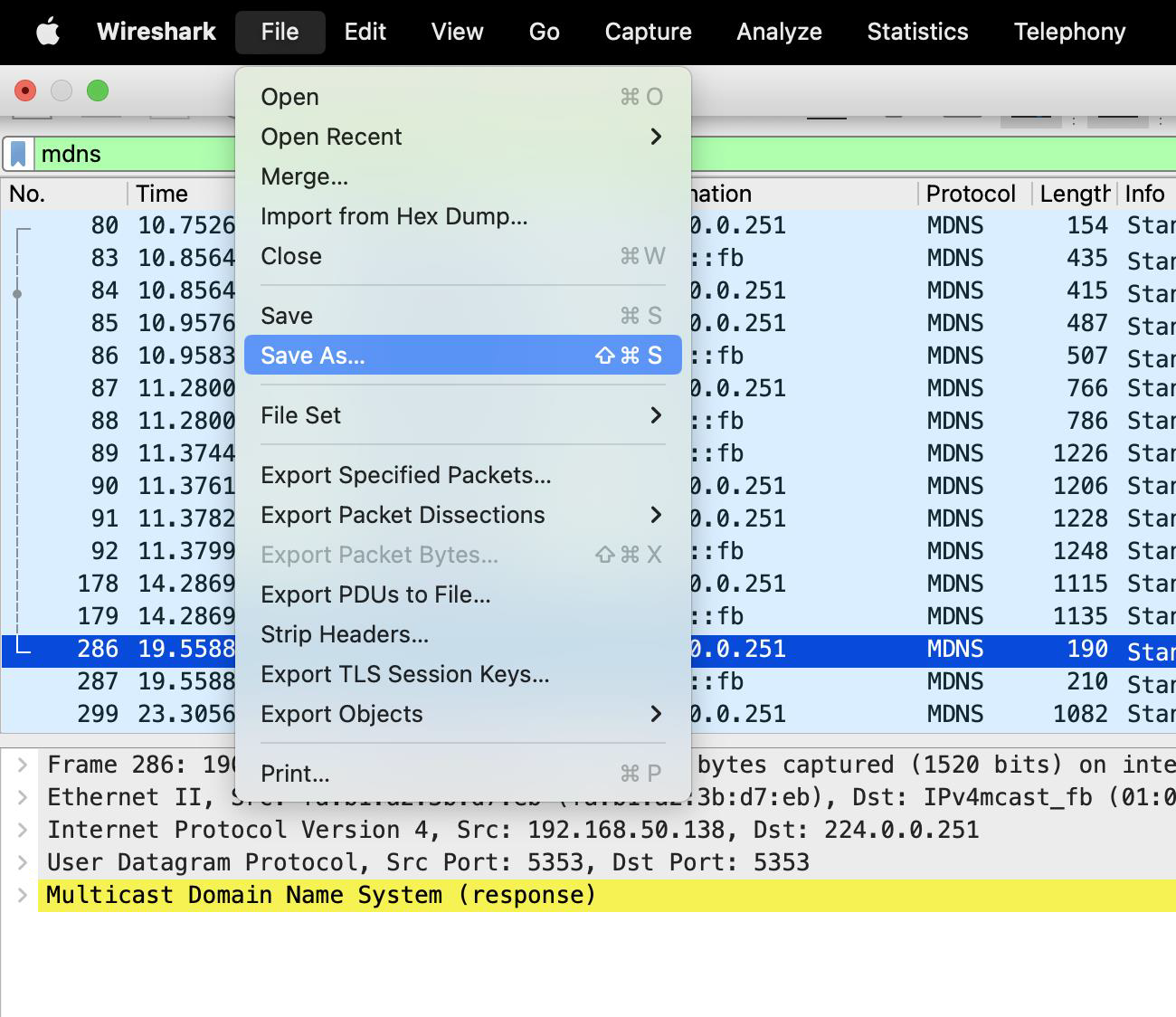
f. Find “file” on the top, select “Save as” to save the record. You can name the file by yourself.
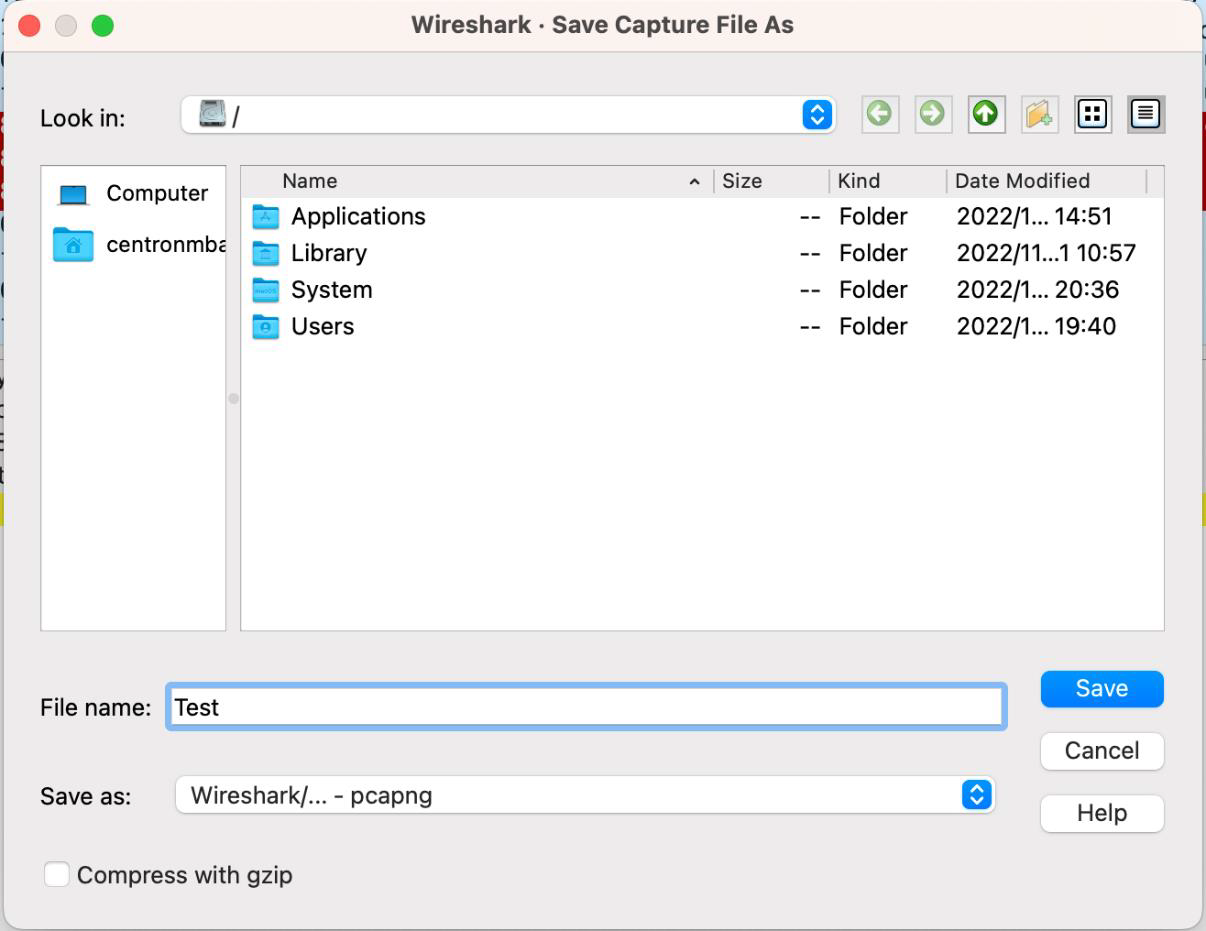
g. Provide the file as well as the log of Rx to us to check.