
Display resolution and aspect ratio
Each display, whether it is the display of your laptop, the display on your desk or the large interactive display on the wall, has its own native resolution and aspect ratio. The most common aspect ratio for displays is 16:9, although some portable PCs use narrower aspect ratios like 3:2 and 16:10 while some high-end desktop monitors have adopted ultrawide displays.
It is important to know that the touch technologies of a large interactive flat panel like your i3Touch display also has a fixed aspect ratio of 16:9 to match the display. Why is that important? Because if any other monitor connected to your pc has a different aspect ratio than 16:9, the picture and the touch on your i3Touch display may be different from your main display. Often resulting in black bars (either on the sides or above and below) may be displayed and the touch input might not match that of the picture.
Duplicate or extend your desktop
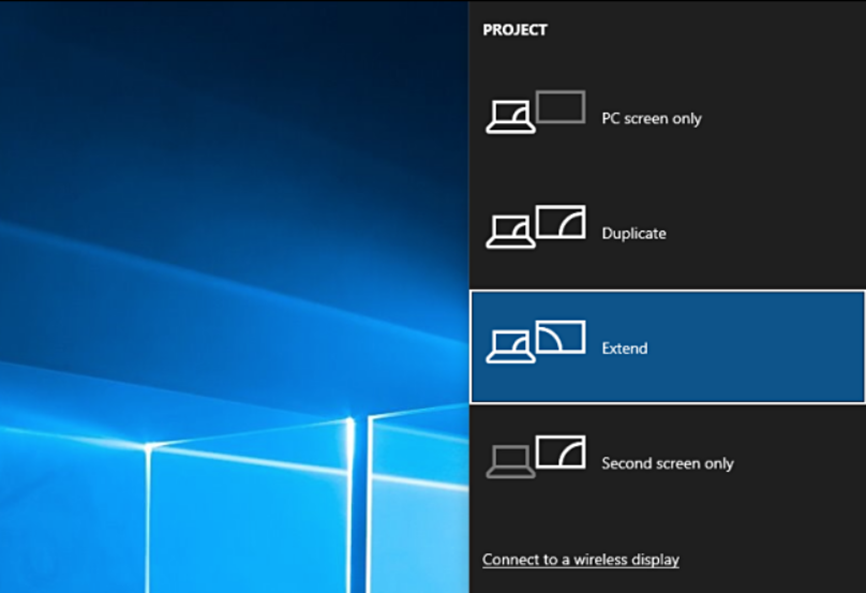
One solution to match the touch input with your picture is to choose to extend rather than duplicate your desktop. When duplicating the desktop, the picture on the i3Touch display is a mirror image of that on your main display. When extending the desktop instead, the Windows desktop is enlarged to span both displays. In that case Windows automatically adapts the picture to the native resolution and aspect ratio of the connected displays.
To change the current selection, make sure your cables are connected properly to the displays, then press Windows logo key + P on your keyboard to select a display option.
How to calibrate your i3Touch display in Windows 10
Another way to match the touch input with your picture is to calibrate the touch input in Windows. If you're having an inaccurate response using touch, use these steps to re-calibrate the device:
-
Open Control Panel.
-
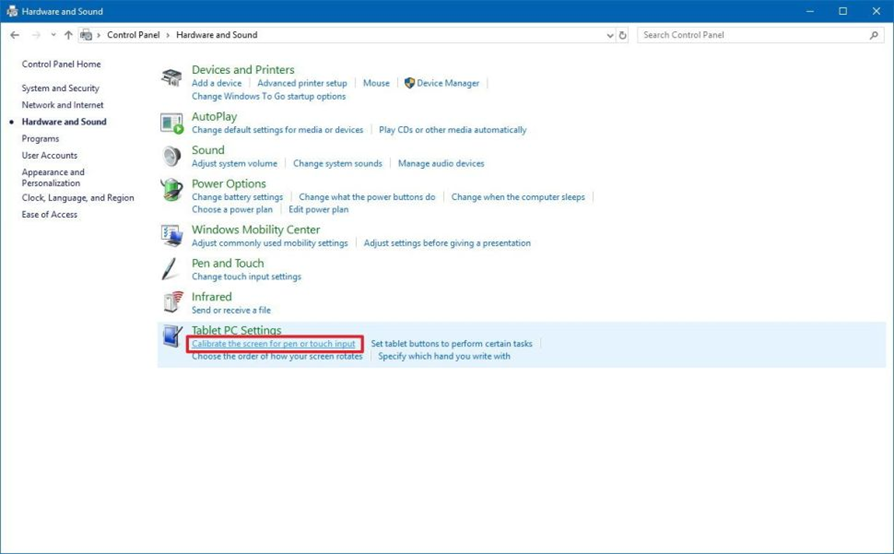
Click on Hardware and Sound.
-
Under "Tablet PC Settings," click the Calibrate the screen for pen or touch input link.
-
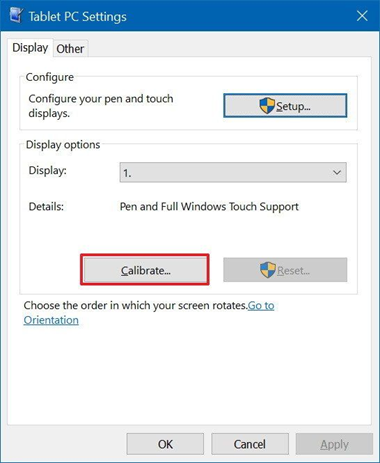
Under "Display options," select the display (if applicable).Quick Tip: Under "Details," you can tell whether your screen has full support for pen and touch with Windows 10.
-
Click the Calibrate button.
-
Select the Touch input option.
-
In the white screen, tap the crosshair each time that is appears on the screen, and do not change the resolution during this process.
-
After the calibration process concludes, you'll be given the choice to save the calibration data.
Once you've completed the steps, your touch-enabled device should more accurately register touch inputs.
Did you know that when Windows does not automatically recognize your display to have touch input capabilities, you can use the same “Tablet PC Settings” tool to correct this? Just click on “Setup” and complete the on screen wizard to let Windows know for each connected display if it is a touch display or not.
When the above URL doesn’t load, please use https://i3group.atlassian.net/servicedesk/customer/portal/2/article/922550300