The Image tool can be selected from the toolbar (Whiteboard tools: Overview)
Import from the Tool menu
The easiest way to import an image onto the board is through the Tool menu.
-
Select the image icon from the bottom of the Tool menu.
-
A dialog will pop up where you can select a file source.
-
Locate the image using the folder structure and select it.
-
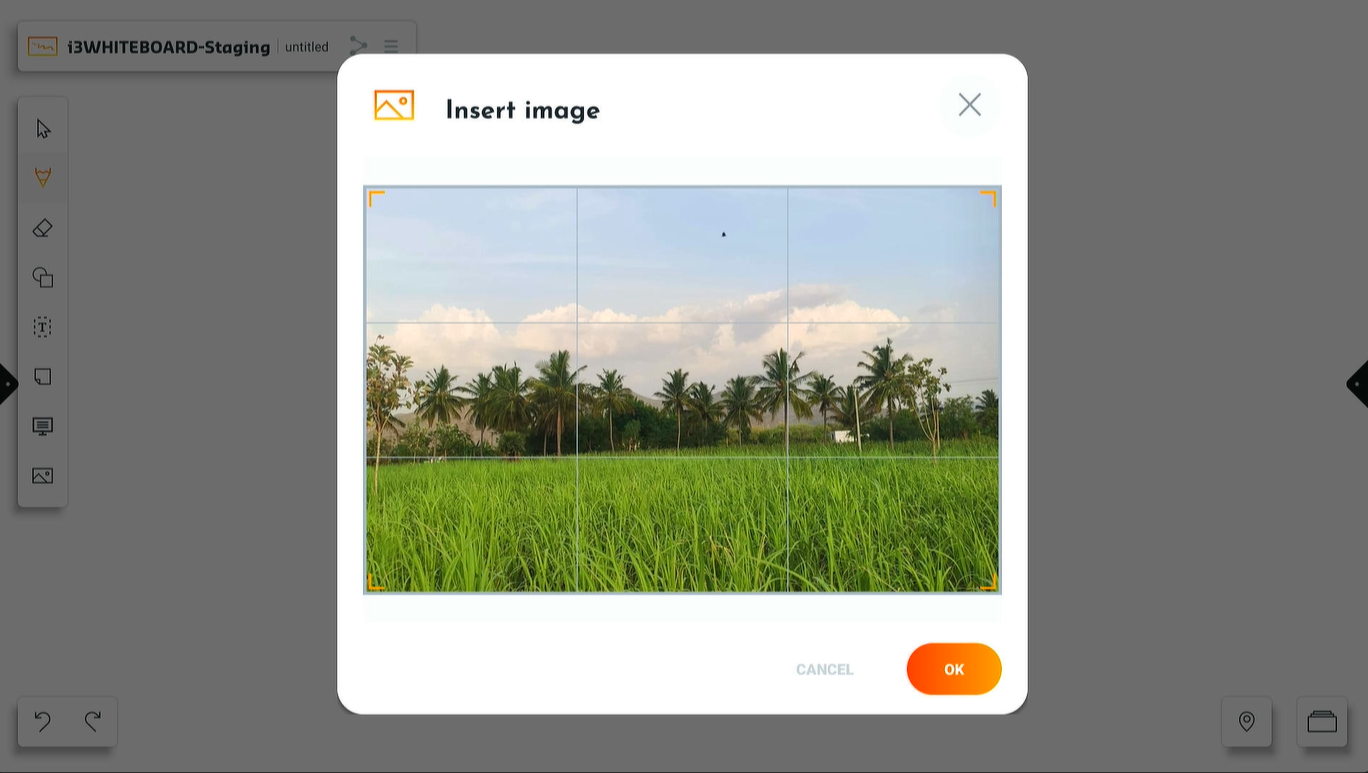
You’ll see a preview window of your image.
-
Drag from the corners to import only the part of the image you need, or select OK to continue.
Import from the File explorer app
-
Use the file explorer app to locate your file and long-press it.
-
From the dialog select i3WHITEBOARD and the image will be placed on the board.
Tou may not have the user rights to select apps from the App tray.
Import from the Web browser
A very quick way to get images in i3WHITEBOARD is to search for one using the web browser.
-
Open the web browser app from the side menu in the launcher.
-
Search for an image or go to a specific web page.
-
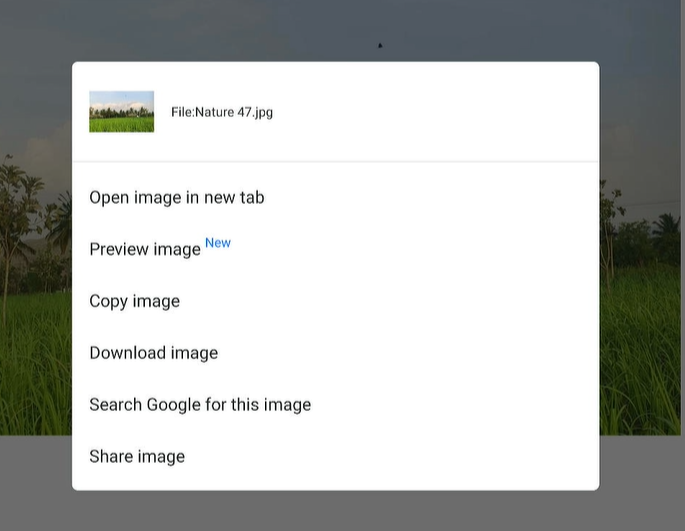
Long press on the image to load the image menu.
-
Open the image in a new tab
-
At the bottom you’ll see a menu item called “Share image”.
-
Select it and locate i3WHITEBOARD in your list of available apps. Select i3WHITEBOARD and the image will be placed on your board.