
When you power on your i3SIXTY 3 for the first time or after a factory reset, the setup wizard will guide you through essential configuration steps. This article is for anyone setting up a new i3SIXTY 3 interactive display and covers connecting to the internet, signing in with a Google account, and completing the initial configuration. If your display is already set up or you are using a different i3CONNECT product, refer to the relevant product guide.
By the end of these steps, your i3SIXTY 3 will be connected to the internet, updated, and ready to use with Google services and i3CONNECT Studio. If you encounter issues or the setup wizard does not appear, see the troubleshooting section below.
Before you start
-
Make sure you have access to a Google account (can be shared across multiple displays).
-
Have your Wi-Fi credentials or an Ethernet cable ready for internet connection.
Instructions
-
Power on your i3SIXTY 3 display.
-
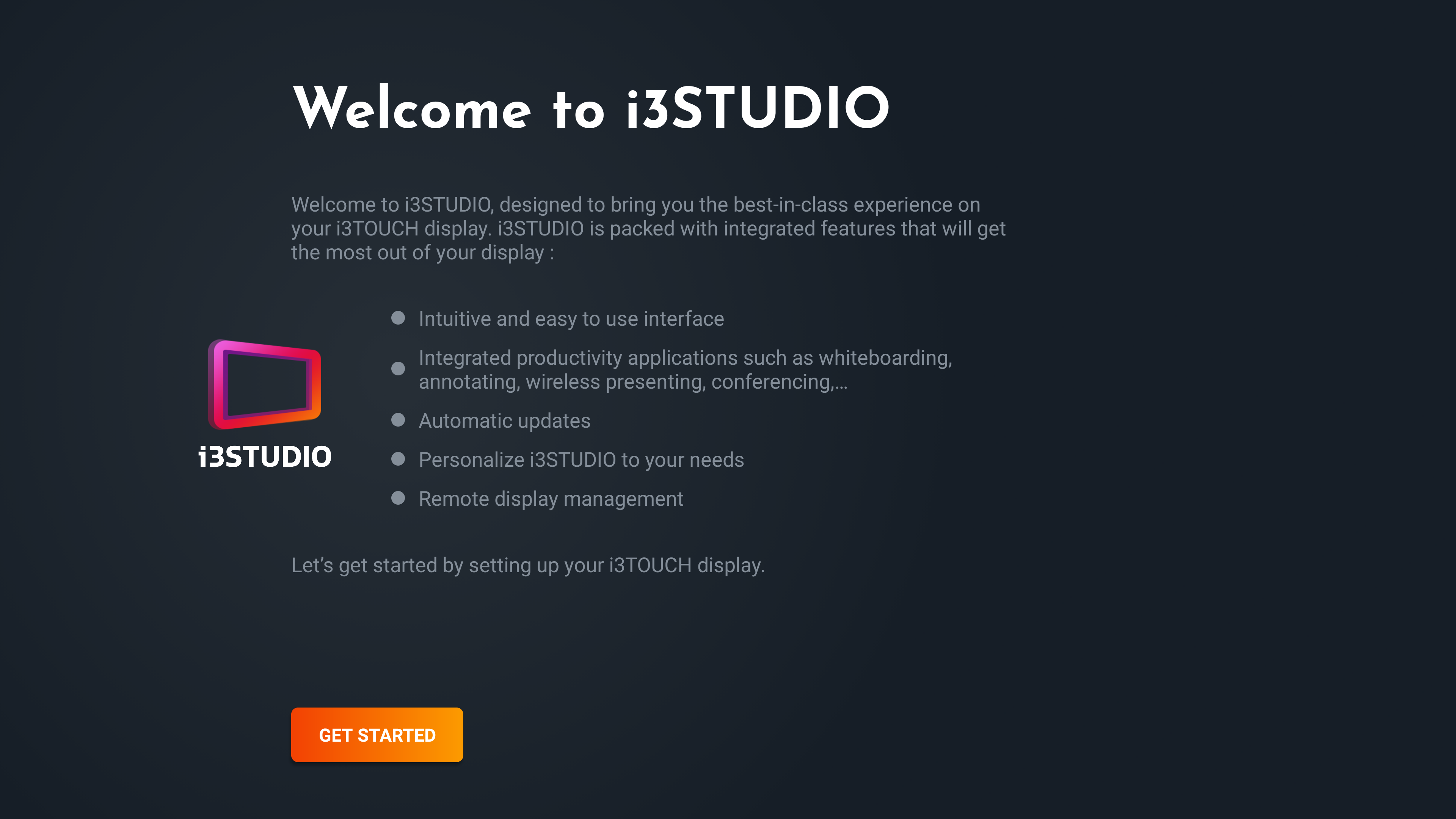
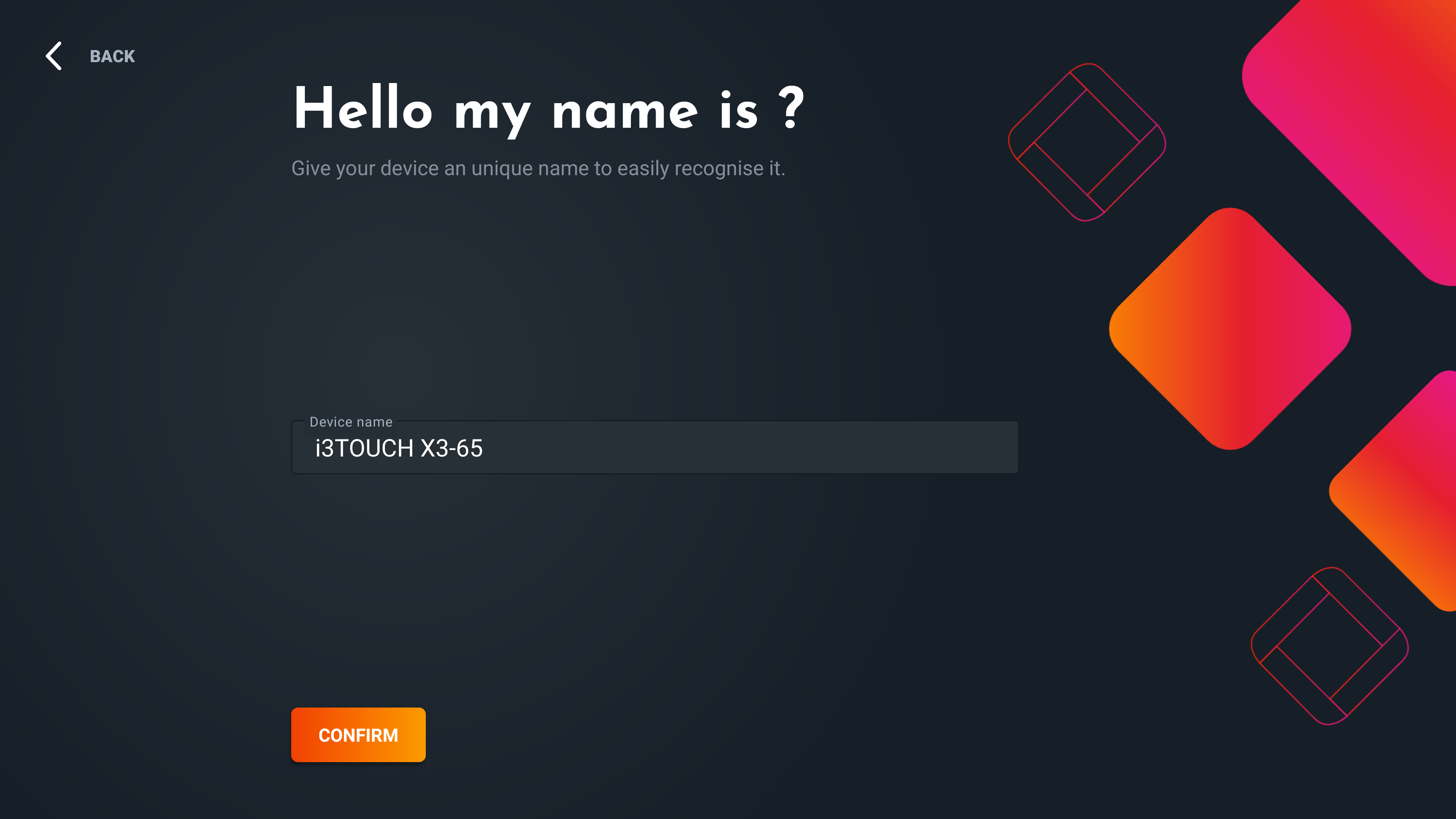
Follow the on-screen setup wizard. The wizard will launch automatically on first boot (or after a factory reset). You start by giving the display a unique name so that you can reference it in your i3CONNECT remote management portal later (if you wish).
-
Connect to the internet. Choose Wi-Fi and enter your credentials, or plug in an Ethernet cable to a LAN port.
-
Sign in with a Google account. This enables access to Google services. You can use a shared account for multiple displays.
-
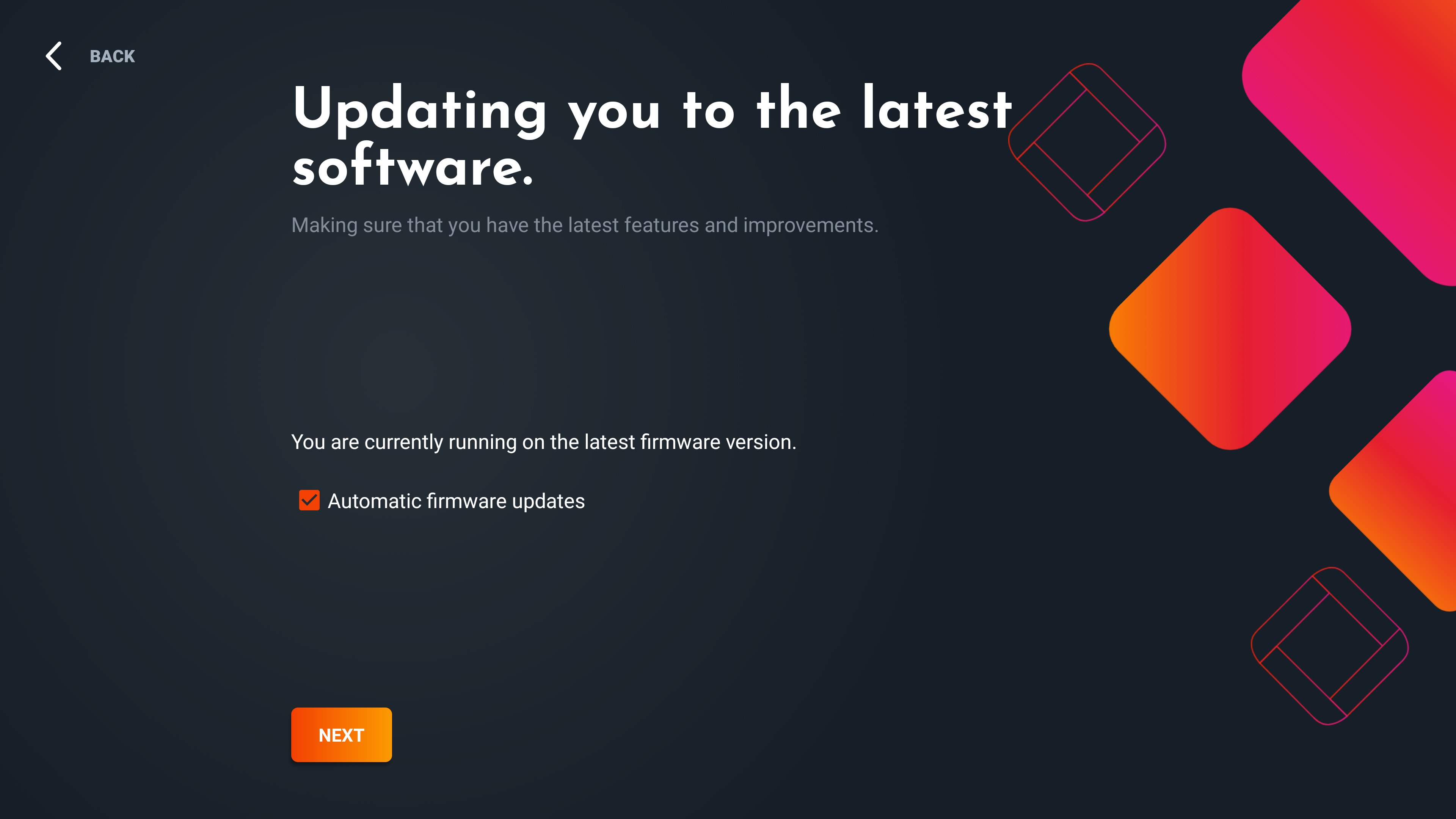
Allow the device to check for updates. The wizard will automatically search for hardware, software, app, and security updates from i3CONNECT and Google.
-
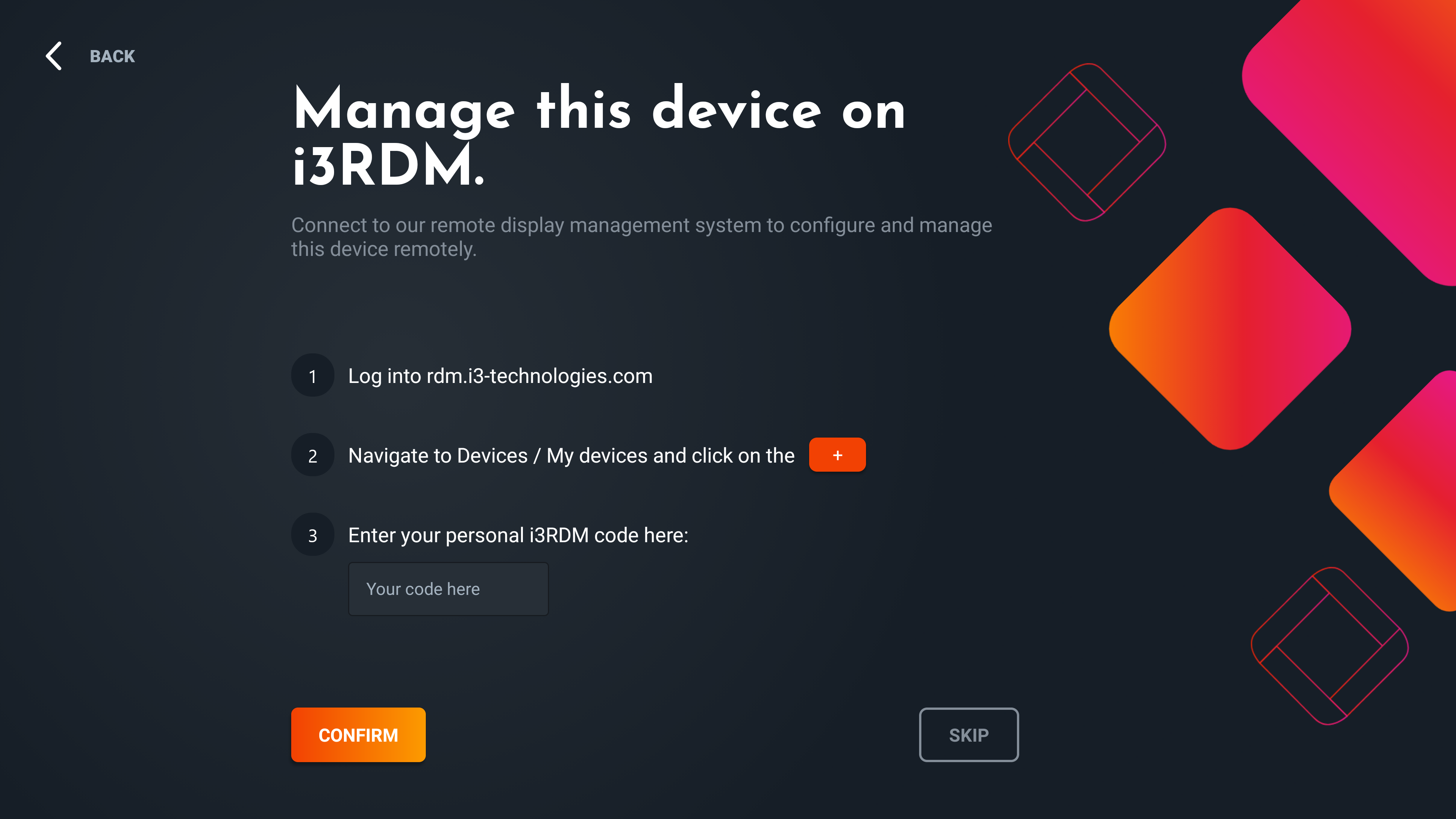
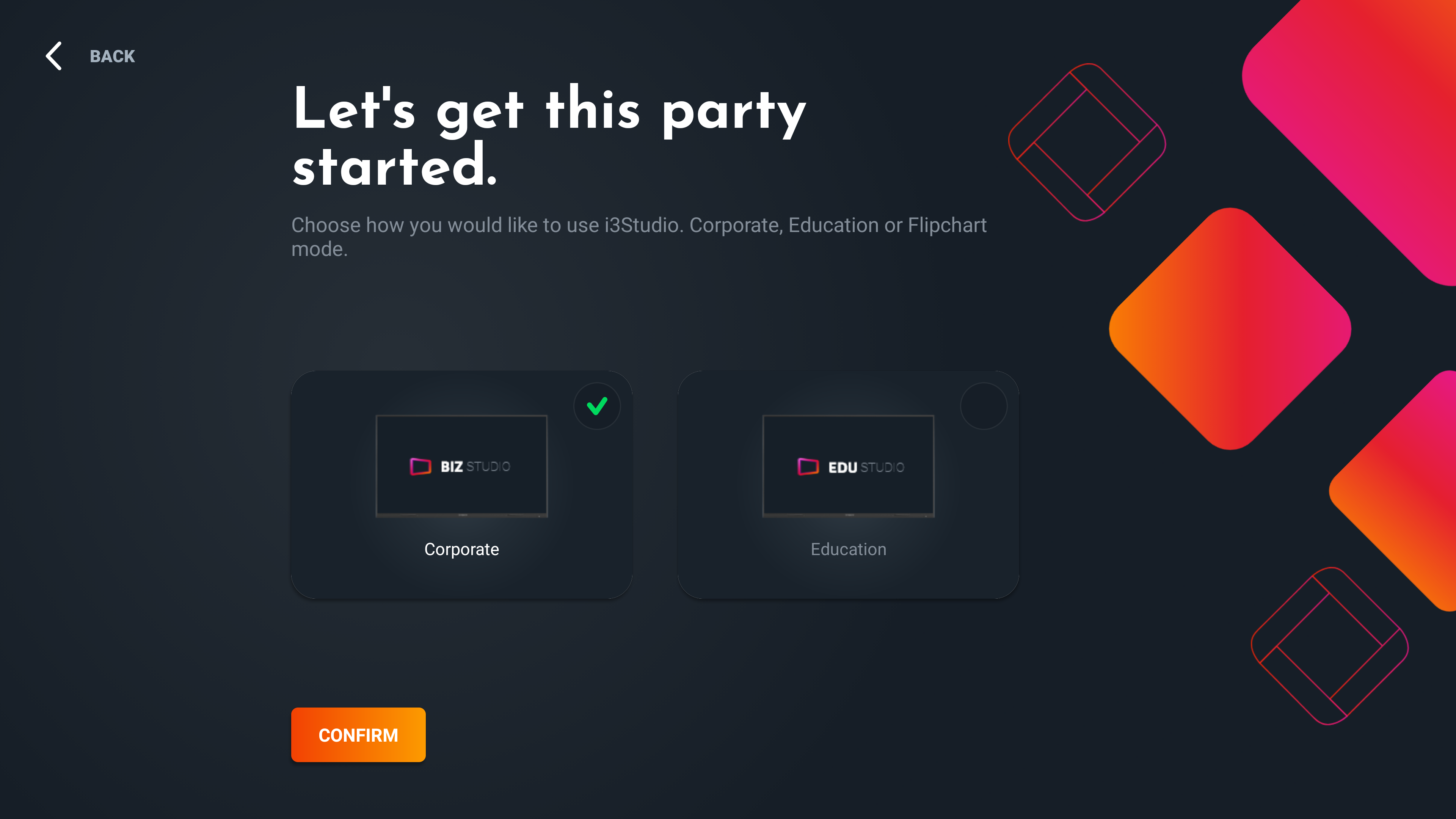
Complete i3CONNECT-specific settings. Follow the final steps to configure display preferences and finish setup. These are for remote management with i3CONNECT displays and whether you wish to be setup for corporate or education experiences of the interface.
-
And then you are ready!
Troubleshooting
-
If the setup wizard does not appear, restart your display or perform a factory reset.
-
If you cannot connect to the internet, double-check your Wi-Fi credentials or Ethernet connection.
-
For issues signing in with a Google account, ensure your account is active and credentials are correct.
-
If updates fail, try restarting the device and reconnecting to the internet.
-
For persistent issues, contact i3CONNECT support.