
Stay up to date with the latest features, security patches, and performance improvements for your i3SIXTY 3 interactive display. This guide is for anyone responsible for maintaining i3SIXTY 3 devices in classrooms, meeting rooms, or shared spaces. If your device is managed by IT or you’re unsure about performing updates, contact your administrator first.
By the end of these steps, your i3SIXTY 3 should be running the latest system and app versions. If updates fail or your device doesn’t match the instructions, see the troubleshooting section below.
Before you start
-
Make sure your i3SIXTY 3 is connected to the internet.
-
Do not power off the device during updates.
Instructions
Update your system software
-
Open the Settings menu on your i3SIXTY 3.
-
Go to “About Device”.
-
Select “System Updates”.
-
Follow the on-screen instructions to check for and install any available updates.
Update your apps
-
Press the

-
Open the

-
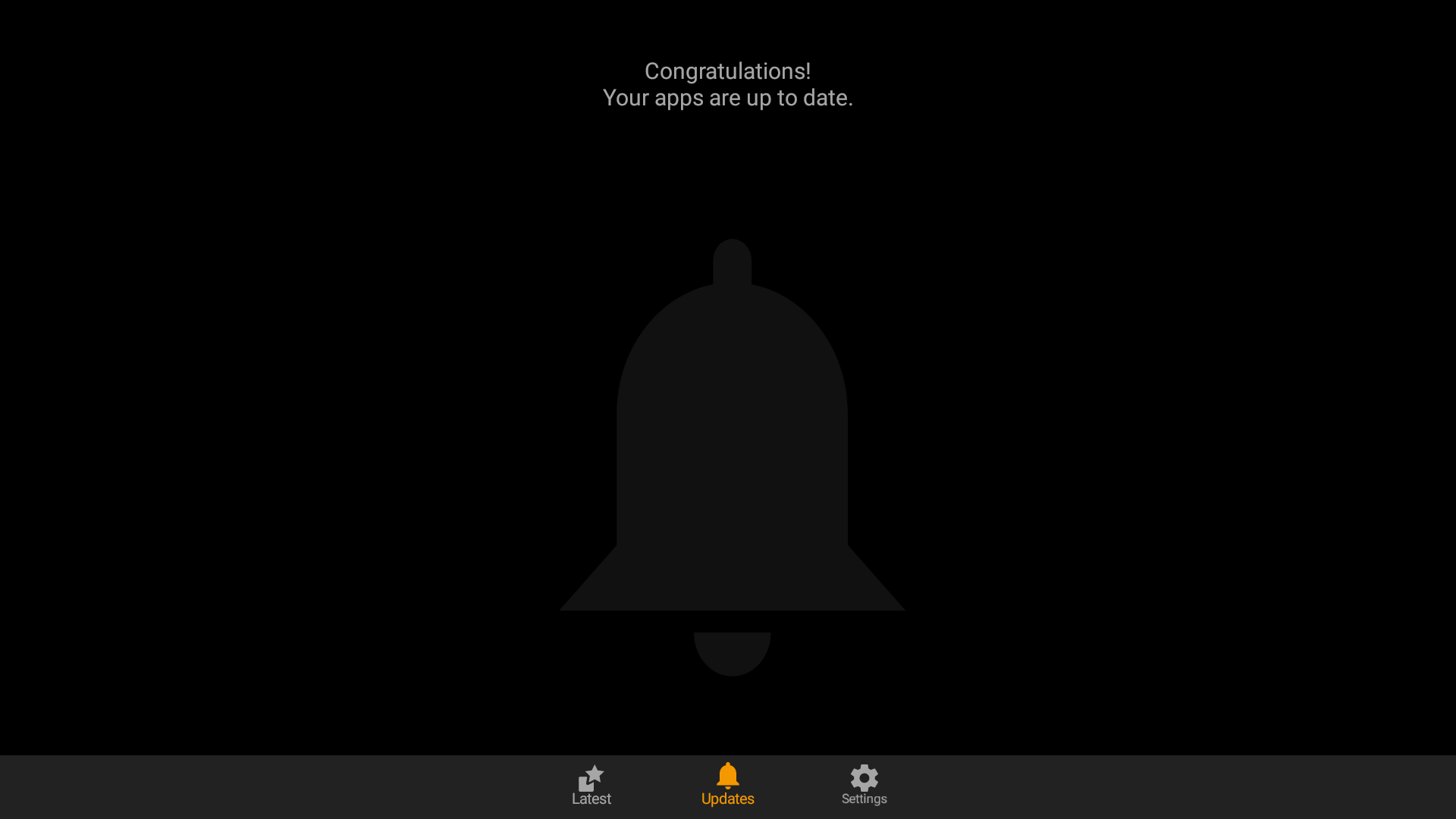
Navigate to the “Update” tab.
-
Press “Install” next to any app with an available update.
-
Swipe down to refresh the update page if needed.
Troubleshooting
-
If your device doesn’t show available updates, check your internet connection and try again.
-
If the update process fails or your device restarts unexpectedly, repeat the steps above.
-
If your menus or screens look different, your device may be running a different software version. Contact support for help.