
Get to know your i3SIXTY 3’s home interface for a smoother, more productive experience—whether you’re teaching, presenting, or collaborating. This guide is for anyone using i3SIXTY 3 displays in classrooms or meeting rooms. If you’re using a different i3CONNECT product, check the relevant guide for your device.
By the end of this walkthrough, you’ll be able to identify and use the main widgets and menus on the i3SIXTY 3 home screen. If you don’t see the features described here, or your interface looks different, your device may not be running the i3STUDIO Software Suite—see Troubleshooting below.
Before you start
-
Make sure your i3SIXTY 3 is powered on.
-
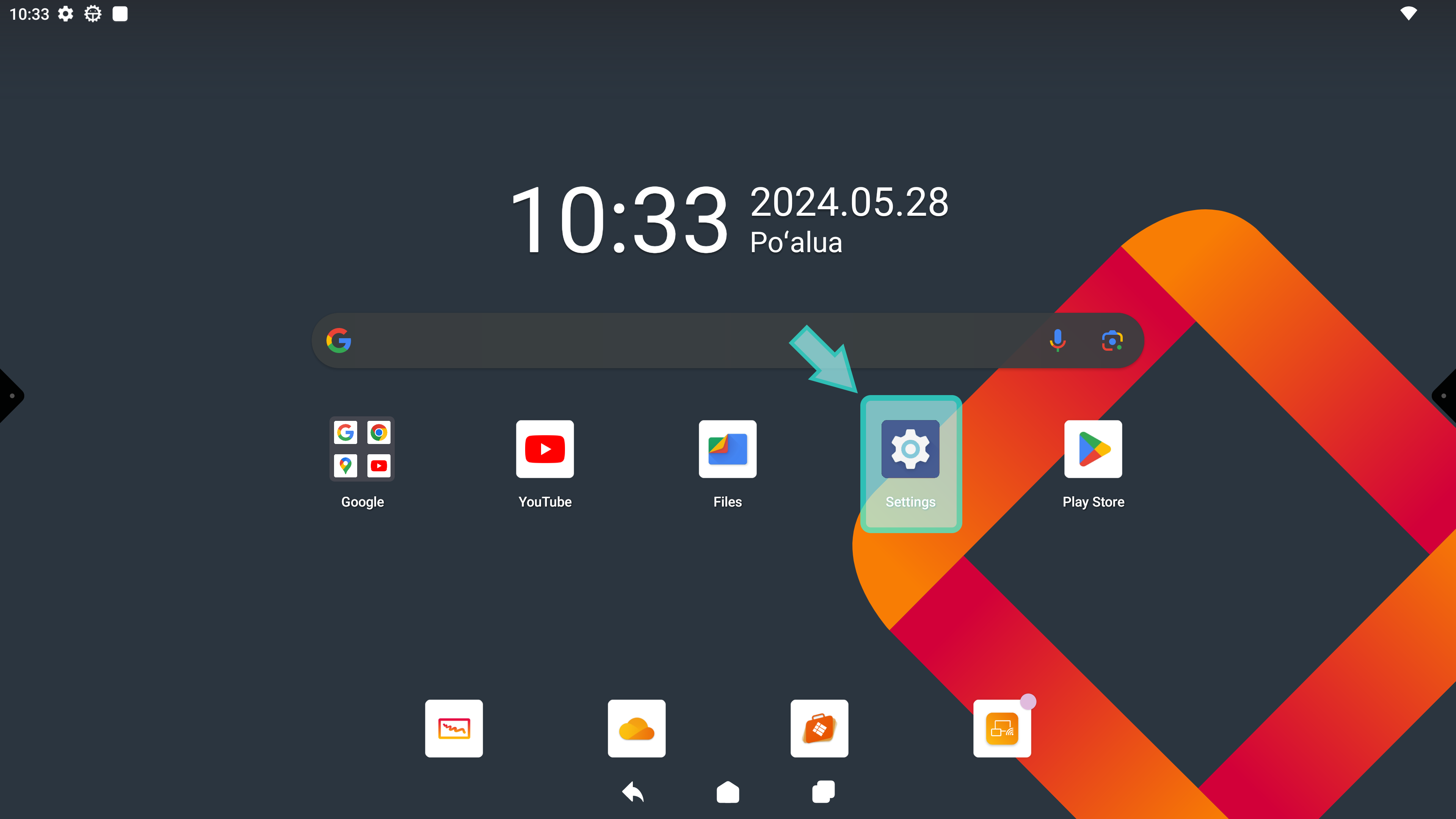
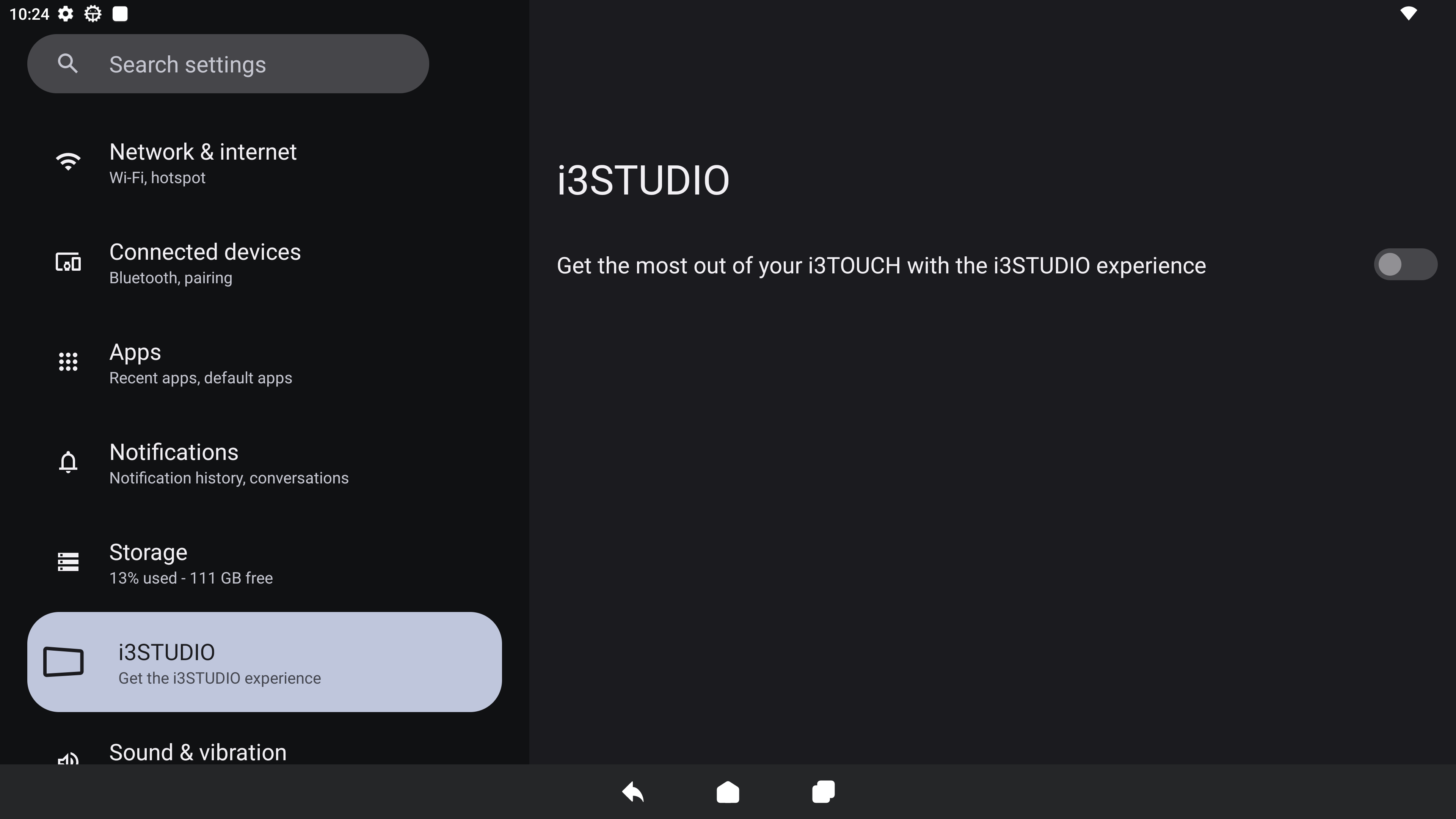
For the best experience, switch to the i3STUDIO Software Suite in System Settings > i3STUDIO and then toggling on the switch.
Understand the home screen layout
-
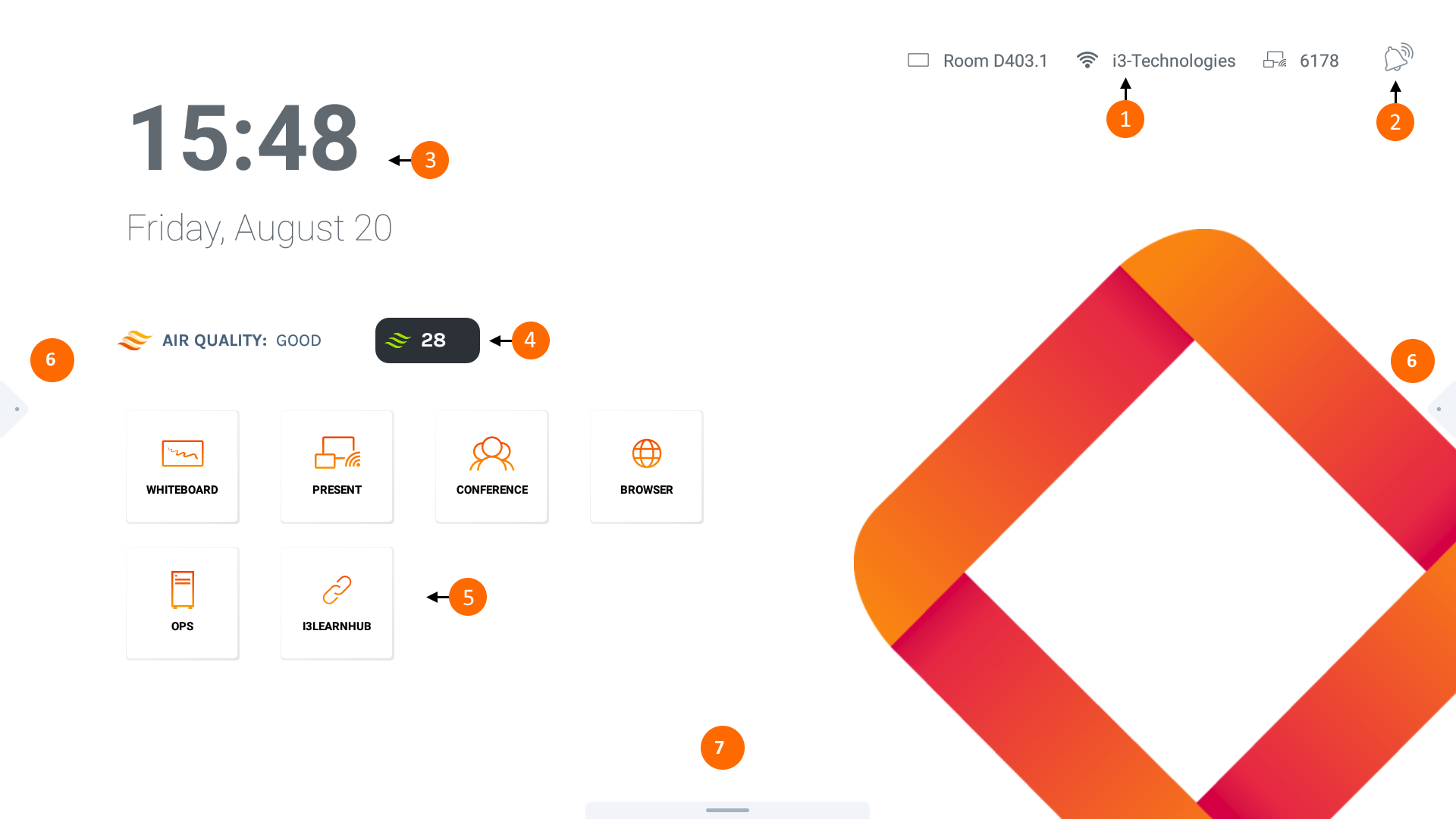
i3ALLSYNC Details: no need to open any other app to connect to your display!
-
Notifications: will indicate if there are new notifications that require your attention.
-
Clock widget: so you don’t lose track of time.
-
i3CAIR widget: indicates the air quality in case an i3CAIR sensor box is connected to your i3TOUCH.
-
Widget tiles: Launch your favorite application with one touch.
-
Side menus: Easy access to navigation control and applications.
Troubleshooting
-
If your home screen doesn’t match this guide, open System Settings and switch to the i3STUDIO Software Suite for the optimized interface.
-
If widgets or menus are missing, restart your i3SIXTY 3 or contact support.
-
For other i3CONNECT displays, refer to their specific home interface guides.