
This is a detail page of the full annotation toolbar: Annotation: Overview
Many features here are explained in more detail here: Whiteboard tools: Selecting and modifying objects
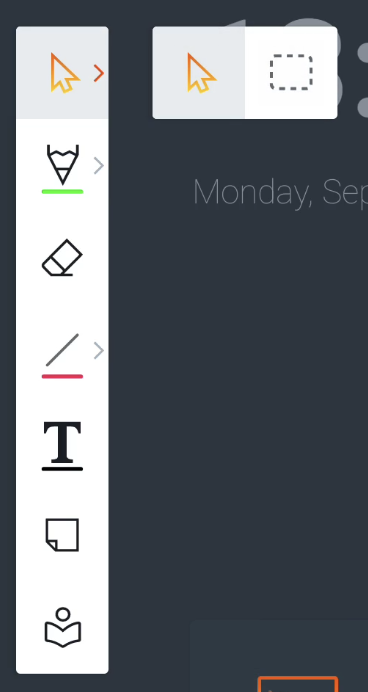
You can use the Pointer Select tool or the Box Select tool to select objects.
-
Pointer Select tool allows you to select a single object and also allows you to pan around the canvas.
-
Box Select tool allows you to drag a rectangle around the objects that you want to select.
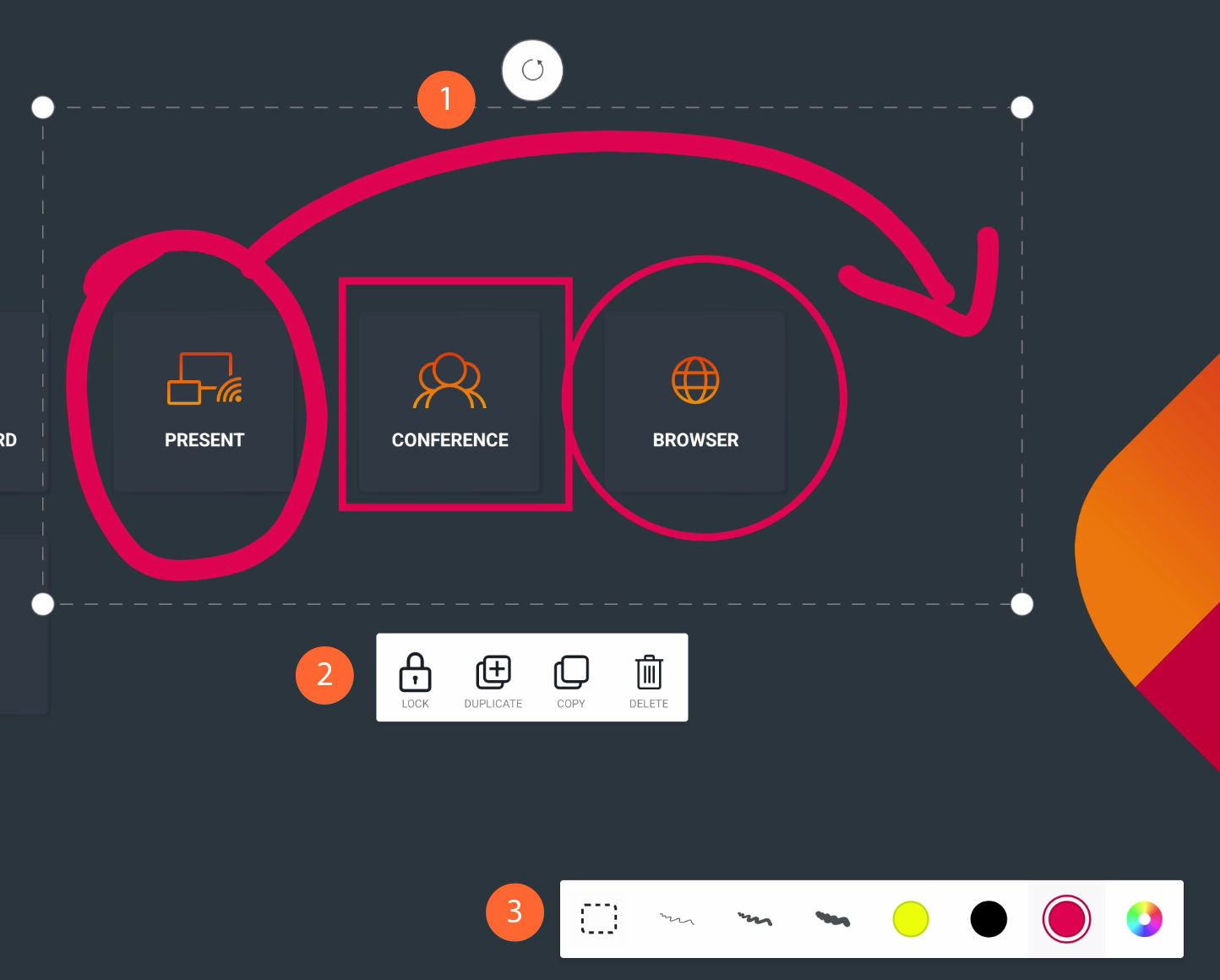
When you select one or more objects, a bounding box (1) will appear, along with the Actions menu (2) and Features menu (3).
Bounding box
The bounding box is visible around one or more selected objects. It adds UI elements like resize handles and a rotation handle, allowing you to resize and rotate the selected object(s).
Actions menu
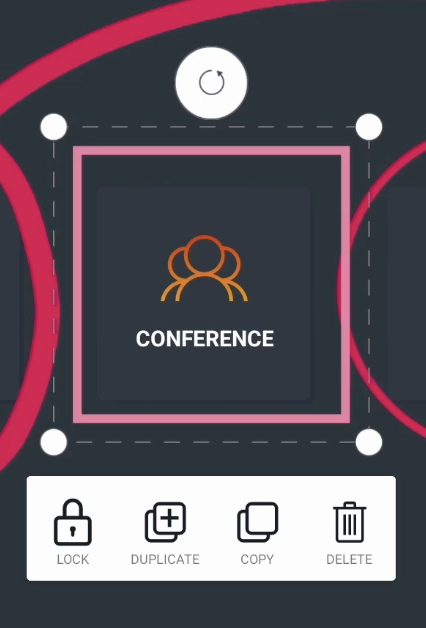
The Actions menu helps you to lock, duplicate, copy-paste and delete the selected object(s).
Lock
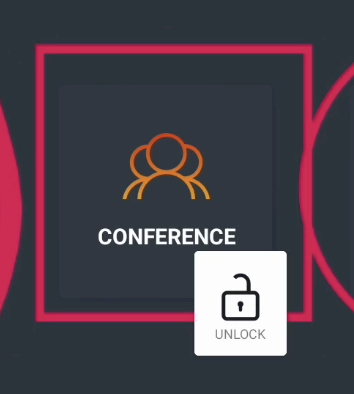
Locked objects can not be selected or deleted, nor can their features be changed until they are unlocked again. The action is easy to perform. Select one or more objects, hit the Lock icon in the Actions menu, and the object is locked. It’ll show you visually by adding a small Lock icon at the corner of the object when you try to select it: 
When locking the object, you may also have noticed that the Actions menu informs you how to unlock it:
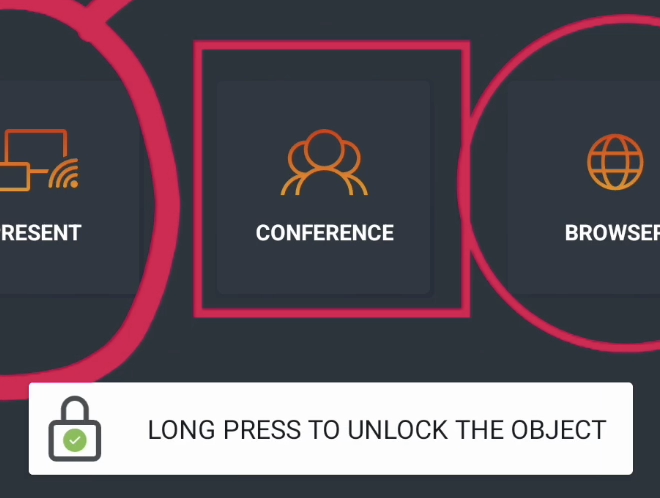
Long press the locked object, and you will see the action to unlock it:
You might also see a Paste icon next to it, if you previously copied an object.
Duplicate
Duplicate instantly creates a new instance of the selected object(s) in front of them.
Copy-paste
You can copy the selected object(s) and paste them later on the same or on a new page. Just like the Locking action, the Actions menu will briefly show you how to paste an object once you copied it.
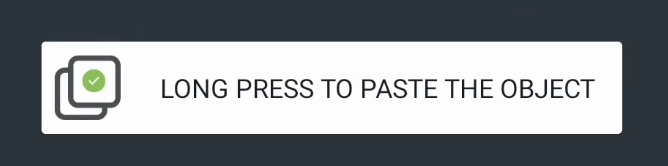
Long press anywhere on the canvas and a Paste icon will appear:
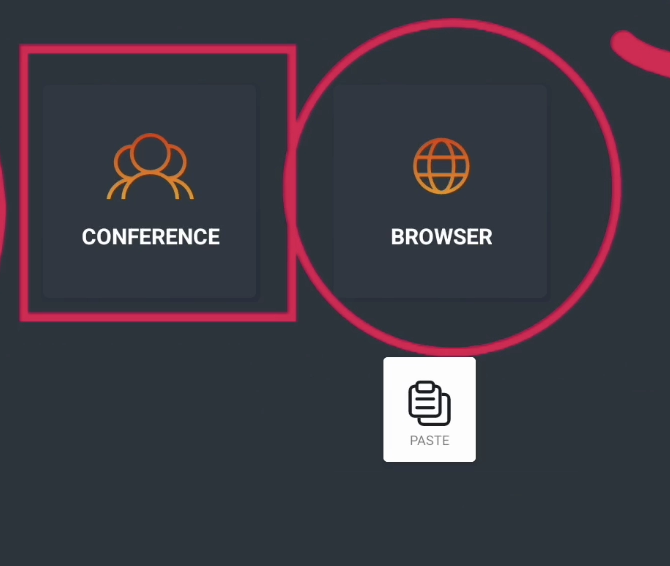
Select Paste and a copy of the object will be pasted on that position.
Delete
This action deletes the selected object(s) from the canvas.
Features menu
This Features menu will allow you to change the selected objects' features, like line thickness and color. Pick a color and all the selected objects will change to the selected color.
