
In this short manual you can read how you download the driver and connect the MDM to play games with your iMO-LEARN in a digital way.
-
Product overview
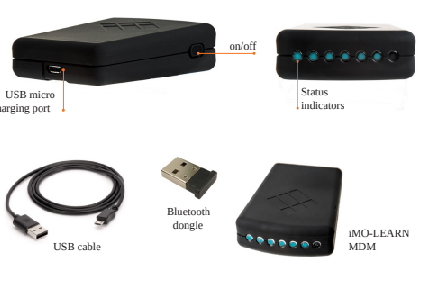
-
Set up
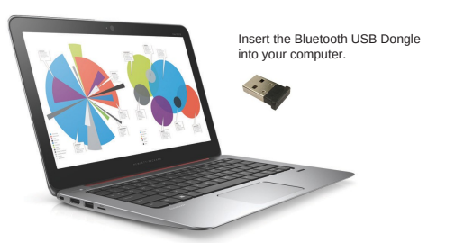
-
Software installation .
-
You need to download the iMO-CONNECT software, the first time you want to activate and connect your MDM to play in a digital way.
-
You only need to do this 1 time on your device. next time you click on this icon
-
link to download
-
-
CONNECT YOUR MDM ( bluetooth connection)
POWER on the MDM, just switch on the black button on the side.
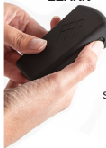
OPEN the iMO-CONNECT software. The software will show the MDM’s that you have switched on. . Tap on the icon.
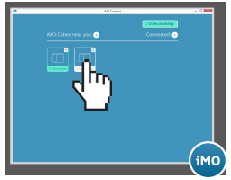
The status indicators on the MDM will flash when connected.
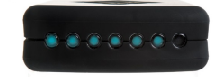
Once they are connected , tap the button ‘done connecting’
-
MDM in the iMO-LEARN CUBE
-
insert the MDM ( the module) in the iMO-LEARN cube, with the i3logo facing the yellow sticker.
-
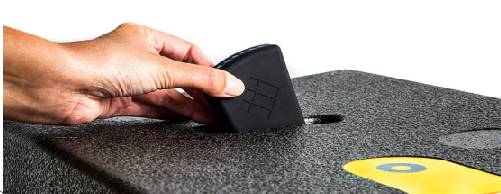
You can start playing now !
Create excercises in the software i3LEARNHUB , and have some fun in the classroom!
-
RECHARGING
-
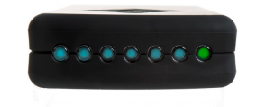
recharge the MDM with the micro-USB able . the battery is fully charged when the battery status-indicator is green. Charging time : 30 minutes.
-