
Download
Instructions
To fast set up your internal router for the use in Bridge mode and WIFI disabled please follow the next steps:
-
Please copy the Config.dat file to a PC or notebook
-
Make use of a cable in the LAN port of the screen and configure a static IP in the 192.168.123.X range on the connected PC to access the router page on its address on http://192.168.123.254
-
Enter the router page (username: admin, no password required)
-
Choose Advanced mode from the Site Contents
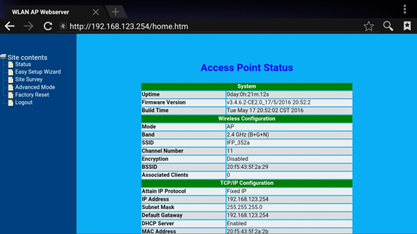
-
Click Management
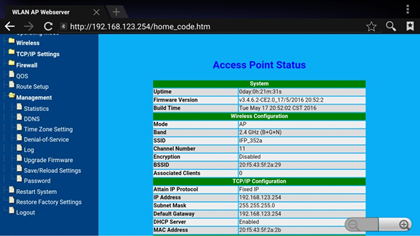
-
Click Save/reload settings
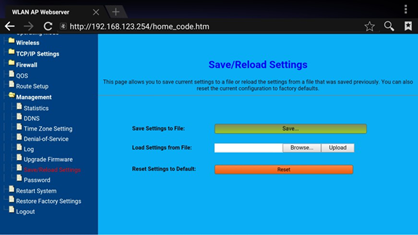
-
Now you choose load settings from file, and browse to the Config.dat file in your Download folder.
-
When the file is selected, press the upload button and the router will upload the configuration.
-
After the dat file is successful loaded, please do a cold start of the set (remove power).
-
After this reboot, you’re ready to use it in bridged mode with DHCP and WIFI disabled.