
Instructions
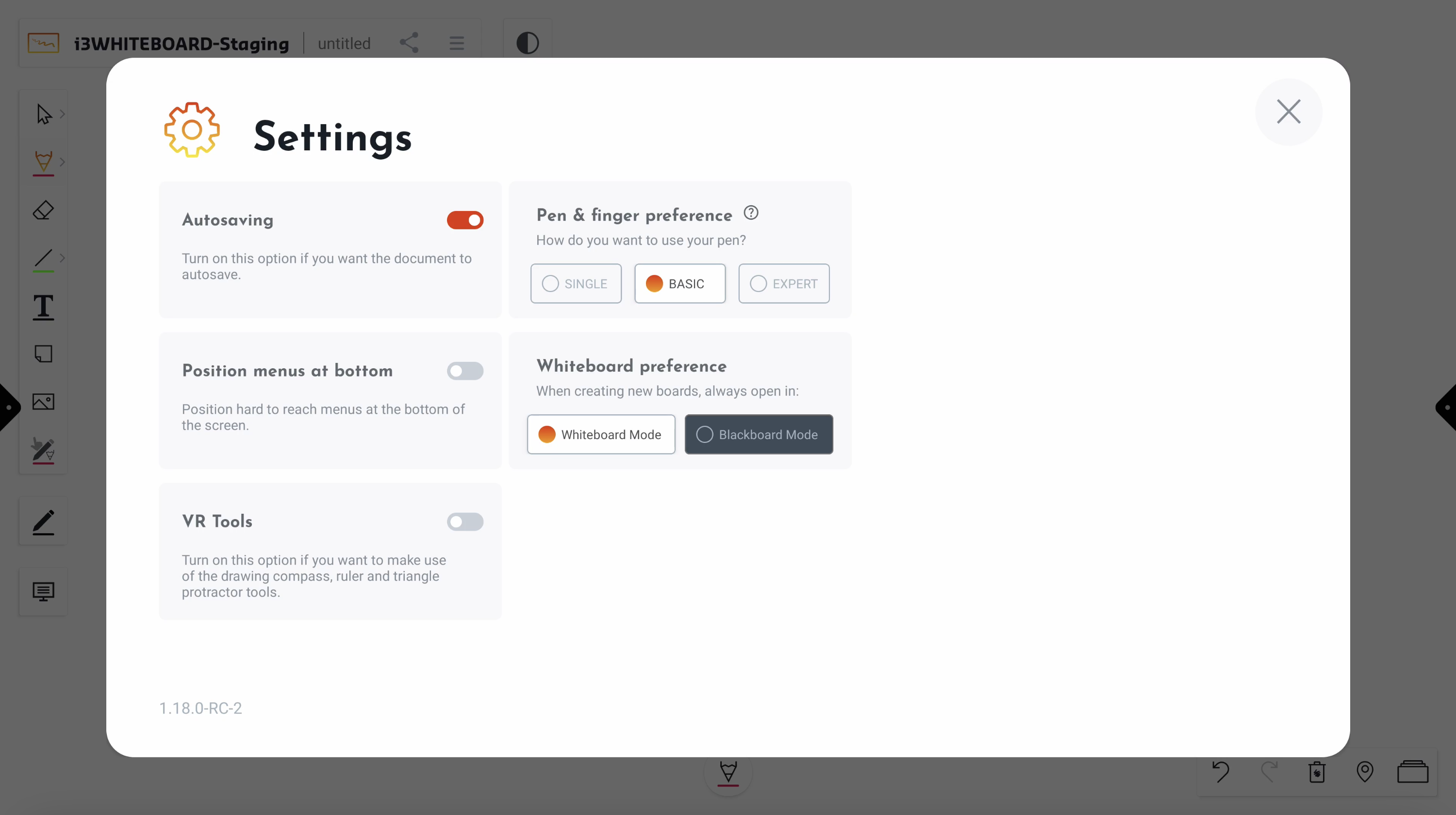
You can customize various application settings and workspace settings via the “Settings” option in the main menu. In addition, you can also see the version number of the application.
-
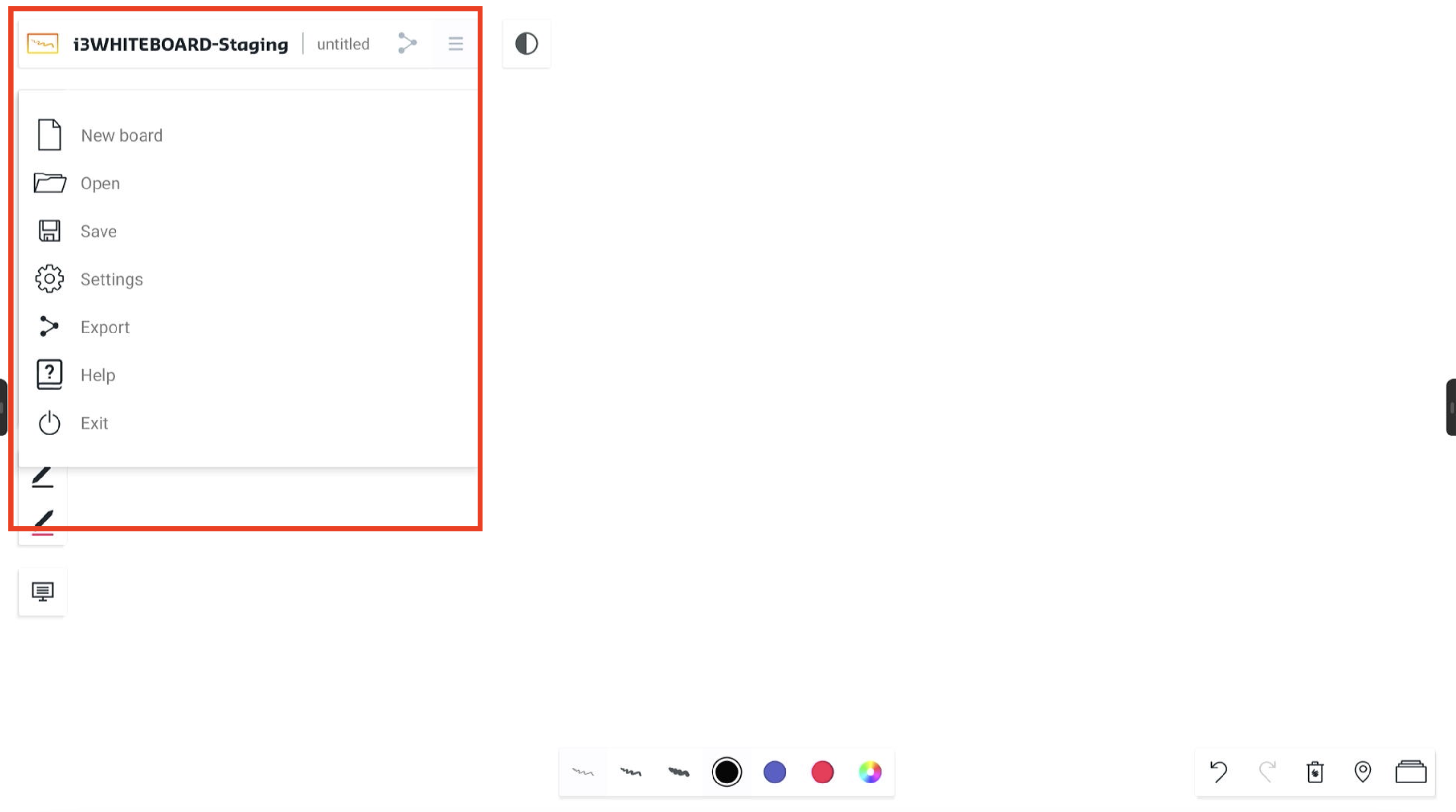
Open the whiteboard main menu: Main menu of the whiteboard
-
Press on Settings (read what each setting does below).
Autosaving
For autosaving, the current whiteboard must be manually saved first on an available storage location. The autosave feature will continue to save your file whenever any changes are made.
The autosave function will stop working if the medium to which it tries to save is removed or disconnected. This may happen when you remove a USB stick or disconnect cloud storage.
Position menus at the bottom
When turned on, the “Position menus at bottom” setting will position most menus that are normally high on the screen on the bottom instead.
VR Tools (Measure tools)
The VR Tools (triangle, ruler, and compass) are now also available for i3TOUCH displays in Corporate Mode. To activate it, select the toggle in the Settings menu. An extra icon will appear on the canvas in which the tools are made available.
Pen & Finger preference
This setting allows you to customize how you want to use the pens, depending on your i3TOUCH display and the pen(s) that come with it.
Preference: Single Mode
This very easy-to-use setting is the fastest way for novice users to get up and running in i3WHITEBOARD as both finger and pen are considered the same. For this reason, the pen icon is not visible in the Tool menu.
Preference: Basic Mode
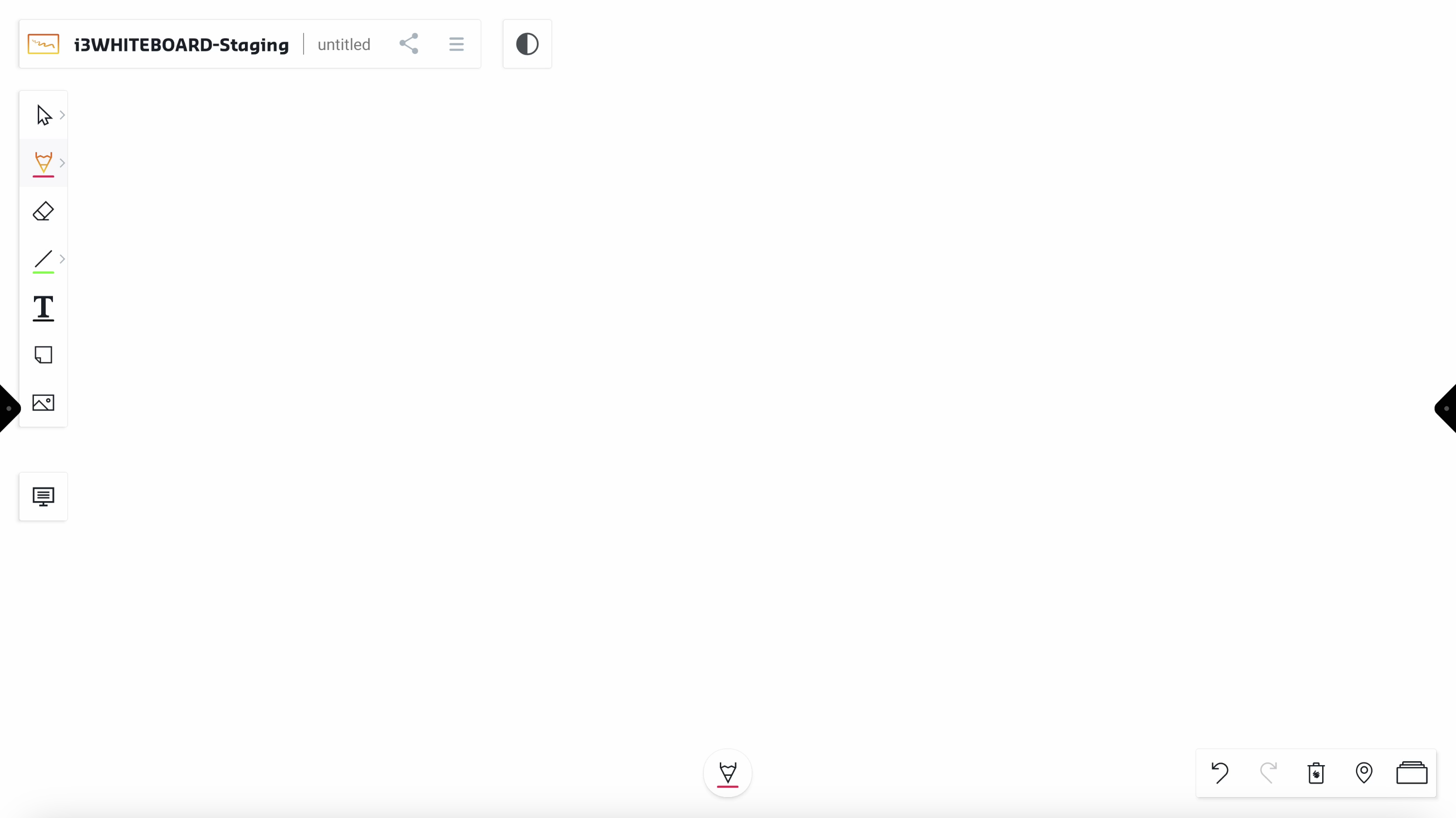
Limited, yet flexible, Basic Mode brings back how some more experienced users were used to working with the finger (or the back of the pen) as a different tool from the pen, only for writing. When activated, you will see the Pen icon is available for you to set its features independently. This is different on all our i3TOUCH displays, which we explain below.
-
E-ONE and X-ONE Basic Mode: will allow you to set the front of the pen with the Pen tool. The back of the pen will do the same as the finger, allowing you to use a different tool.
-
X2 and X3 Basic Mode: will combine all pens, apart from the grey pen, into one. The grey pen always acts as the finger, which can use a different tool.
-
ULTRA and P2 Basic Mode: will combine all pens while the finger can use a different tool.
Preference: Expert Mode
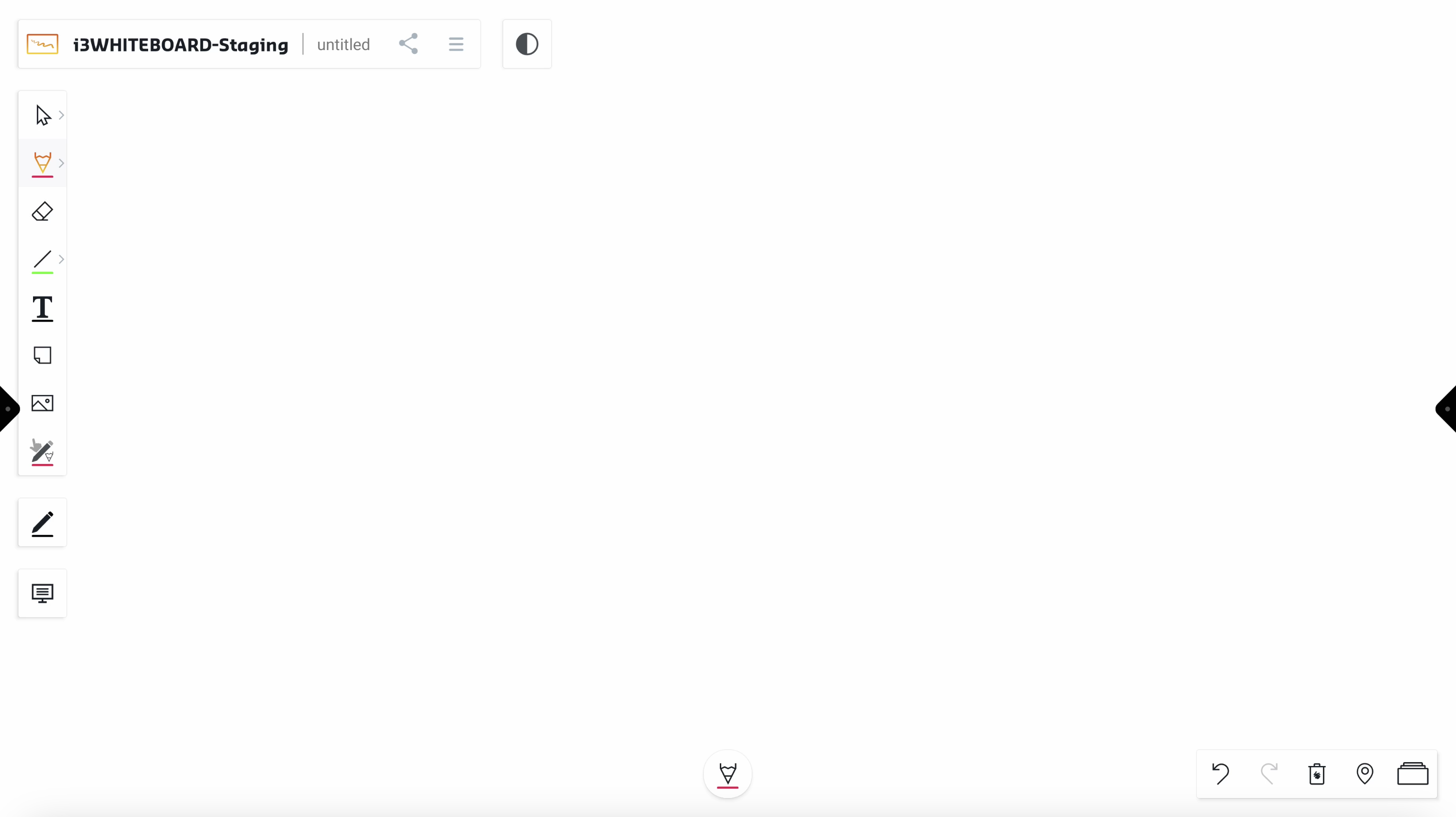
Expert Mode is the most advanced setting and has dedicated features for your finger and each pen that comes with the display.
Go to Settings via the Main menu and under “Pen & finger preference”, select Expert Mode if not already selected. Each pen, available for your i3TOUCH display, and the finger will have its own color and line thickness features.
-
X2 and X3 Expert Mode: the grey pen will always act the same way as the finger.
Whiteboard preference
This mode allows you to choose between Whiteboard Mode and Blackboard Mode, effectively next time you create a new file. Blackboard Mode will apply the following:
-
Dark application theme
-
Dark canvas background
-
Separate color presets for use on a dark background