
The AllSync display app home-screen is your launchpad for wireless sharing on i3CONNECT interactive displays. Use this guide if you’re new to AllSync or need a quick refresher on what each icon and label means. If you’re using the AllSync transmitter dongle or a non-i3CONNECT receiver, refer to their specific guides.
To open the display app press on the "Present” tile on the home-screen or from the side-bar.
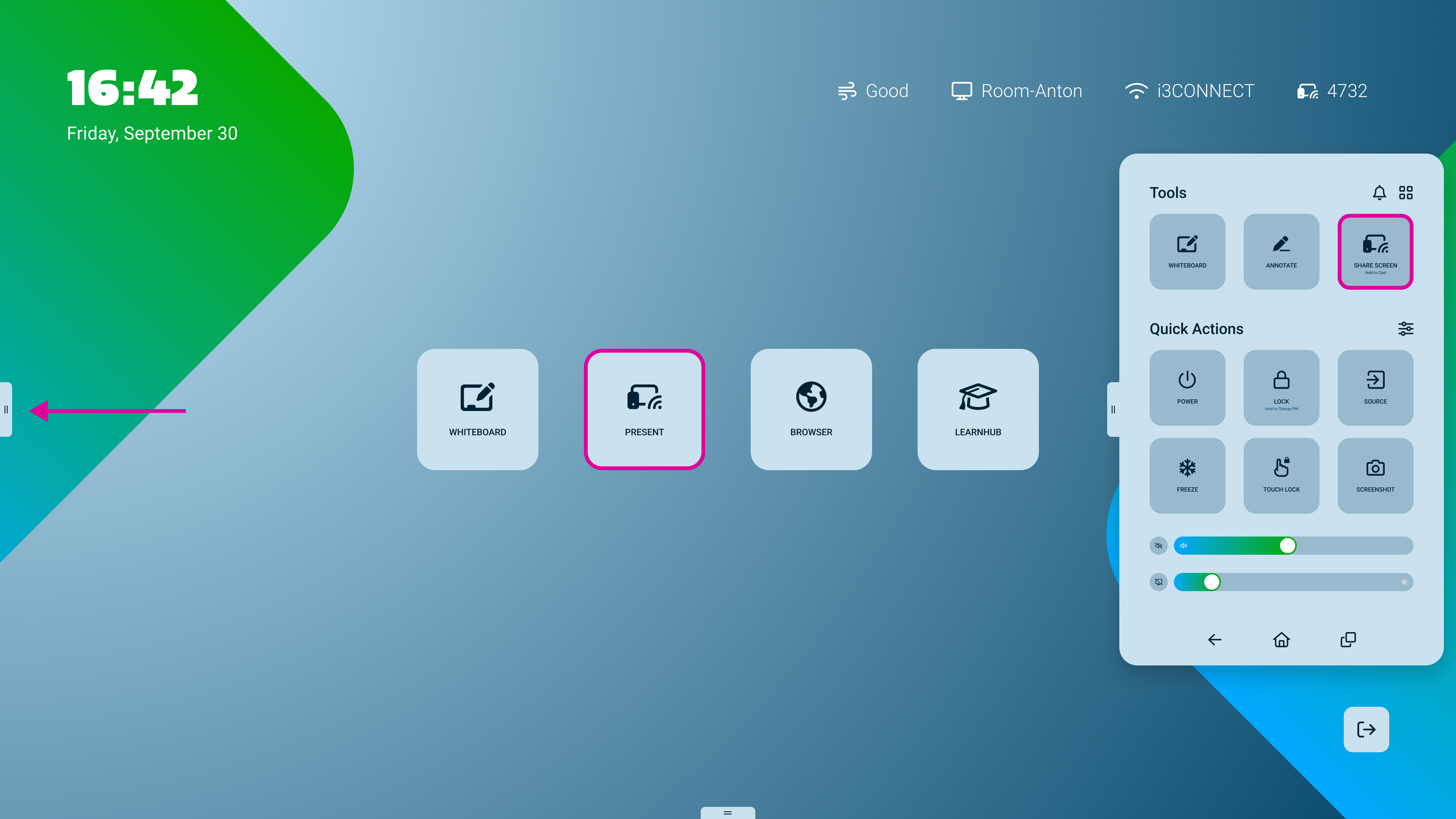
Allsync overview
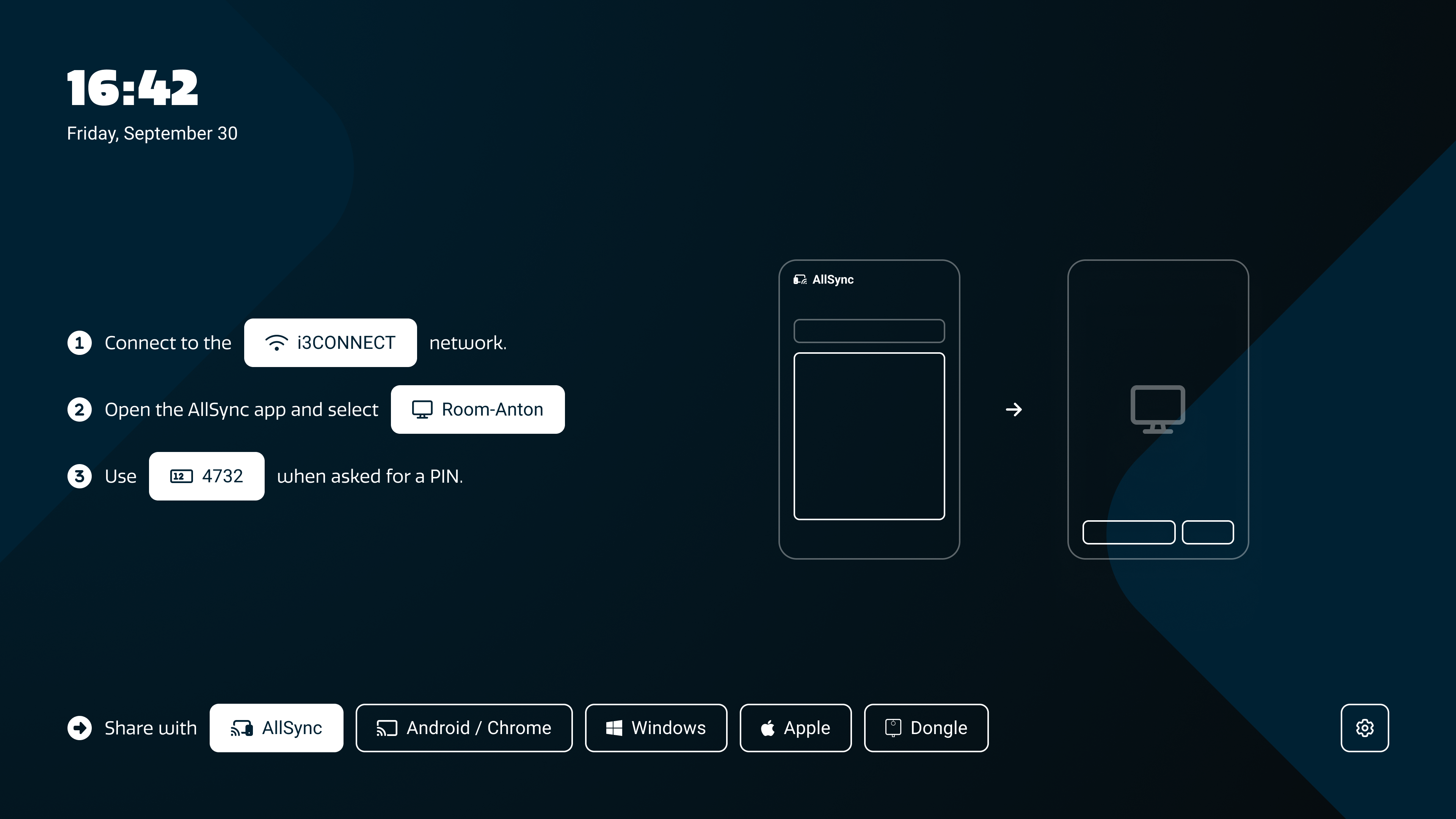
Once the Present app opens, you will see on-screen instructions for the AllSync PC-app. Tap on the buttons at the bottom of the screen to switch between operating systems.
AllSync display-app
|
|
Item |
Description |
|---|---|---|
|
|
WiFi-network |
Shows the current Wi-Fi name (SSID) if the display is connected wirelessly, or “LAN” if on cabled Ethernet connections. Customise the name of this network in the settings of AllSync:
|
|
|
Device Name |
Displays the system name of your i3CONNECT display. Change the name of the display using these instructions:
|
|
|
Login PIN-code |
A 4-digit code to ensure you connect to the correct receiver, and to prevent others from accidentally taking over your display. |
|
|
Share with: |
Tapping on each of these buttons provides the relevant instructions for your device. See the images of each device below this table. |
|
|
Settings menu |
The control panel and main functions of i3ALLSYNC. Located at the top middle of the screen. For a full list of settings, visit: |





AllSync PC-app
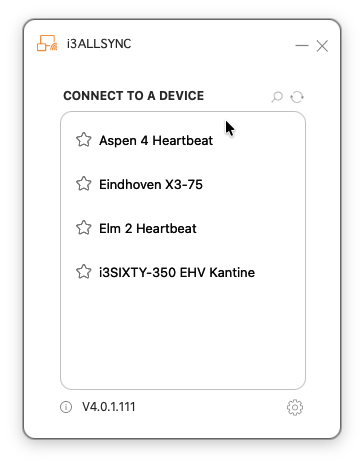
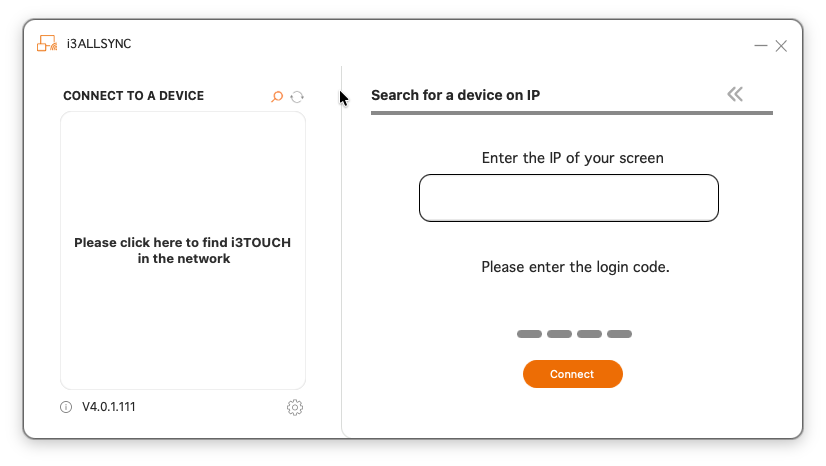
This is the app you will see on your laptop or mobile device. It can differ slightly in layout depending on the device you are using
|
|
Item |
Description |
|---|---|---|
|
|
Device List |
Lists AllSync displays found on your device’s Wi-Fi network. These are listed by display name, sorted alphabetically from A to Z. |
|
|
Search for a device by IP |
Allows you to search for a display based on the IP address and PIN login code shown on the display (often not shown) |
|
|
Refresh |
Refreshes the device list. Clears all previously found devices and starts searching the Wi-Fi network you are on for devices. |
|
|
Favourite |
Mark a display as a favourite so it shows at the top of the device list. |
|
|
Version |
Shows the AllSync PC-app’s version number. Pressing on the icon will reveal your device’s (host) name, IP address, and the App version. |
|
|
Settings menu |
Adjust the AllSync PC-app settings here. These include:
|




.png?cb=f61187afd0a8ec50665582e80722e539)
Your AllSync display-app may appear different
In that case you are likely using an older version of AllSync on your display or another sharing tool. If that is the case, you will need to use best judgement for how it all works, as this guide is written for the most recent version.
AllSync tends to work in very similar ways, and then the guides are still useful! Check this page for the screenshots of older editions to be sure you are using AllSync:
Choosing the right app / tool for your device when screen sharing with AllSync
Troubleshooting
-
If you cannot find the device name or PIN, restart the display or check network connections.
-
For issues with transmitter dongles or non-i3CONNECT receivers, consult their dedicated support articles.
-
If connection instructions are missing or unclear, contact i3CONNECT support.