
The AllSync display app home-screen is your launchpad for wireless sharing on i3CONNECT interactive displays. Use this guide if you’re new to AllSync or need a quick refresher on what each icon and label means. If you’re using the AllSync transmitter dongle or a non-i3CONNECT receiver, refer to their specific guides.
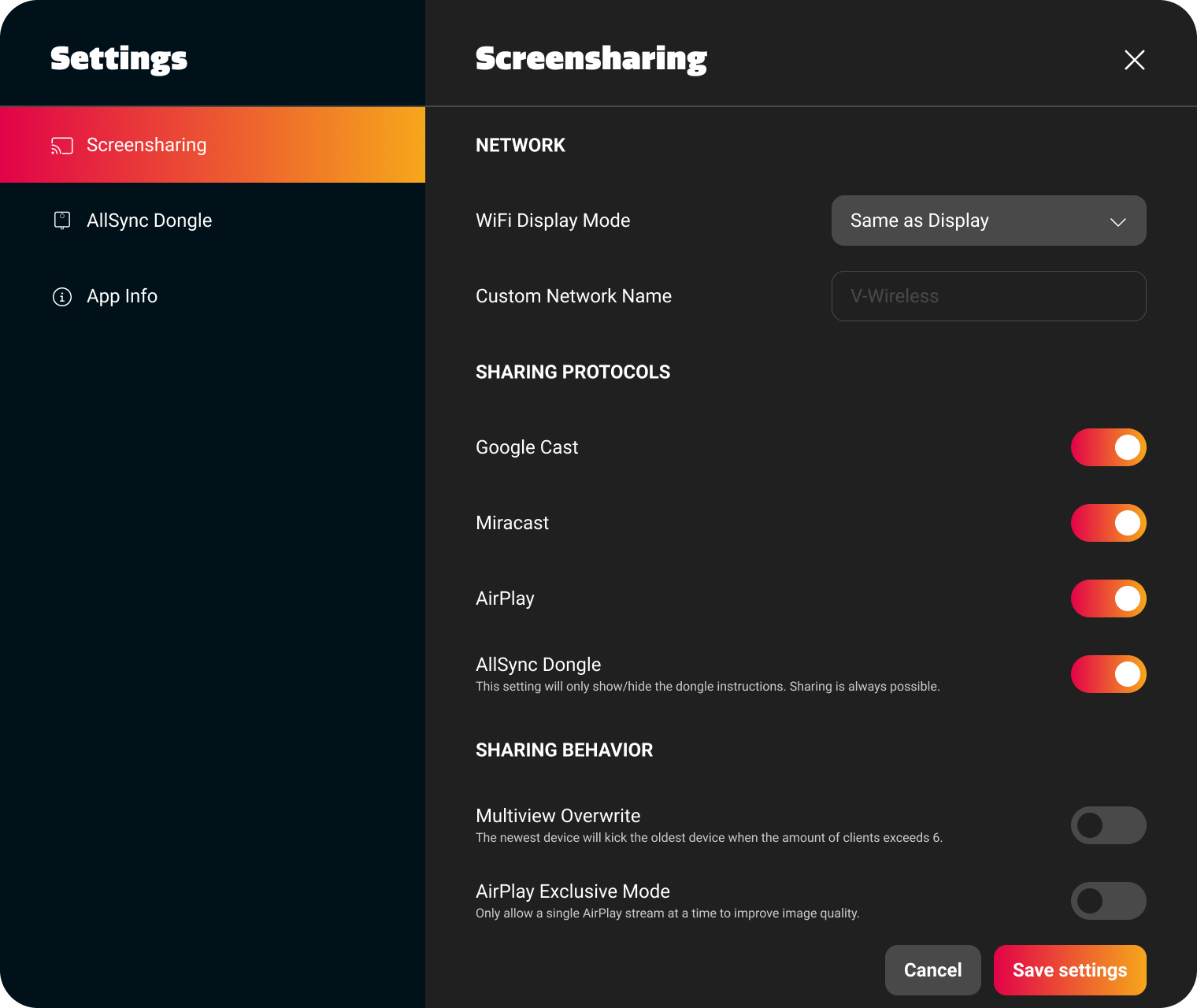
AllSync display-app settings
Screensharing
|
Setting |
Description |
|---|---|
|
NETWORK |
|
|
WiFi Display Mode |
Sets the way the WiFi name is displayed in the AllSync display-app, and on the home-screen in the top right corner of i3CONNECT Studio.
|
|
Custom Network Name |
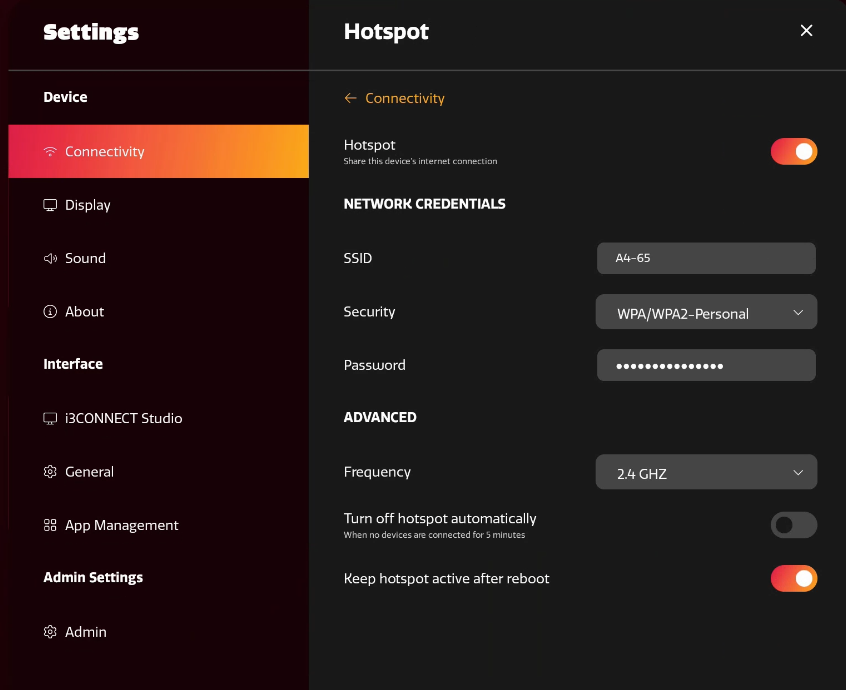
If Alias is selected in the above setting, you can enter a custom network name here. This overrides the name you have attached the display to in the AllSync app and the i3CONNECT Studio home-screen Change this setting to the name of the SSID when you want to use the display-hotspot for casting. Enable and setup the display-hotspot in the i3connect settings. Make sure to enable the slider next to Keep hotspot active after reboot.
|
|
SHARING PROTOCOLS |
|
|
Google Cast |
This allows users to cast to the display using Google Cast / Chrome Cast from their Android or ChromeOS device. They can also cast on any operating system from the Chrome browser. |
|
Miracast |
This allows users to cast to the display using from their Windows device using Miracast ( |
|
Airplay |
This allows users to cast to the display using from their Apple laptop (macOS) or iPhone / iPad (iOS) using AirPlay Screen Mirroring. |
|
AllSync Dongle |
This allows users to cast to the display after plugging the AllSync dongle into their device. This setting only shows/hides the instructions. Sharing with a dongle will always remain possible, even with the instructions removed. |
|
SHARING BEHAVIOUR |
|
|
Multiview overwrite |
The newest device will kick the oldest device when the amount of clients exceeds 6 devices. |
|
AirPlay Exclusive Mode |
Only allow a single AirPlay stream at a time to improve image quality.
|
|
Moderator Mode |
Start and stop clients from streaming with on-screen controls. See: |
|
Connectivity |
Enable or disable screen sharing in AllSync. This is needed if you wish to use another screen sharing device or app instead. It prevents the screen from appearing in the lists of castable displays. |
|
Mode |
How the connect code is generated:
|
|
Code |
If the mode above is set to ON, you can enter your preferred 4 digit connection code here. |

AllSync Dongle
|
Setting |
Description |
|---|---|
|
+ Pair AllSync Dongle |
This allows you to connect an AllSync Transmitter dongle to the display. Tapping this starts the pairing setup wizard which includes instructions on how to pair the dongle. Pairing requires that you plug the dongle into a device that is on, and can be done with the display’s own USB-C port if no laptop is nearby. |
This page is only for starting the pairing wizard, and it does not show a list of paired dongles. To learn how to pair a dongle, follow this instruction:
Information
|
Setting |
Description |
|---|---|
|
App version |
This shows the app version of the display’s AllSync Receiver app. |
|
IP Address |
This shows the IP address of the display when it is connected to the internet, without the https:// at the start. Can be used for direct connection via Windows/MacOS transmitters. |
Your AllSync display app may appear different
In that case you are likely using an older version of AllSync on your display or another sharing tool. If that is the case, you will need to use best judgement for how it all works, as this guide is written for the most recent version.
AllSync tends to work in very similar ways, and then the guides are still useful! Check this page for the screenshots of older editions to be sure you are using AllSync:
Choosing the right app / tool for your device when screen sharing with AllSync