
Moderator Mode in AllSync puts you in charge of who can present wirelessly on your i3CONNECT interactive display. If you want open, free-for-all sharing, keep Moderator Mode off.
Good to know
-
Moderator Mode only applies to screens shared using the AllSync App or Dongle Transmitters.
-
Miracast is not supported in Moderator Mode.
-
Google Cast and AirPlay are supported in Moderator Mode. When connecting with these native protocols, a placeholder of the connecting device will appear in the user list and the moderator can Allow or Decline that device access from there. If no screen sharing action is taken, the placeholder will be removed from the Moderator List after 5 minutes; even if it has been allowed access to the display.
-
Autoplay is disabled while Moderator Mode is on.
If you want unmoderated screen sharing, you may want to keep Moderator Mode off.
Enable Moderator Mode
-
Ensure your display is running the latest version of i3CONNECT Studio (which includes AllSync).
-
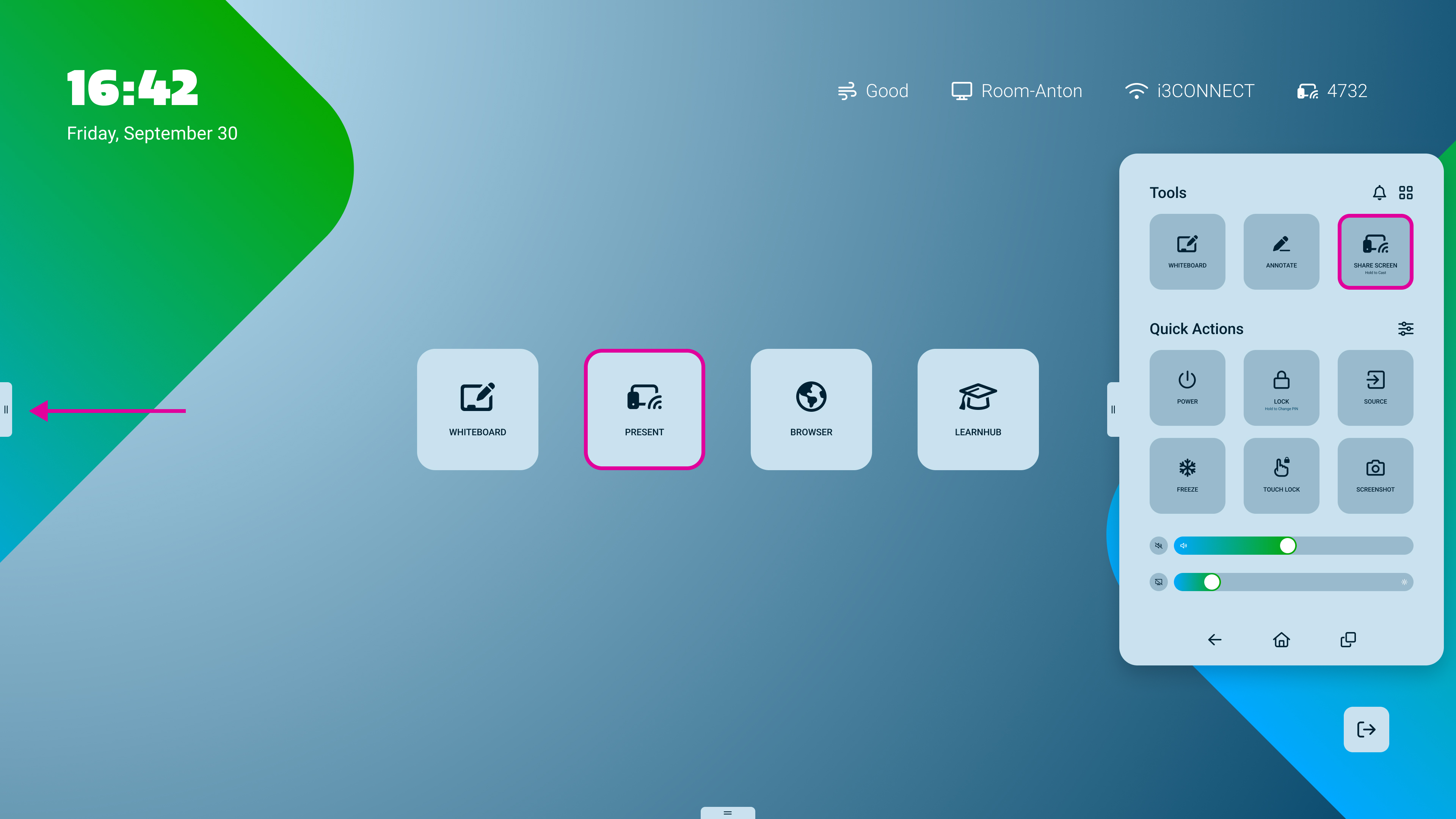
Open AllSync app on your i3CONNECT display by pressing on the

-
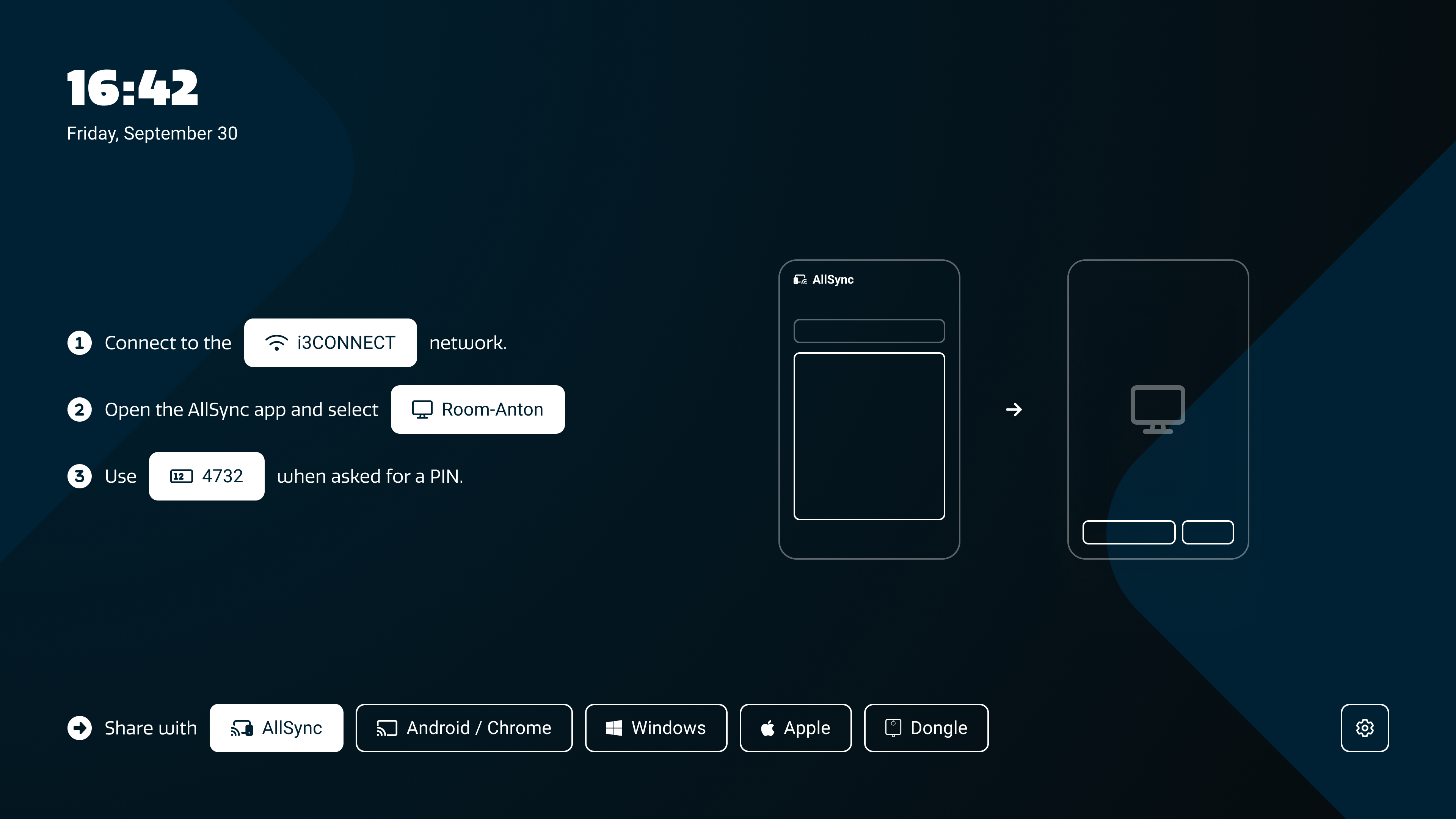
Go to the

-
Find and switch the toggle for Moderator Mode to ON.
Your display now acts as the moderator and attached devices cannot send to the display (Play icons are greyed out).
Share a screen on the display
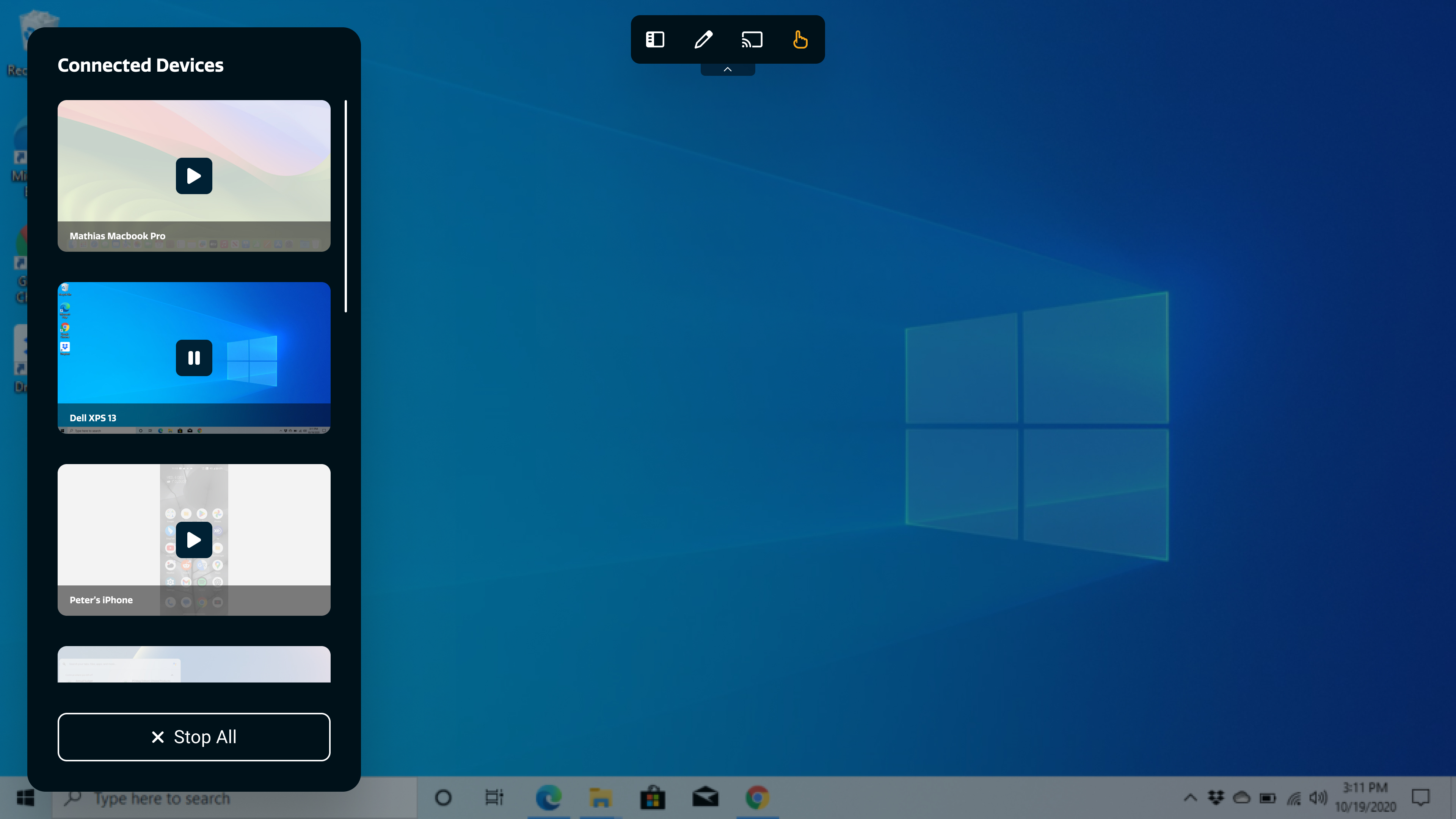
Presenters can’t start sharing until the moderator approves their device. Their devices appear in the Connected Devices list. The Moderator taps on the display in these lists
-
Share your screen using the AllSync App or Dongle Transmitter. Other sharing methods like Google Cast or Airplay won’t work whilst Moderator Mode is active.
-
On the display, open the extra casting features menu by tapping on the

-
Tap on the


-
Select the device you want to share from the Connected Devices list and tap on it.
-
Stop sharing by tapping on

Troubleshooting
-
Moderator Mode not working? Check that your transmitter is up to date and supported.
-
AirPlay, Miracast or Google Cast not available? This is expected when Moderator Mode is active.
-
Can’t present from the Waiting List? Only the moderator can approve sessions.