
The AllSync app is your launchpad for wireless sharing on i3CONNECT interactive displays. It allows you to share using the AllSync computer, tablet or mobile device app, the AllSync Transmitter Dongle or using the native sharing protocols of Android, Windows and Apple.
Quick Instruction
-
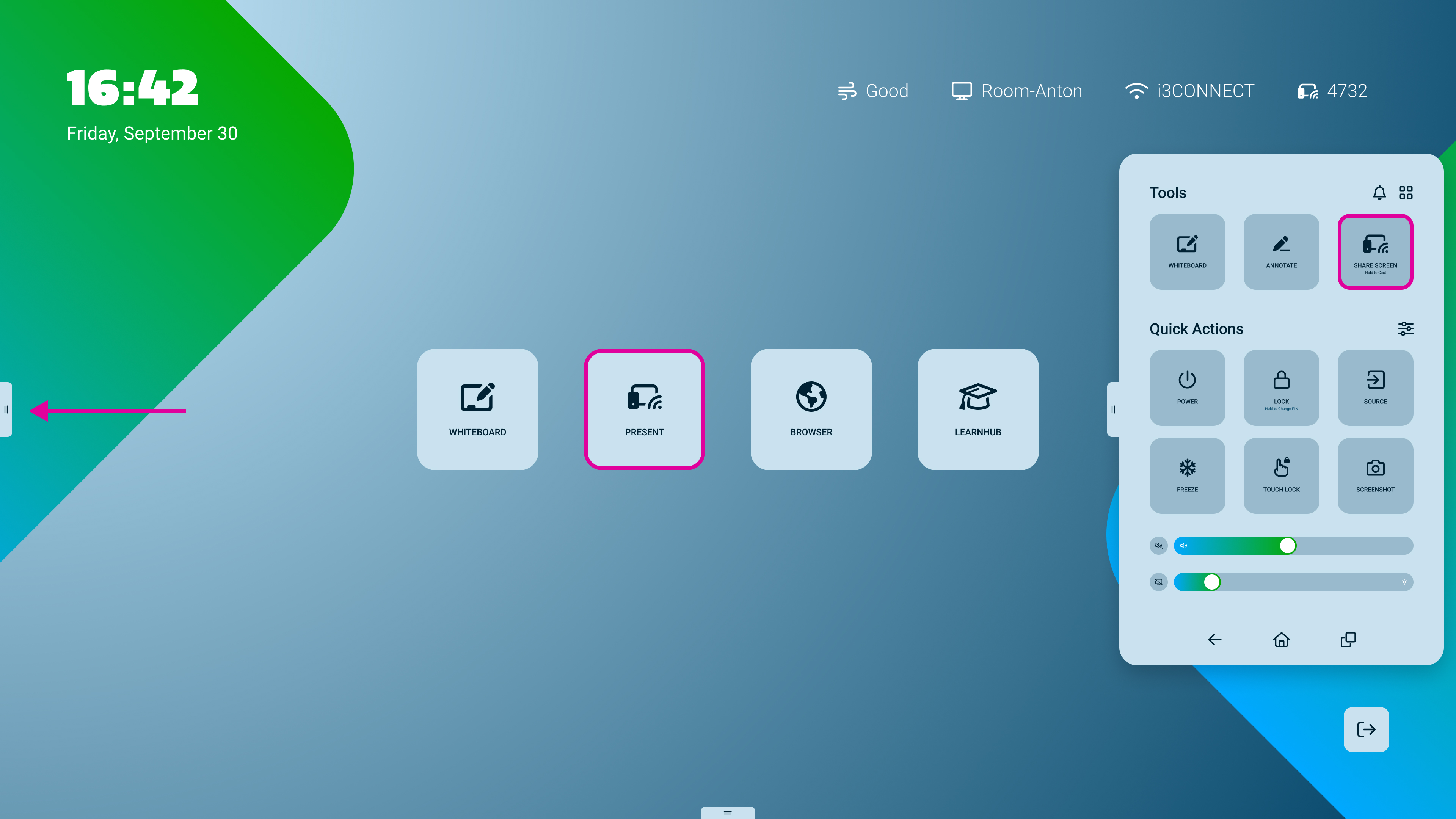
Open the AllSync display app by pressing on the


Quick tip! From the home-screen you can see your PIN code in the top right corner, so you don’t even need to open the display-app. Tapping on this will open the display-app though ;)
-
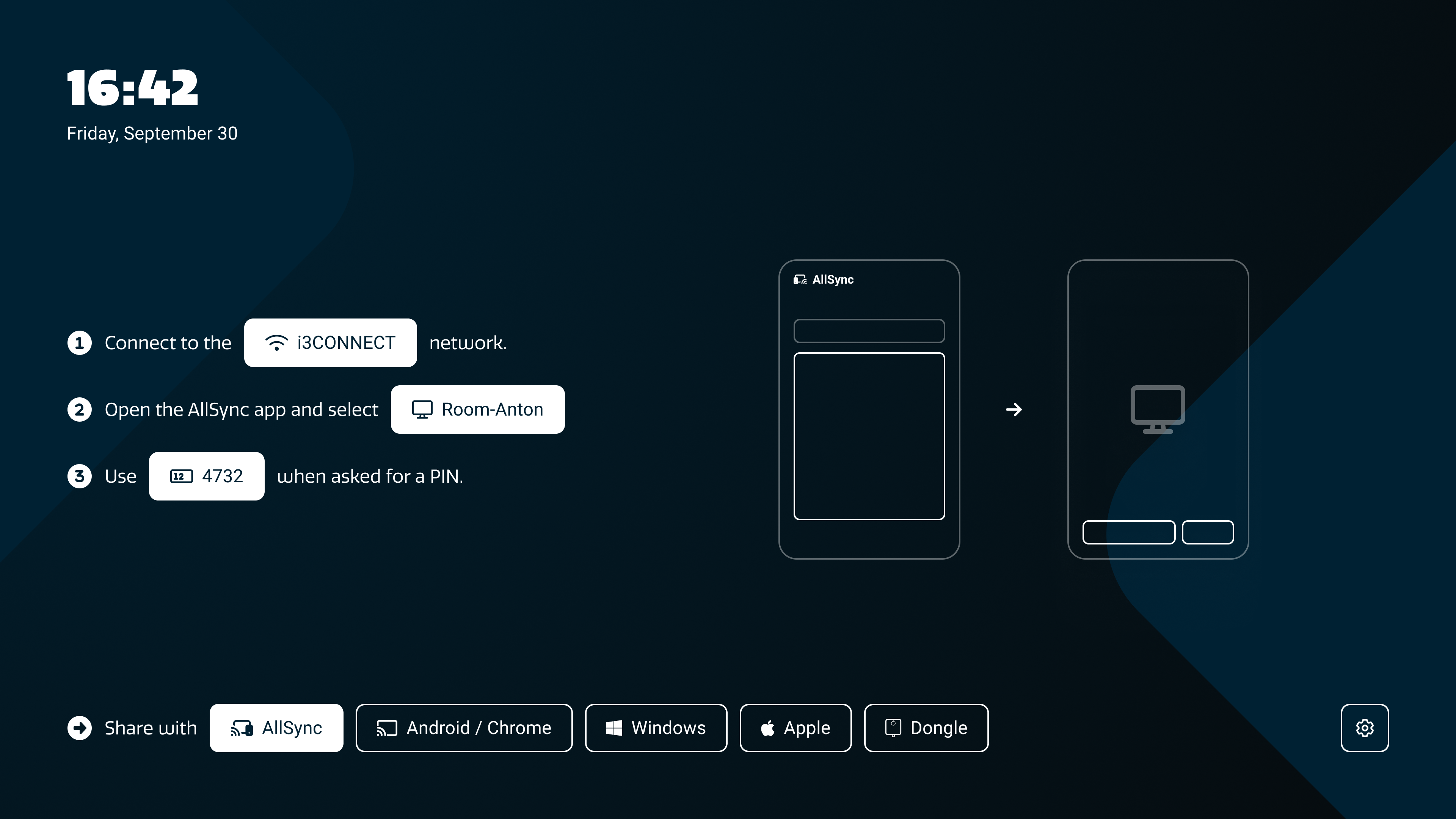
Tap on the button at the bottom of the screen to select which sharing tool you will use.
-
AllSync: is if you use our app to share.
-
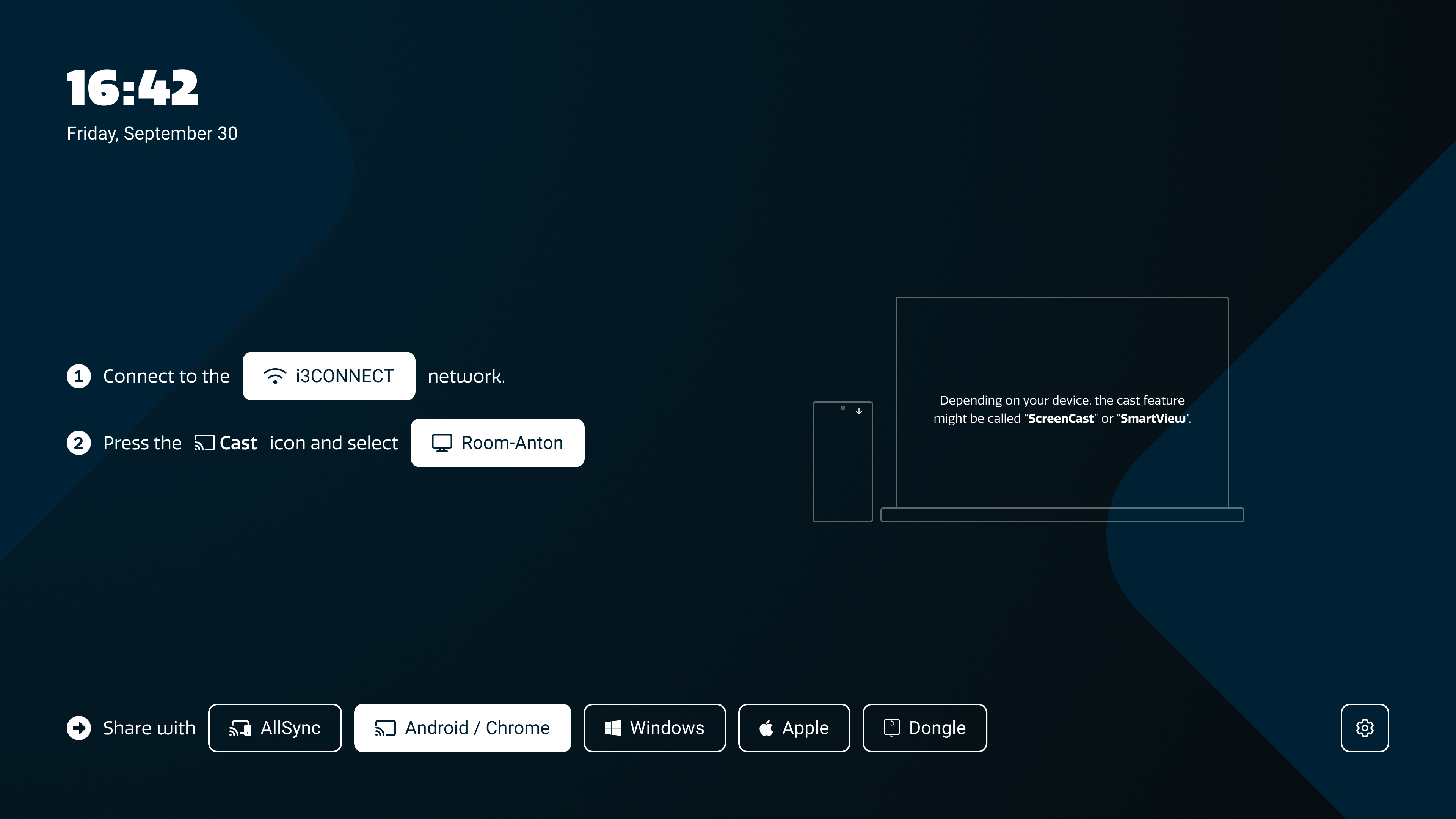
Android / Chrome: is for sharing natively (without apps or drivers) using Android or ChromeOS devices, as well as Google Chrome.
-
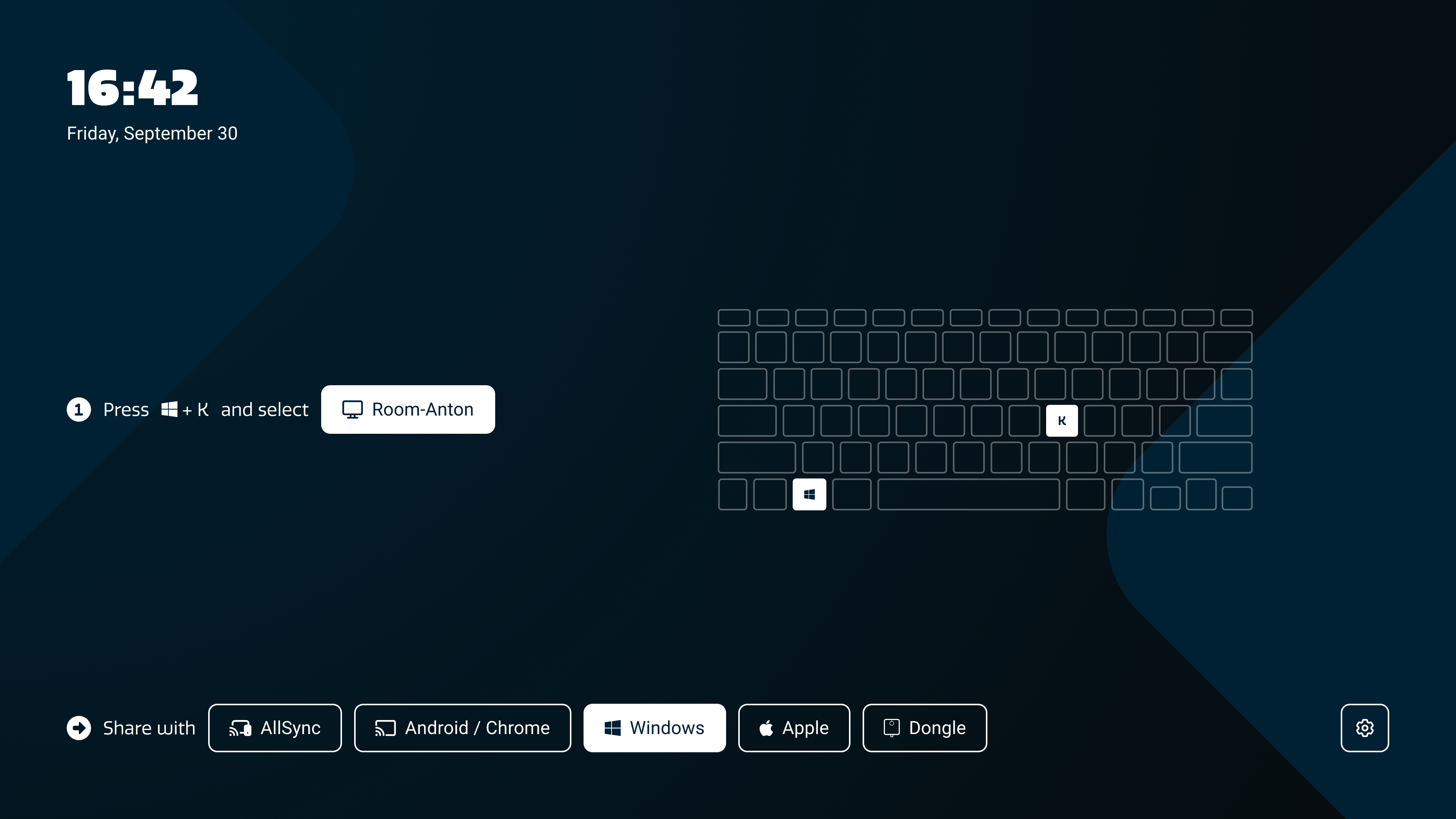
Windows: is for sharing natively (without apps or drivers) using Windows PC tablets / laptops.
-
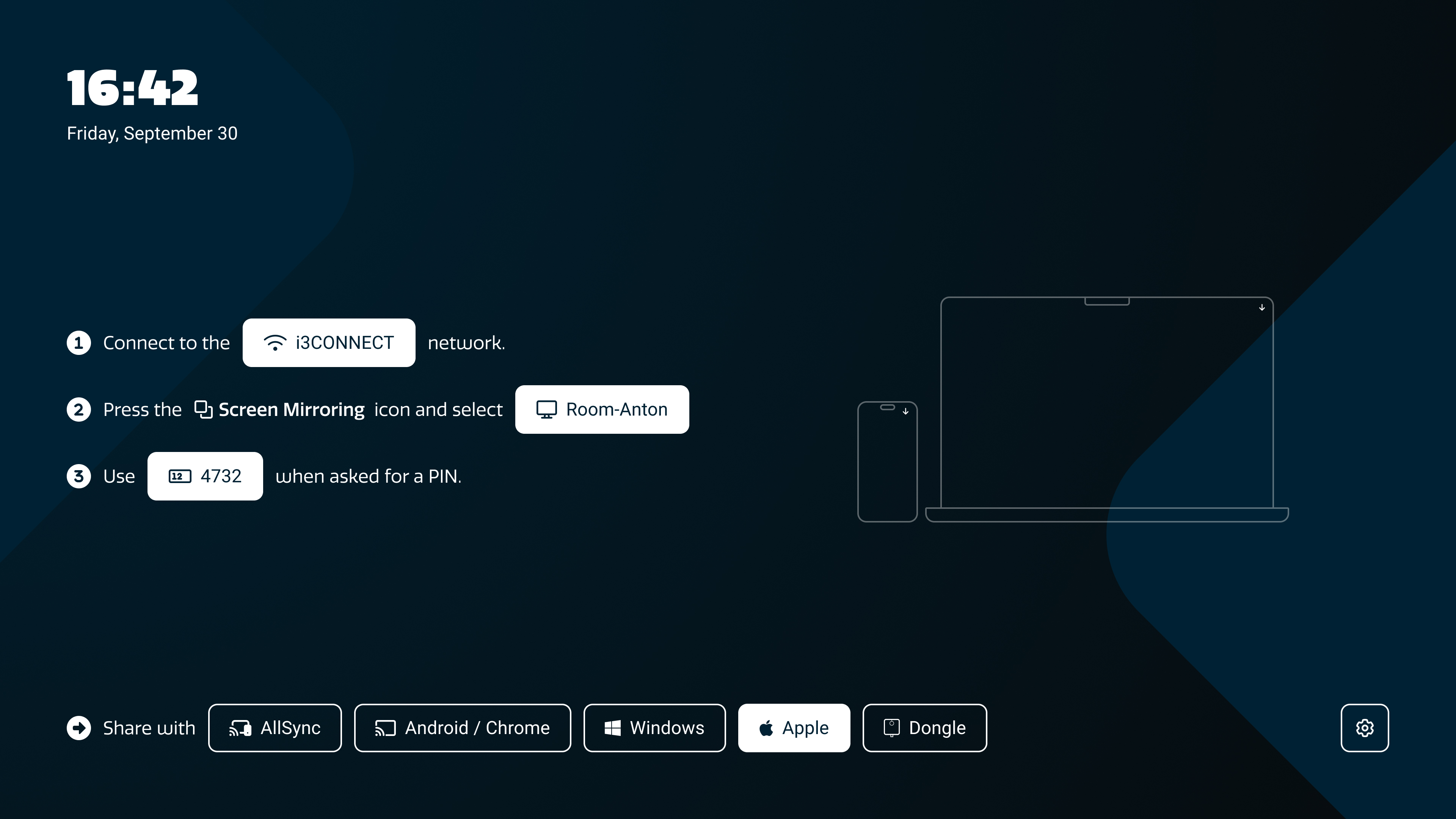
Apple: is for sharing natively (without apps or drivers) using Macbooks, iPhones and iPads.
-
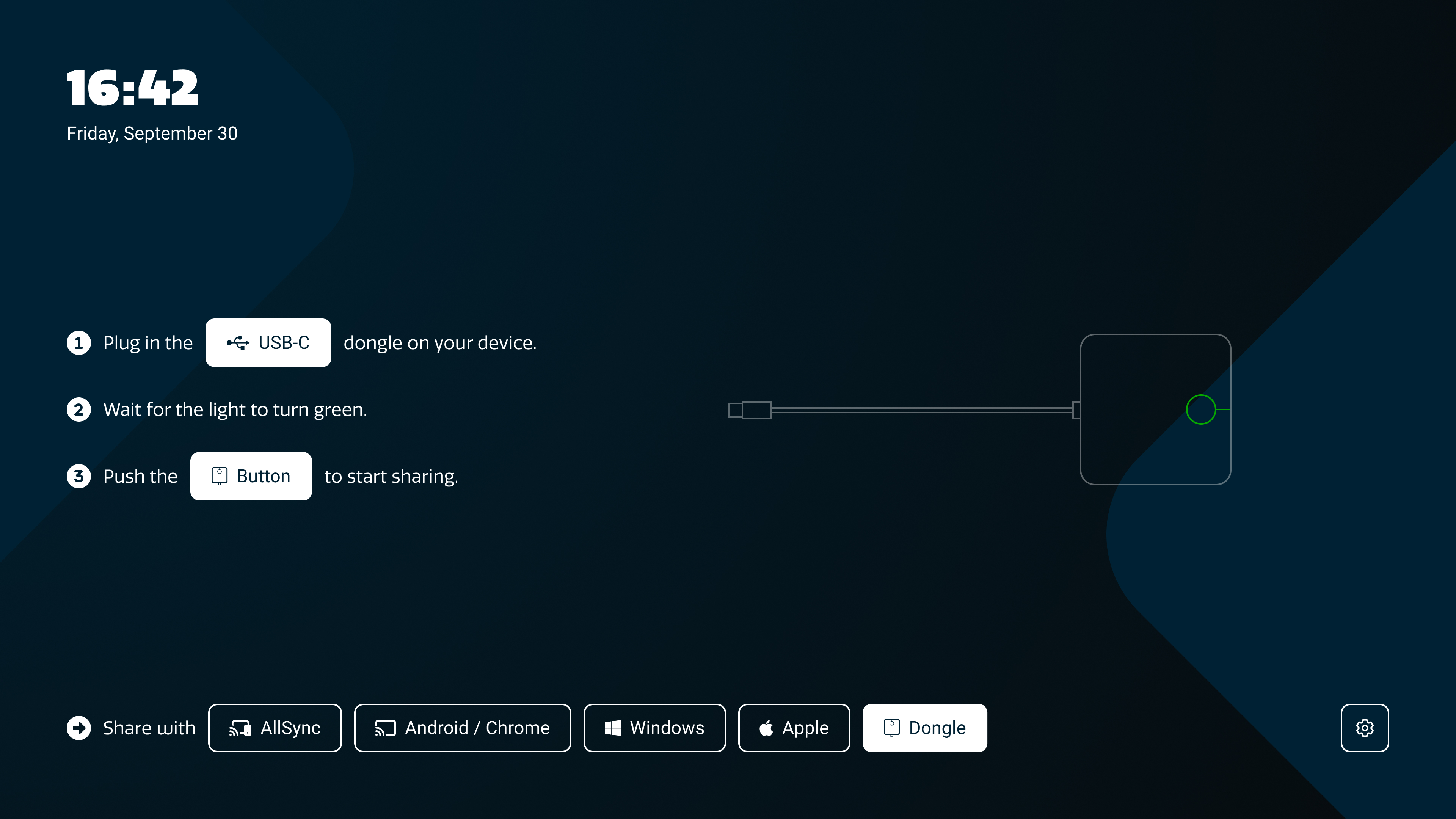
Dongle: is for sharing intuitively by plugging a dongle into your laptop; no installation needed.
-
-
Follow the on-screen instructions.
Wireless screen-sharing without app installs (Native)
We always recommend installing AllSync for the most stable experience. Unfortunately this option is not always possible. Luckily, AllSync also allows you to share using the built-in wireless sharing features of your operating system. See the overview below
|
Operating system |
Sharing Protocols |
|---|---|
|
Windows OS |
Miracast and Google Cast |
|
macOS (Macbook, iMac, Mac) |
Airplay and Google Cast |
|
iOS (iPhone, iPad) |
Airplay only |
|
Android |
Miracast and Google Cast |
Complete Guides
For each of these sharing protocols we have some guides!
-
AllSync app: Share your screen on an i3CONNECT display -
Google Cast: Share your screen without an app on an i3CONNECT display -
Google Cast YouTube videos to your display using AllSync -
Google Cast with Apple: Turn local network permissions on or off for casting on iOS and Mac -
Apple Airplay: Share your Mac, iPhone or iPad screen without an app on an i3CONNECT display -
Miracast: Share your Windows / Android screen without an app on an i3CONNECT display
AllSync instructions
-
Connect to the same network.
-
Open the AllSync app and select the

-
Optional: Use the 4-digit code when asked for a PIN.
-
Press the

If you do not have it yet, Download the AllSync app here.
For a more complete guide of AllSync sharing visit this article.
Android / Chrome OS instructions
-
Connect to the same network.
-
Press the
Depending on your device, the cast feature might be called ‘Screencast’ or ‘SmartView’.
For a more complete guide of Google Cast visit this article.
Windows instructions
-
Press on (the Windows button)
You don’t need to be on the same network with Windows because Windows uses Miracast, which connects directly to the display and not over the internet.
For a more complete guide of Miracast sharing visit this article.
Apple (Mac, iPad, and iPhone) instructions
-
Connect to the same network.
-
Press the

-
Optional: Use the 4-digit code when asked for a PIN.
For a more complete guide of Apple Airplay visit this article.

AllSync Dongle instructions
-
Plug in the
-
Wait for the light to turn green.
-
Push the
If the Dongle is not paired yet, please follow this guide:
Pair a Transmitter Dongle with a display using AllSync
Troubleshooting
-
If your AllSync app appears different…
-
You are likely using an older version or another sharing tool. If that is the case, use best judgement to translate the steps in this guide to your interface
-
Update the display app from the i3STORE on the display or via Cortex.
-
Update your PC app by downloading it from this page:
Download the AllSync screen sharing app
-
-
If you cannot find the device name or PIN, restart the display or check network connections.