
This guide is for anyone using an i3CONNECT display and wants to cast 
|
|
Windows |
Apple |
Android |
|---|---|---|---|
|
Compatibility |
|
|
|
|
Touch-back |
|
|
|

Before you start
-
Make sure your device and the i3CONNECT display are connected to the same Wi-Fi network.
-
For iOS 14+ or MacOS 15+, enable Local Network access for casting. Learn more.
Instructions
-
Connect your device and display to the same Wi-Fi network.
-
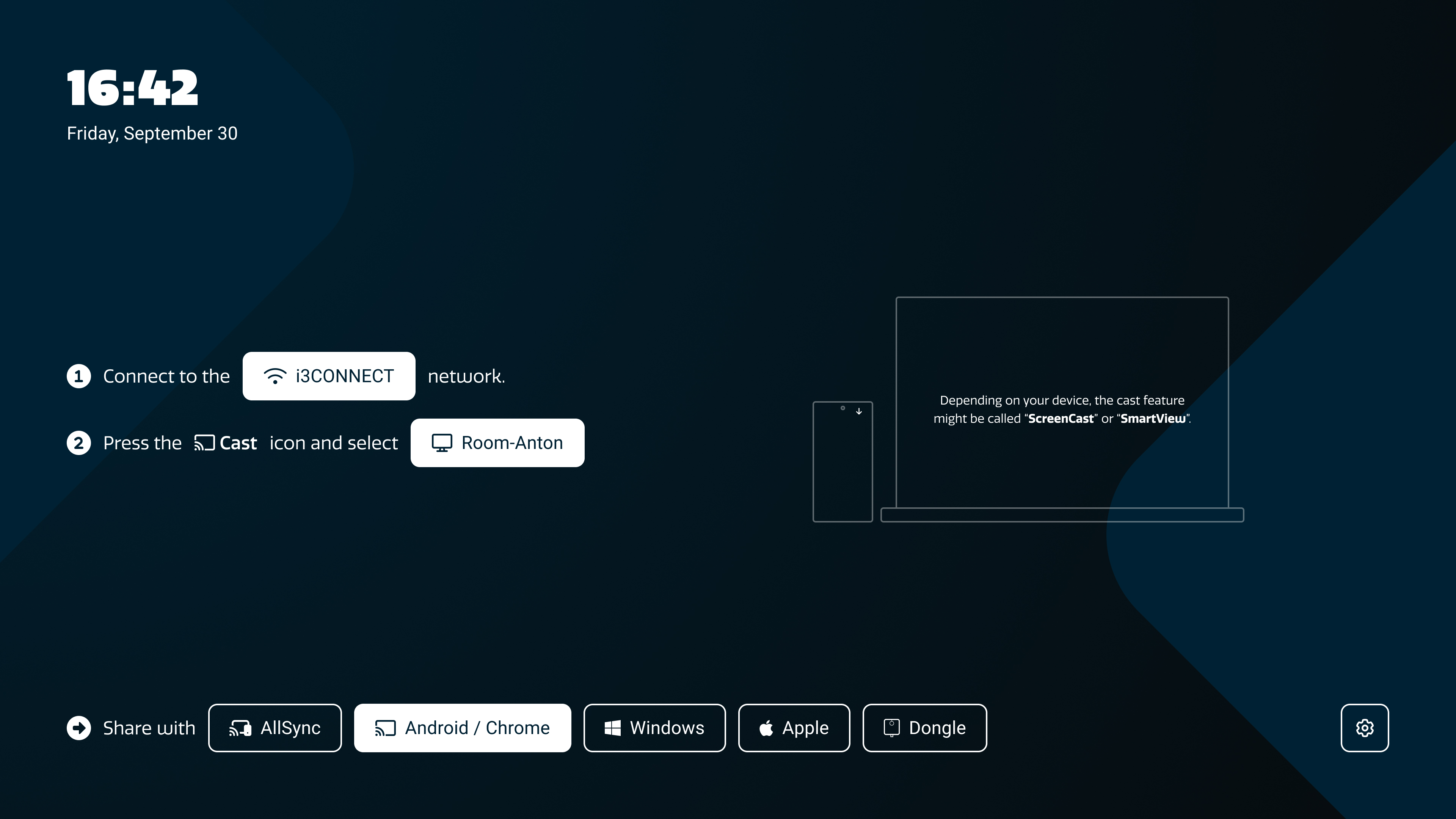
On the i3CONNECT display, open AllSync by tapping on the


-
On your device, open the YouTube app or visit youtube.com in the Chrome browser.
-
Tap the Cast button
-
In the
-
From the Chrome browser on your laptop, cast using these instructions.
-
-
Select your i3CONNECT display from the list of available devices.
-
Start playback. The video will play on your display.
-
To stop casting, tap the
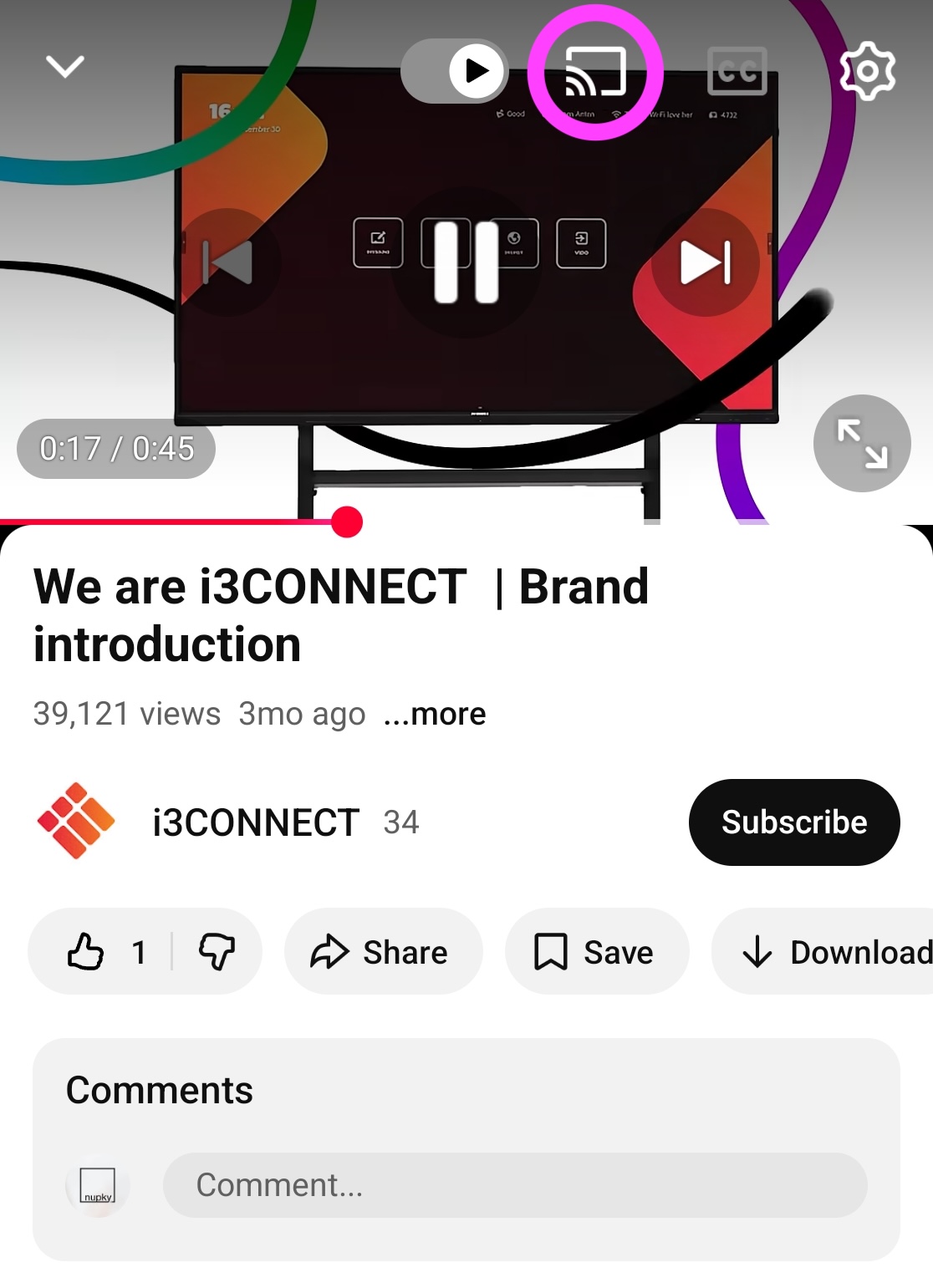
You can use your device for other tasks while you are casting. Only the YouTube app or the Chrome Browser tab will be shared, and the rest of your device won’t be shared. Playback controls (play, pause, seek) remain available on your device.
Play multiple YouTube videos in a row
Add to queue
While a video is playing on the display, on your device:
-
Go to the video you wish to add to the queue
-
Press on the More settings

-
Select Play next in queue or Play last in queue. The video will now be in your upcoming videos.
Anyone on the same Wi-Fi can add to the queue.
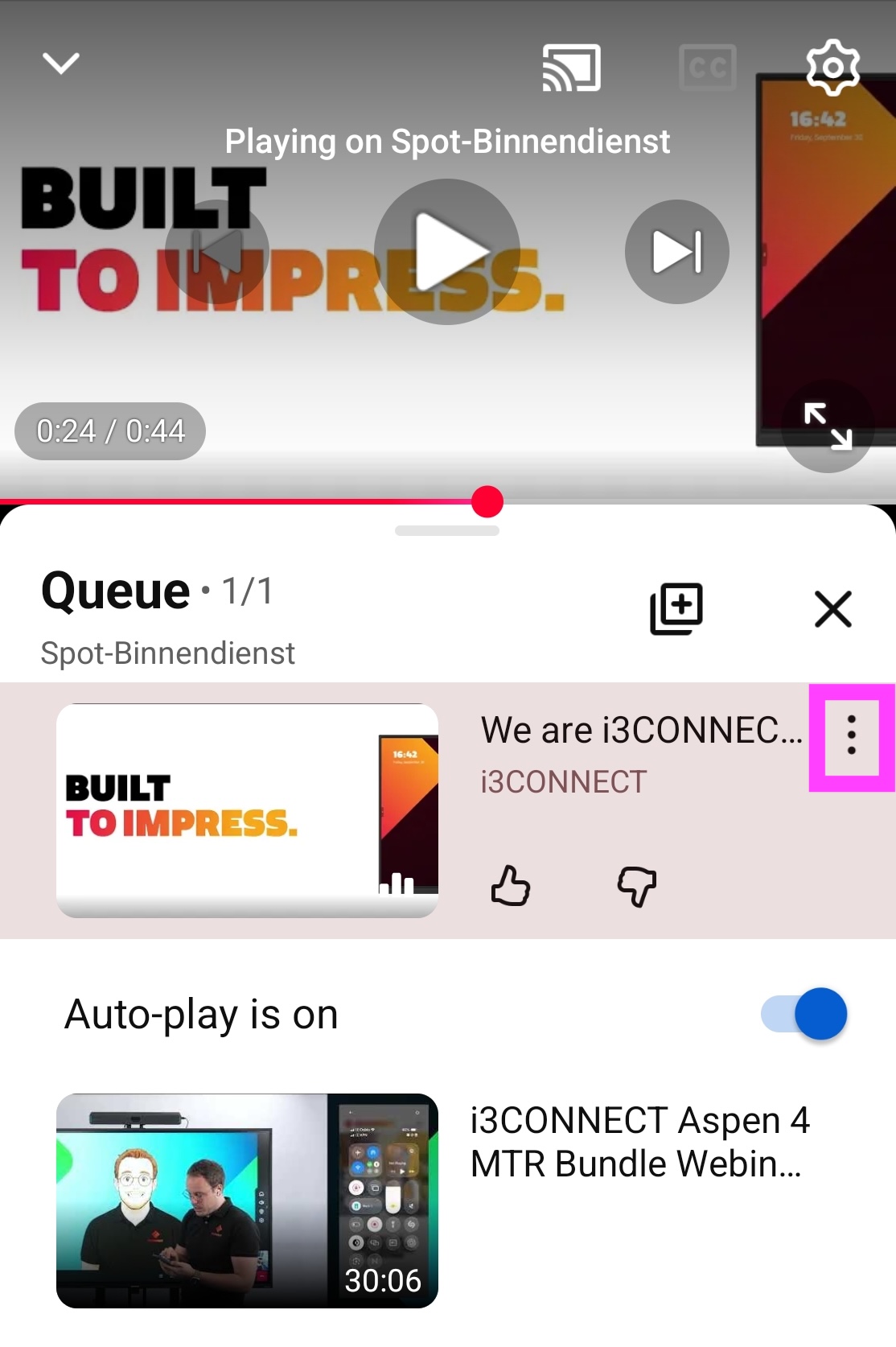
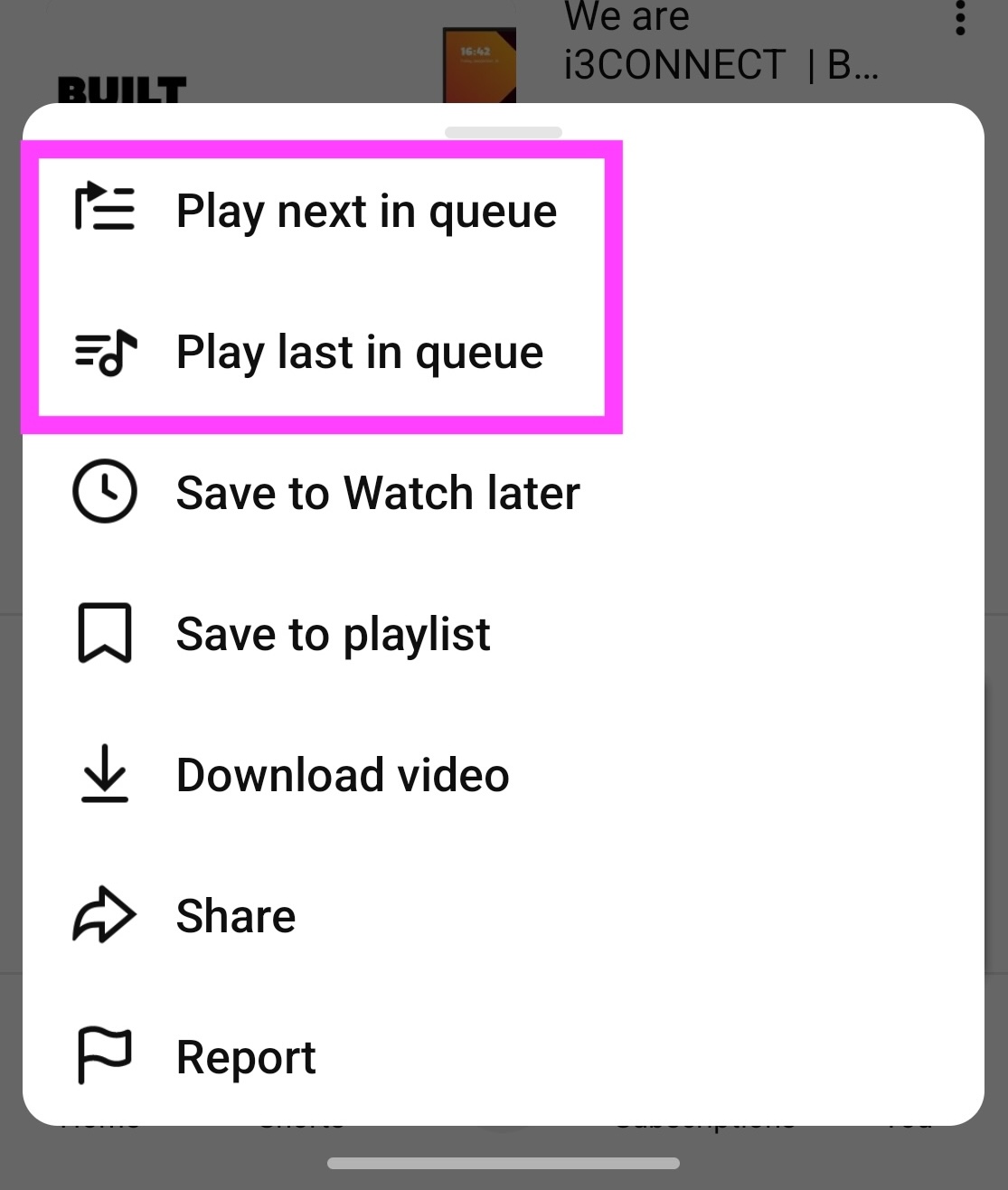
View your queue
While a video is playing on the display, look at your device and:
-
Go to the home-screen of the YouTube app
-
Tap on the Queue list at the bottom of the screen (shown in pink) to open the upcoming videos list.
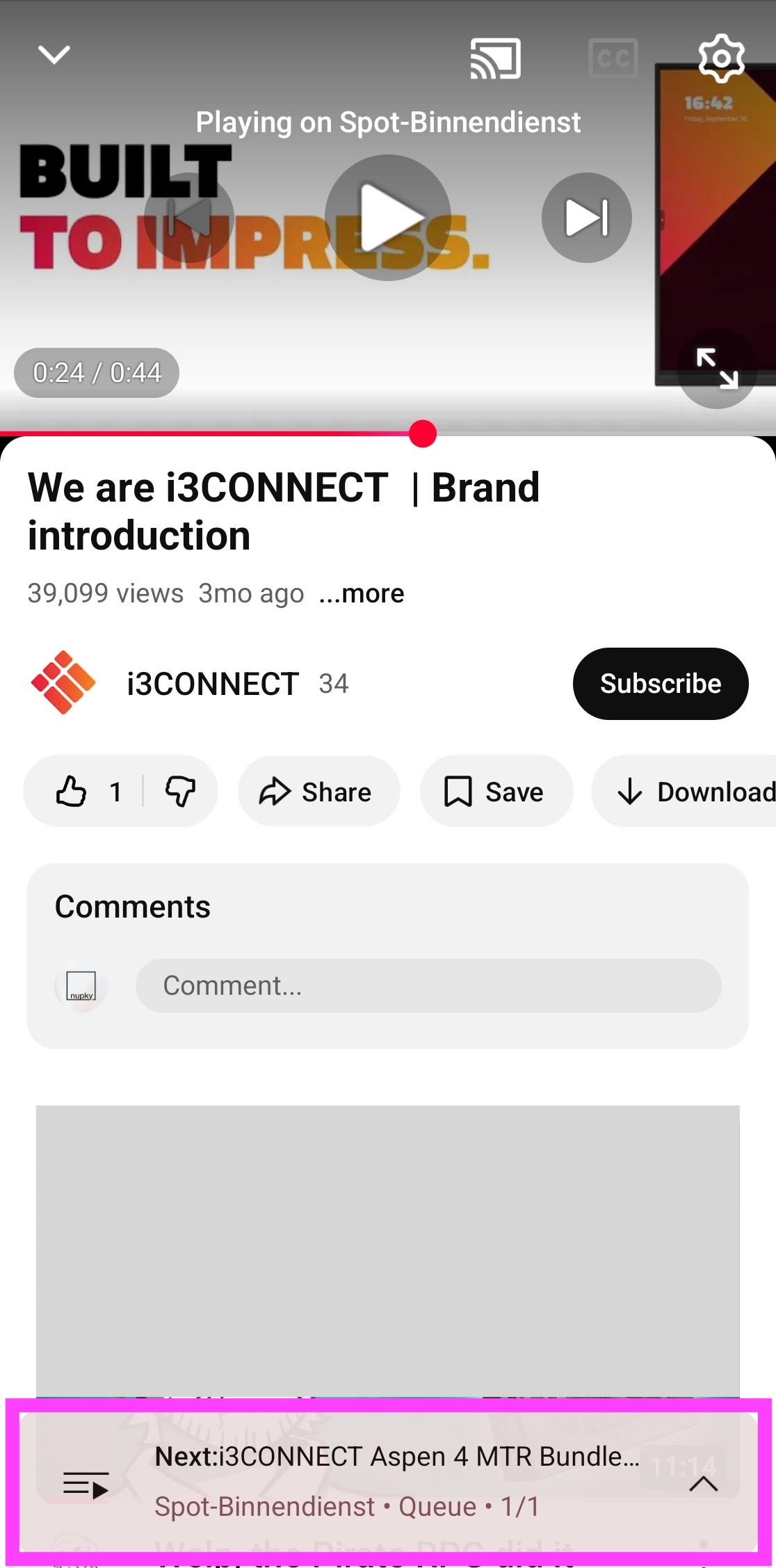
Troubleshooting
-
Can’t find your display? Double-check Wi-Fi connections and Local Network permissions.
-
Video won’t play or quality is poor? Wait a moment for adaptive streaming to improve quality, or try another video.
-
Some videos may not play if they’re not approved for mobile playback. Video quality may start low and improve as streaming adapts.