
Wirelessly share your 
|
|
Windows |
Apple |
Android |
|---|---|---|---|
|
Compatibility |
|
|
|
|
Touch-back |
|
|
|


This guide is for anyone using an i3CONNECT display with a Windows or Android device. If you’re using an Apple device, see the AirPlay instructions instead.
Good to know
-
You don’t need to be on the same network with Windows because Windows uses Miracast, which connects directly to the display and not over the internet.
-
The display and your device will disconnect from the WiFi while the screen mirroring process is active. This is the expected behaviour
-
On an Android device, the cast feature might be called ‘Screencast’ or ‘SmartView’.
Instructions
-
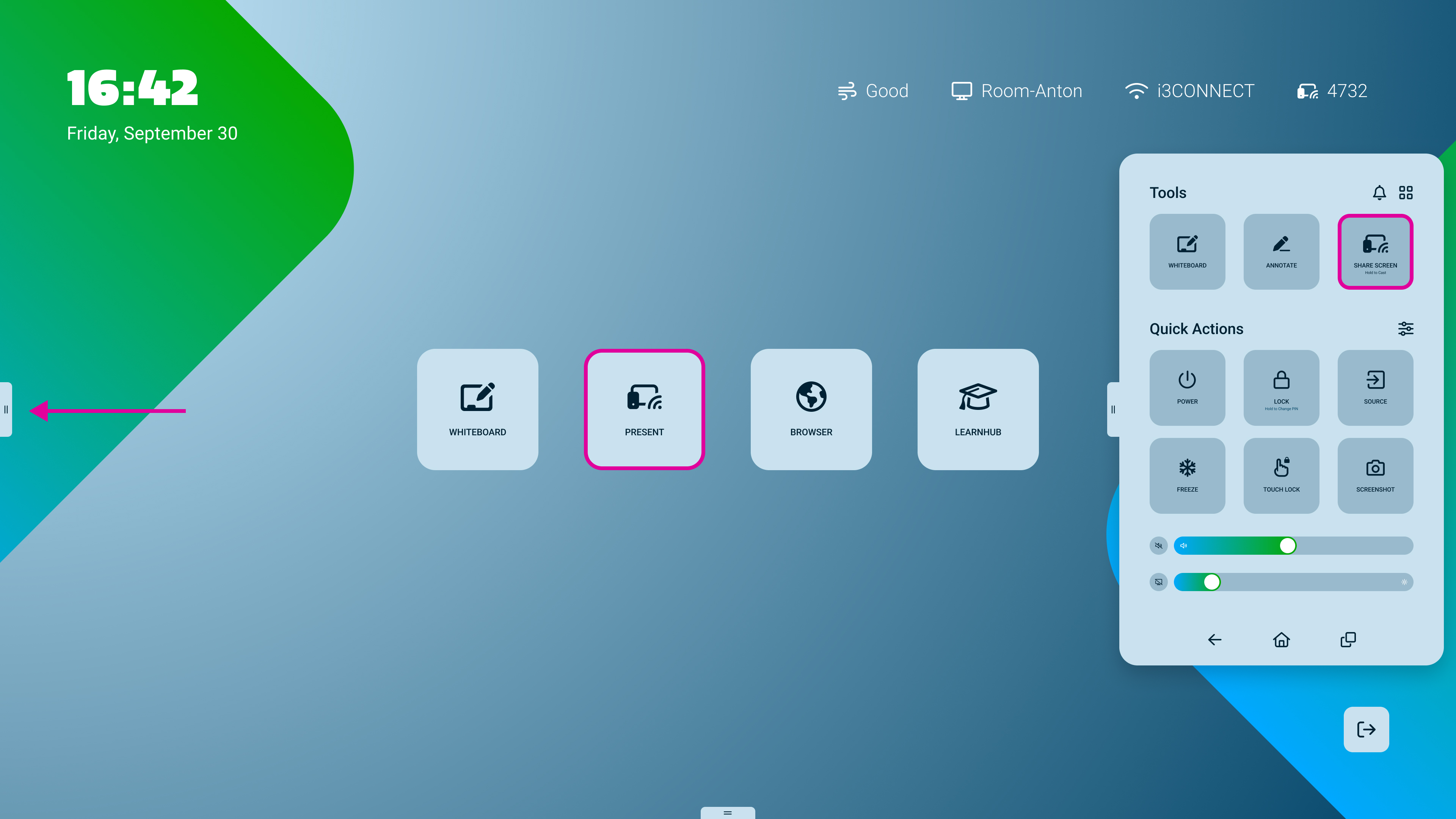
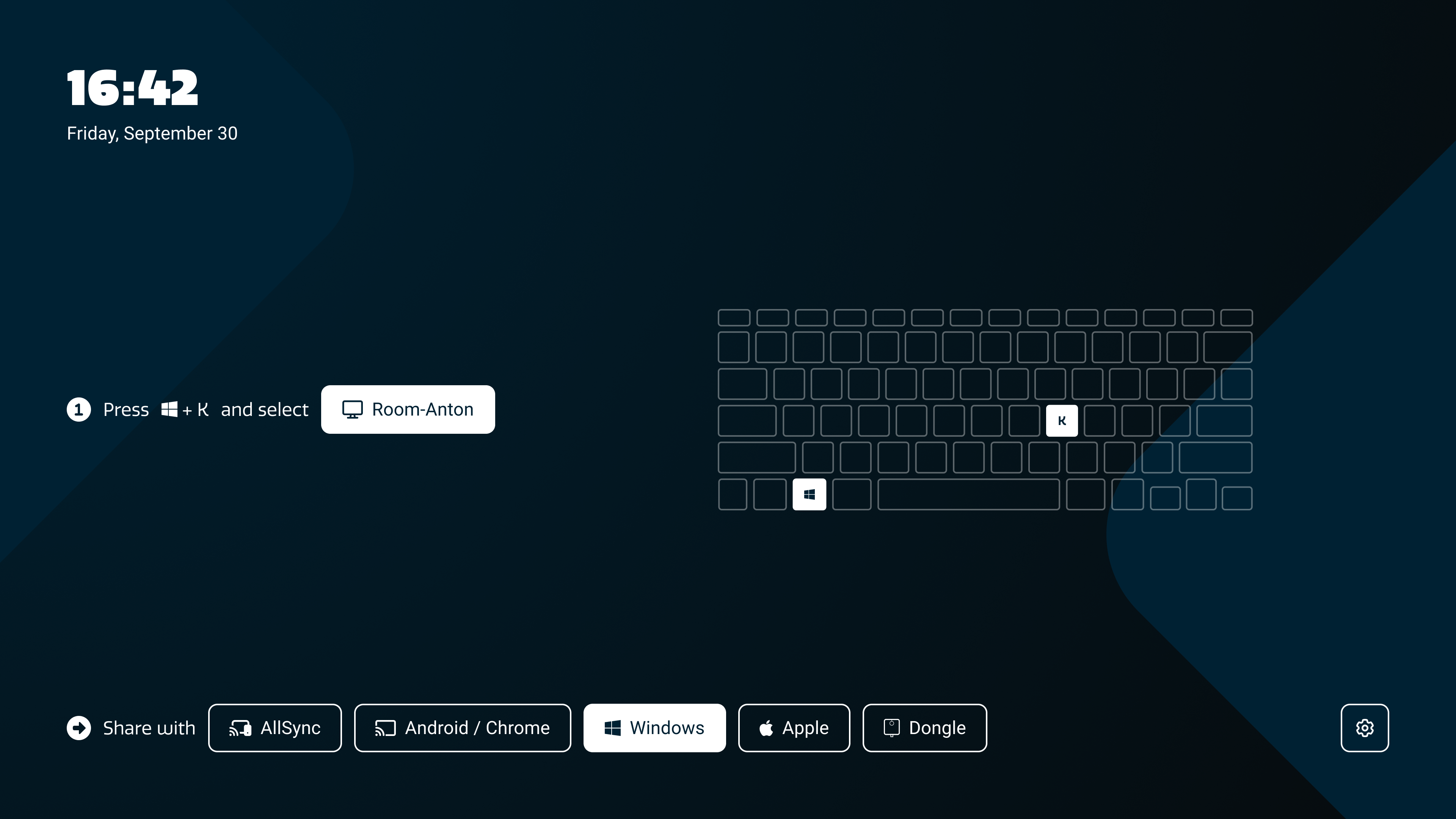
Open the AllSync display app by pressing on

-
Open the Connect list and find the display:
-
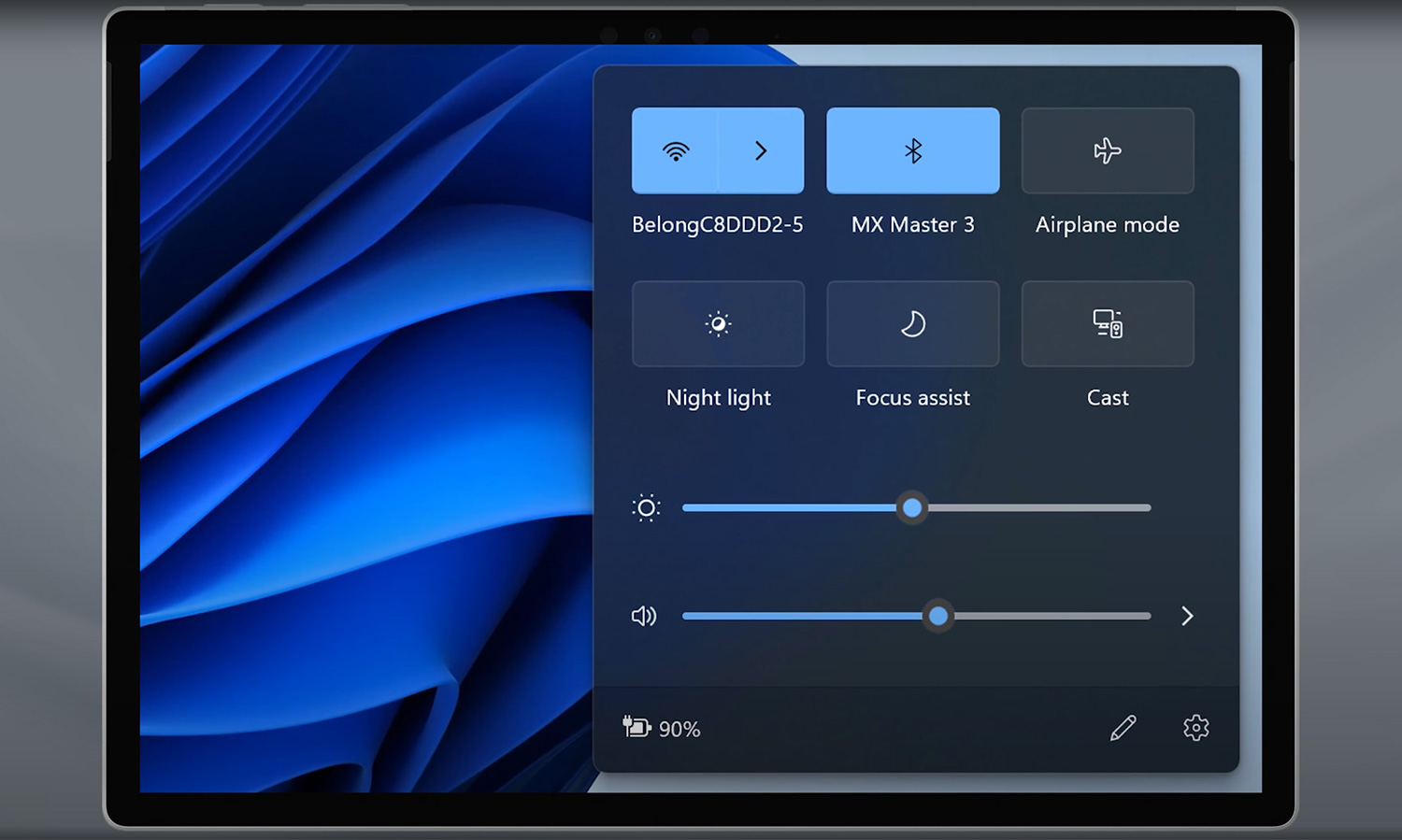
Windows: Press on the Windows button

-
Android: Start the Casting app. The cast feature might be called “Screencast” or “SmartView.”
-
-
Select your

-
Follow any additional instructions on the screen.
If you only see your desktop background (no apps), your computer may be in Extended Mode. To see a copy of your screen:
-
Press

-
Select “Duplicate” to mirror your screen on the display.
Troubleshooting
-
If the display disconnects from WiFi during mirroring, this is normal. Miracast creates a direct connection and disables the internet during casting.
-
You don’t need to be on the same WiFi network. Miracast connects directly between your Windows device and the display.
-
If your device doesn’t appear, ensure Miracast is supported and both devices are close together.
-
If you still can’t connect, restart both your Windows/Android device and the i3CONNECT display, then try again.