
Need to share your screen wirelessly to an i3CONNECT display? The AllSync app makes it easy from Windows, Mac, or Android devices. This guide walks you through finding and downloading the right AllSync version for your device, and then installing it.
This guide is not for sharing with native wireless sharing tools like AirPlay, Miracast, Google Cast, or AllSync Transmitter Dongle; as they do not require any app or driver installation.
Instructions
-
Go to the AllSync download page: Download the AllSync screen sharing app
-
Choose your operating system
-
Download the app. Click the download link for your device. If prompted, save the file to your computer or device.
-
Install the app
-
Windows: Double-click the downloaded
.msifile and follow the on-screen instructions. -
macOS: Open the downloaded
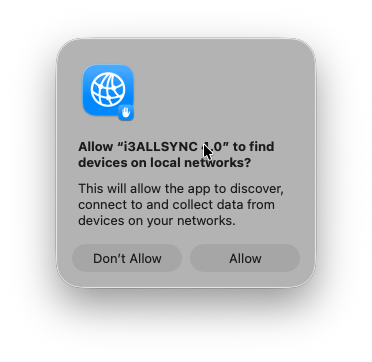
.pkgfile and follow the prompts. During installation you will be asked to allow access to files to install; press “Allow” in that pop-up. -
Android: The app will install automatically from the Play Store.
-
-
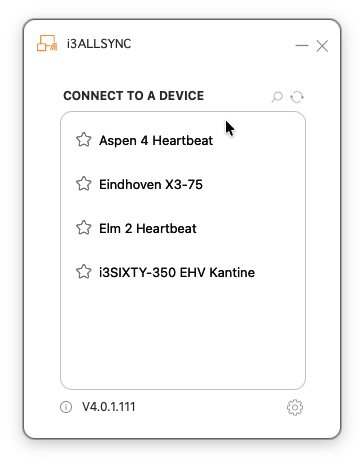
After first installation, open the AllSync app. On Windows and Mac, permissions are needed by AllSync, and will be requested with a few pop-ups. Press “Allow” in each of these pop-ups.
Troubleshooting
-
Not sure which version to download?
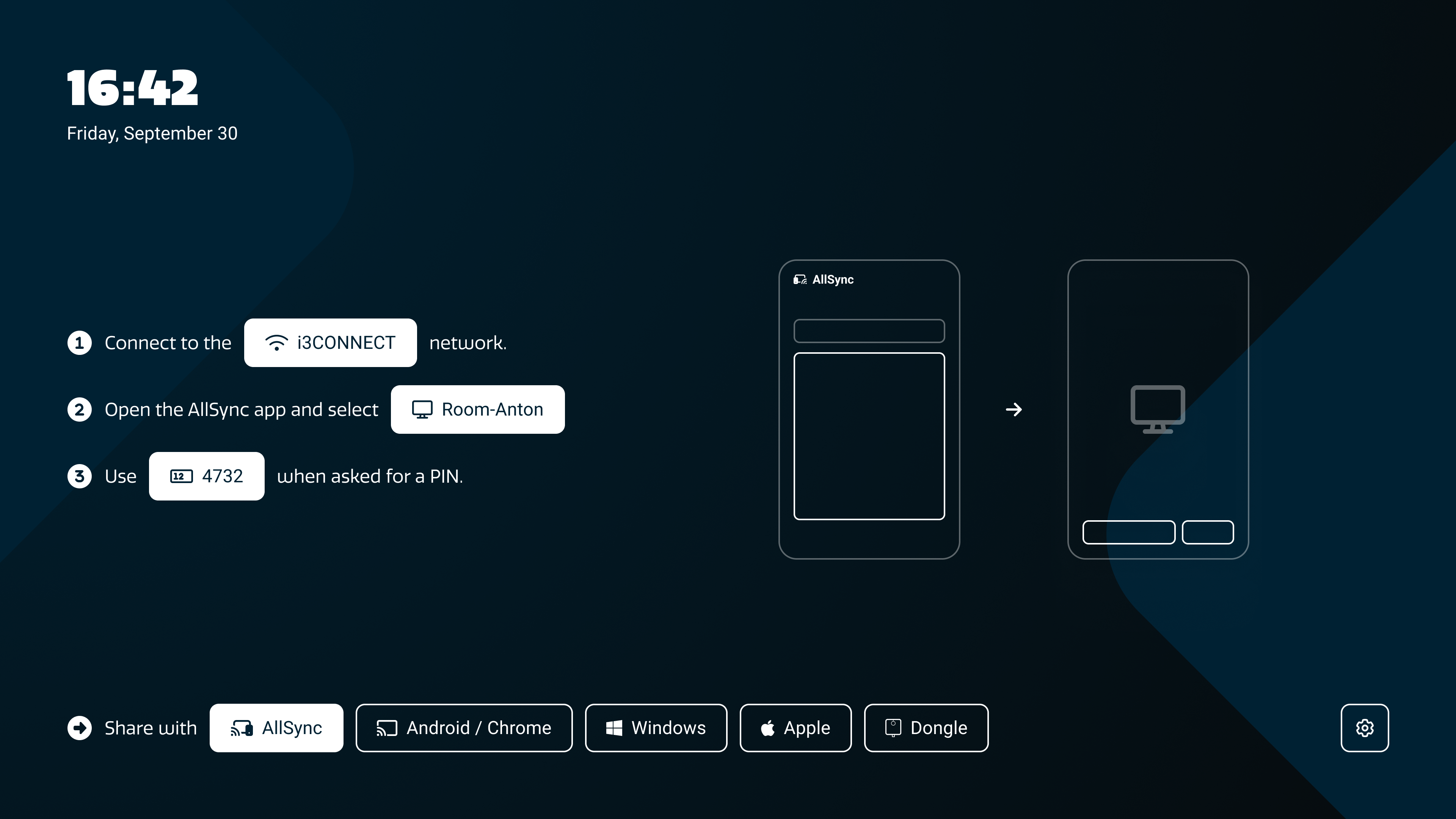
Compare your display’s interface with the images on the download page or see:
Choosing the right app/tool for your device -
You did not allow permissions?
Most of the time this will cause installation to cancel, and otherwise it will block the AllSync app from functioning. Follow the troubleshooting article for your operating system permissions. -
Not allowed to install apps?
Ask your IT department if the app can be installed for everyone, and send them a link to this article: Hardware requirements for PC and display using AllSync. Otherwise use Native wireless sharing or the AllSync Transmitter dongle to skip app installation.