The AllSync overlay unlocks advanced casting controls while you’re sharing content on any i3CONNECT interactive display. The overlay allows you to manage connected devices, annotate, or even share your current i3CONNECT display to other displays.
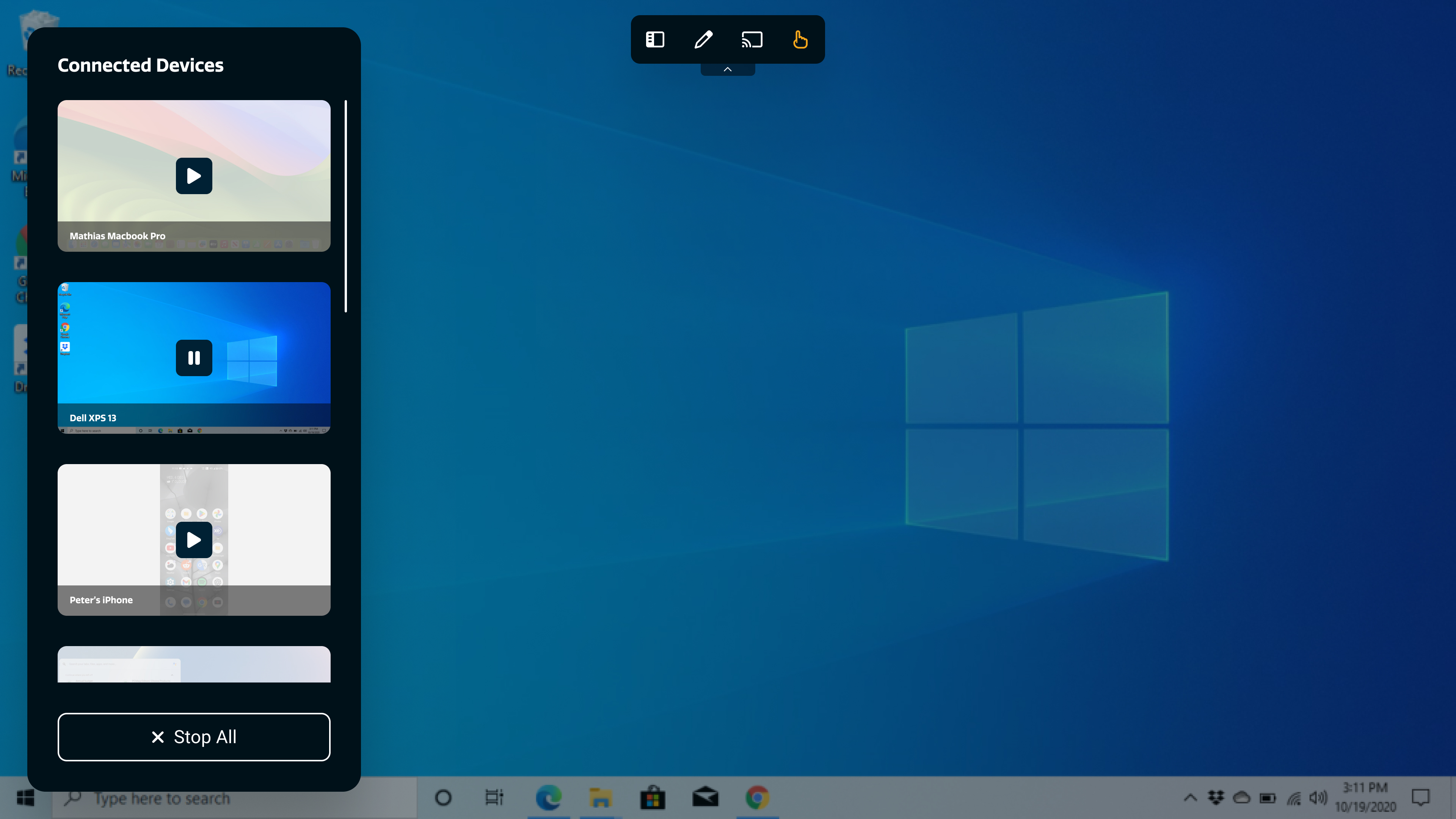
Opening the Allsync Overlay
-
Open AllSync on the display by pressing on the Present tile.
-
Look for the bar at the top-middle of the screen with a downwards arrow icon

-
Tap the arrow icon to reveal the AllSync overlay menu. The icons for each feature is explained in the table below.

|
|
Feature |
Description |
|---|---|---|
|
|
When a user of the AllSync app or an AllSync Transmitter Dongle connects to the display, they are added to this waitlist.
|
|
|
|
Identical to the annotate tool used on the display. User guide of anntation tool can be found here. |
|
|
|
This allows you to wirelessly share / cast the screen of your current i3CONNECT display to another i3CONNECT display using AllSync. |
|
|
|
Enabled by default, this allows you to decide if you can control the attached computer / device from the display (called touch-back). This is limited to Windows. |