
Use this guide when you want to display your Google Meet meeting on a larger screen using Google Cast in AllSync. You’ll still use your computer’s camera, microphone, and speakers in the meeting.
If you wish to use the camera, microphone and speakers of the display we recommend connecting by cable to the display using the BYOD setup:
Enlarge your Teams call on a display that has no camera (BYOD - Bring Your Own Device)
Before you start
Your computer and the i3CONNECT display must be connected to the same Wi-Fi.
Instructions
Follow the same casting instructions for casting a window from your Chrome browser here:
Google Cast: Share your screen without an app on an i3CONNECT display | Cast a Chrome tab
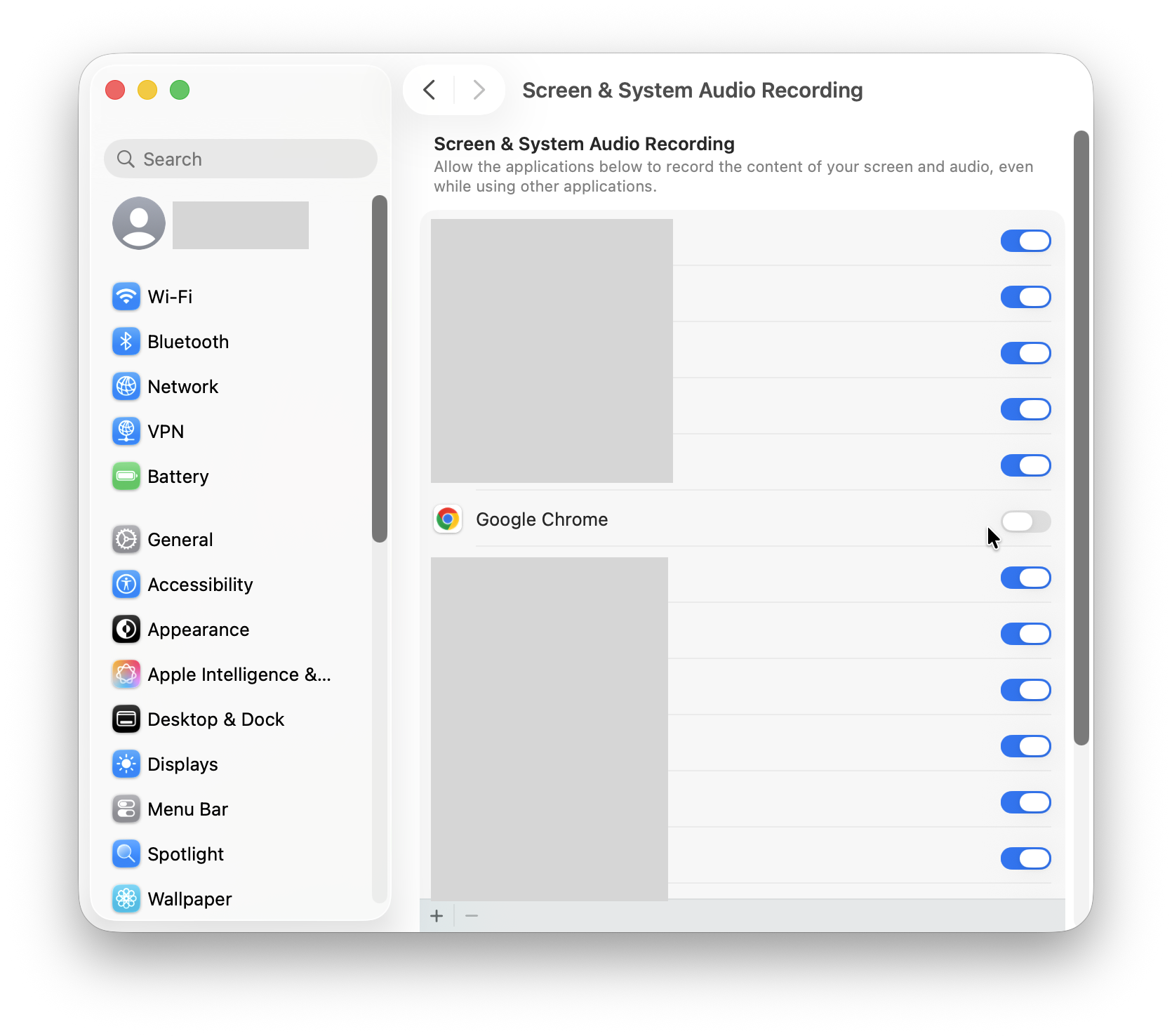
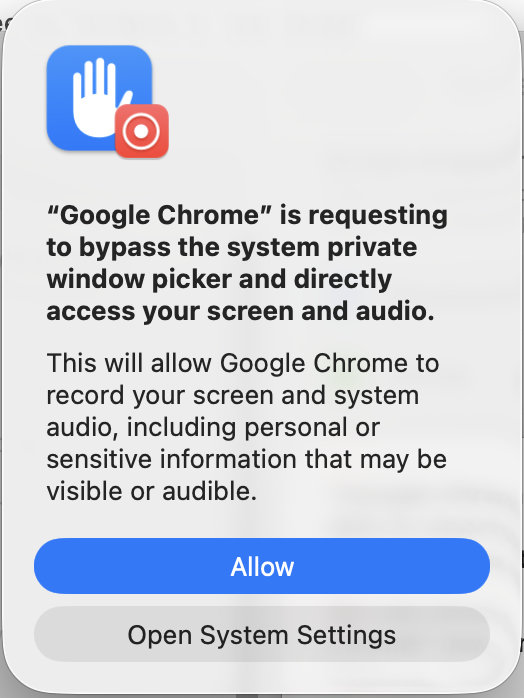
The first time you connect, you may be asked for access permissions. Press any allow items in this process, or activate any toggles in System settings to allow these permissions
Troubleshooting
-
If your device doesn’t appear in the Cast list, check that it’s powered on and connected to the same Wi-Fi network as your computer.
-
If casting fails, restart your computer and the Cast-enabled device.
-
For Google Meet-specific issues, visit the Google Meet Help Center.