
This article is for anyone running a Microsoft Teams meeting from their own laptop and enlarging it on an i3CONNECT display (BYOD: Bring Your Own Device).
Laptop’s tend to have poor quality microphones and cameras. We recommend using a display with a high quality attached camera. One designed for room usage. This can then be used by the user as their own camera in a BYOM setting (Bring Your Own Meeting) or in a MTR setup.
Before you start
-
Make sure your i3CONNECT display is powered on.
-
Have a compatible USB-C or HDMI cable (and USB cable if needed for camera/mic).
-
Your laptop should have Microsoft Teams installed and updated.
Instructions
-
Connect your laptop to the display.
-
Use a USB-C cable for video, audio, and touch (if supported), or
-
Use an HDMI cable for video, plus a USB cable for camera/mic/touch.
-
For advice on cables or laptop connection see this article:
Share your laptop screen using a HDMI or USB-C cable
-
-
Select the correct input on the display.
-
On the i3CONNECT display, switch to the input (HDMI or USB-C) you plugged into.
-
This may happen automatically if the setting is enabled.
-
-
Start or join your Microsoft Teams meeting on your laptop.
-
Choose the display’s camera, microphone, and speakers in Teams.
-
When the meeting starts you can choose your settings. Choose the arrows next to the camera, microphone and speaker icons to change these to the display.
-
If you already started the Teams meeting, you can tap on the arrows next to the same icons in the header bar.
-
-
Share your screen if needed.
-
In Teams, click Share and choose the content you want to show.
-
Your shared content will now be visible on the big display for everyone in the room.
-
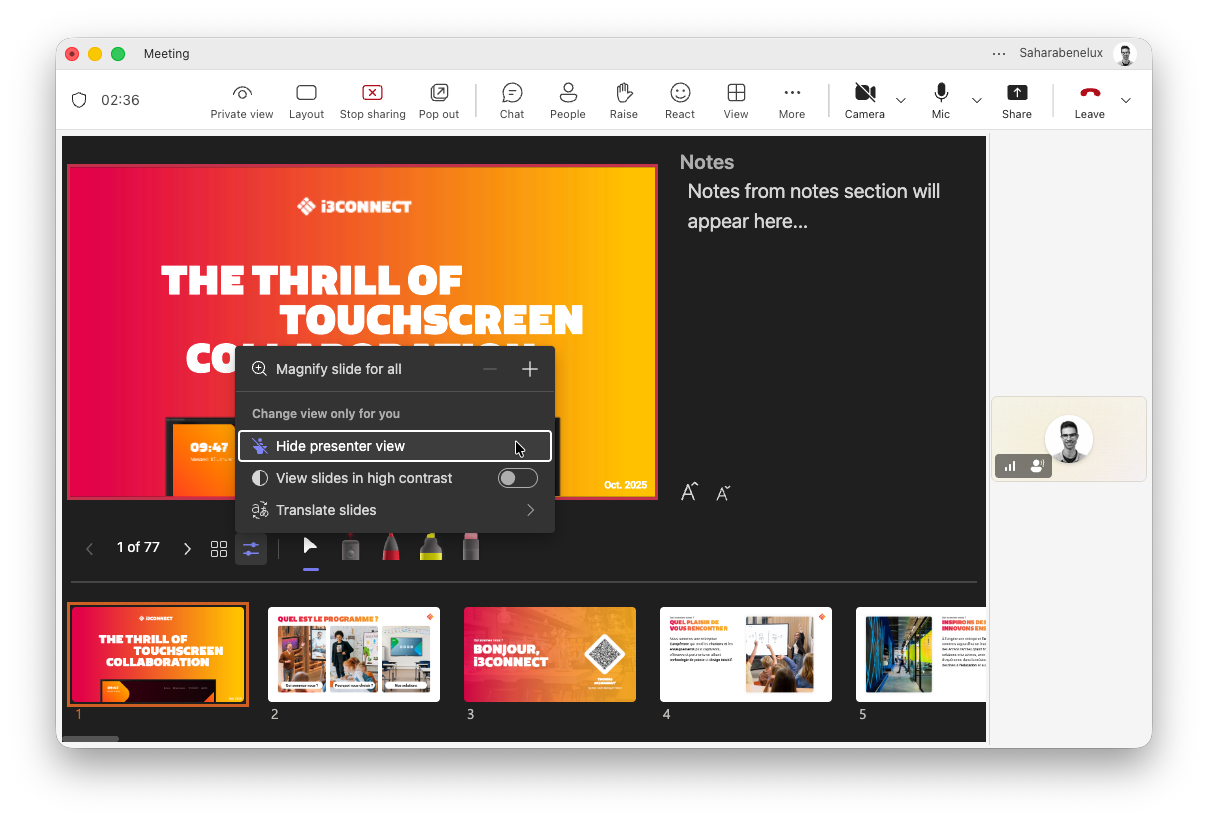
Disable presenter view for PowerPoint Live
When sharing a PowerPoint Live in a BYOD or BYOM setting, you may see presenter notes on the big screen. You can reset this to only viewing the PowerPoint slides by doing this:
-
Press on

-
Then press on

Troubleshooting
-
If you don’t see your laptop screen on the display, check the cable connections and make sure you’ve selected the correct input.
-
If the display’s camera or microphone doesn’t appear in Teams, try unplugging and reconnecting the USB cable, or restart Teams.
-
For best results, use a USB-C cable that supports video, audio, and data.
-
If you hear echo or feedback, mute the display’s microphone or your laptop’s mic as needed.