
Need to show your computer screen or a Microsoft Whiteboard during a Teams meeting on an i3CONNECT display running Microsoft Teams Rooms (MTR)? This guide is for anyone who wants to wirelessly cast content from their computer to an MTR.
For a more intuitive experience, we recommend using the Aspen 4 MTR Bundle.
Before you start
-
Make sure Bluetooth beaconing is enabled on your Teams devices.
-
Enable “Automatically accept proximity-based meeting invitations” on the Teams device for the smoothest experience (look for the wireless icon next to the room name).
-
Your Teams account must be in the same tenant as the Teams device, or the tenants must be federated.
Instructions
-
(Optional) Book the room you wish to use as a Teams Meeting.
-
Start the Teams meeting by tapping on Join on the display.
-
Open the Teams app on your computer and sign in with your Teams account.
-
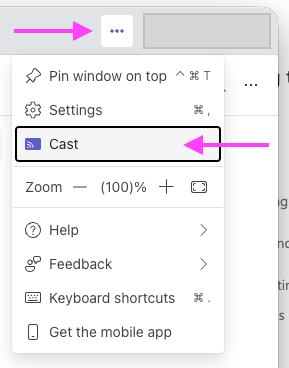
Click Settings and more

-
Select Cast from the dropdown menu to search for nearby Teams Rooms.
-
Choose the i3CONNECT display from the list. Rooms with a wireless icon will auto-accept if casting is enabled.

-
Click Next.
-
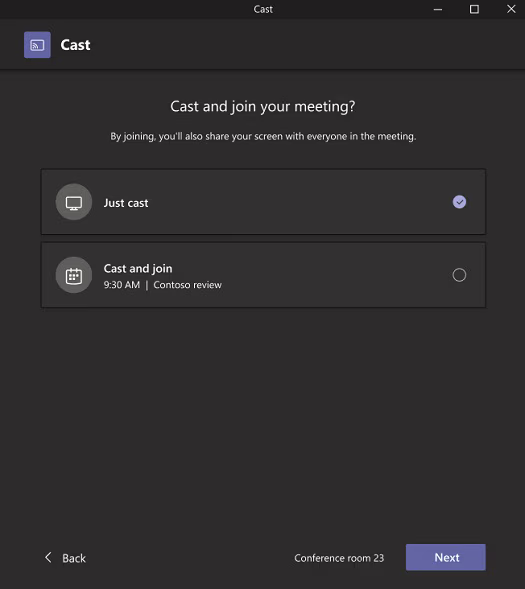
If you have a meeting scheduled in that room, choose Just cast or Cast and join. If not, continue to the next step.
-
Click Next.
-
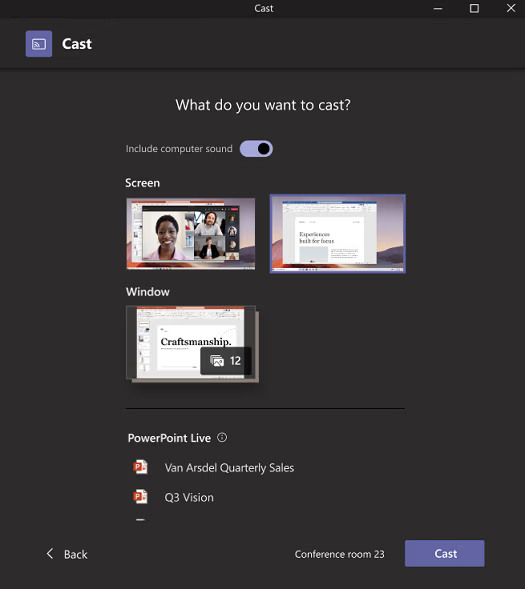
Select the content you want to cast:
-
Share your entire screen
-
Share a specific window
-
Toggle on computer sound if you want to share audio or video. Your computer will join the cast session with audio off by default.
-
Share a PowerPoint:
-
By sharing your screen (lower resolution, slower movement)
-
By sharing PowerPoint Live (recommended: higher resolution, faster, but custom fonts require embedding via Preferences > Save > Font Embedding)
-
-
-
Click Cast to start sharing.
End the meeting
Select End meeting on your computer to end the session for both your computer and the room. If you select Leave in Teams, you’ll also need to end the call on the Aspen 4 device.
Troubleshooting
-
If you don’t see the i3CONNECT display in the Cast list, check that your Bluetooth and WiFi are enabled and on the correct WiFi network.
-
If your content doesn’t appear, confirm you’re signed in with the correct Teams account and that the device is in the same tenant or federated.
-
If you can’t share PowerPoint Live, make sure your file is saved to OneDrive and fonts are embedded if needed.
-
For persistent issues, contact your IT support or visit the i3CONNECT support portal.