
This guide walks you through starting or joining a Zoom meeting, sharing your screen, using the whiteboard, and troubleshooting touch control. This article is for anyone using an i3CONNECT display with an OPS running Windows and Zoom Rooms for Touch. It’s especially useful for IT admins, teachers, and meeting hosts who want to enable seamless screen sharing and interactive collaboration. If you’re not using an i3CONNECT OPS or Zoom Rooms for Touch, check your device’s specific instructions.
Before you start
-
Make sure your i3CONNECT OPS is running Windows 10 or higher.
-
Confirm Zoom Rooms for Touch is installed on your OPS.
-
Ensure you have a Zoom Room license or a test Zoom Room set up.
-
Connect your OPS to the internet.
Installation instructions
-
Download and install Zoom Rooms for Touch
-
Visit the Zoom Rooms for Conference Room download page on your i3CONNECT OPS.
-
Scroll down and download the Zoom Rooms for Conference Rooms installer.
-
Double-click the installer to start installation.
-
-
Configure auto login (optional)
-
Go to Settings > Accounts > Sign-in options.
-
Turn off “For improved security, only allow Windows Hello Sign-in for Microsoft accounts on this device.”
-
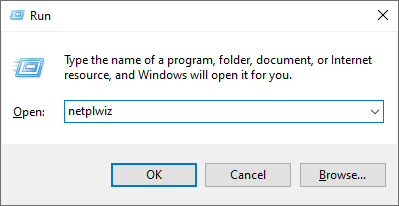
Press Win+R, type netplwiz, and press Enter.
-
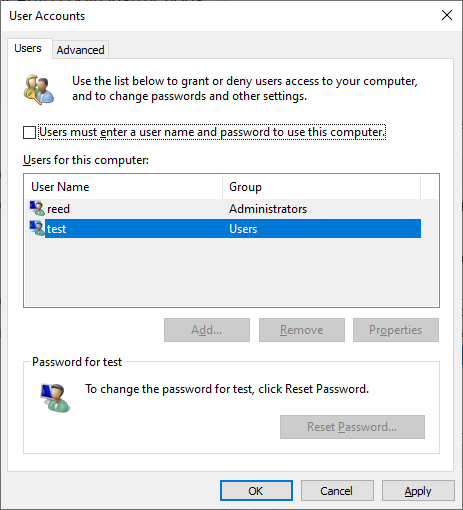
Select your user, uncheck “Users must enter a user name and password to use this computer,” and click OK.
-
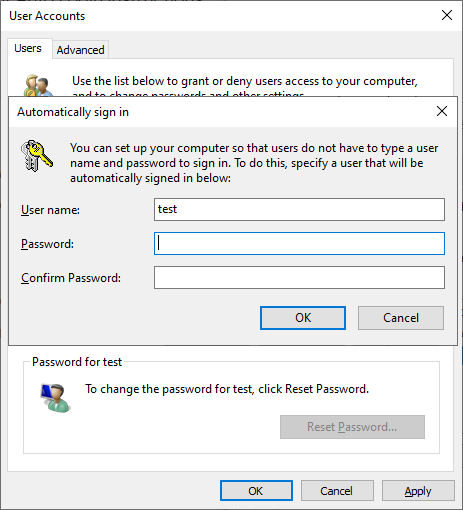
Enter your credentials and confirm.
-
Windows does not verify your password here; ensure it’s correct!
-
Restrict whiteboard sharing to internal users (optional)
-
Sign in to the Zoom web portal.
-
Go to Room Management > Zoom Rooms.
-
Use location hierarchy or Account Settings to enable “Send Whiteboard to internal contacts only.”
-
Click Meeting and enable the setting.
-
Note: If the option Users must enter a user name and password to use this computer is not visible, do the following:
-
Go to Settings.
-
Click Accounts.
-
Click Sign-in options.
-
Click the toggle to Off next to Require Windows Hello sign-in for Microsoft accounts on Windows 10 devices. On Windows 11 devices, click the toggle to Off next to only allow Windows Hello sign-in for Microsoft accounts on this device.
-
Once disabled, the checkbox for Users must enter a user name and password to use this computer will appear when running netplwiz.
-
How to use
-
Start or join a Zoom meeting
-
To start a scheduled meeting: On the Zoom Rooms home screen, tap START next to your scheduled meeting.
-
To join a meeting manually:
-
Tap Join on the home screen.
-
Enter the meeting ID.
-
Tap Join Meeting.
-
-
You’ll have access to in-meeting controls once you join. See Zoom’s in-meeting controls guide for details.
-
Share your screen with AllSync
-
Start or join your Zoom meeting.
-
To share content:
-
Before the meeting: Tap Share Content on the touchscreen.
-
During the meeting: Tap the ellipses (...) in the bottom-right, then tap Share Content.
-
-
Follow the on-screen instructions to share via the Zoom app, browser, or AirPlay.
-
To allow multiple participants to share at once, toggle the option at the bottom of the screen.
-
Use the screen share controls as needed.
-
-
Use the whiteboard
-
Tap Whiteboard on the home screen.
-
Use the control bar to select colors and drawing tools.
-
Free form: Draw naturally.
-
Smart recognition: Shapes are auto-converted.
-
-
Tap the pencil icon to choose your drawing method and color.
-
Draw or annotate as needed.
-
Tap the undo or trash bin icon to erase drawings.
-

-
Save and share your whiteboard
-
Tap the send icon in the whiteboard controls.
-
Select pages to send (if multiple).
-
Enter an email address and select a format.
-
Tap Send.
-
Each whiteboard page is sent as a separate image from the room’s email address.
Troubleshooting
-
No touch control in Zoom Rooms:
-
Sign in to the Zoom web portal.
-
Go to Room Management > Zoom Rooms.
-
Click Edit next to your Zoom Room.
-
Under Setup, enable “Touch-screen features for Zoom Room.”
-
-
OPS not connecting to the internet:
-
Connect the internet cable directly to the OPS for Zoom Rooms only, or to the display for both display and OPS connectivity.
-
-
Zoom Room license issues:
-
For full functionality, ensure your account has a Zoom Room license. For testing, use a test Zoom Room setup.
-
-
Whiteboard sharing not working:
-
Check that sharing is enabled for internal users in the Zoom web portal.
-