
Changing the PIN code for your i3CONNECT Studio display is a quick way to keep your screen secure and ensure only authorized users can access your content. By the end of these instructions, you will have updated your security PIN.
This method is specifically for displays running i3CONNECT Studio. If you have forgotten your PIN and are locked out, please contact your IT administrator to reset it via i3CONNECT Cortex.
Instructions
-
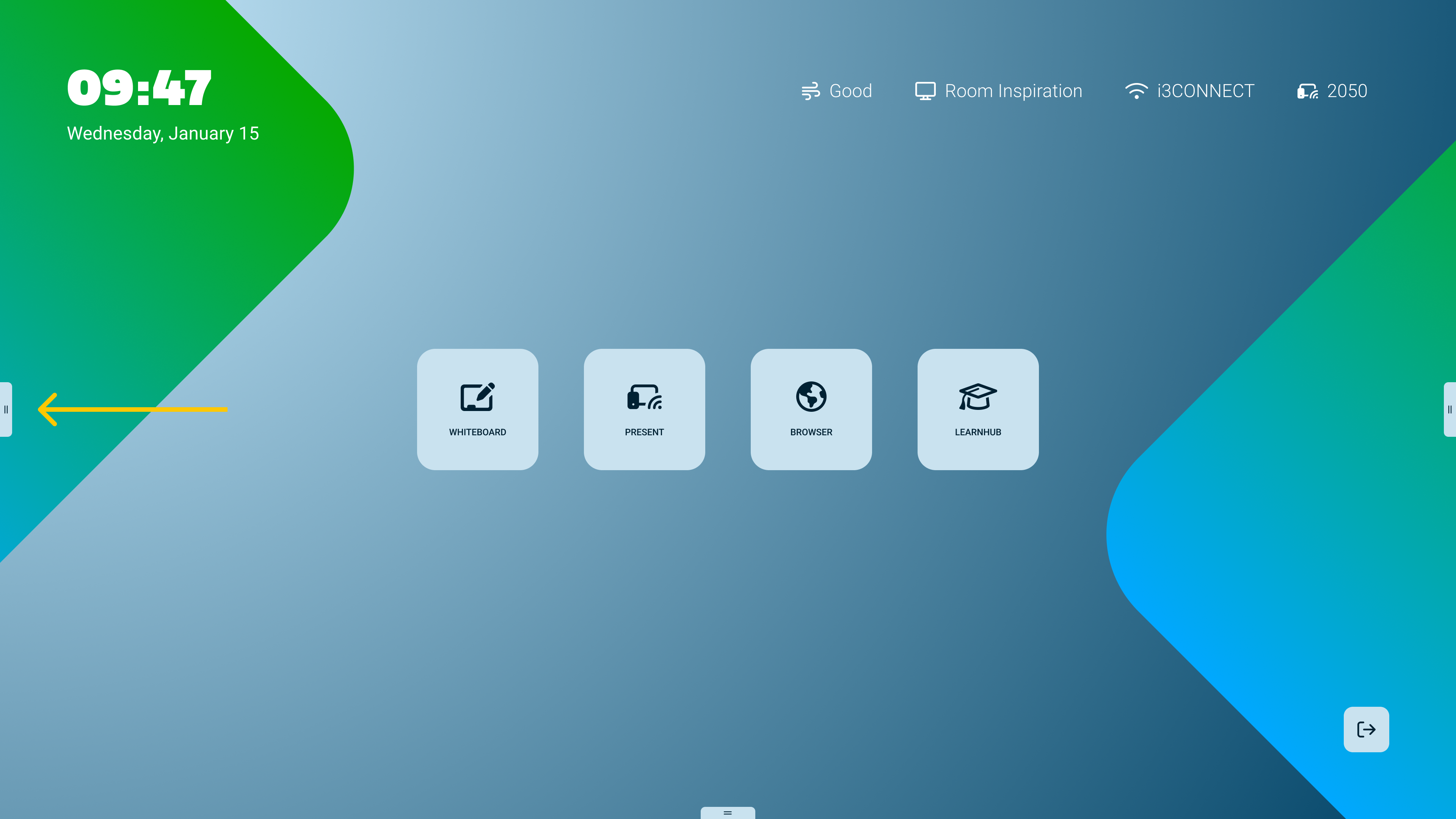
Open the side menu by swiping inward from the left or right edge of the screen.
-
Locate the LOCK button (represented by a padlock icon) in the side menu.
-
Press and hold the Lock Screen button for 3 seconds to trigger the PIN change menu.
-
Enter your current PIN to verify your identity. If none exists it will skip this step.
-
Type your new PIN and then enter it a second time to confirm.
-
Tap Save to apply the new security code.
Troubleshooting
-
Forgotten PIN: If you do not know the current PIN, you cannot change it using this method. You must use i3CONNECT Cortex to remotely clear or reset the device PIN.
-
Button not responding: Ensure you are pressing and holding the icon specifically; a quick tap will simply lock the screen rather than opening the settings.
-
Restricted Access: If the option to change the PIN does not appear, your IT department may have disabled local security changes. Contact your system administrator for assistance.