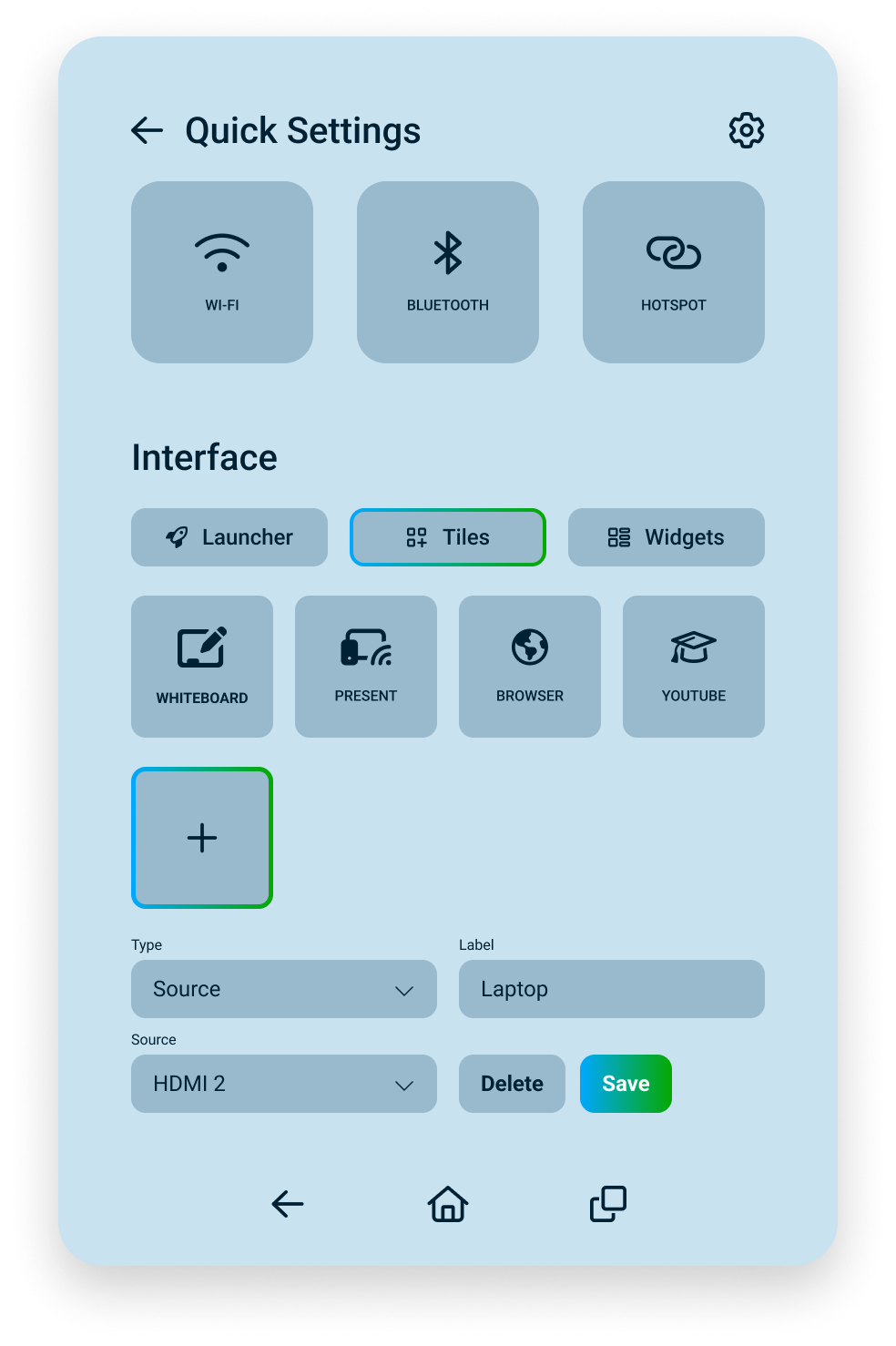
i3CONNECT Studio allows you to tailor your interface to your specific workflow using customisable widgets and tiles. You can add personal shortcuts, quick navigation, or work tools directly onto your homepage or in your side-menu.
Instructions
-
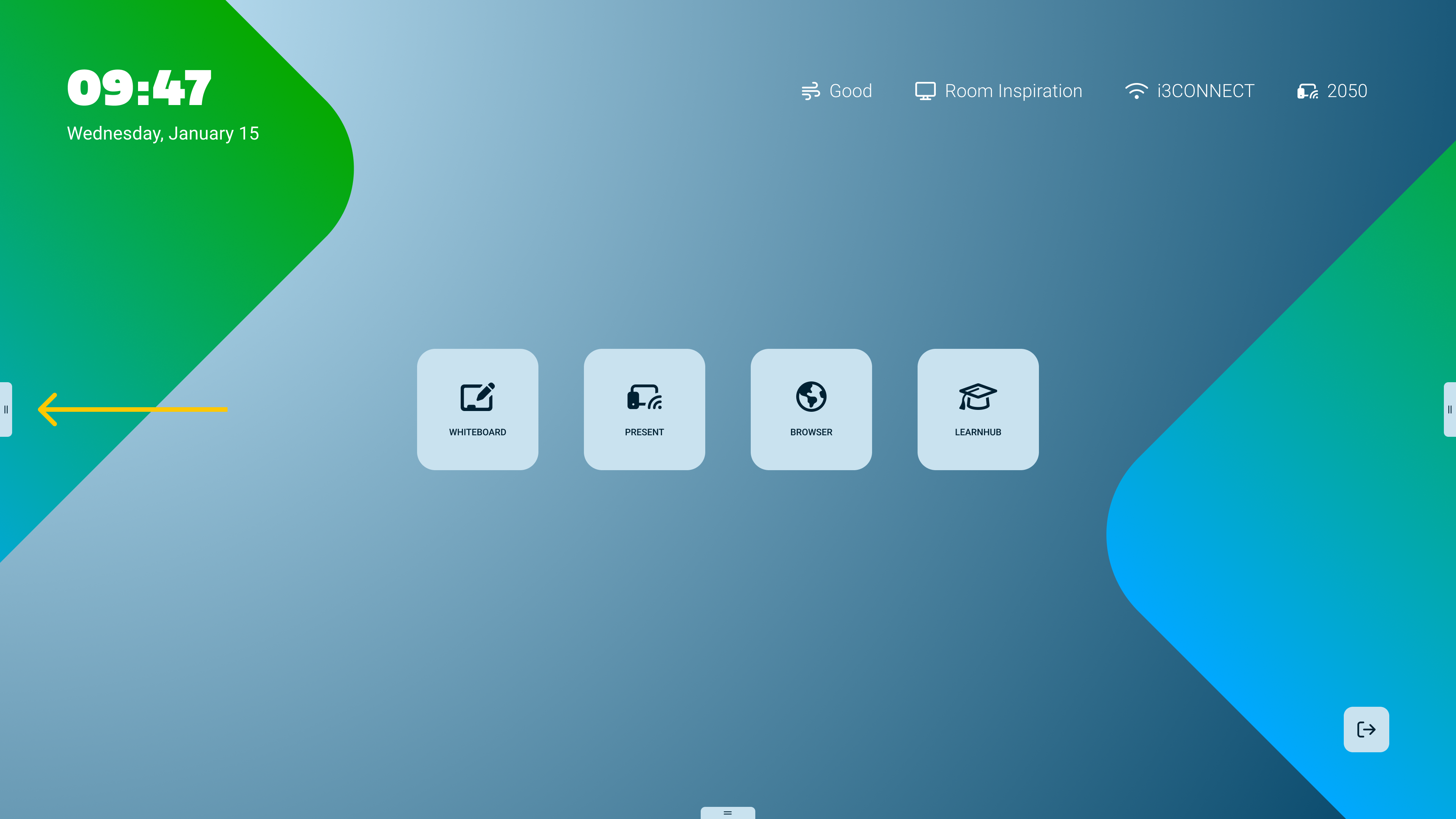
Open the side-menu settings by tapping on the menu-grabber on the left and right of the display. It may sometimes also be found at the bottom middle of the display.
-
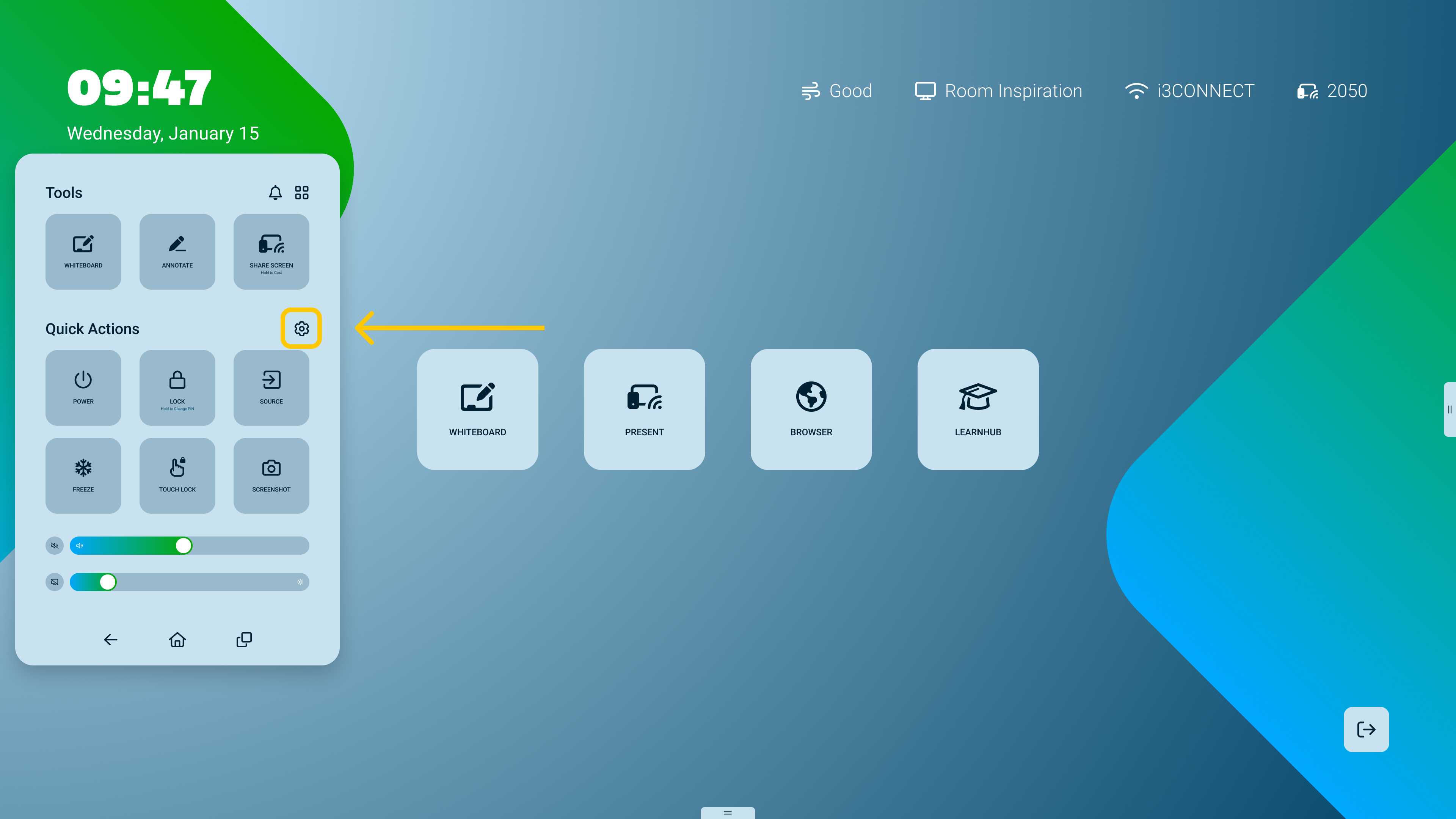
Then tap on the cogwheel icon in the top right of the side-menu.
-
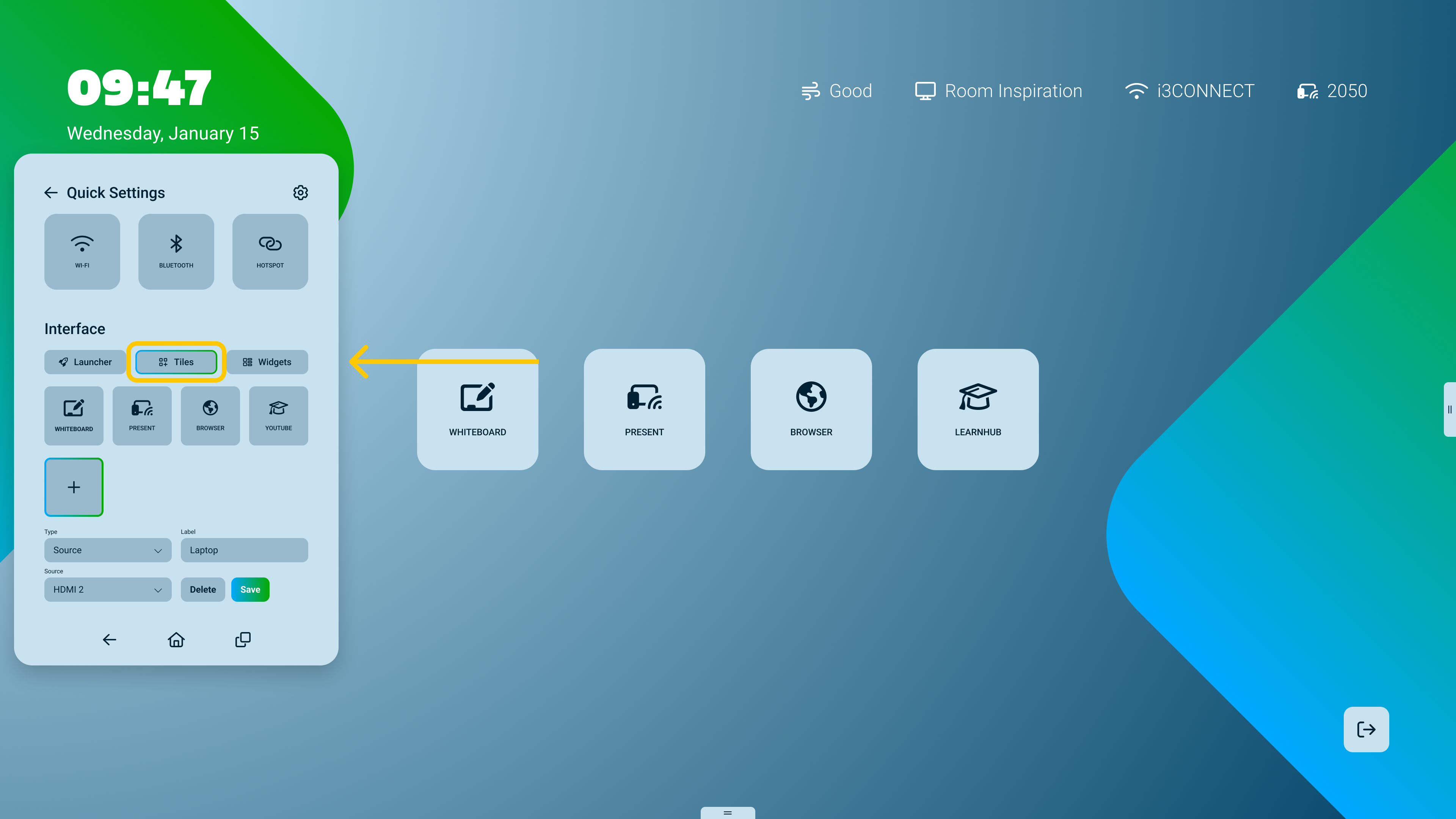
Navigate to the Tiles widget section on the home screen.
-
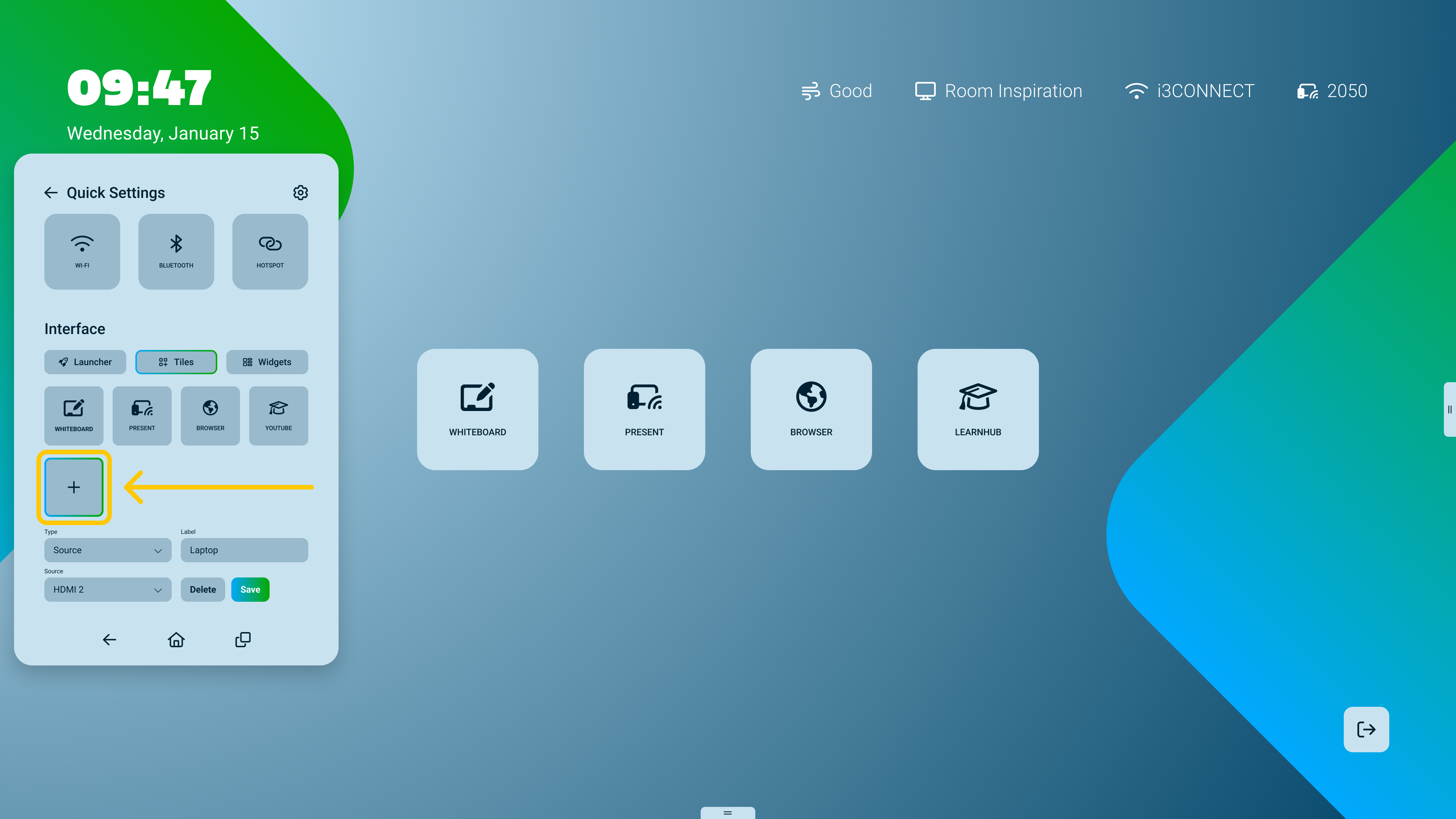
Add a new tile by selecting the '+' icon, or edit an existing tile by tapping on it.
-
Choose the tile type:
-
Web Link: Enter a URL to open a specific web page in a new browser tab.
-
Application: Select any installed app to create a quick-launch shortcut.
-
Input Source: Choose a video input like HDMI, USB-C, or the integrated OPS computer.
-
Whiteboard: Opens the i3WHITEBOARD app.
-
Present: Choose whether to use the default wireless sharing app, or choose a source upon which your sharing device is installed. It will retain the sharing icon of the UI.
-
Conference: Choose an app that can make use of the Conference icon.
-
Browser: Opens the default Chromium browser.
-
-
Customise the label by typing a name that will appear on the tile for easy identification.
-
Save your changes to see the new layout on your home screen.
Troubleshooting
-
Reverting changes: If you want to restore the original pre-defined tiles, you can relaunch the setup wizard within the launcher settings.
-
Missing OPS tile: The OPS input tile is usually generated automatically when a module is detected. If it's missing, ensure the OPS is fully seated and powered on.
-
Tile not launching: If an application tile doesn't work, verify the app is still installed on the device via the app library.
-
labels: how-to, i3connect-studio, getting-started, customisation