
The Multifunctional Button can be configured directly from the display settings menu or remotely through Cortex. Once enabled, you can choose what action the button performs when it is pressed.
Configure from the display settings menu
-
Open the Settings menu on the display.
-
Go to General.
-
Select Multifunction Button and then enable it.
-
Choose the action you want to assign to the button.
-
Save your changes.
Configure through Cortex
-
Open Cortex and go to Devices.
-
Select the display you want to configure.
-
Open the display settings.
-
Go to General and select Multifunctional Button and enable it.
-
Choose the action you want to assign to the button.
-
Save the configuration.
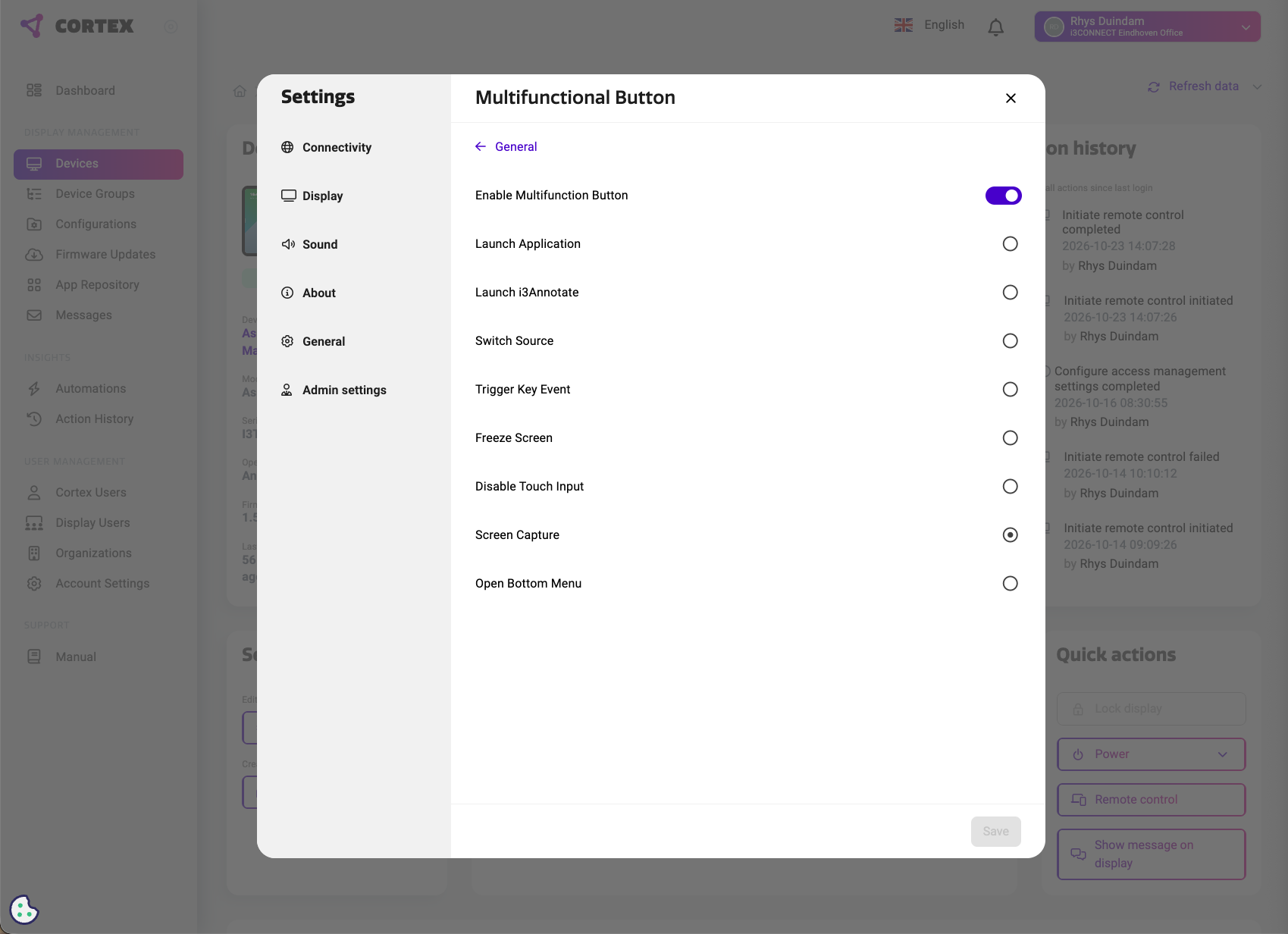
Available button actions
After enabling the Multifunctional Button, choose one of the following options:
-
Launch Application — open a selected application.
-
Launch i3Annotate — start i3Annotate.
-
Switch Source — switch to another input source.
-
Trigger Key Event — trigger a predefined key event.
-
Freeze Screen — freeze the current screen image.
-
Disable Touch Input — temporarily disable touch input.
-
Screen Capture — take a screenshot.
-
Open Bottom Menu — open the display’s bottom menu.
Note: Only one action can be assigned to the Multifunctional Button at a time.