
This article is for anyone running a Microsoft Teams meeting from their own laptop and enlarging it on an i3CONNECT display (BYOD: Bring Your Own Device).
Laptop’s tend to have poor quality microphones and cameras. Once your laptop is connected to an i3CONNECT display, it can use the display’s attached camera, and built-in microphone / speakers to provide crystal-clear audio and video.
Before you start
-
Make sure your i3CONNECT display is powered on.
-
Have a compatible USB-C or HDMI cable (and USB cable if needed for camera/mic).
-
Your laptop should have Microsoft Teams installed and updated.
Instructions
-
Connect your laptop to the display.
-
Use a USB-C cable for video, audio, and touch (if supported), or
-
Use an HDMI cable for video, plus a USB cable for camera/mic/touch.
-
For advice on cables or laptop connection see this article:
Share your laptop screen using a HDMI or USB-C cable
-
-
Select the correct input on the display.
-
On the i3CONNECT display, switch to the input (HDMI or USB-C) you plugged into.
-
This may happen automatically if the setting is enabled.
-
-
Start or join your Microsoft Teams meeting on your laptop.
-
Share your screen if needed.
-
In Teams, click Share and choose the content you want to show.
-
Your shared content will now be visible on the big display for everyone in the room.
-
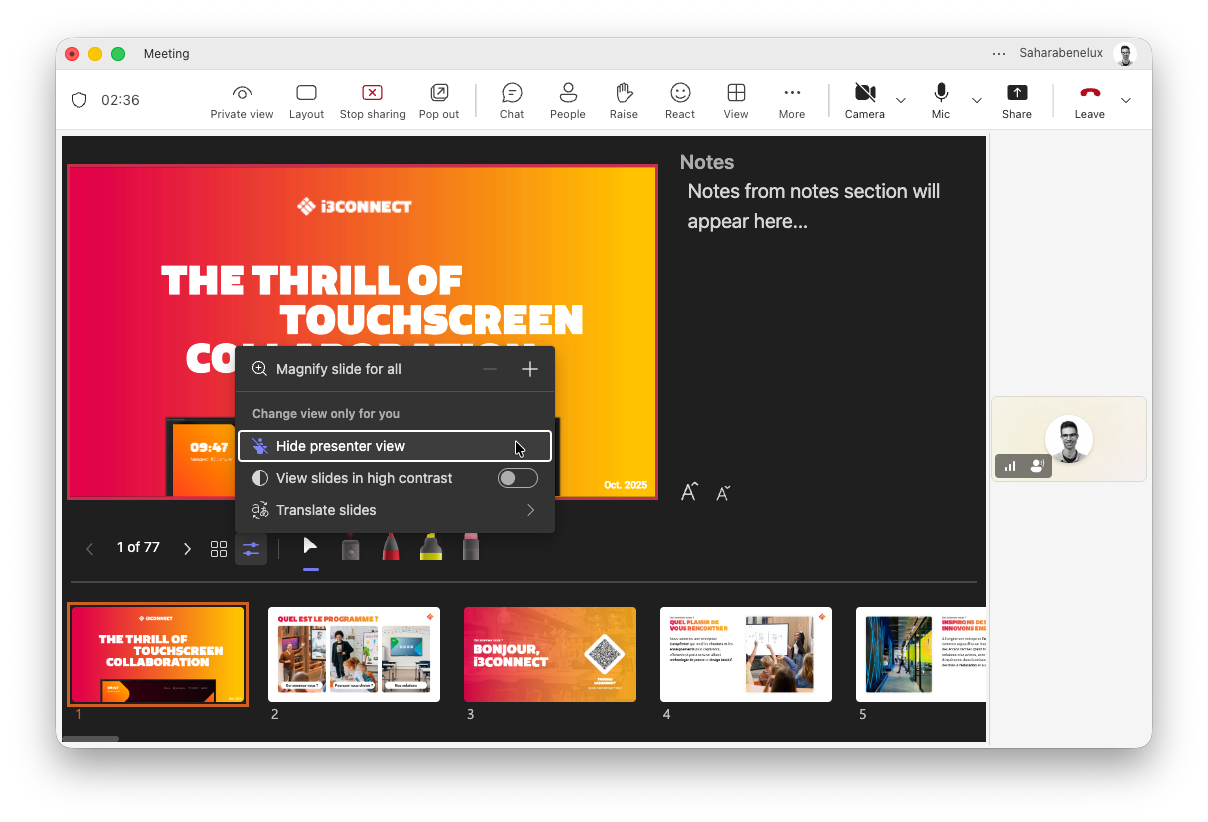
Disable presenter view for PowerPoint Live
When sharing a PowerPoint Live in a BYOD or BYOM setting, you may see presenter notes on the big screen. You can reset this to only viewing the PowerPoint slides by doing this:
-
Press on

-
Then press on

Troubleshooting
-
If you don’t see your laptop screen on the display, check the cable connections and make sure you’ve selected the correct input.
-
If the display’s camera or microphone doesn’t appear in Teams, try unplugging and reconnecting the USB cable, or restart Teams.
-
For best results, use a USB-C cable that supports video, audio, and data.
-
If you hear echo or feedback, mute the display’s microphone or your laptop’s mic as needed.