
When entering the room you will see upcoming meetings listed on the board.
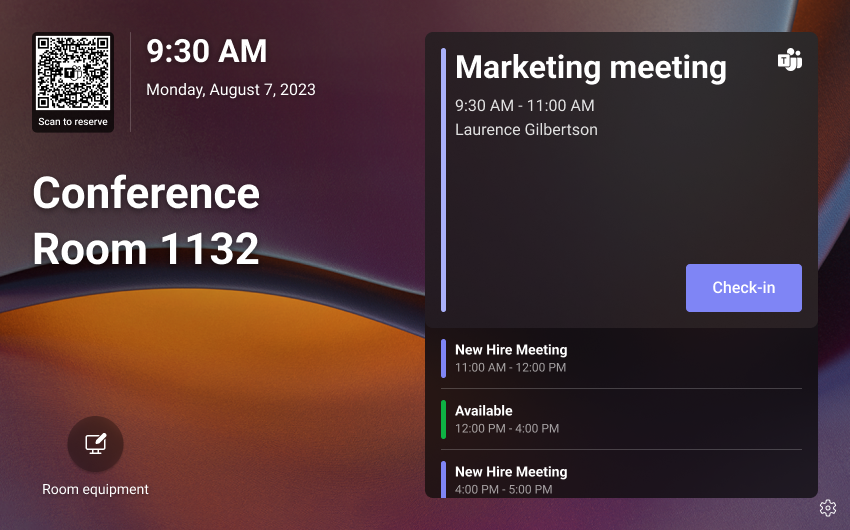
Start a Teams meeting from a booked room
If your meeting was booked beforehand, you will see it in the list with a big Join button. Press this button to start the call and invite all attendees automatically.
If you do not see your meeting or the join button try these things first:
Start a scheduled Teams meeting without a room booking
If you have a meeting, but did not book a room, and you have found one that is available, you can do either of these options:
-
Add the room as the location in your Meeting. After a short period your meeting will appear on the display’s meeting list.
-
or, scan the meeting QR code using a mobile device. If you have logged into Office products you will be able to share the meeting with the room. If not, you will be asked to log into your Exchange account. This option may not be available if your IT disabled it.
Start an unscheduled Teams meeting
-
Press on the Meet Now ball on the left of the meetings list to start a blank Teams meeting.
-
Once it starts the call, it shows a big blue button to “Add Participants”. Press on this and add people as you normally would in a Teams call. You do not need to invite yourself as you are represented by the Room in the call.