
This article is for anyone with a laptop (Windows or Mac) who wants to display their screen on an i3CONNECT display using a cable. If you’re using a tablet, smartphone, or want to share wirelessly, use a different guide. If you want to share wirelessly, check out our AllSync guide instead.
Before we start
-
Make sure both your laptop and the i3CONNECT display are powered on.
-
Have a compatible cable ready (HDMI with a USB2.0, or a USB-C with video support).
-
Confirm that the ports on both devices are enabled and not restricted by IT.
Instructions
-
Connect your laptop to the display: Plug one end of your HDMI or USB-C cable into your laptop, and the other end into the matching port on the i3CONNECT display.
-
Switch the display source if needed: If your laptop screen doesn’t appear automatically, use the display’s remote or on-screen menu to select the correct input (e.g., HDMI 1, USB-C 2).
Inputs and sources refer to the video feed from each connected device. The HDMI 1 input port matches the HDMI 1 source, unless renamed.
-
Set your laptop to Duplicate / Mirror
-
Check for touch control on HDMI: If you want to use touch on the display while connected by HDMI, make sure you’ve also connected the USB cable from your laptop to the display’s TOUCH OUT port.
The TOUCH OUT port can differ per product so check the relevant Touch Mapping article of your display e.g. https://i3group.atlassian.net/helpcenter/i3connect-support/portal/1023/article/2453569882?source=rovo.
Use the right cable
Video will only transmit if the cable and port you are using on your laptop allows it. The most common video ports and cable are HDMI and USB-C. Make sure you are using these ports and cables when testing this. Don’t plug a cable into a port that does not perfectly match its shape.
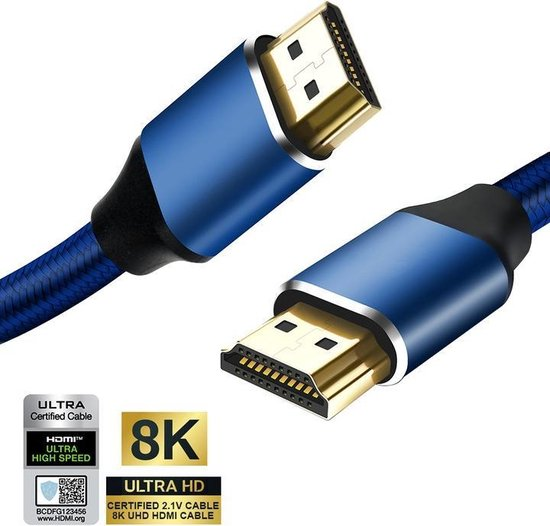
HDMI cables
HDMI cables can be very long without any quality issues. Look for HDMI 2.1 cables.
HDMI does not transmit touch control so you will need an extra USB cable connected to the correct TOUCH OUT port on the display. These are often called printer cables.
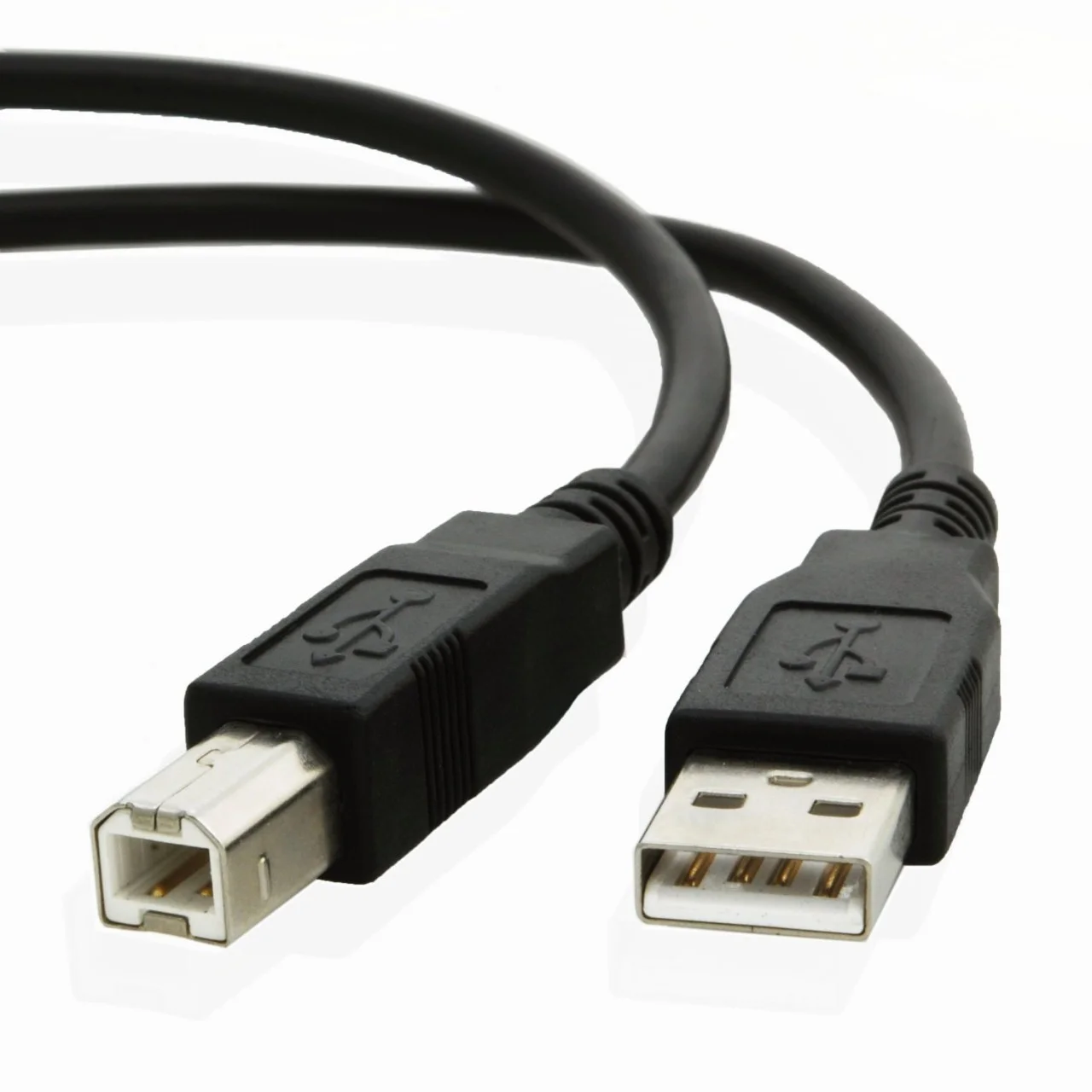
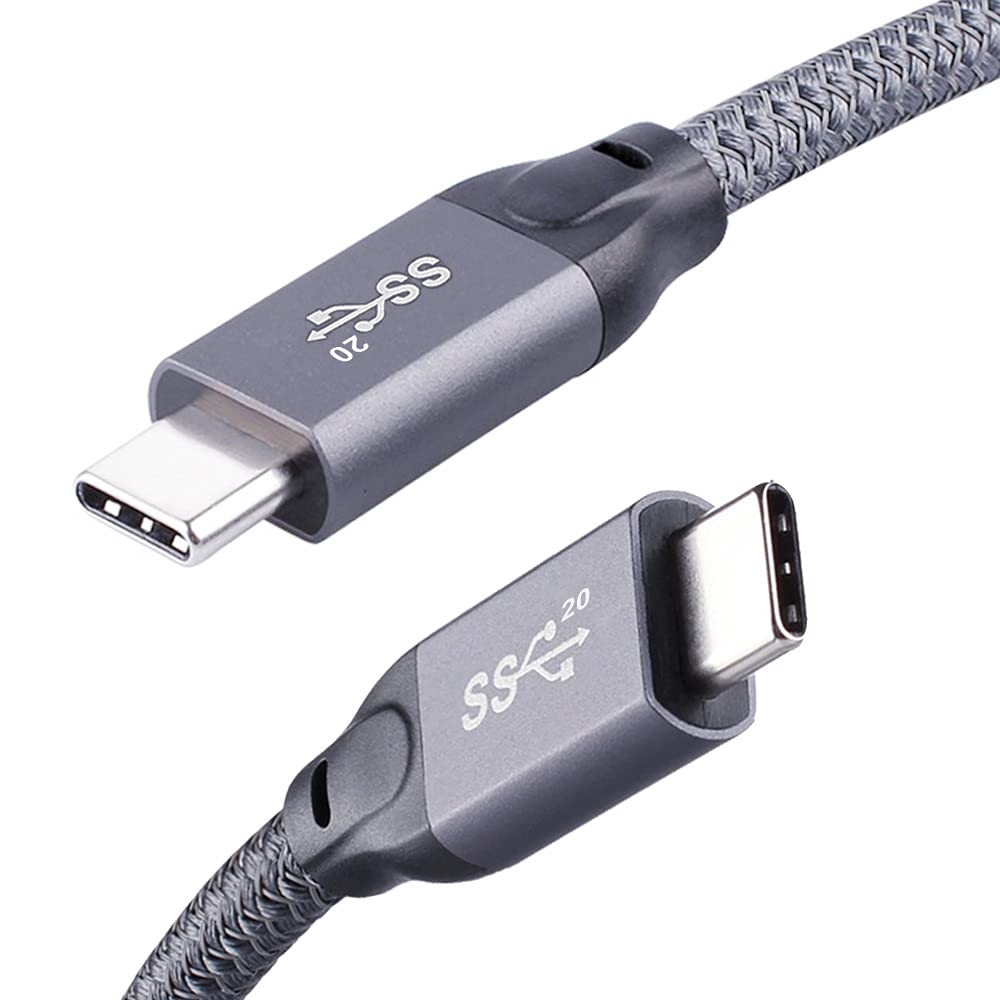
USB-C (or Type-C) cables
USB-C or USB Type-C cables meant for video require DisplayPort (DP) Alt Mode. You can spot this in the product’s description and sometimes from this SS logo for Super Speed.
-
Choose a cable length under 1.5 metres to minimise signal loss.
-
Avoid charge‑only/data‑only cables.
i3CONNECT display’s can power your laptop when connected by USB-C.
Troubleshooting
-
No video on display: Double-check that your cable is fully inserted and the correct input is selected on the display.
-
USB-C not working: Not all USB-C ports support video. Check your laptop’s specs for “DisplayPort Alt Mode” or “USB-C for Monitor.”
-
No touch control: HDMI alone won’t provide touch. Connect the USB cable to the correct TOUCH OUT port.
-
Display doesn’t auto-switch: Manually select the input source from the display’s menu.
-
Older devices not connecting: Try setting the display’s HDMI EDID to 1.4 in the settings.
-
Inputs renamed: If you don’t see HDMI 1/2/3, look for custom labels in the source list.
-
Display is black or frozen: Wake it by tapping with all five fingers, pressing and holding with two fingers, or using the front button/remote.