
This article is for anyone who wants to use Miro whiteboard directly on an i3CONNECT interactive display. You don’t need to have a PC or login on the display itself for this to work. It’s perfect for teams or classrooms looking to collaborate quickly using Miro’s digital whiteboarding tools.
Before you start
-
Make sure your i3CONNECT display is connected to the internet.
-
You’ll need a Miro account on your personal device if you want to save boards for later.
Setting up Miro on your i3CONNECT display
-
Open i3CONNECT Studio on your display.
-
Create a new tile on the home screen or side menu.
-
Choose “Website address” as the tile type.
-
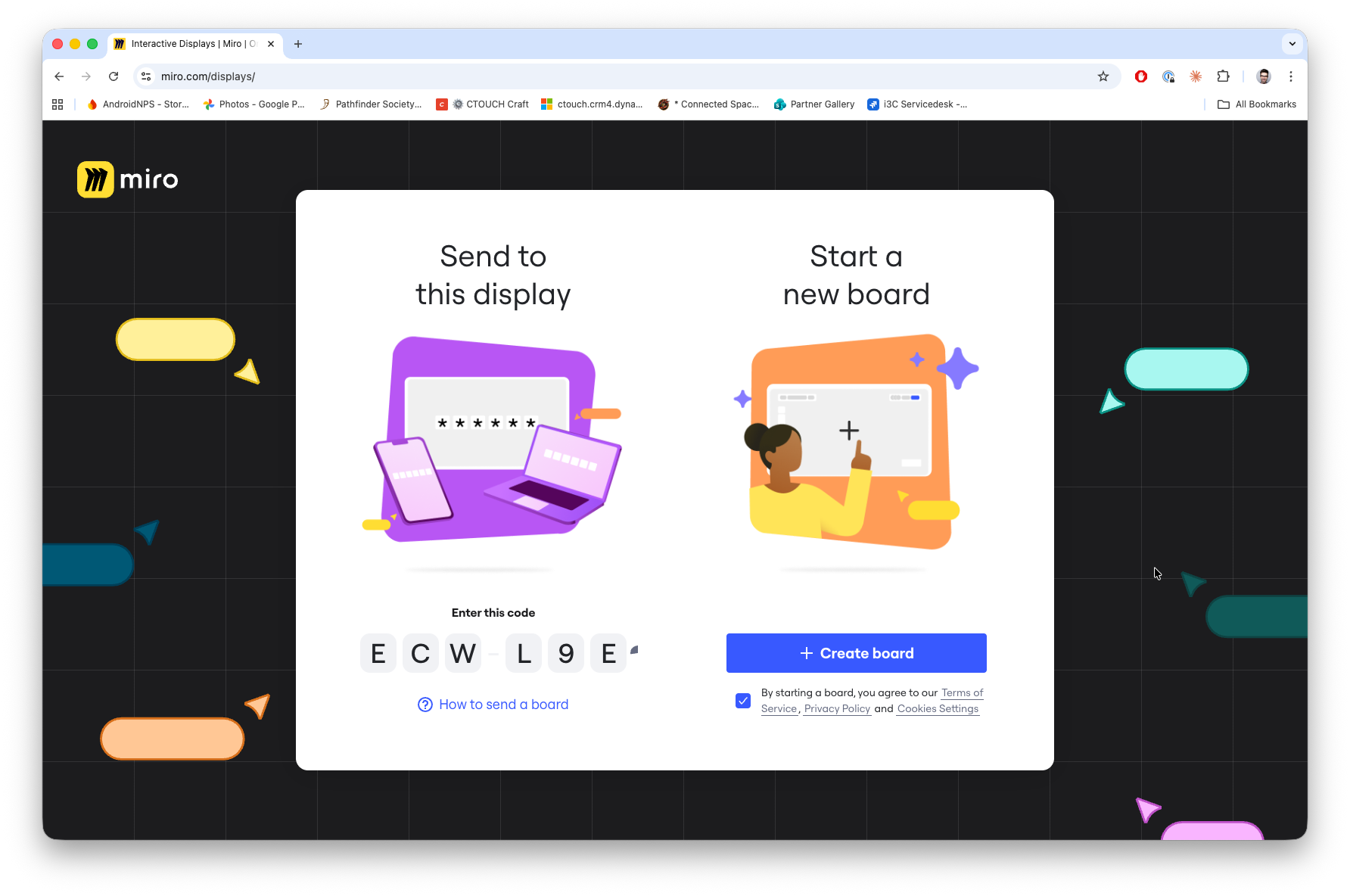
For full Miro options, enter: https://miro.com/displays/
-
For “Send to display” only, enter: https://miro.com/send-to-display/
-
Name the tile something clear, like “Miro whiteboard”.
-
Sending your Miro board to the display
From your laptop or tablet
-
Open the Miro tile on your i3CONNECT display.
-
On your device, open the Miro board you want to share.
-
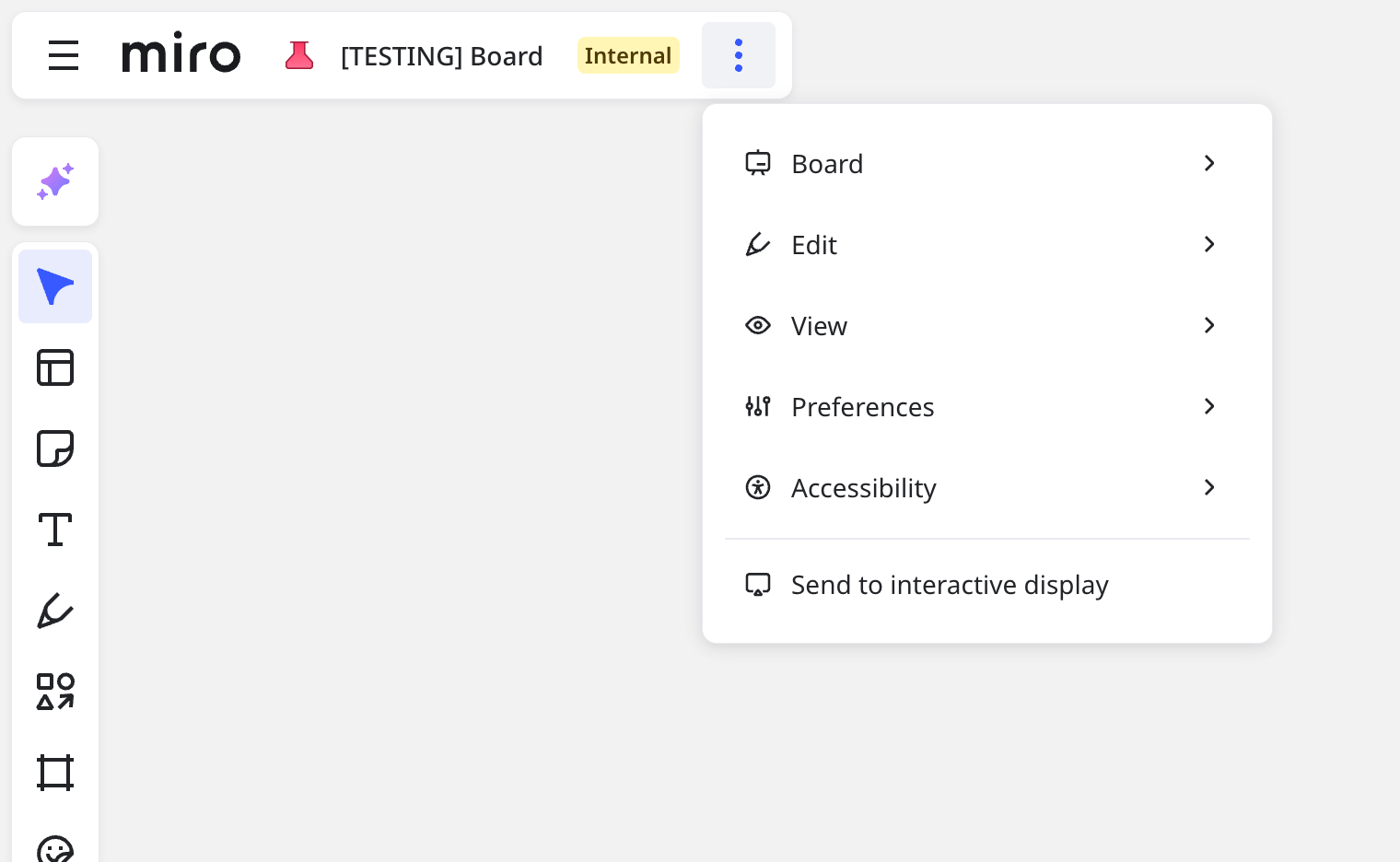
In the board’s menu (three dots), select Send to interactive display.
-
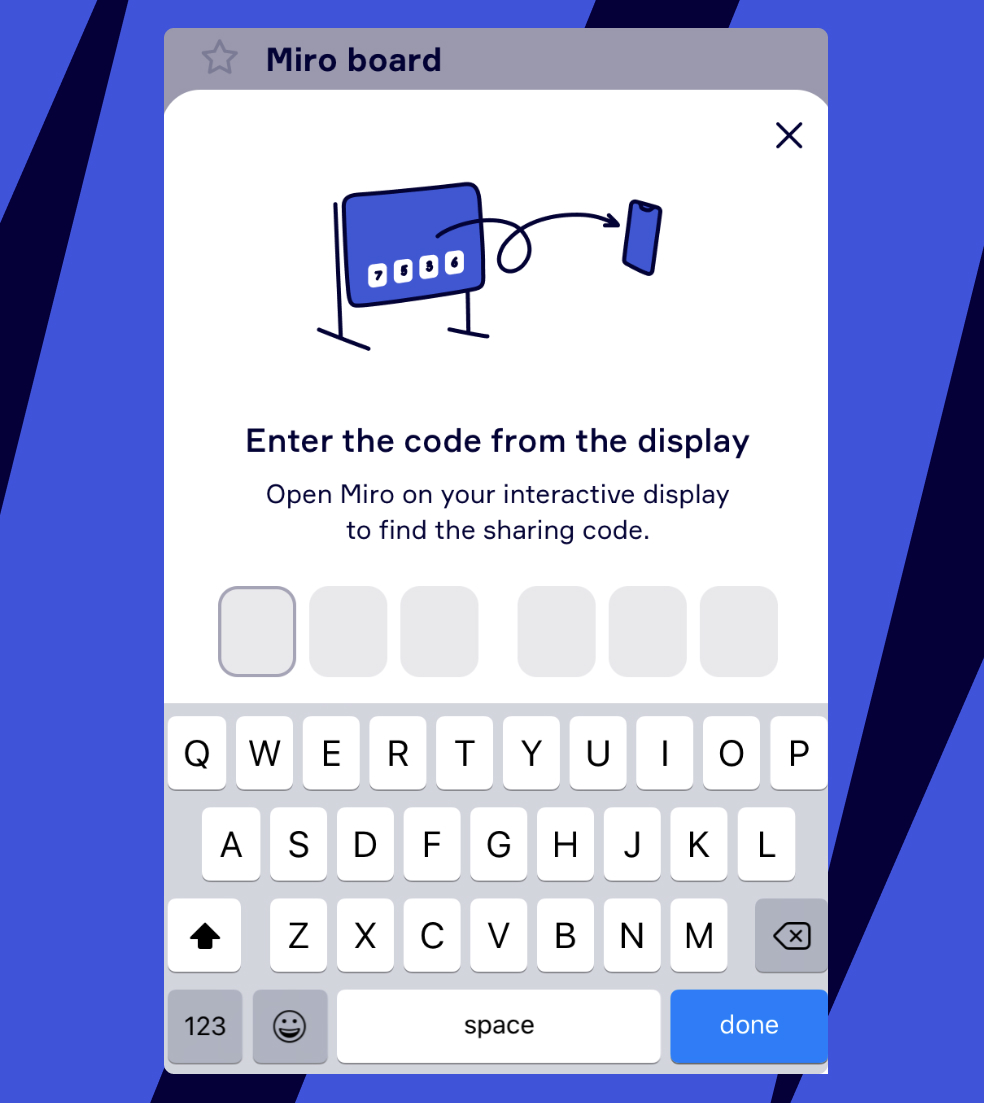
Enter the pairing code shown on the display.
From your mobile device
-
Open your Miro board in the app.
-
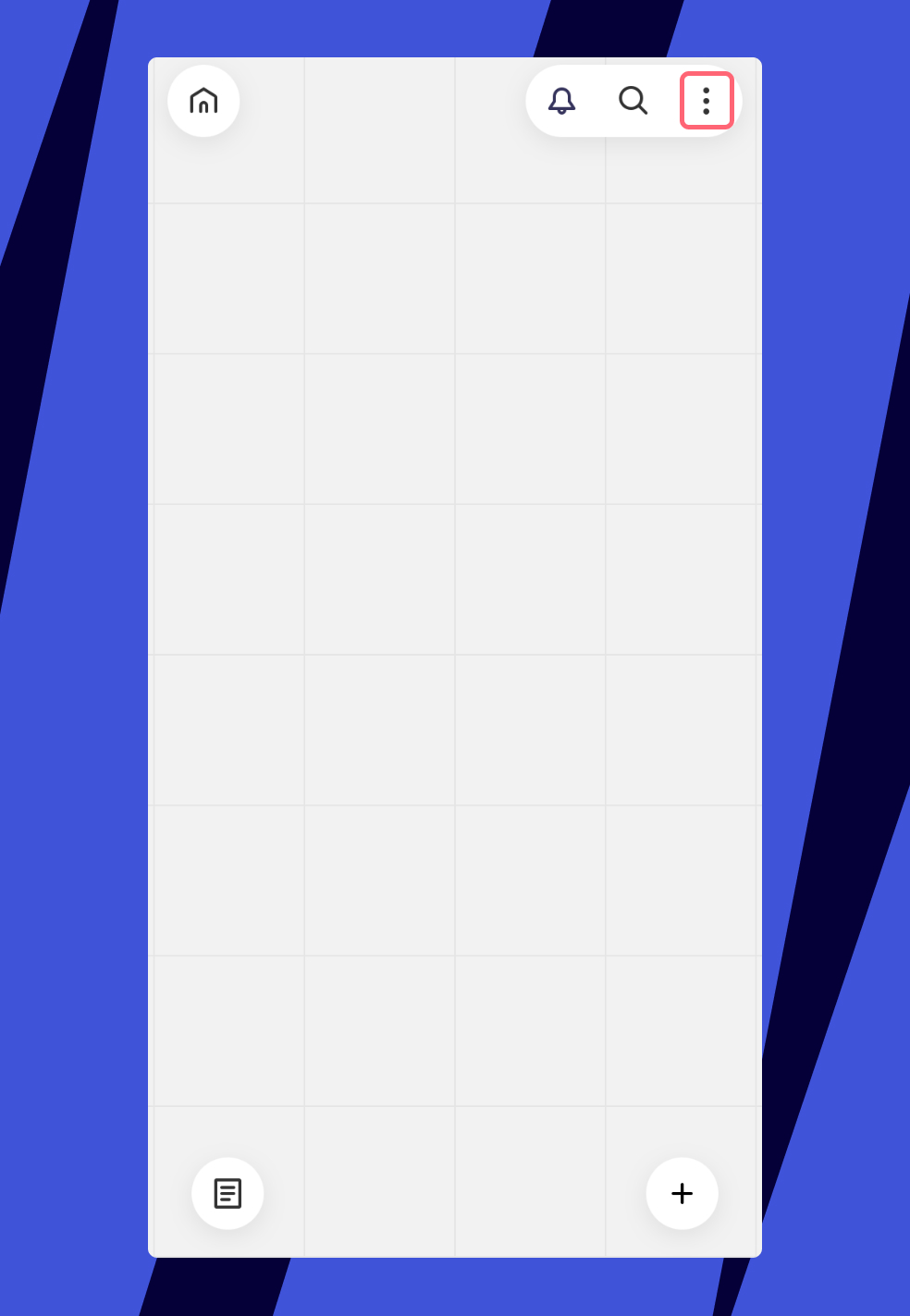
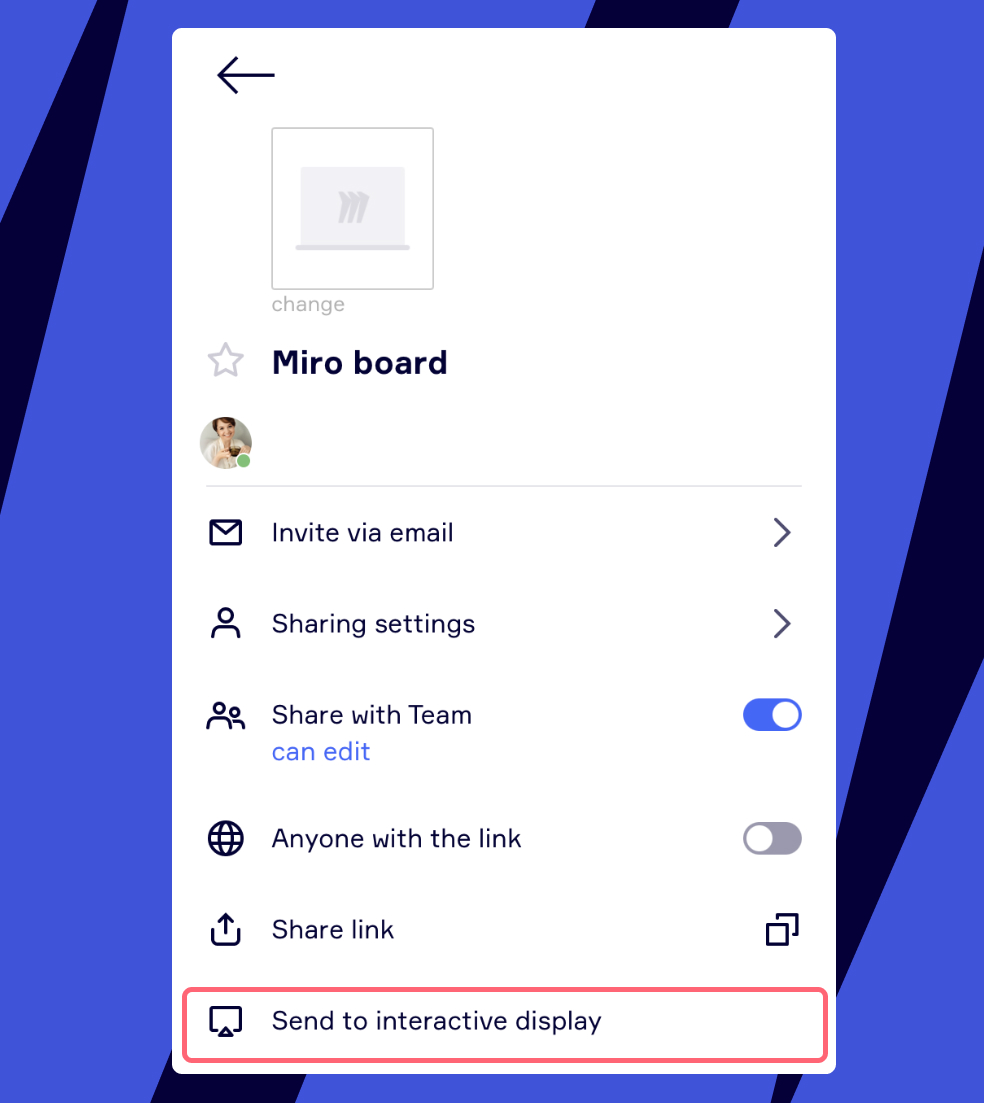
Tap the Settings icon, then Send to interactive display.
-
Enter the pairing code from the display.
Whiteboarding in Miro
-
The creation toolbar appears at the bottom of the screen with sticky notes, shapes, text, lines, pen, highlighter, and eraser.
-
More tools are in the + menu.
-
Using a stylus? You’ll automatically switch to pen mode with palm rejection. To go back to finger drawing, reload the board or stop using the stylus for 10 minutes.
Miro only supports one touchpoint per display.
Saving your board
-
Click Save in the top-left corner of the board.
-
Enter your email or scan the QR code.
-
Open the board from your email or QR code link.
-
Name your board and choose a team.
-
Click Save.
Ending your session
-
Log out by tapping the Exit icon at the top left of the Miro board, or click Stop sharing in the Miro app.
-
If you forget, you’ll be logged out automatically after 15 minutes of inactivity.
Always remember to log out of the display to protect your profile data.
Timeout settings for administrators
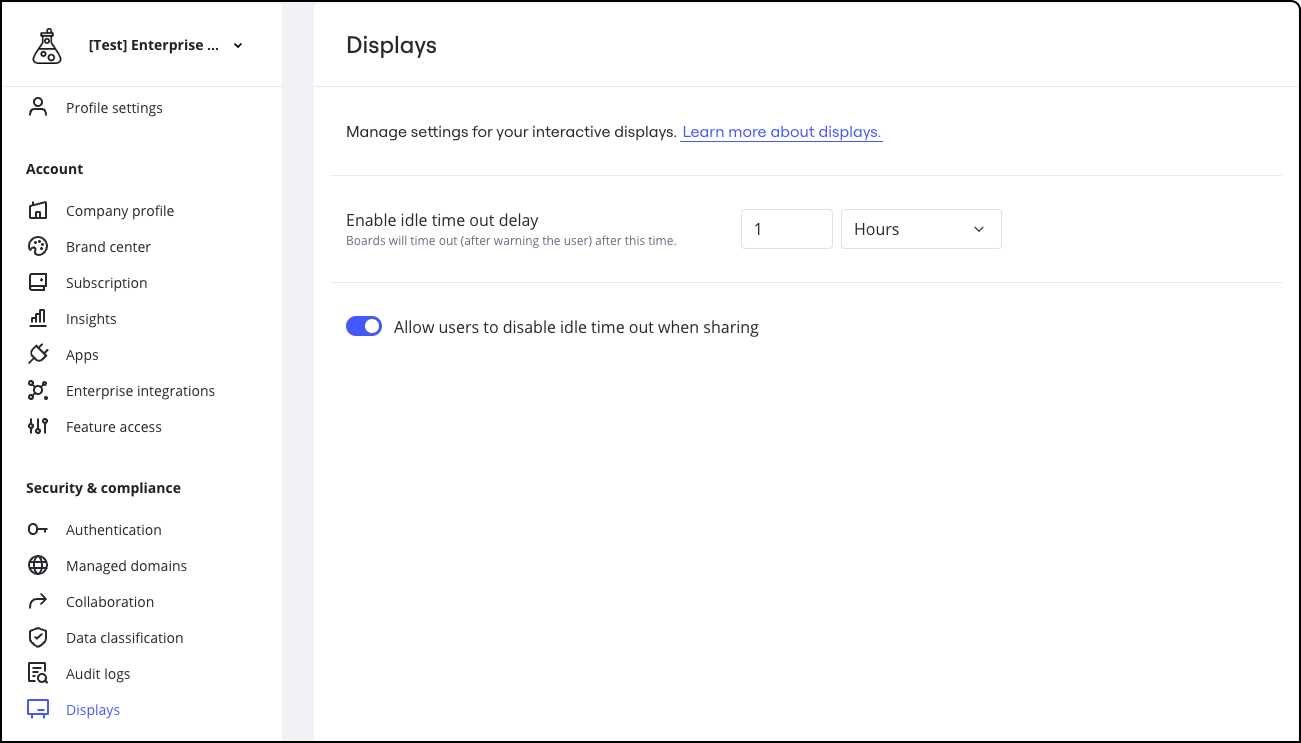
Admins can set custom idle timeout periods and allow users to override them under Security and compliance > Displays.
Troubleshooting
-
If Miro doesn’t load, check your internet connection.
-
Only one touchpoint is supported. Multi-user drawing isn’t available.
-
If you can’t save your board, make sure you’re logged into a Miro account.
-
For advanced features or PC-based use, see our other guides.