
This guide is for anyone using an i3CONNECT display with AllSync and a computer running Google Chrome. By the end, you’ll be able to cast Chrome tabs, media, or your entire screen to your i3CONNECT display.
|
|
Windows |
Apple |
Android |
|---|---|---|---|
|
Compatibility |
|
|
|
|
Touch-back |
|
|
|


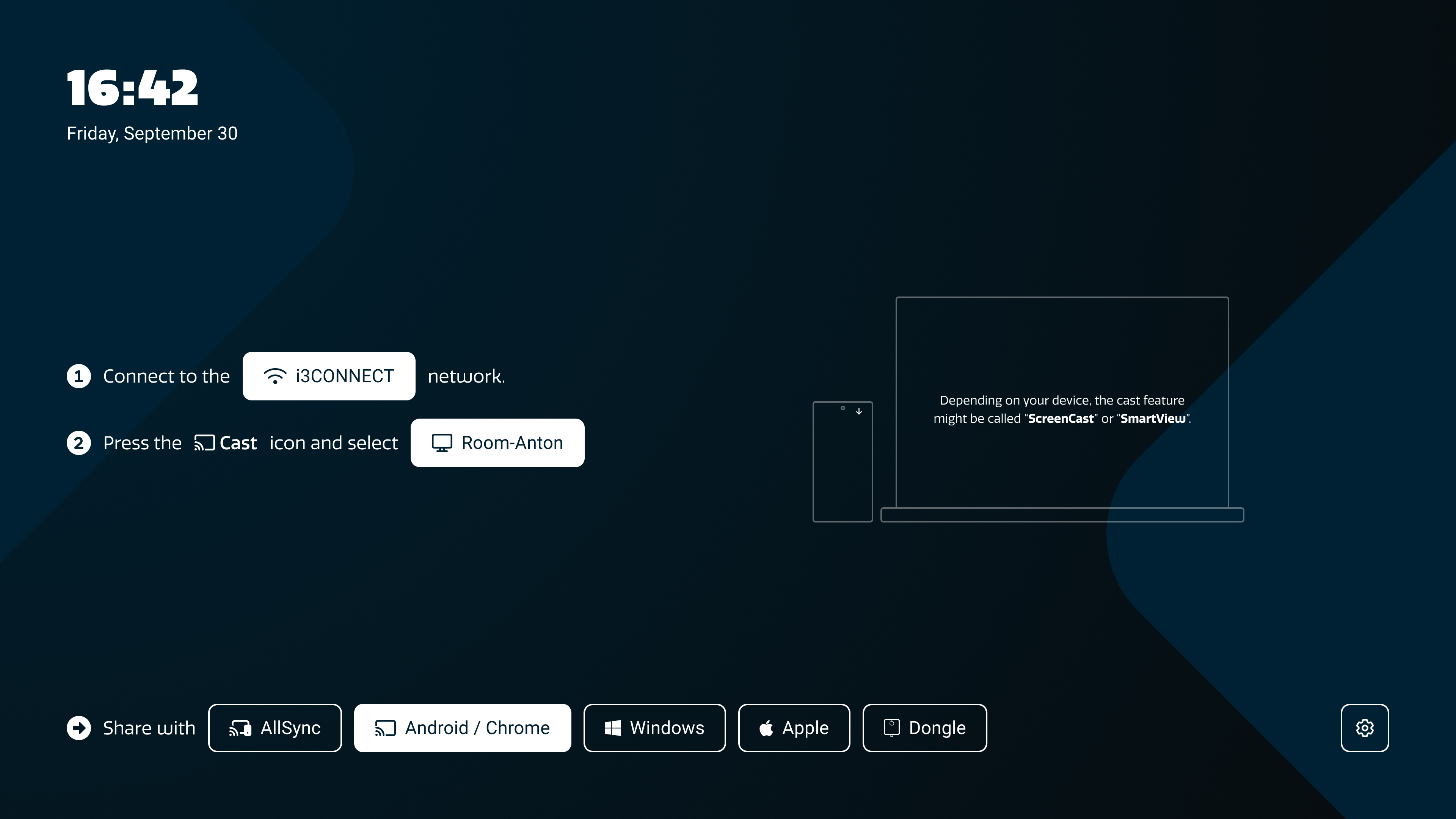
Depending on your device, the cast feature might be called ‘Screencast’ or ‘SmartView’.
Before you start
-
Make sure your computer and the i3CONNECT display are on the same Wi-Fi network.
-
You’ll need:
-
An i3CONNECT display running Studio with AllSync pre-installed.
-
A computer or device with the minimum system requirements and a strong Wi-Fi connection.
-
The latest version of the Google Chrome internet browser. How to update Chrome.
-
-
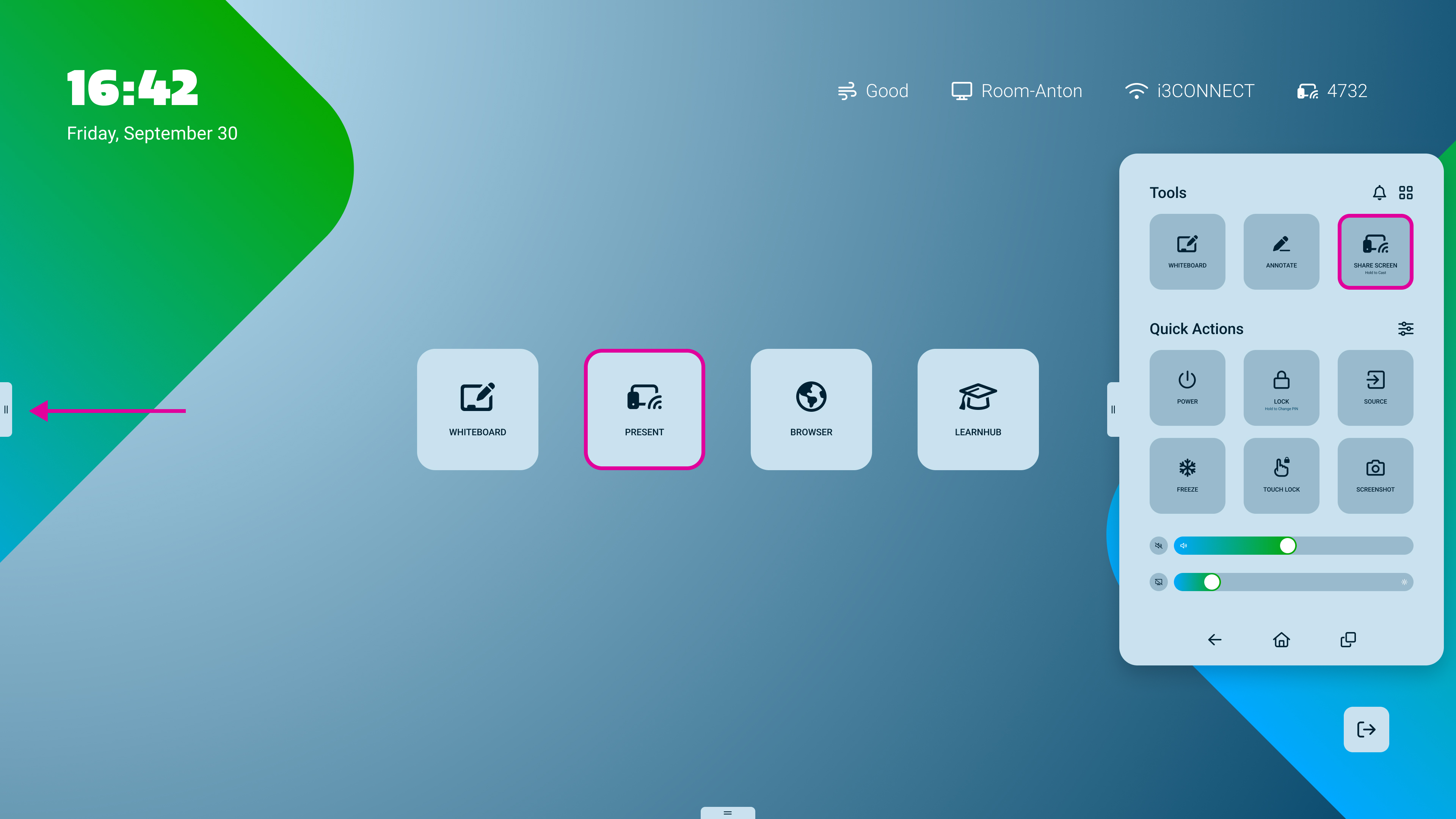
Open the AllSync display app by pressing on

Cast a Chrome tab
If you’re on a Mac with macOS 15 or later, give Chrome screen access in your system settings before casting.
-
Open Chrome on your computer.
-
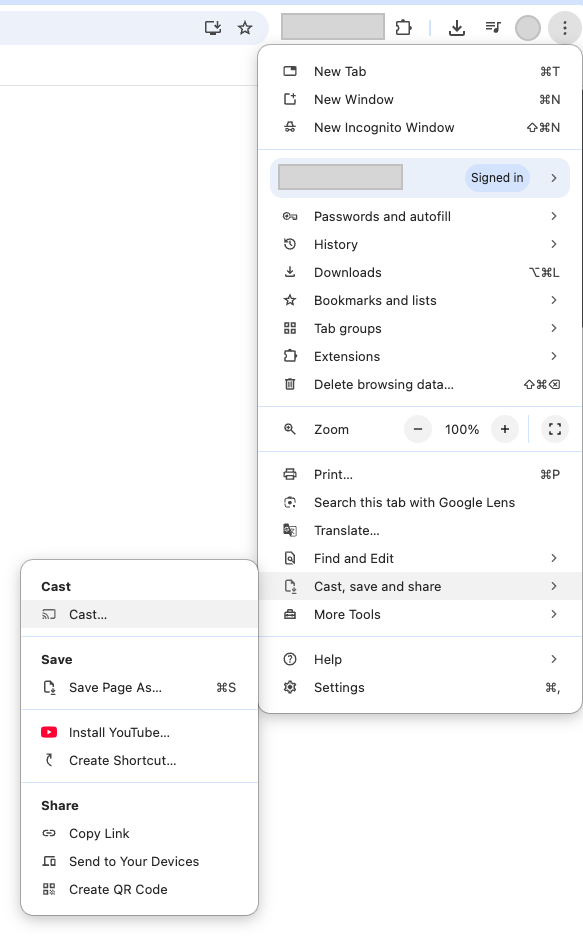
Click the More menu

-
Select

-
Then select

-
Choose your i3CONNECT display from the list.
-
To stop casting, click the Cast icon
Tip: On Cast-enabled sites (like Netflix), use the
Pin the Cast button for quick access
-
In Chrome, click the More menu
-
When the Cast button
Cast your entire screen
-
Open Chrome.
-
Click the More menu
-
Click Sources > Cast screen.
-
Select your i3CONNECT display.
When casting your whole screen, audio may play on your computer instead of the display. For audio on the display, cast a tab instead.
Cast music or video files
-
Open Chrome.
-
Drag and drop your media file into a Chrome tab, or while in Chrome use:
-
Windows: Ctrl + O
-
Mac: command

-
-
Click the More menu
-
Select your i3CONNECT display.
Troubleshooting
-
Display not found? Double-check both devices are on the same Wi-Fi network.
-
No sound on the display? Try casting a tab instead of your whole screen.
-
Performance issues? Use Cast-enabled sites for higher quality and less computer load.
-
Still stuck? If casting fails or you can’t see your display, see this article:
Fix Google Cast issues in AllSync