
AirPlay lets you wirelessly share your Mac, iPhone, or iPad screen to any i3CONNECT display. This guide is for anyone who wants to present, teach, or collaborate using their Apple device and an i3CONNECT touchscreen.
|
|
Windows |
Apple |
Android |
|---|---|---|---|
|
Compatibility |
|
|
|
|
Touch-back |
|
|
|


This guide is for anyone using an i3CONNECT display with an Apple device. If you’re using a Windows or Android device, see the Google Cast or Miracast instructions instead.
Before you start
-
Ensure the i3CONNECT display and your Apple device are connected to the same Wi-Fi network.
-
For best results, update your

Mirror your screen
-
Connect to Wi-Fi: Ensure your device and the i3CONNECT display are on the same Wi-Fi network.
-
Open

-
On an iPhone/iPad: Swipe down from the top right corner or swipe up from the bottom edge.
-
On a Mac: find the icon in the menu bar.
-
-
Tap the

-
Select your i3CONNECT display: Choose your display from the list.
-
Enter the AirPlay code (if prompted): If a code appears on the display, enter it on your device. Make sure you are viewing the Airplay tab of the AllSync display-app to see the PIN code.
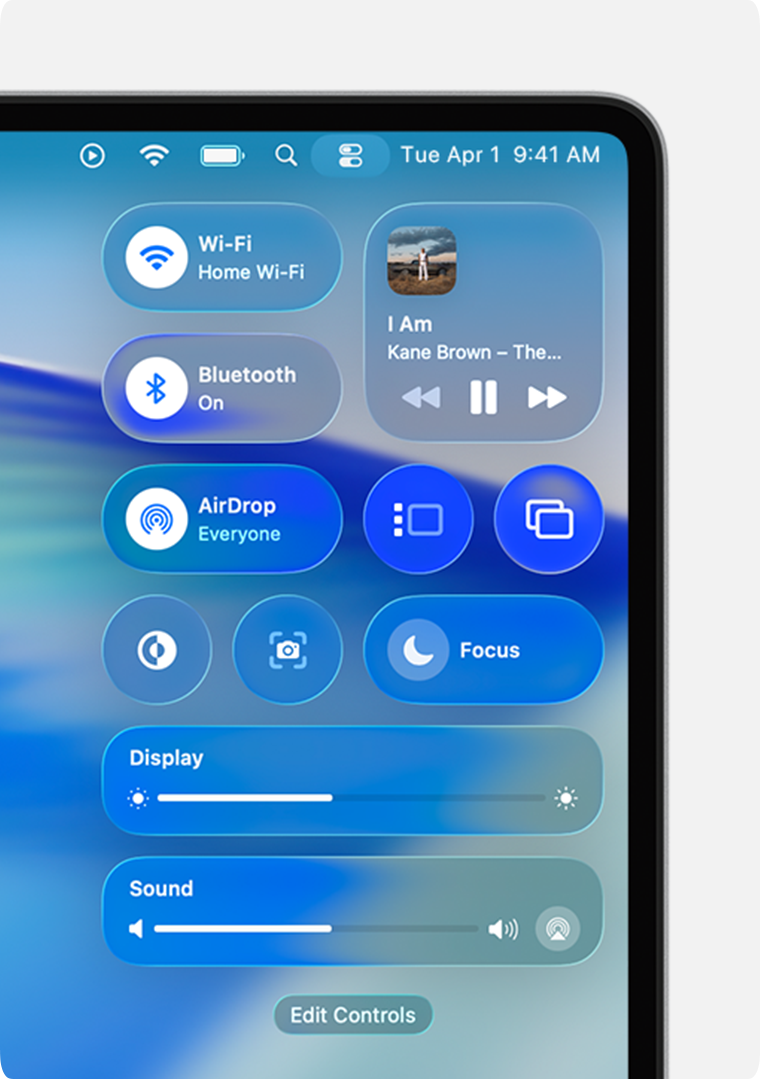
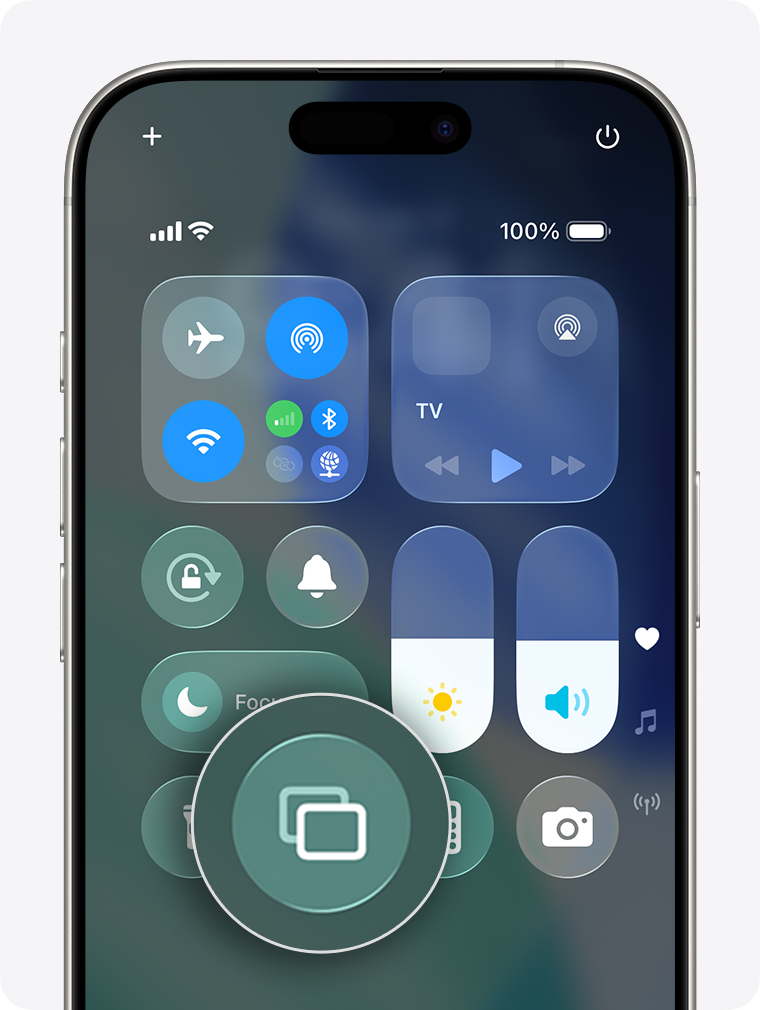
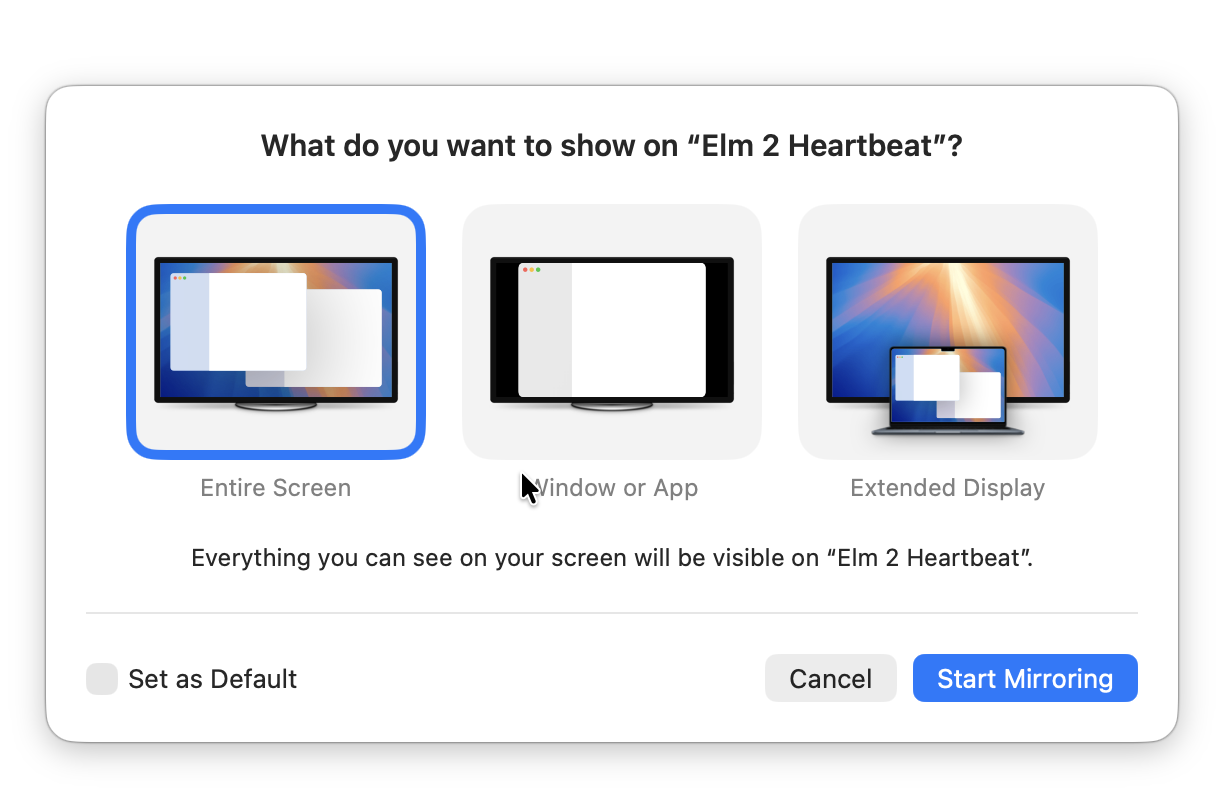
When connecting on a Mac you can choose which version to use. We recommend Window or App and Extended display because they have the best resolution.
Stream video or audio from iPhone or iPad
-
Connect to Wi-Fi:
Both devices must be on the same network. -
Open your content
-
Tap the

-
In most apps, tap the
-
When sharing audio you may see a different

-
In some apps like Photos, tap

-
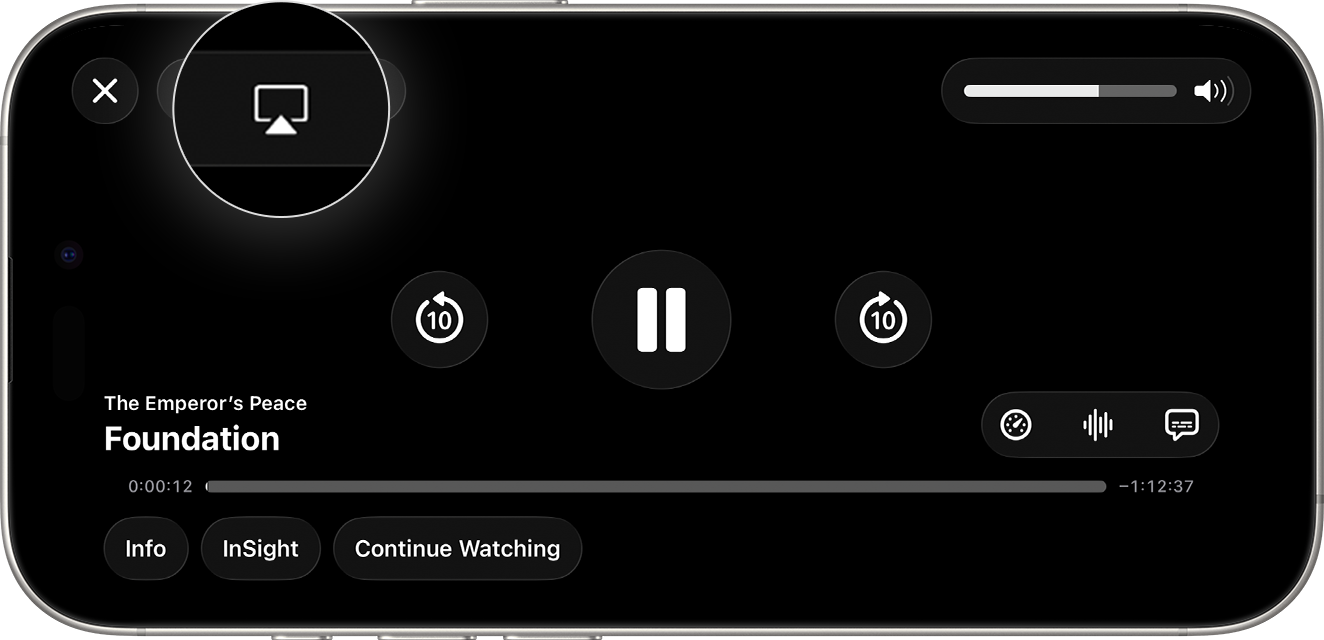
-
Choose your i3CONNECT display from the list.
-
Enter the AirPlay code (if prompted): If a code appears on the display, enter it on your device. Make sure you are viewing the Airplay tab of the AllSync display-app to see the PIN code.
-
Use the playback controls on your device.
Stop sharing or mirroring
-
On iPhone/iPad: Open
-
On Mac: Click the
Troubleshooting
-
Touch control not working? Apple devices do not allow for touch-back unfortunately. You can try this article but we cannot ensure it will work.
-
Can’t find your i3CONNECT display? Check that both devices are on the same Wi-Fi network.
-
No sound or video? Some apps may not support AirPlay. Try another app or check for updates.
-
AirPlay code not appearing? Make sure you are viewing the Airplay tab to see the PIN code. Otherwise, restart both your Apple device and the i3CONNECT display.
For more details on AirPlay compatibility and setup, see Apple’s official AirPlay support page.