
This guide is for anyone who wants to wirelessly present from a Windows PC to an i3CONNECT display using AllSync. By the end of these steps, your computer screen will be visible on the display.
|
|
Windows |
Apple |
Android |
|---|---|---|---|
|
Compatibility |
|
|
|
|
Touch-back |
|
|
|


Download app
https://i3group.atlassian.net/helpcenter/i3connect-support/portal/1023/article/748191750?source=rovo
Before you start
-
Make sure the AllSync app is installed on your PC.
-
Confirm your device and the i3CONNECT display are connected to the same network.
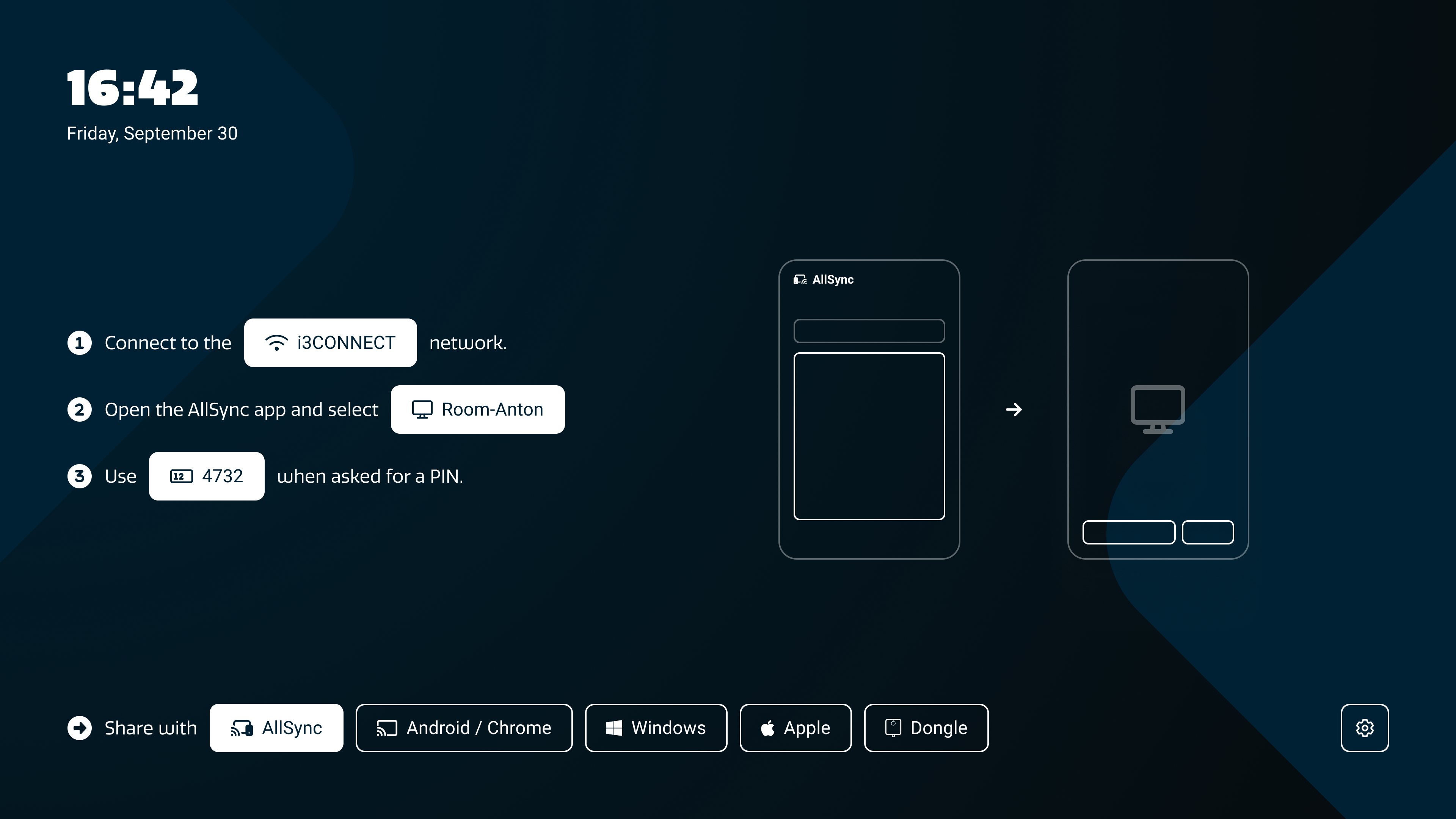
Instructions
-
On the display, open the AllSync app by tapping

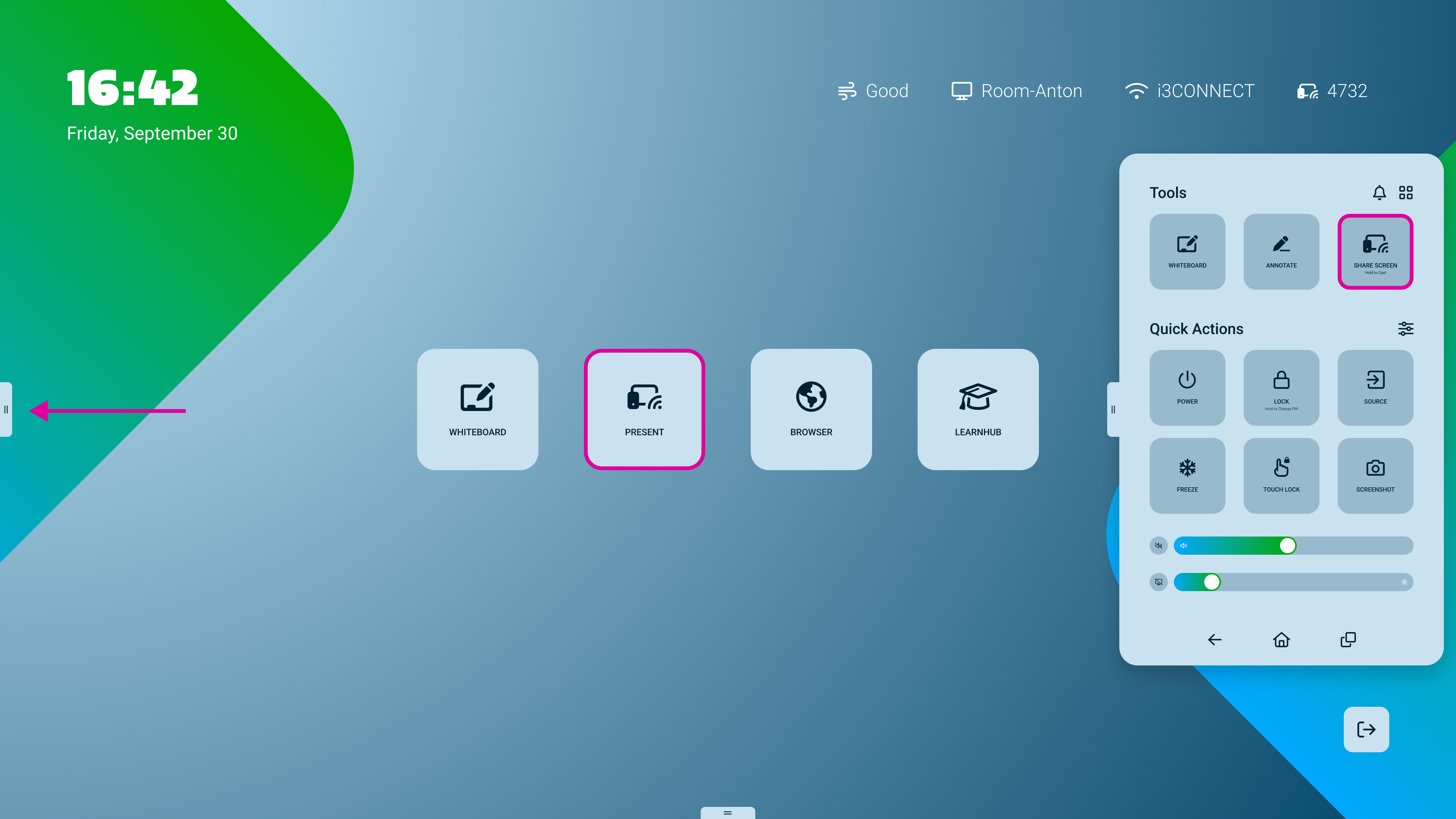
Quick tip! From the home-screen you can see your PIN code in the top right corner, so you don’t even need to open the display-app. Tapping on this will open the display-app though ;)
-
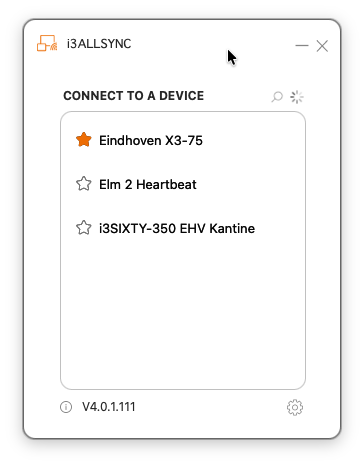
Open the AllSync app on your PC, tablet or mobile.
-
In the app, double-click the

-
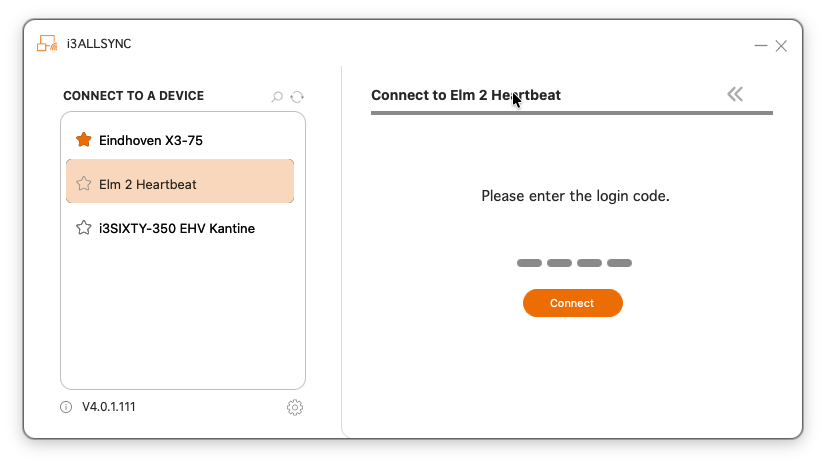
If prompted, enter the 4-digit PIN code shown on the display.
-
Click the

Ending a session
-
Press on the

-
Press on the

While connected, you won’t be able to access the side-menu and therefore cannot return to the home-screen. Disconnect from the display to get the side-menu back.
Permissions
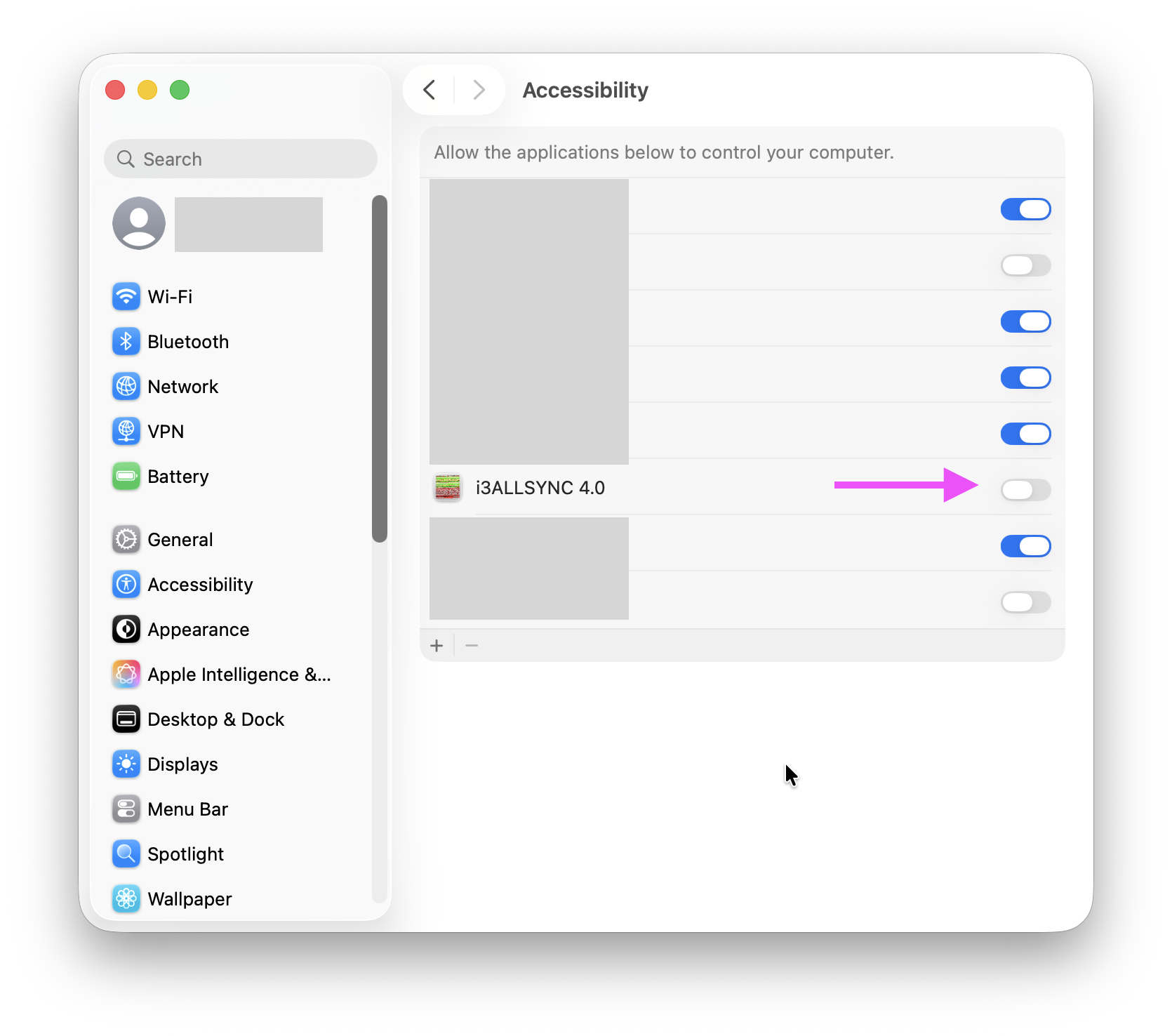
If asked for permissions, follow the prompts to allow AllSync access. This may open your Windows Settings. Toggle ON the AllSync app. You’ll only need to do this once.
On Mac: these are found under Privacy & Security >
-
Files & Folders
-
Accessibility
-
Local Network
-
Microphone
-
Screen & System Audio Recording
Troubleshooting
-
If your device doesn’t find the display, check that both are on the same Wi-Fi or wired network.
-
If you selected your display but it’s not sharing, make sure to press the Play button
-
If the Play button is greyed out, ensure you’ve selected a display and entered the correct PIN.
-
If you’re asked for permissions and don’t see AllSync in Settings, reinstall the app and try again.