
Wireless screen sharing with the AllSync app lets you connect to i3CONNECT displays for smooth, reliable collaboration. Use this guide to download the right version for your device and get started.
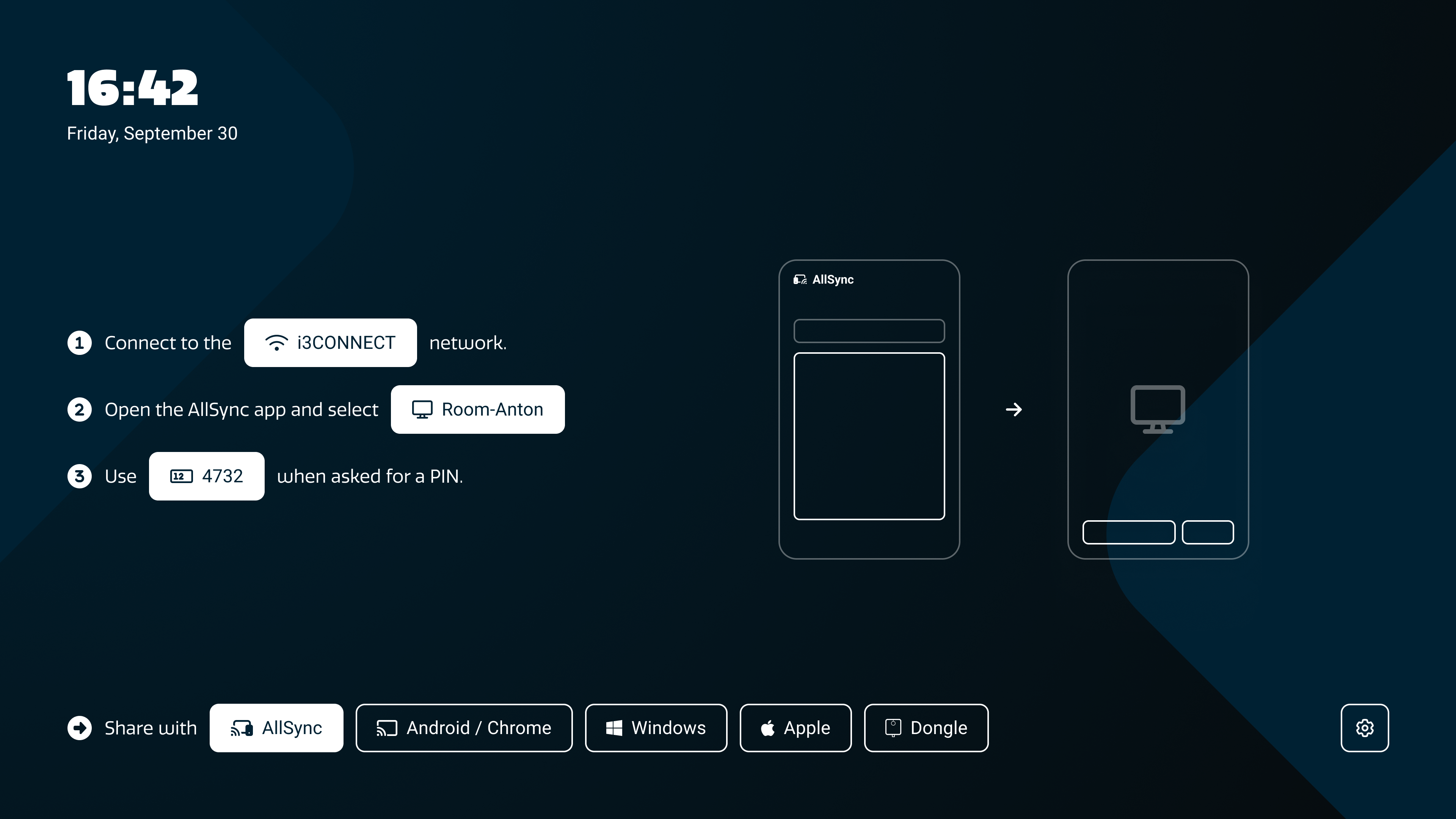
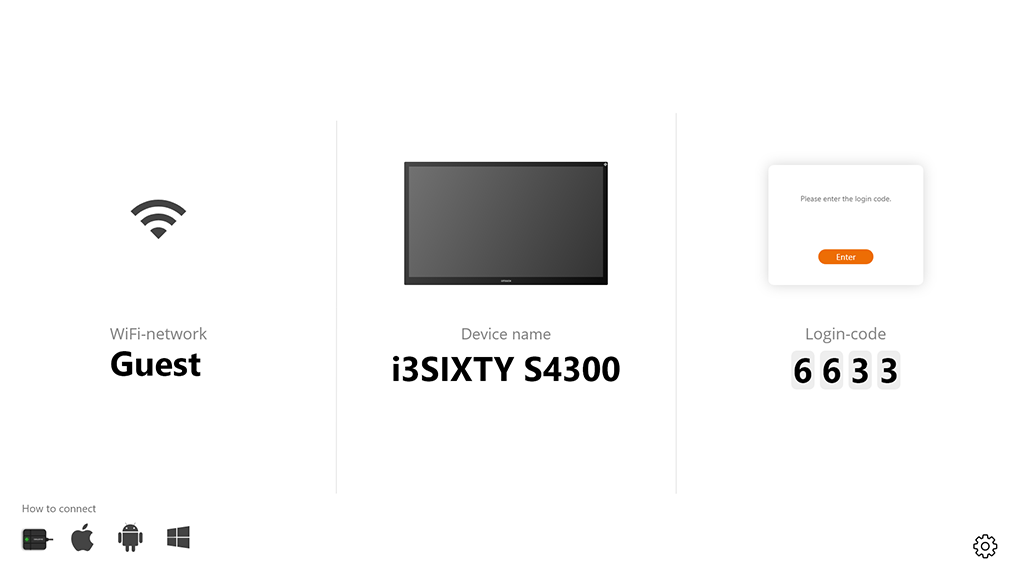
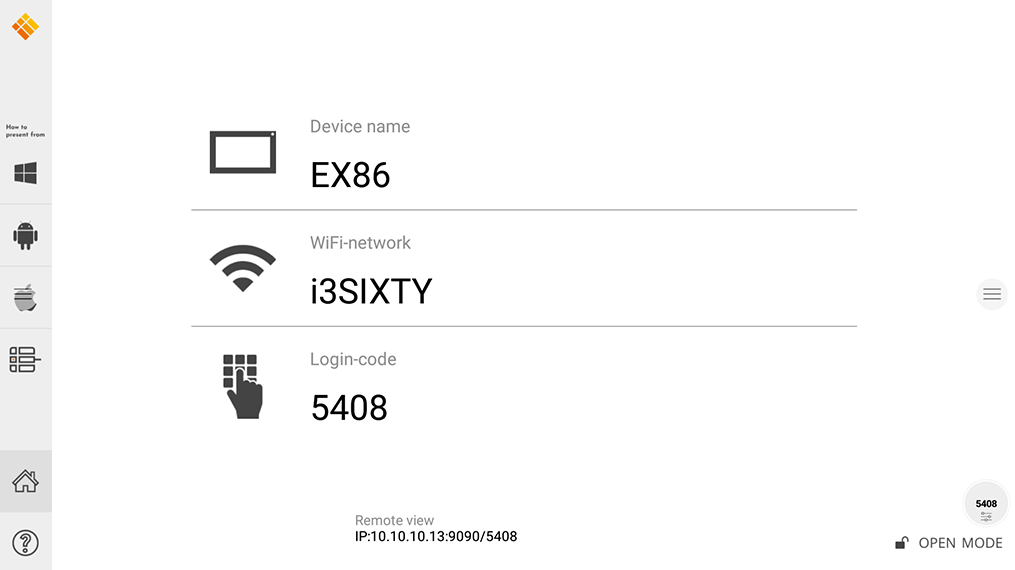
Not sure if you have i3CONNECT AllSync (4.1), i3ALLSYNC 4.0 or i3ALLSYNC 3.8? Click on the image below to enlarge it and see which looks the most like the one you see on your display.
Download
i3CONNECT AllSync 4.5 or 4.0
This is the newest version of AllSync! Below you can find the download links for your operating system as well as a links to the user manuals. Get the most out of your wireless casting app!
|
Operating System |
Download the app New |
|---|---|
|
|
|
|
|
|
|
|
https://play.google.com/store/apps/details?id=com.i3_TECHNOLOGIES.activitycontrol40 |

Install the app by following these steps:
i3ALLSYNC 3.8
This is the legacy version of i3ALLSYNC. Below you can find the download links for your operating system as well as a links to the user manuals. Get the most out of your wireless casting app!
|
Operating System |
Download the app legacy |
|---|---|
|
|
|
|
|
|
|
|
https://play.google.com/store/apps/details?id=com.i3_TECHNOLOGIES.activitycontrol |
Troubleshooting
-
Touch is not working? After casting on Windows via Win + K, ensure you toggle the checkbox below the screen in the list. On Apple devices touch is often blocked but you can try this:
Enable touch on Apple / Mac laptops (UPDD driver) -
If native sharing is disabled then you cannot use the built-in wireless sharing options shared below. This often occurs because your IT department has disabled it for your device. In this case we recommend using having a Dongle around to use; especially if you have many guest users.
-
If USB-C ports are disabled then you cannot make use of the Dongle and we recommend using the AllSync app or the Native Sharing options of your device.
-
If native sharing and USB-C ports are disabled you will need to request your IT to install the AllSync Application on your device.