
This guide is for anyone setting up an AllSync Dongle for the first time, or re-pairing it to a new display. The pairing process only has to be done once.
After this process, you can connect the dongle to any laptop, press the main button, and their screen will be mirrored; no drivers or software installs needed on the user laptop.
Before you start
-
Make sure your i3CONNECT display is powered on and running i3CONNECT Studio.
-
The dongle must be plugged into a powered device (laptop or display) during pairing.
Before we begin
-
Make sure the display has a unique device name.The dongle uses the device name of the i3CONNECT display as the pairing record. With the same name, the dongle may become confused and act erratically.
-
Set the display to the preferred WiFi when pairing. The WiFi network used for pairing will be remembered by the dongle for mirroring.
-
Unplug any ethernet cables. When connected, the display or your computer will use the LAN cable and then the dongle will not be able to find the WiFi details.
Instructions
-
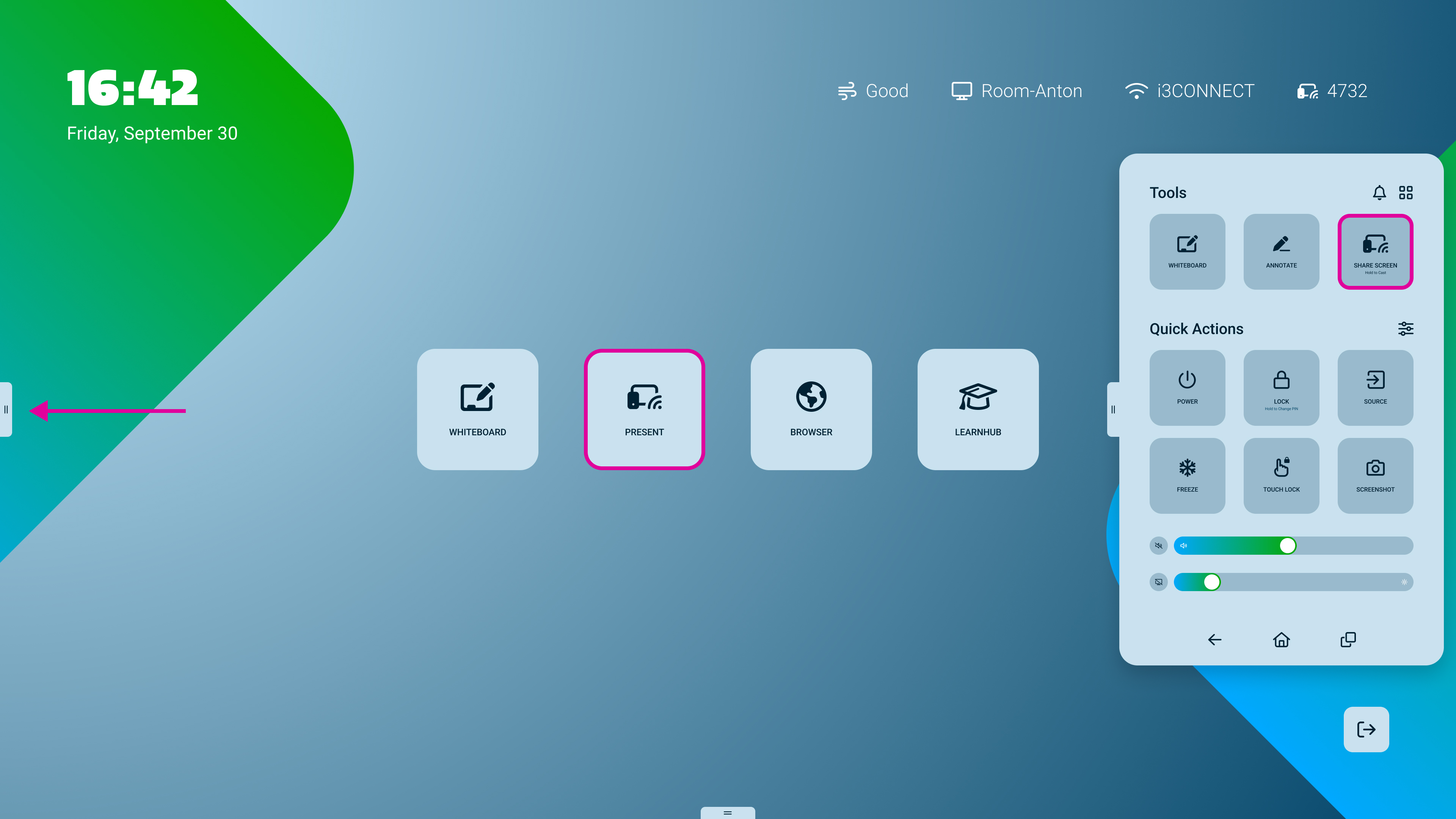
Go to the home screen of i3CONNECT Studio by tapping the grippers


-
Tap the ‘Present’ tile

-
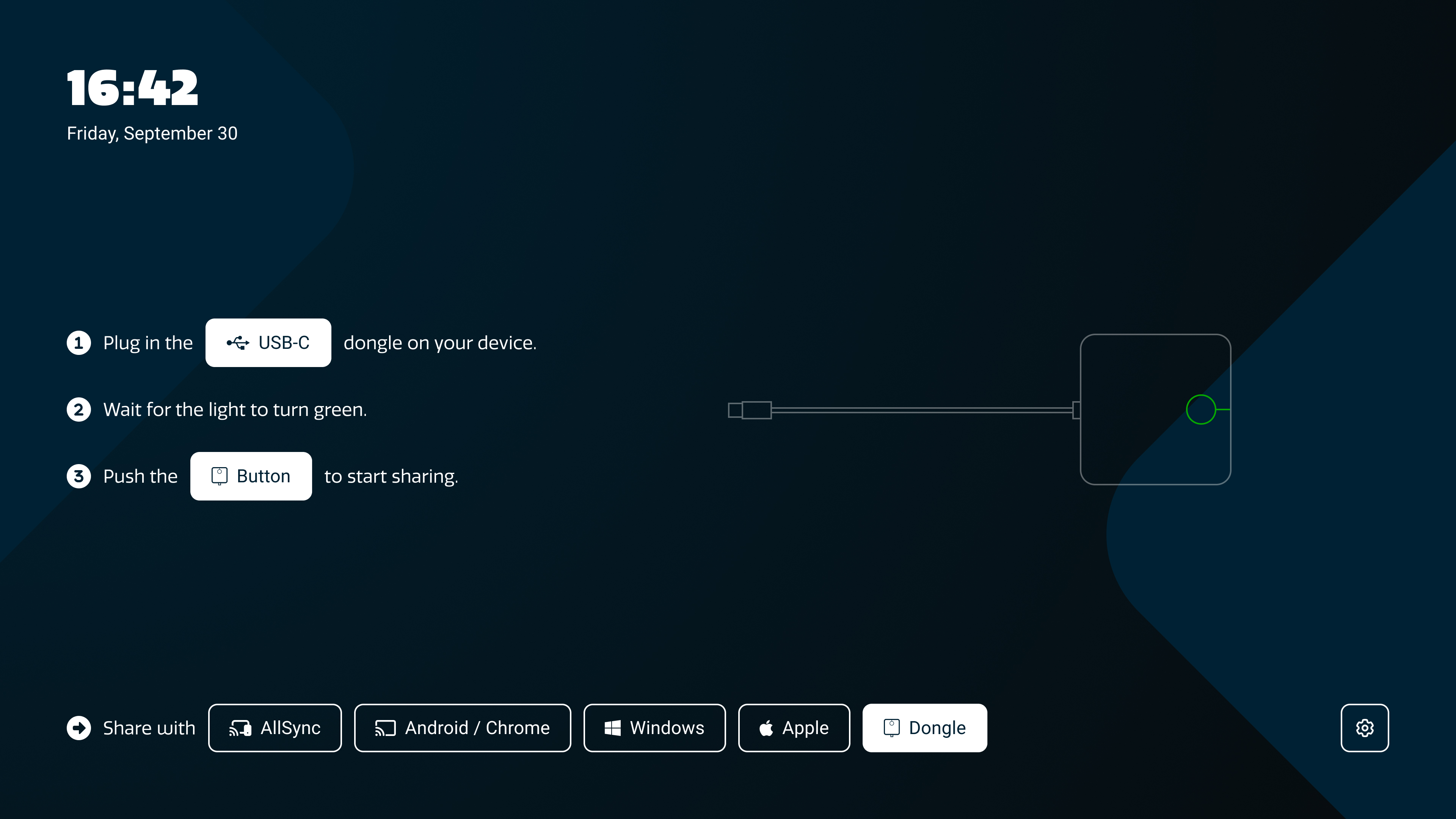
Open AllSync settings by tapping the cogwheel icon

-
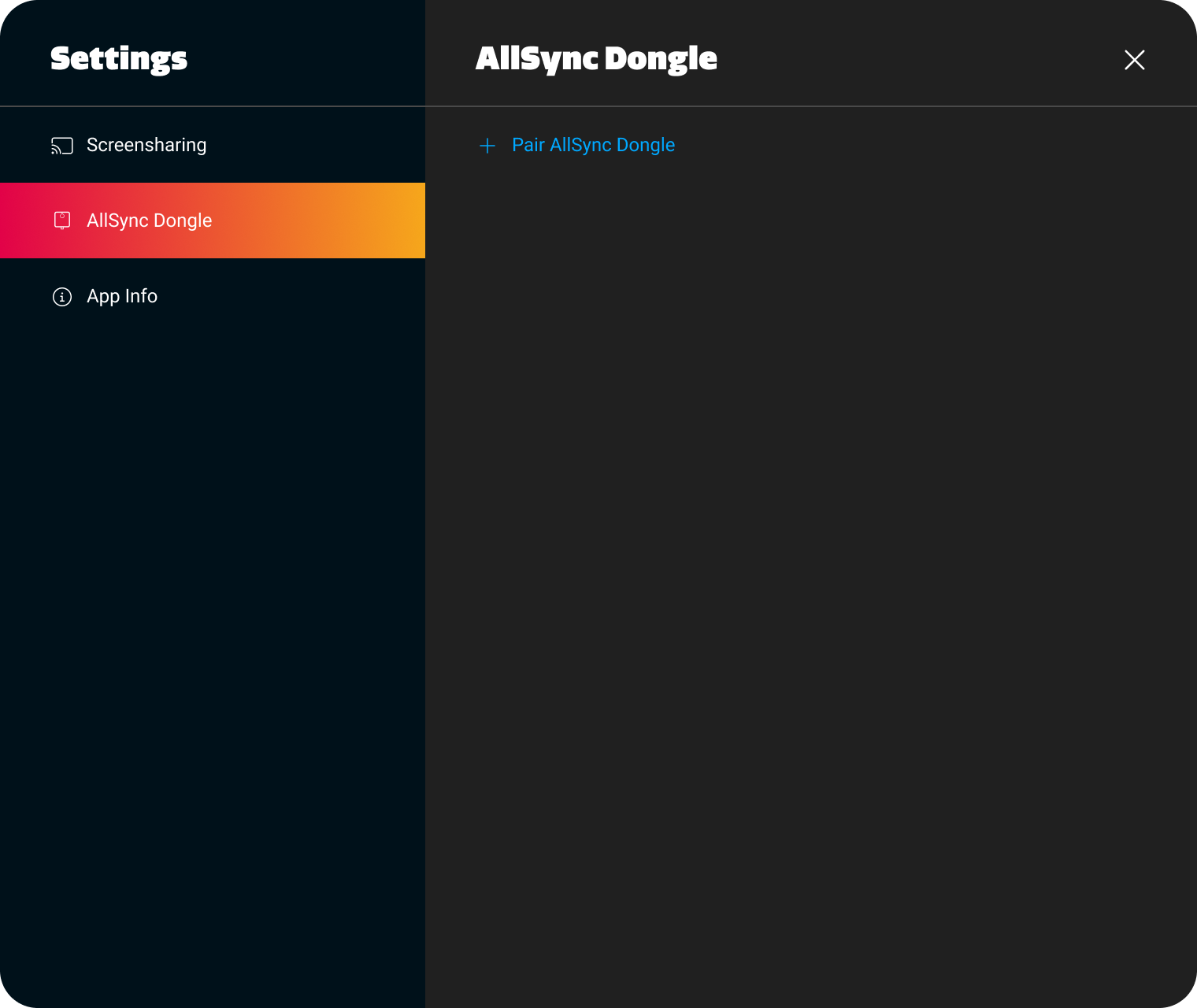
Select “AllSync Dongle” from the settings sidebar.
-
Tap “+ Pair AllSync Dongle” on the right side of the window and then follow the pairing steps.
-
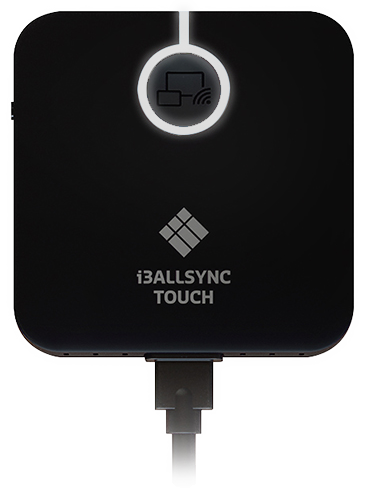
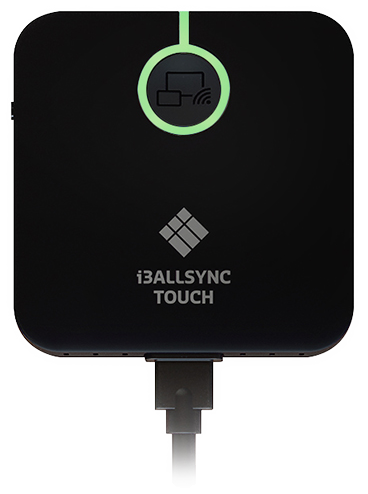
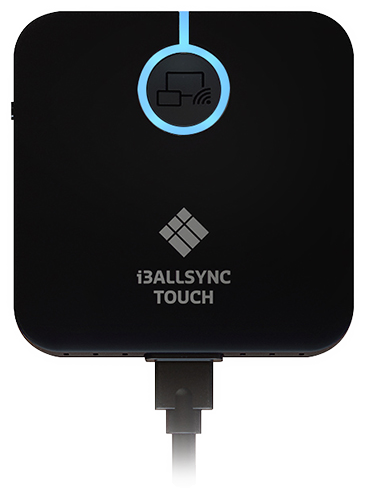
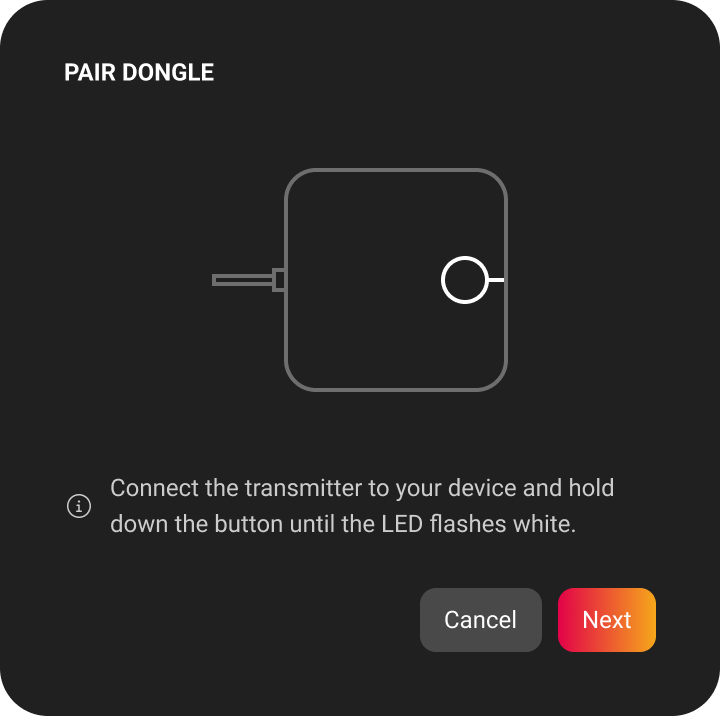
Plug the dongle into a laptop or the display to power it on. The LED on the dongle will light up.
-
Follow the on-screen prompts. When asked, press and hold the button on the front of the dongle until the LED flashes white, then tap Next.
-
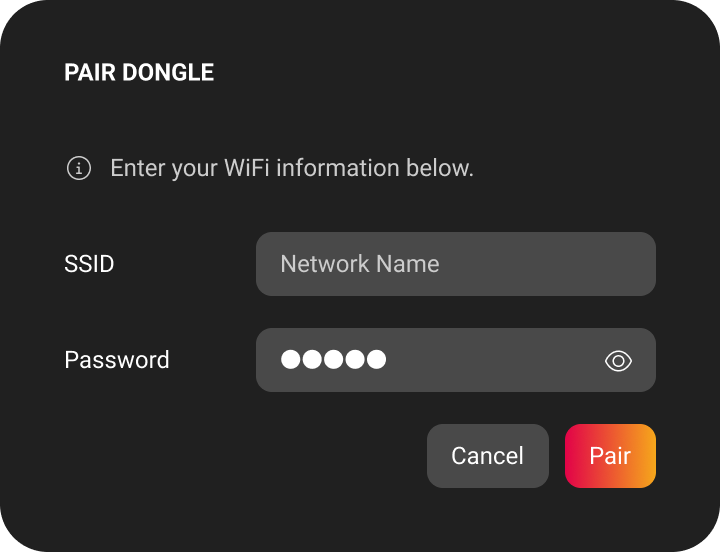
Enter your display’s WiFi credentials if prompted, or confirm the auto-filled details if your display is already connected.
-
Wait for pairing to complete. The pop-up will confirm success. Tap Done.
Troubleshooting
-
If the dongle does not enter pairing mode, unplug and replug it, then try again.
-
If pairing fails, double-check your WiFi name (SSID) and password, and ensure the display is connected to the same network.
-
If the dongle’s LED does not flash white, hold the button longer or try a different USB port.
-
For persistent issues, contact i3CONNECT support.