
Need to connect your AllSync dongle to an i3CONNECT display for wireless sharing? This guide walks you through the pairing process, so you can start presenting in seconds.
Instructions
-
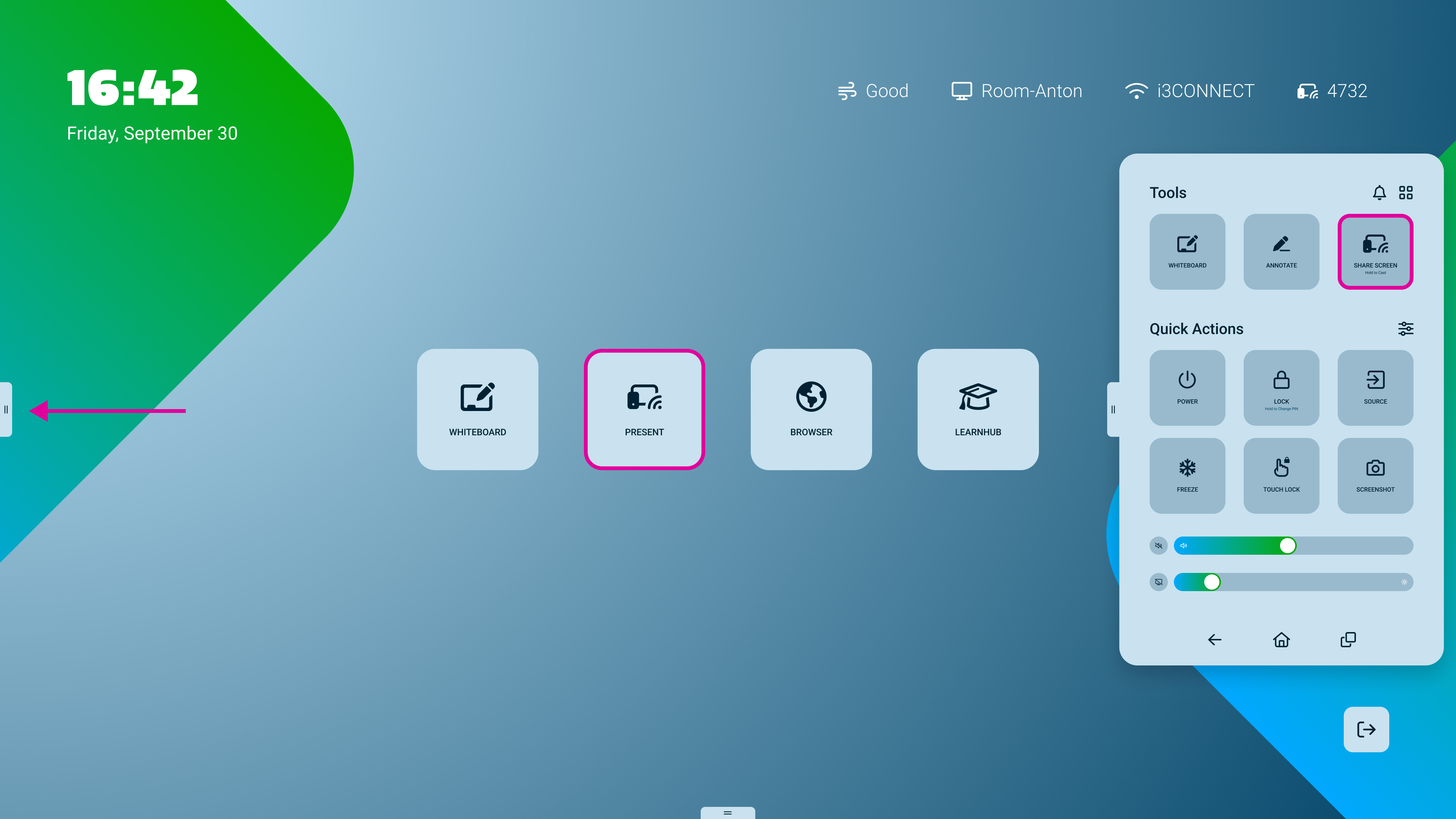
Optional: Open AllSync on the display by pressing on the Present tile.
-
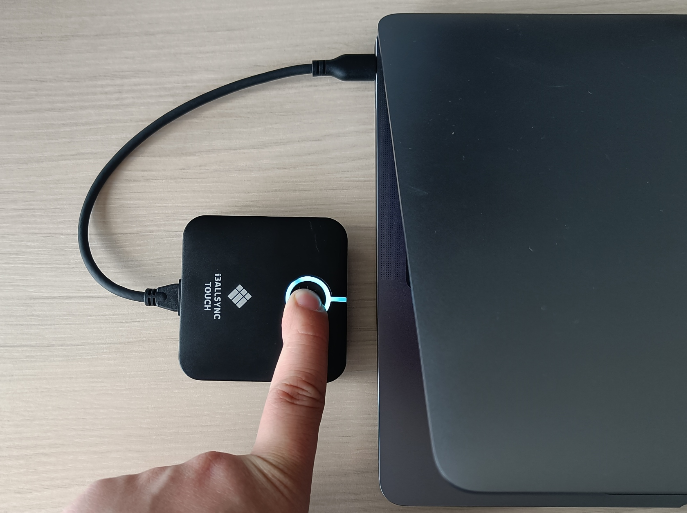
Connect the dongle to your computer. It will light up White.
-
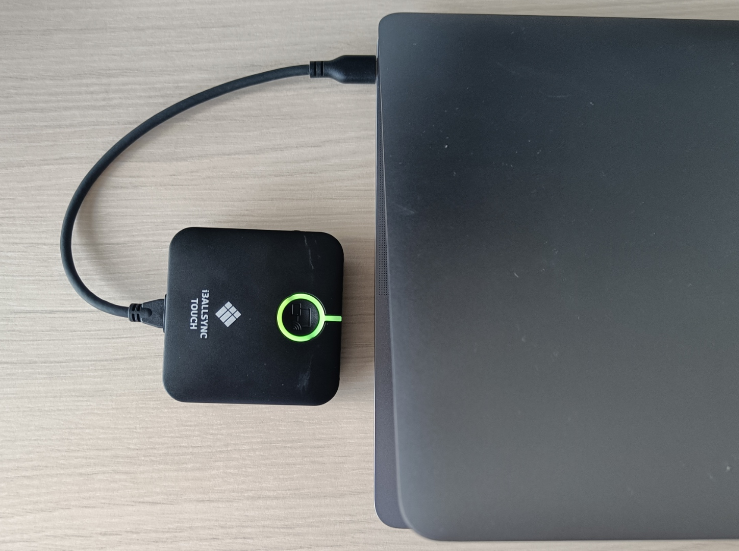
Once the light turns solid green press the Green button to start sharing your screen. The light will turn Blue while presenting.
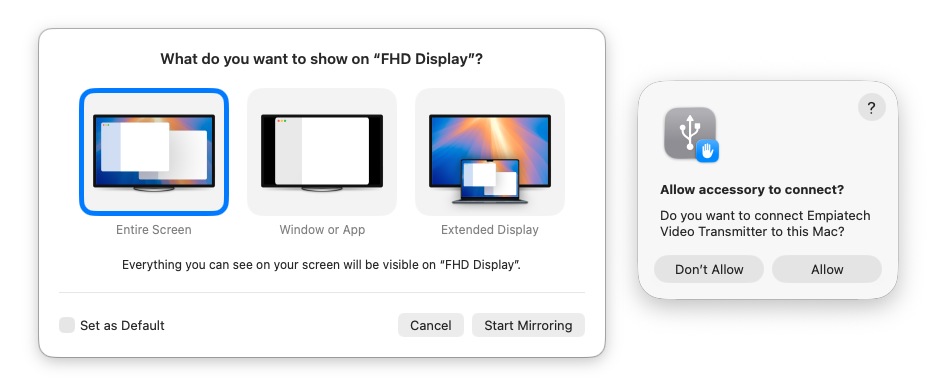
The first time you connect, you may need to give the dongle permission to connect to your laptop, walk through some setups, and define how you wish to share.
-
Stop mirroring by pressing the Blue button. The connection will stop and the light will turn Green.
-
For

Mirror in 4K
Dongles produced from May 2026 onwards can also mirror your screen in 4K. This keeps fine detail readable, which helps with spreadsheets, small text, drawings and detailed images. By default, your dongle will mirror at 1080p. The guide below explains how you can switch to 4K resolution.
Mirroring in 4K resolution requires significantly more network bandwidth. On busy or low-spec networks, you may experience more delay and/or dropped frames.
Dongle Requirements
You can check your dongle’s 4K compatibility through its serial number. Dongles with serial number I3SYTX46C65XXX can support mirroring in 4K. These units were produced after May 2026, and their boxes carry an additional “4K Mirroring Supported” label on the outside.
Older dongles cannot be upgraded to 4K. The capability comes from new hardware inside the dongle, so it cannot be added with a firmware update.
Display Requirements
The display must run AllSync receiver version 4.6.0-014 or later. On an older version, switching the dongle to 4K mode results in a black screen. You can check your receiver version in the AllSync app on your display, by navigating to settings → information.
Mirroring in 4K requires H.265 decoding, which is only supported on modern displays. In the i3CONNECT portfolio, this is only supported on Riva R2, Aspen 4, Elm 2, and Cactus.
Switch the dongle to 4K mode
-
Unplug the dongle from your laptop.
-
Slide the switch on the back of the dongle to the right. This sets the dongle to 4K30. The original position on the left is 1080p60.
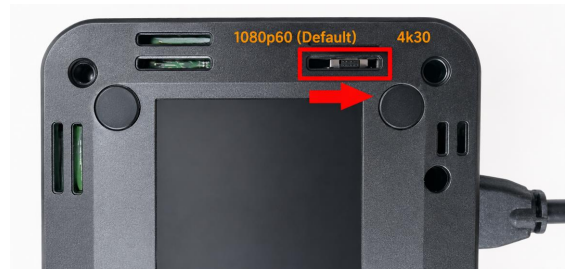
Always set the switch before you plug the dongle in. The mode cannot be changed while the dongle is connected.
The switch sits recessed in the housing, so use gentle pressure and avoid flipping it more often than you need to.
If 4K mode does not work
-
The display stays black. The receiver on the display is older than 4.6.0-014. Update AllSync on the display. To keep presenting in the meantime, slide the switch back to the 1080p position.
-
Nothing changed after flipping the switch. The switch only takes effect when the dongle connects. Unplug the dongle, check the switch position, and plug it back in.
-
The image still looks like 1080p on a 4K display. Your laptop may be capping the output at the resolution of its own screen. Check the display settings on your laptop and confirm the dongle is running at 3840 x 2160.
Troubleshooting
-
The light is not lighting up. The dongle has no power. Try another USB port or restart your laptop.
-
It is blinking White. The dongle is pairing with the display. Follow the on-screen instructions.
-
It is blinking Green. Then the dongle is connected to the internet but cannot find the receiver (display). Make sure the display is on, the AllSync display app is open, and that the WiFi of the display is the same as the one used during pairing of the dongle.
-
It is blinking Blue. The receiver (display) has Moderator Mode enabled. Screen sharing is only possible from the display, and not the dongle. See the link for info.
-
It is Yellow. The dongle is starting up (solid light) or it cannot detect a USB IN. Ensure the dongle is plugged into the laptop firmly, and wait a bit for it to start up. If it fails, unplug and replug.
-
It is Purple. The dongle is installing a firmware update (solid light) or deleting a pairing record (blinking). In either case, do not remove power to the dongle until it is no longer purple.
-
It is Red. The dongle cannot find a paired receiver, or cannot connect to it’s paired WiFi. You may need to pair the dongle to the display again. Press and hold the small button on the side to erase any existing pairing and then follow these instructions to pair the dongle with the display.
-
It is not working with my cable adapter. Abnormal behavior may occur when using adapters. For best performance, we recommend avoiding adapters.