
AllSync makes wireless sharing easy, but picking the right app or accessory depends on your setup. This guide helps you choose the best AllSync variant for your laptop, mobile device, or interactive display. If you’re looking for installation steps, see the linked download article instead.
For laptops, PCs and mobile devices (Transmitter)
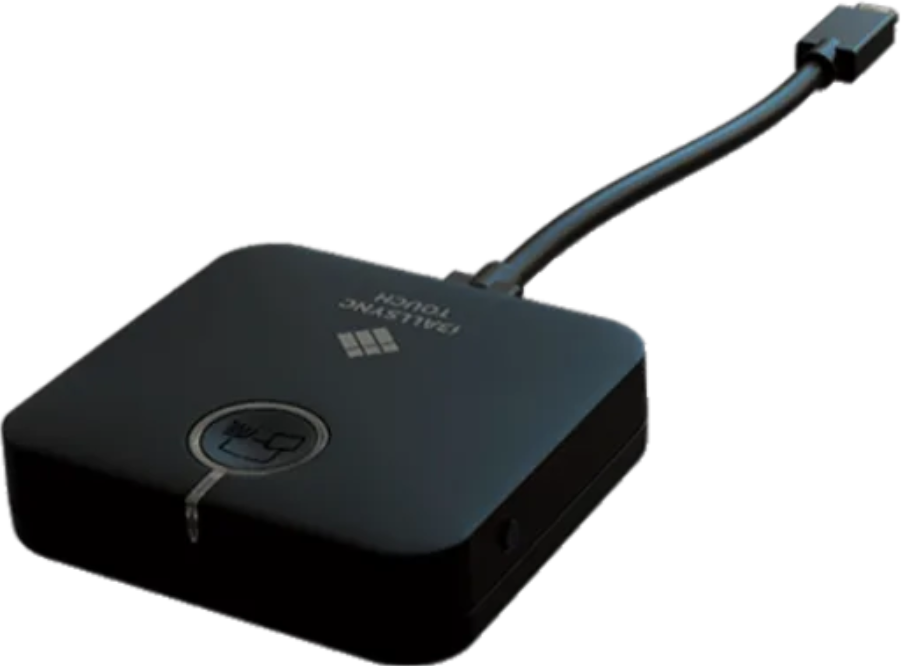
Use the AllSync Transmitter Dongle
For the fastest, driver-free sharing. Plug it into your laptop, wait for the button to turn green, then press the button to share.
On Windows laptops/PCs
Use the AllSync Transmitter software, Google Cast, or Miracast.

On MacOS
Use the AllSync Transmitter software, AirPlay, or Google Cast.
On iOS devices
Use AirPlay.
On Android devices
Use the AllSync Transmitter app.
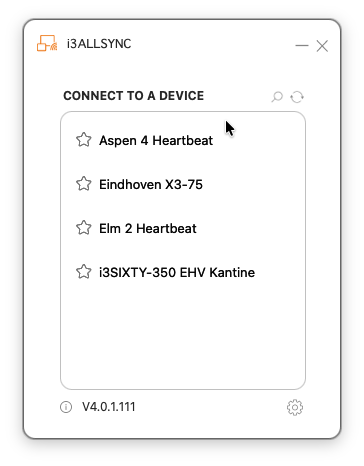
For interactive displays (Receiver)
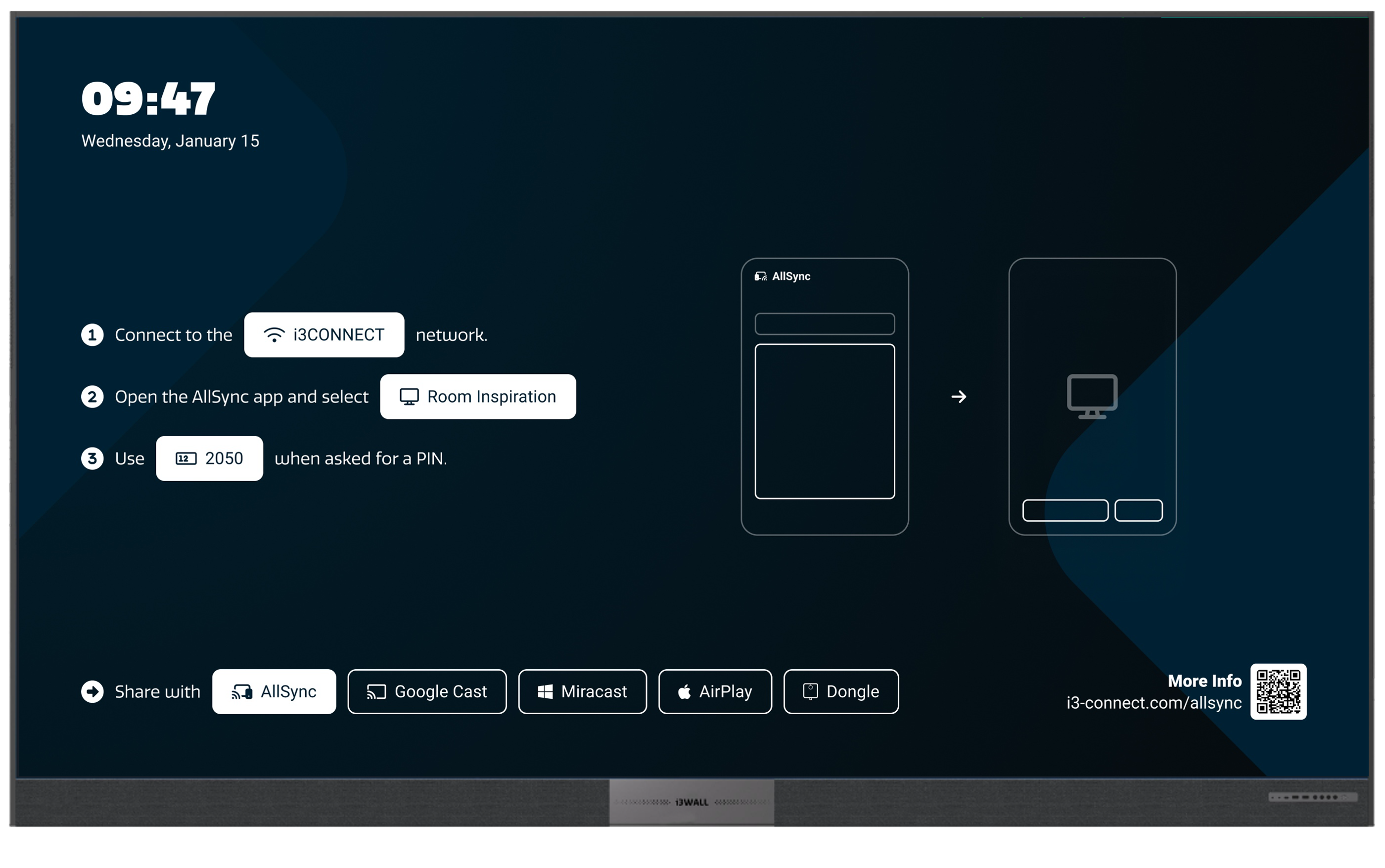
On i3CONNECT displays
Use the preloaded AllSync Android Receiver app to receive and show shared screens. No extra setup needed!
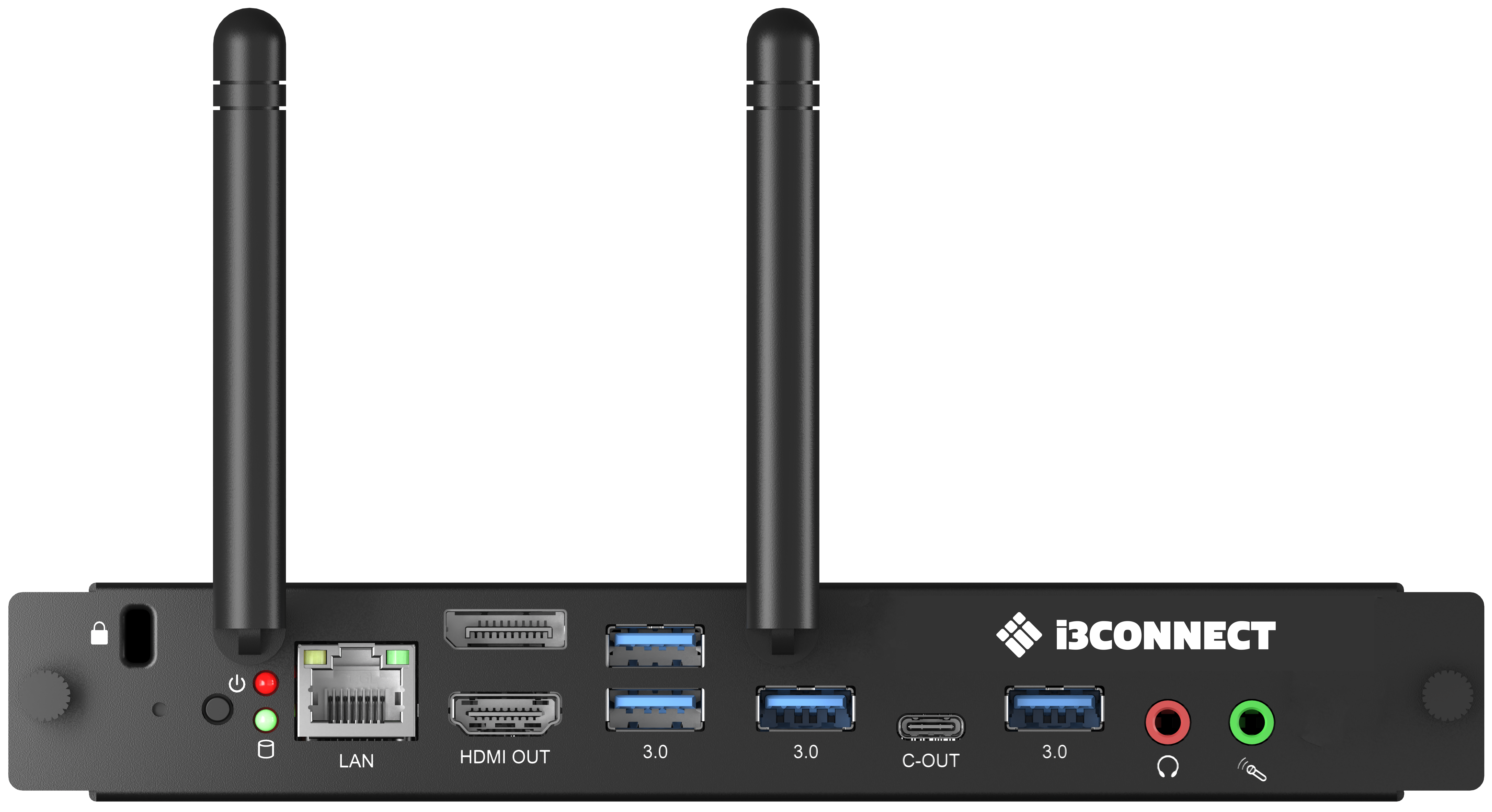
On i3CONNECT OPS mini-PCs
Use the preloaded AllSync Windows Receiver app to receive and show shared screens. No extra setup needed!
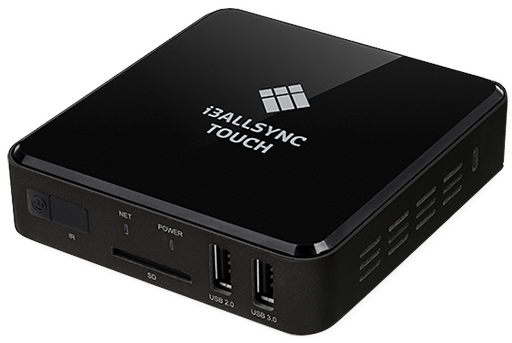
On other displays
Use the AllSync Receiver Module 2 to turn any display into an AllSync receiver.
Troubleshooting
-
If sharing doesn’t work, ensure both devices are on the same network and the receiver app is running.
-
For unsupported displays, use the Receiver Module for HDMI compatibility.