
Prerequisites:
-
Display connected to internet (Wired/LAN or Wireless/Wi-Fi)
-
Display in Out of Box settings (installation Wizard to show up after the display started)
WARNING!
An improper or incomplete upgrade can cause unexpected behavior and could permanently damage your device which will require repair by an i3CONNECT authorized service center. Please perform the update procedure by following exactly the instructions below. After the USB update, the display settings will be reset to factory default. Updating via OTA (Over The Air), does not reset the display to factory default.
Instructions
-
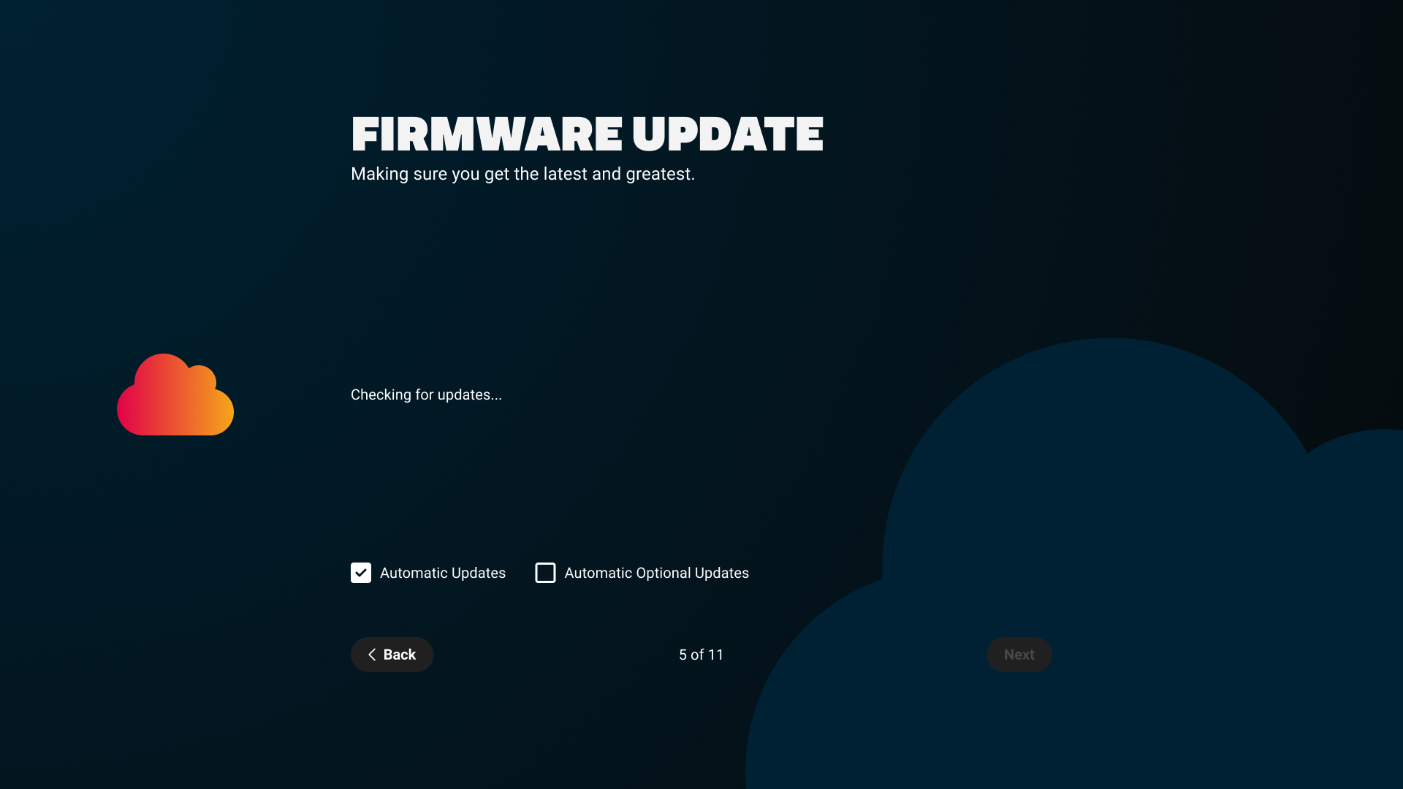
Go through the installation wizard and at this point let the display check for firmware updates:
-
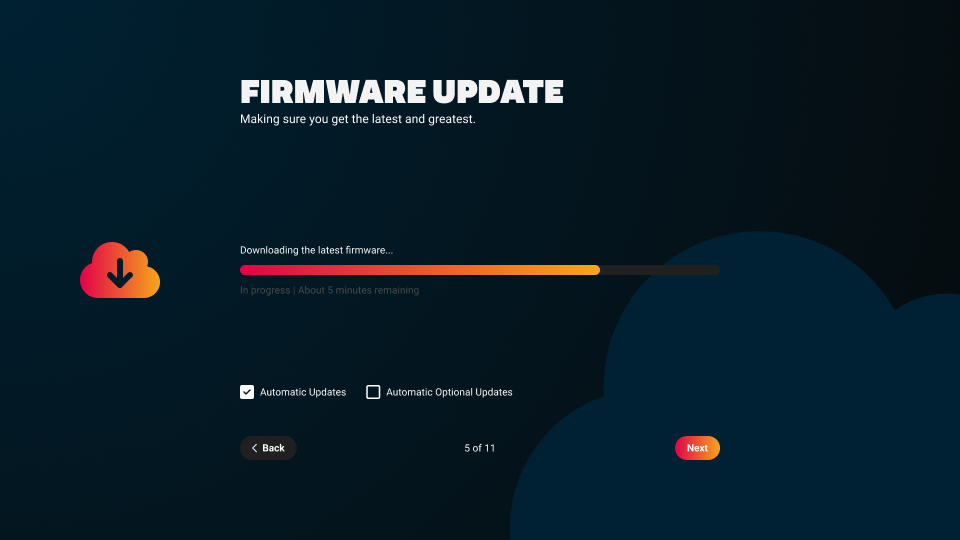
Wait until the downloading is completed where the [Next] button will change into [Install]. Do not continue with the wizard until the installation of the new firmware is completed.
Note:Due to the EDLA download, it can take up to 20 minutes (also depending on internet speed) to download the full firmware. Please be patient and do not interrupt the process!
-
After the installation of the new firmware is completed, the display will automatically reboot and will come back in the wizard.
-
Complete the installation by following the wizard.