
i3ANNOTATE provides many of the same tools as i3WHITEBOARD, which you can use to interact with the canvas.
i3ANNOTATE Tool menu
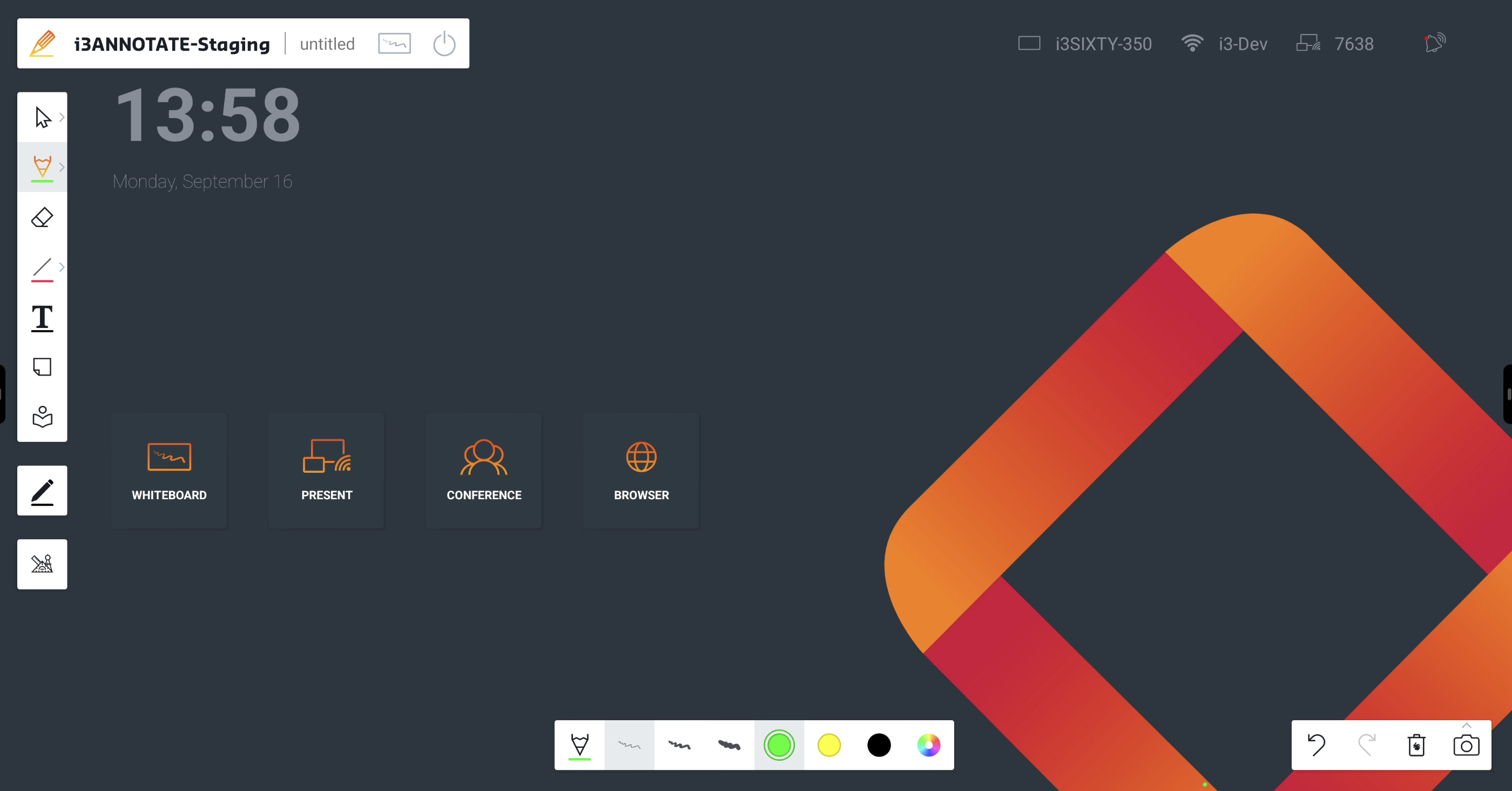
The i3ANNOTATE Tool menu is similar to the i3WHITEBOARD one.
-
Selection tool
-
Pointer Select tool
-
Box Select tool
-
-
Drawing tool
-
Pencil
-
Marker
-
-
Eraser tool
-
Shape tool
-
Text tool
-
Sticky note
-
Icon library
------ -
Pen tool - the number of pens will depend on whether your i3TOUCH display comes with physical pens
------ -
VR tools
For more detailed information on the Tools and what they can do, please consult the i3WHITEBOARD Tool menu documentation.
Selection tool
You can use the Pointer Select tool or the Box Select tool to select objects.
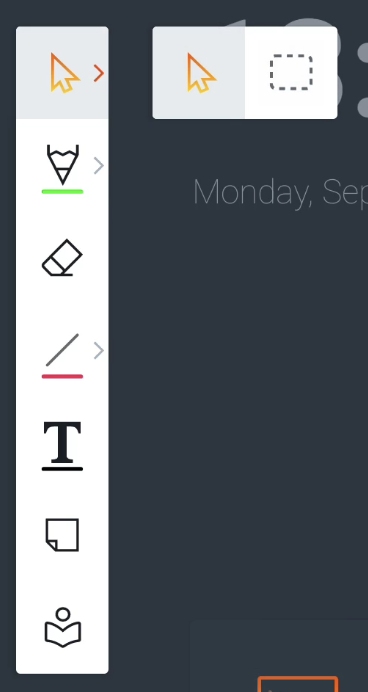
Pointer Select tool allows you to select a single object and also allows you to pan around the canvas.
The Box Select tool allows you to drag a rectangle around the objects that you want to select.
When you select one or more objects, a bounding box (1) will appear, along with the Actions menu (2) and the Features menu (3).
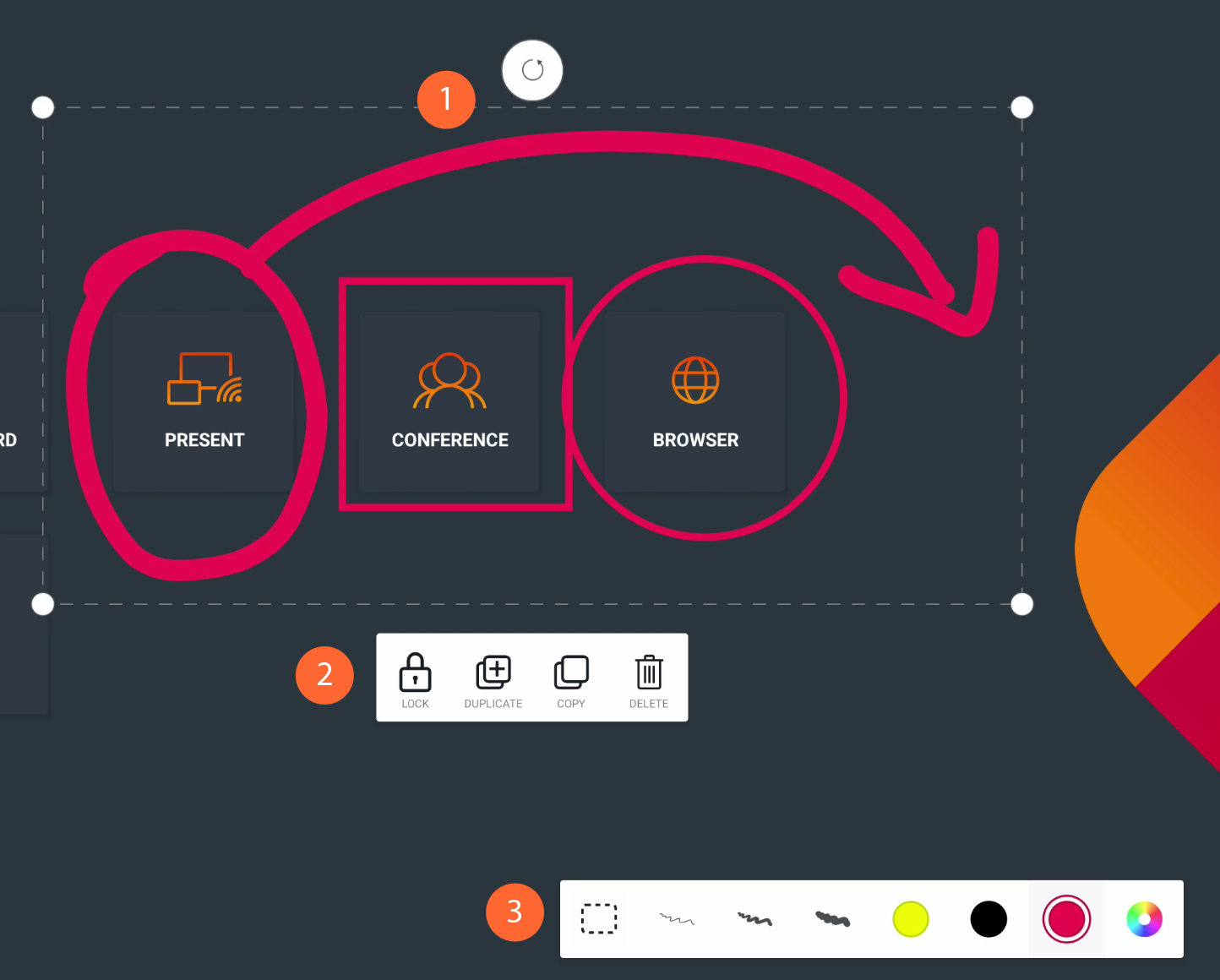
The bounding box
The bounding box is visible around one or more selected objects. It adds UI elements like resize handles and a rotation handle, allowing you to resize and rotate the selected object(s).
The Actions menu
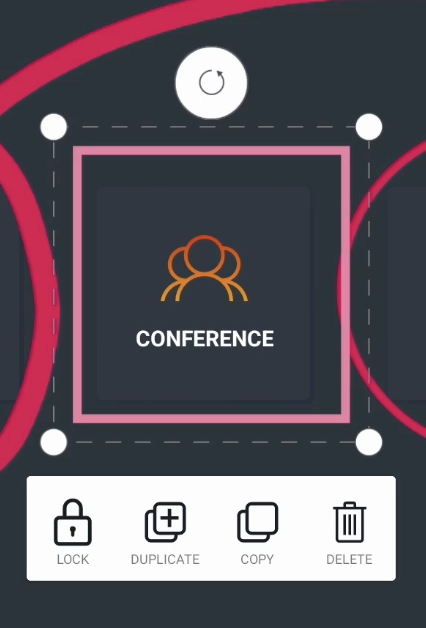
The Actions menu helps you to lock, duplicate, copy-paste and delete the selected object(s).
Lock
Locked objects can not be selected or deleted, nor can their features be changed until they are unlocked again. The action is easy to perform. Select one or more objects, hit the Lock icon in the Actions menu, and the object is locked. It’ll show you visually by adding a small Lock icon at the corner of the object when you try to select it:

When locking the object, you may also have noticed that the Actions menu informs you how to unlock it:
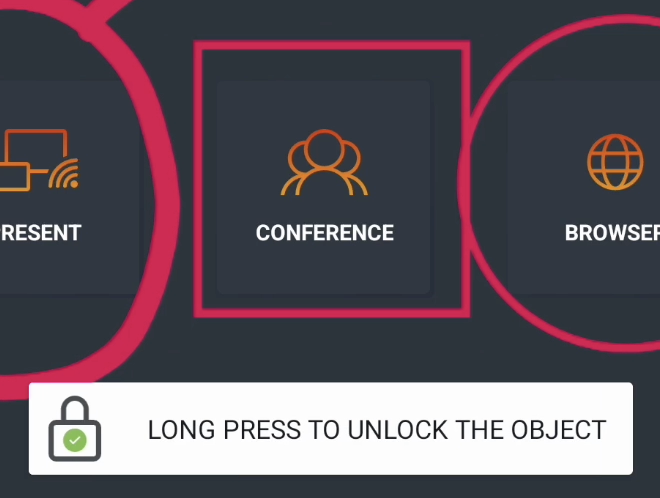
Long press the locked object, and you will see the action to unlock it:
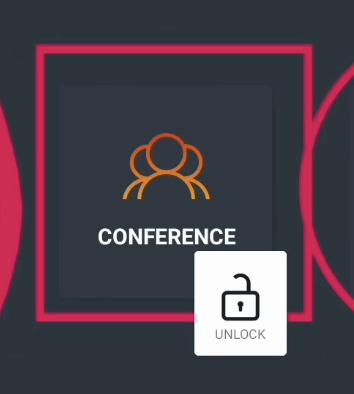
You might also see a Paste icon next to it, if you previously copied an object.
Duplicate
Duplicate instantly creates a new instance of the selected object(s) in front of them.
Copy-paste
You can copy the selected object(s) and paste them later on the same or on a new page. Just like the Locking action, the Actions menu will briefly show you how to paste an object once you copied it.
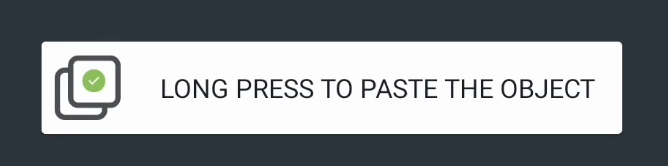
Long press anywhere on the canvas and a Paste icon will appear:
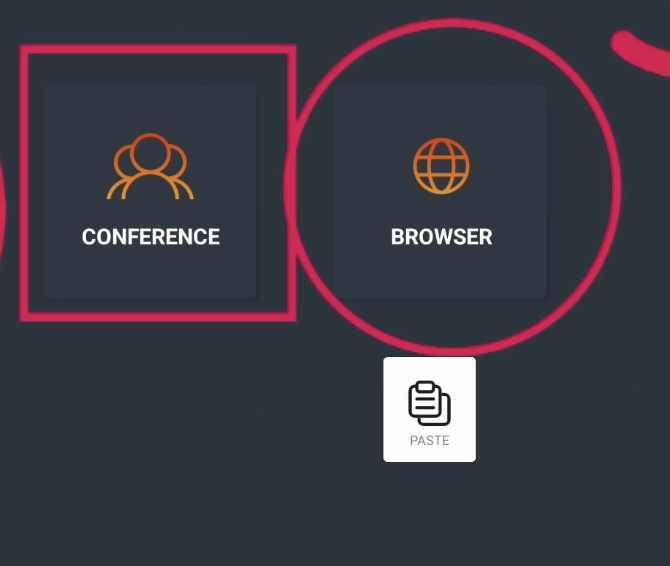
Select Paste and a copy of the object will be pasted on that position.
Delete
This action deletes the selected object(s) from the canvas.
The Features menu
This Features menu will allow you to change the selected objects' features, like line thickness and color.

Pick a color and all the selected objects will change to the selected color.
Drawing tool
There are 2 presets available:
-
Pencil
-
Marker
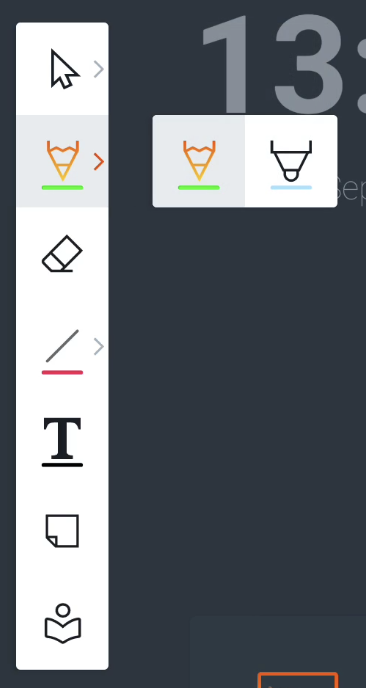
The Features menu will allow you to change the color and line thickness before drawing.

The Marker tool is slightly transparent. The Features menu will show a color palette that is specific to the Marker tool, like bright colors.
Eraser tool
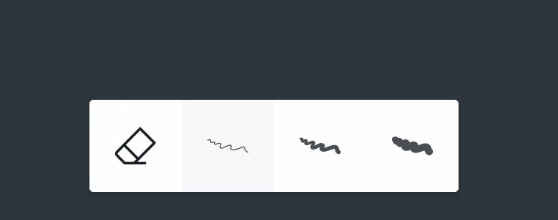
You can customize the size of the eraser tool in the Features menu.
You can also delete the whole canvas at once by selecting the trashcan in the bottom right.
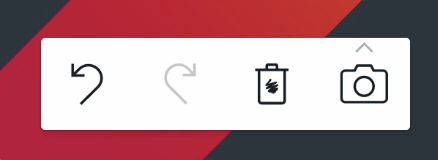
Alternatively, you can erase using certain gestures:
-
Four-finger erase → use 4 fingers
-
Palm erase → use the palm of your hand to erase
Palm erase is supported only on the following displays:
-
i3TOUCH EX
-
i3TOUCH PX (only on updated models with palm rejection settings disabled)
-
i3TOUCH X-ONE
-
i3TOUCH E-ONE
-
i3TOUCH X2
Shape tool
Use our shape presets to draw various shapes on the canvas.
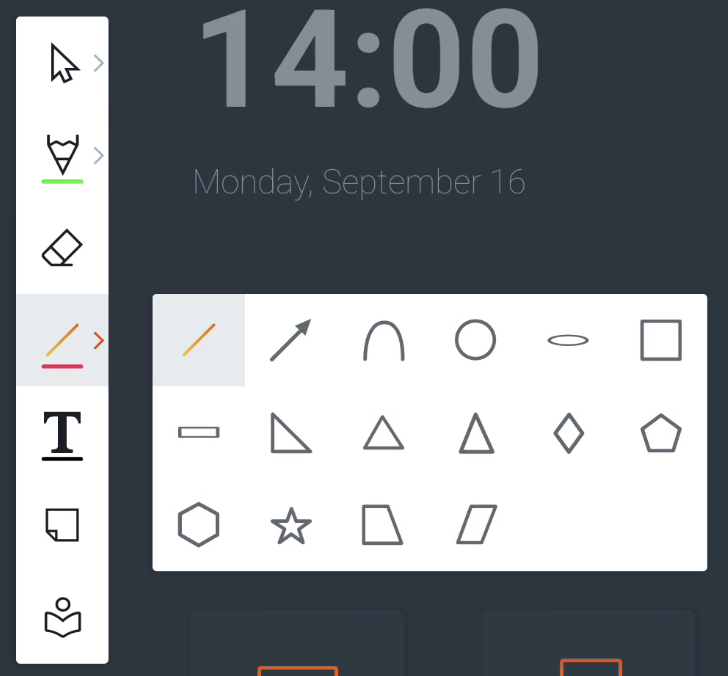
You can also customize the color, and line size with the color presets and color picker from the Features menu.
Text tool
Use the text tool to type text on the canvas using the on-screen keyboard.
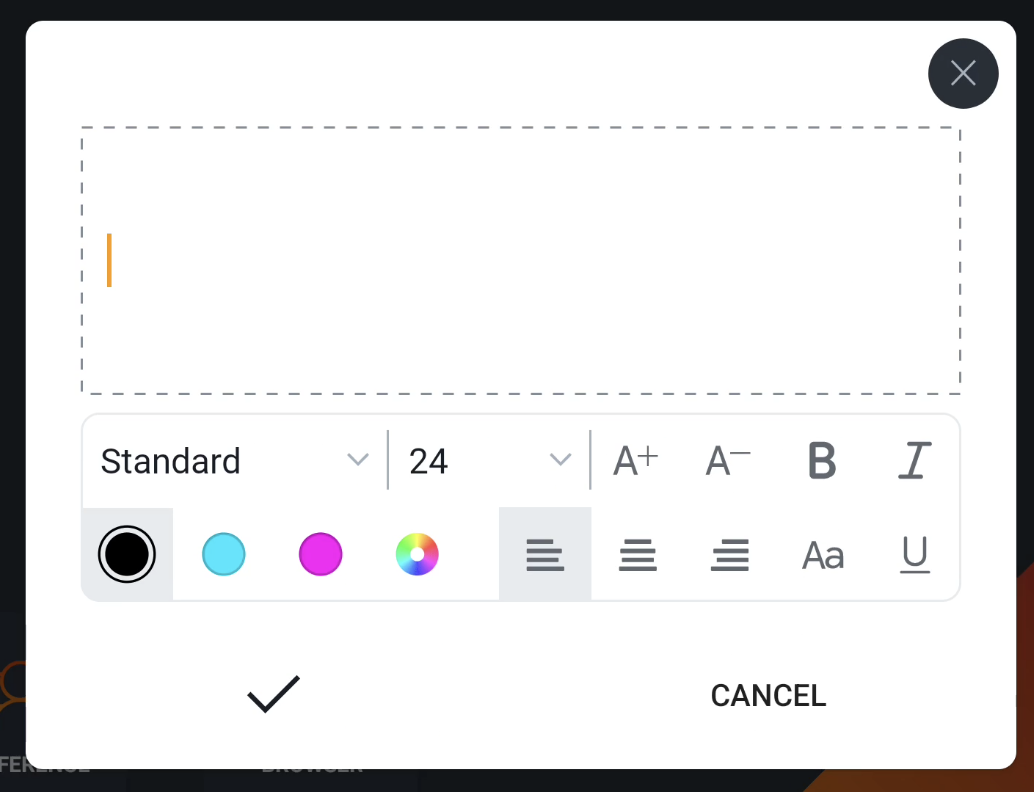
When you add a new text field, it’ll load a modal dialog with a rich text editor inside. This gives you the option to still edit your text afterwards.
Sticky note
You can add 4 types of preset sticky notes to the canvas.
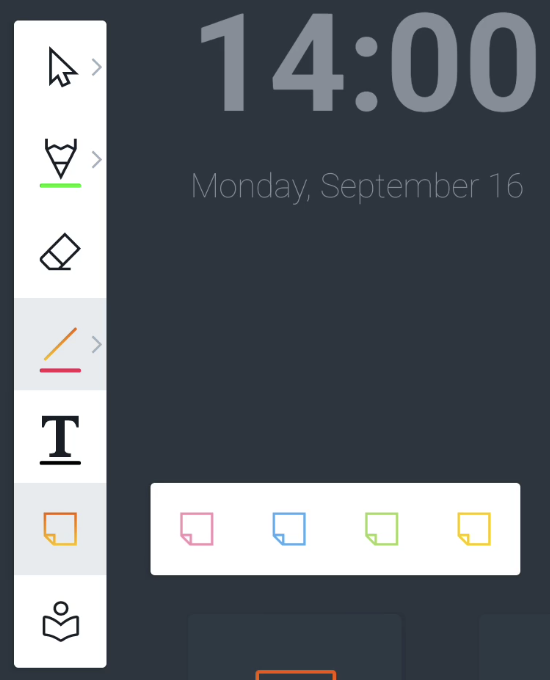
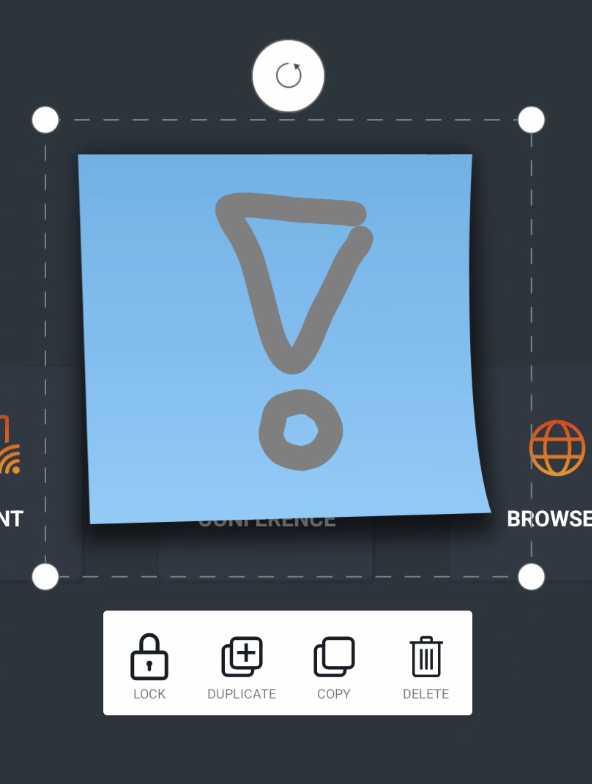
You can easily draw or write on top of the Sticky note.
Objects within the boundaries of the sticky note will be merged with the sticky note. If you select them, you can scale or move both at the same time.
Icon library
The Icon library allows users to drag and drop icons on the canvas. We already added popular and extensive icon libraries that you can use right now, such as Material Icons, FontAwesome and OpenMoji, giving you immediate access to thousands of icons.
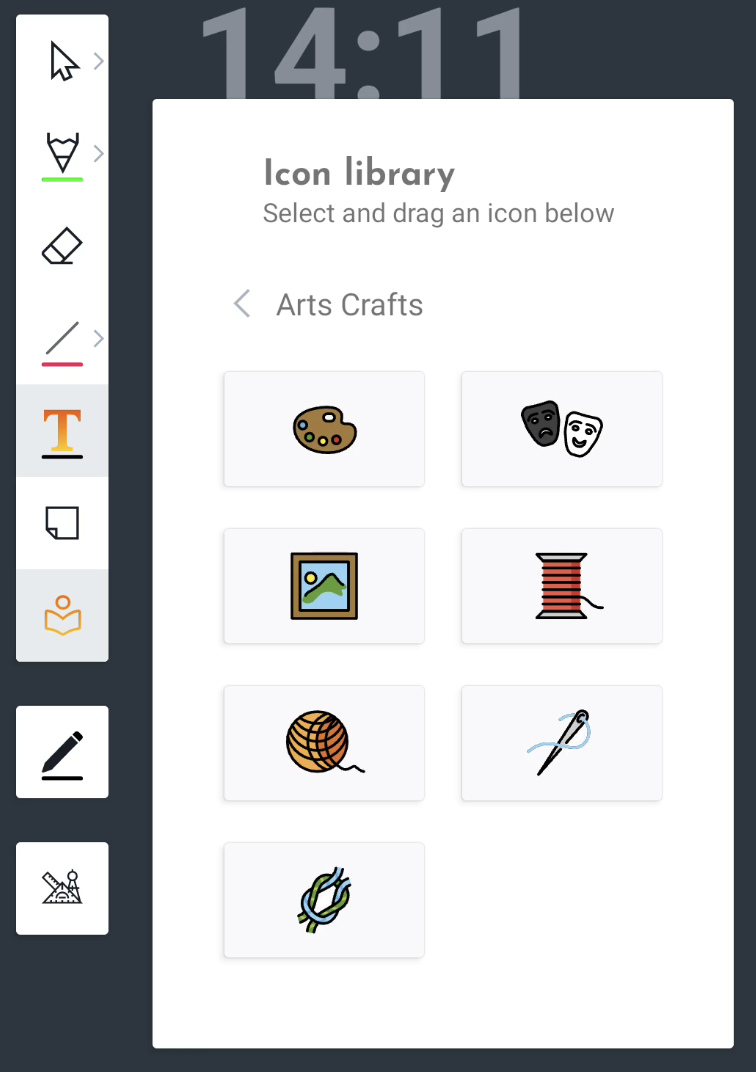
For more information on how to use the Icon library and/or add your own icons, consult the i3WHITEBOARD tool menu.
VR Tool
Note: Virtual Reality (VR) tools can be activated from the Settings menu in i3WHITEBOARD.
There are three tools: Nautical Protractor Ruler, a Normal Ruler, and a Drawing Compass. These tools will appear on the screen once their toggle is activated. To remove them from the screen, they must be untoggled.
Nautical Protractor Ruler/Triangle Protractor
The nautical protractor ruler can be found as the first option in the VR tools menu.
Besides drawing, this ruler also helps define and measure angles by placing the center of the ruler (bottom) at the starting point of the lines we want to measure.
Ruler
The second option in the VR Tools menu is the regular ruler. This ruler can draw straight lines or make relative measurements on the device.
Both rulers could extend the drawn line outside their borders as long as the drawing started on the ruler, with all the sides available for drawing.
Drawing compass
The drawing compass is the third option in the VR tools menu. Unlike the other tools, the drawing compass has different sections with which you can interact, namely the handle and the wheels.
For detailed documentation on how to use the VR Tools, see the i3WHITEBOARD documentation: The i3WHITEBOARD Tool menu