
Instructinos
When making a direct connection from your computer to the projector.
-
Find an IP Address (192.168.0.100) from LAN function of projector.

-
Select apply and press “Enter” button to submit function or press “menu” key to exit.
-
To open Network Connections, click Start, click Control Panel, click Network and Internet Connections, and then click Network Connections. Click the connection you want to configure, and then, under Network Tasks, click Change settings of this connection.
-
On the General tab, under This connection uses the following items, click Internet Protocol (TCP/IP), and then click “Properties”.
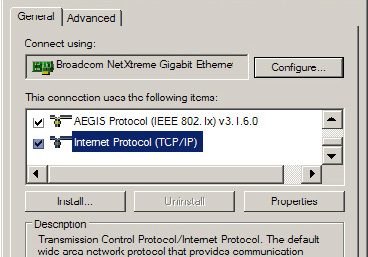
-
Click Use the following IP address, and type in as below:
-
IP address: 192.168.0.101
-
Subnet mask: 255.255.255.0
-
Default gateway:192.168.0.254
-
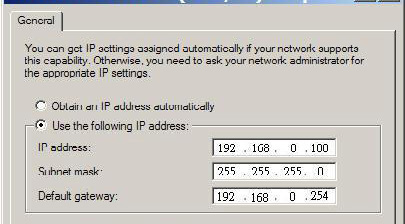
-
To open Internet Options, click IE web browser, click Internet Options, click the Connections tab and click “LAN Settings...”.
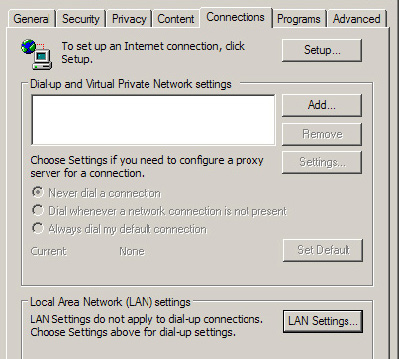
-
The Local Area Network (LAN) Setting dialog box appears. In the Proxy Server area, uncheck Use a proxy server for your LAN, then click “OK” button twice.
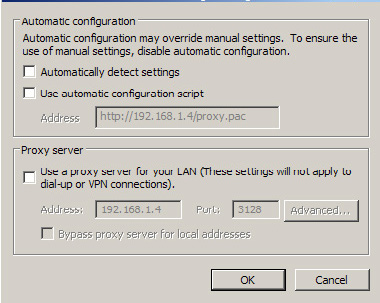
-
Open your IE and type in the IP address of 192.168.0.100 in the URL then press “Enter” key.