When opening the settings menu, you get an overview of all the settings you can adjust.
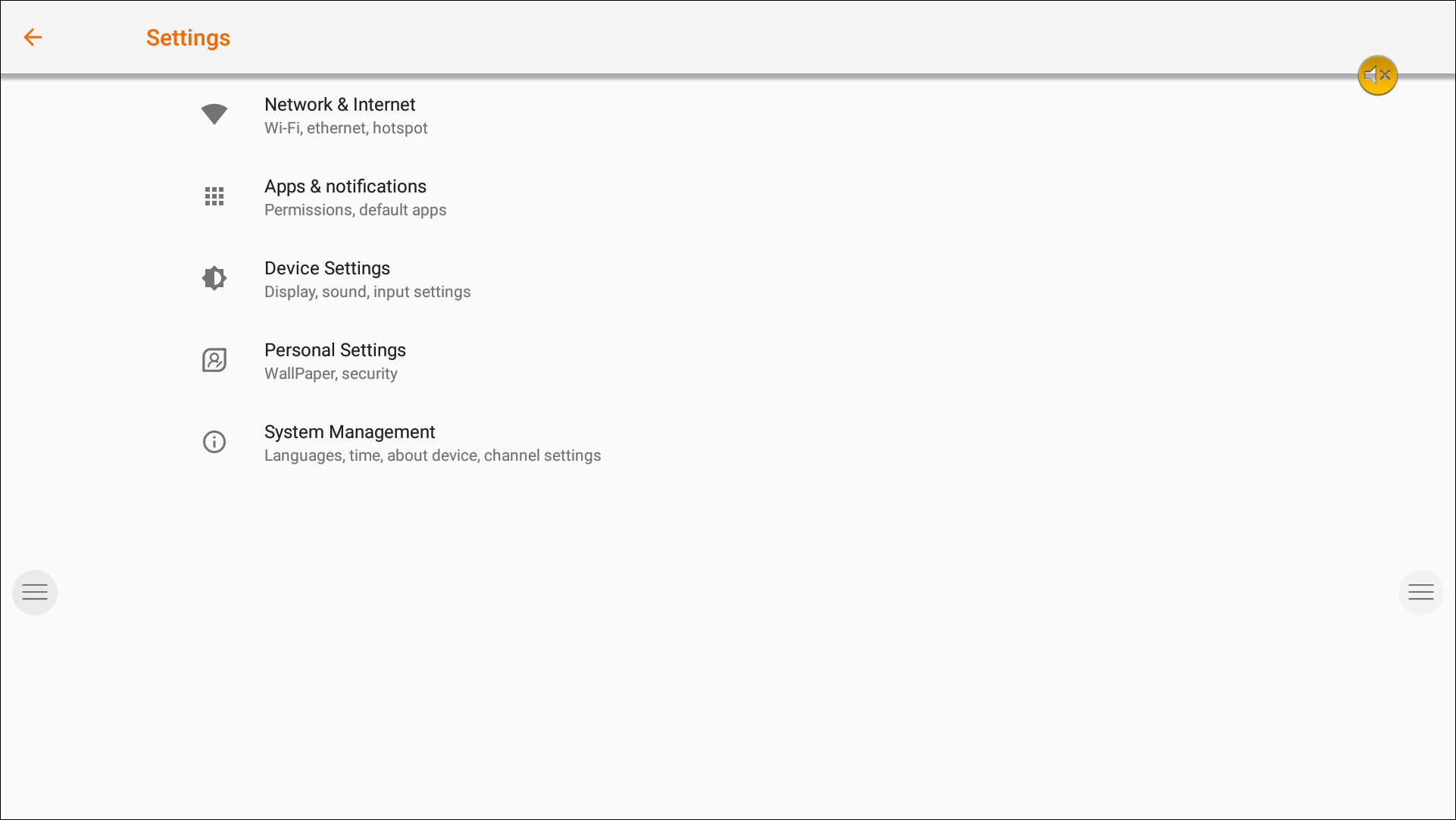
Network & Internet Settings
Make a connection to your network and internet via Wi-Fi or Ethernet cable.
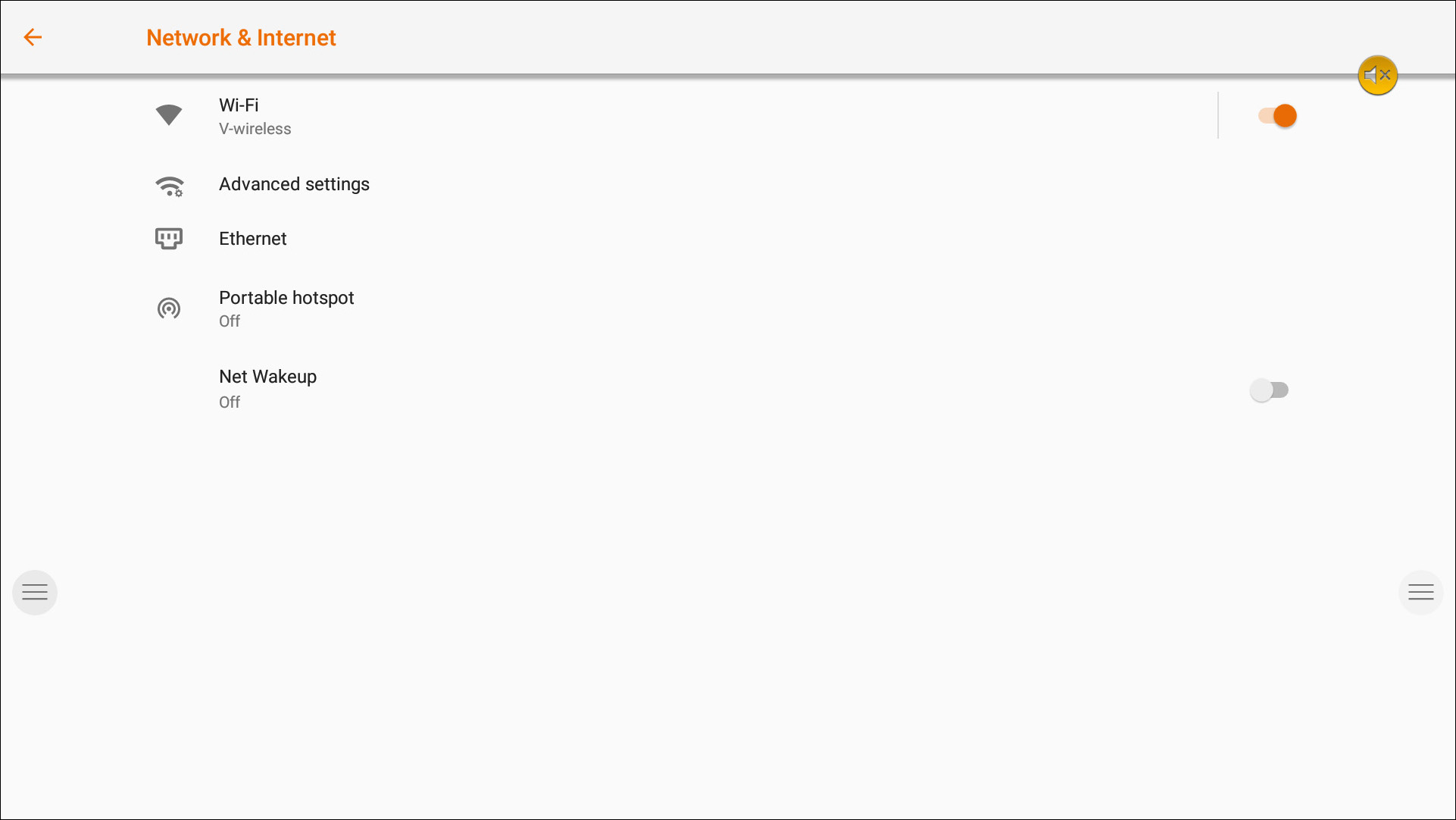
System Firmware Update
After connecting to the internet, verify that your display is running the latest firmware.
In the settings application, press System Management, and About Device. Press the System Update button to validate your firmware version online (OTA). If a newer system version is available, this button will provide instructions to update your device.
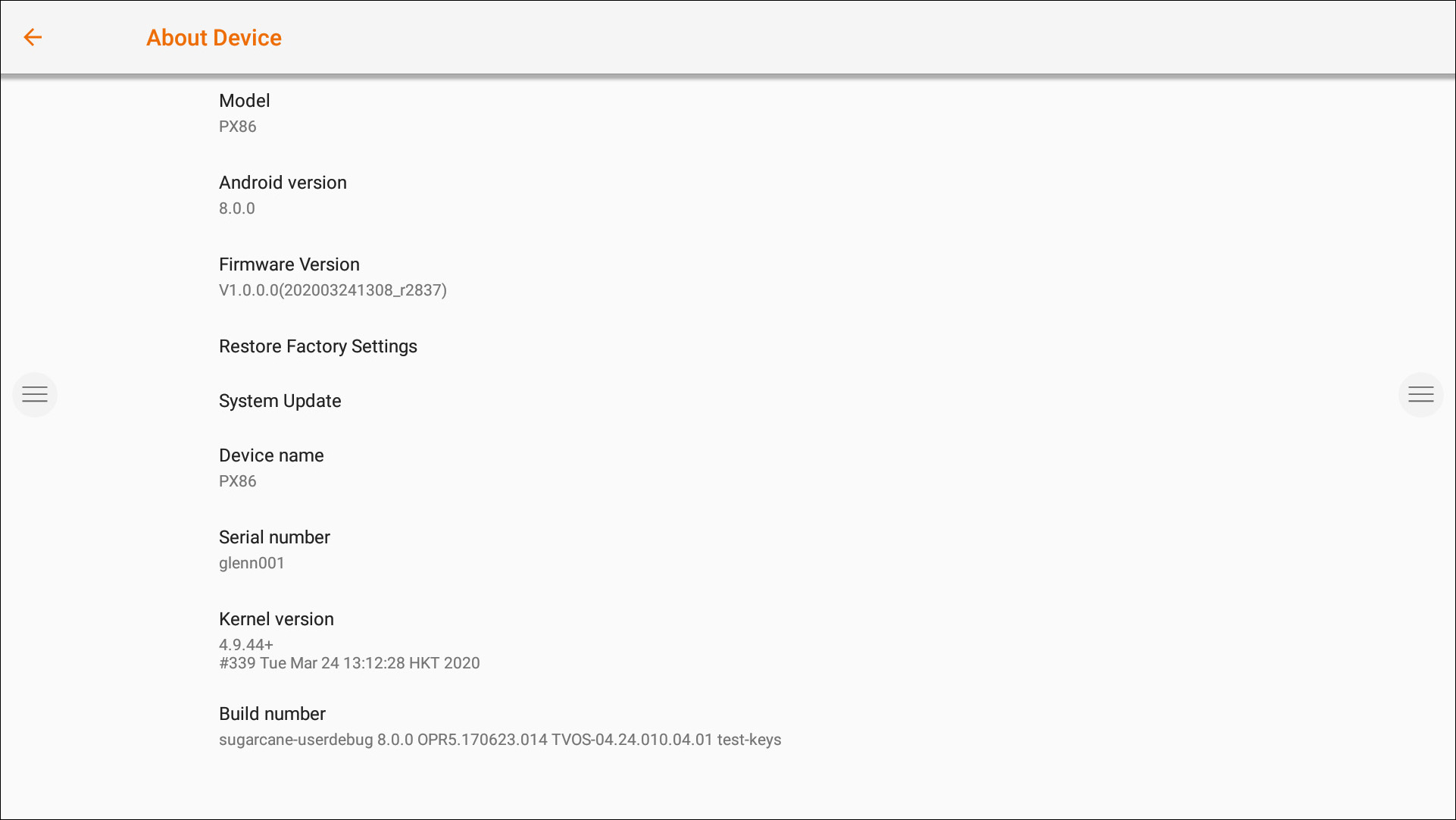
Display Settings
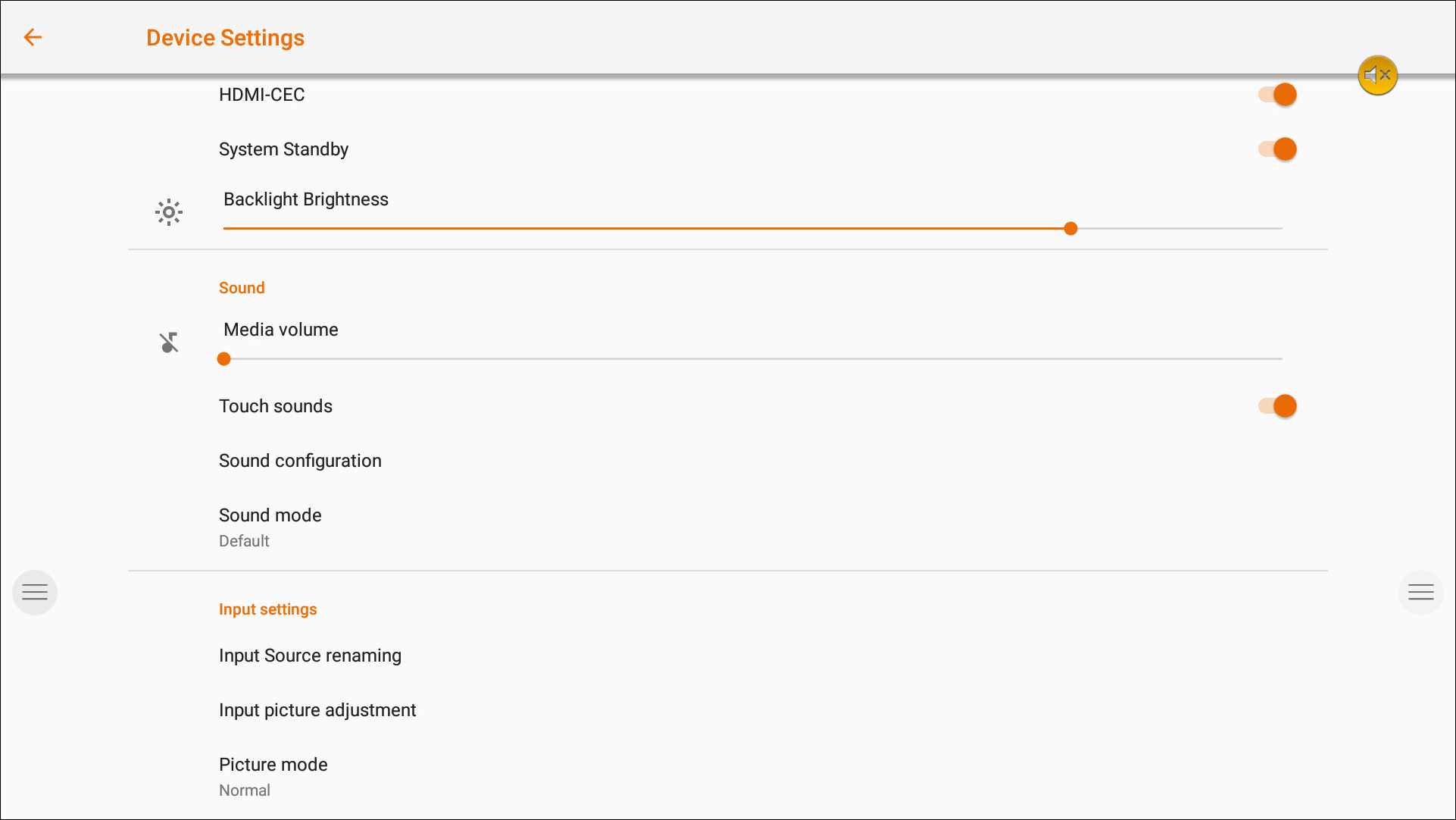
Control the brightness of the i3TOUCH display in the Display settings menu.
The i3TOUCH PX also features an environment light sensor to automatically adjust the brightness. Turn Automatic Brightness Control on to activate this feature.
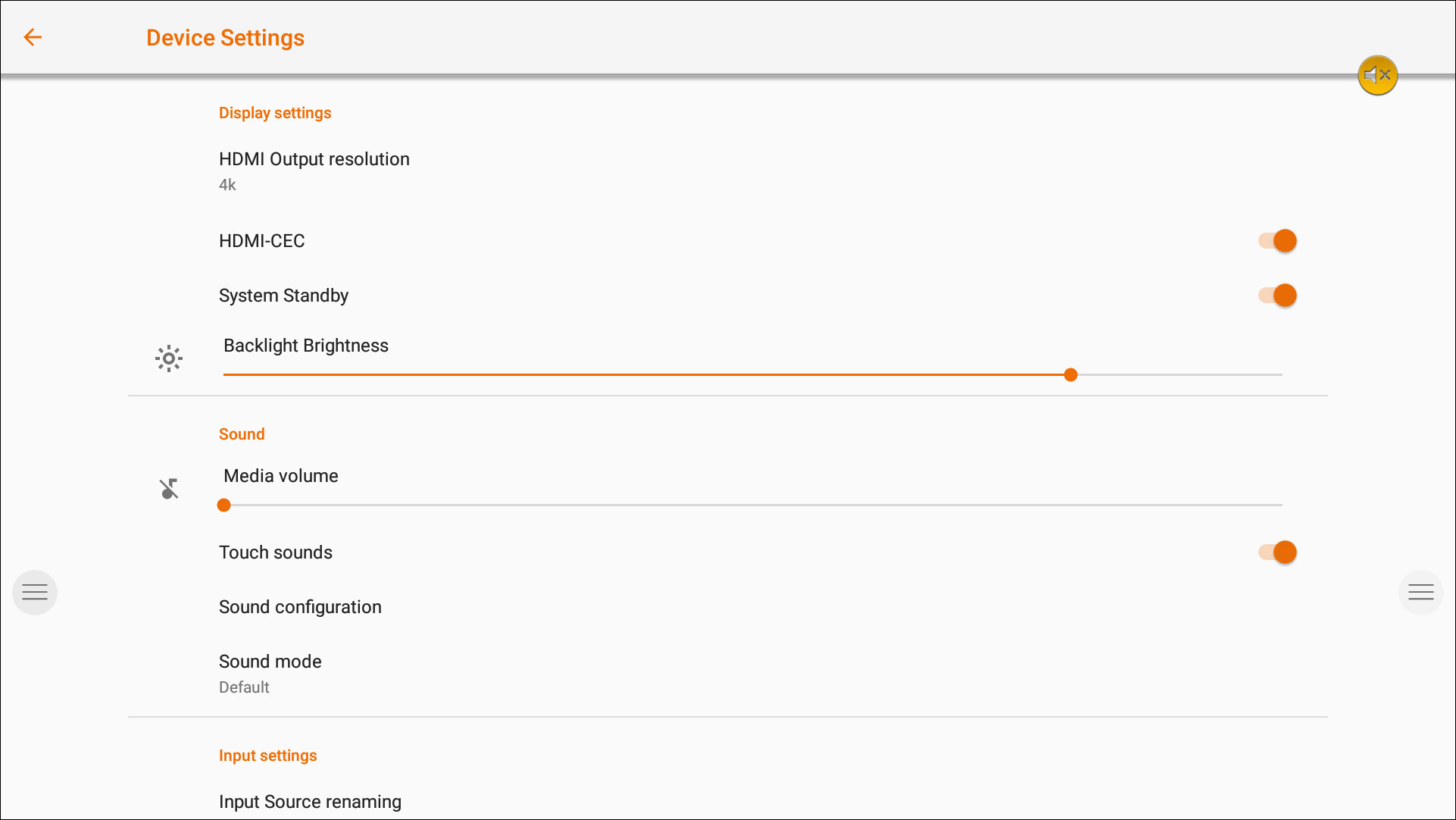
Audio Settings
Adjust the audio settings in Device Settings and pre-define the audio environments.
System Management
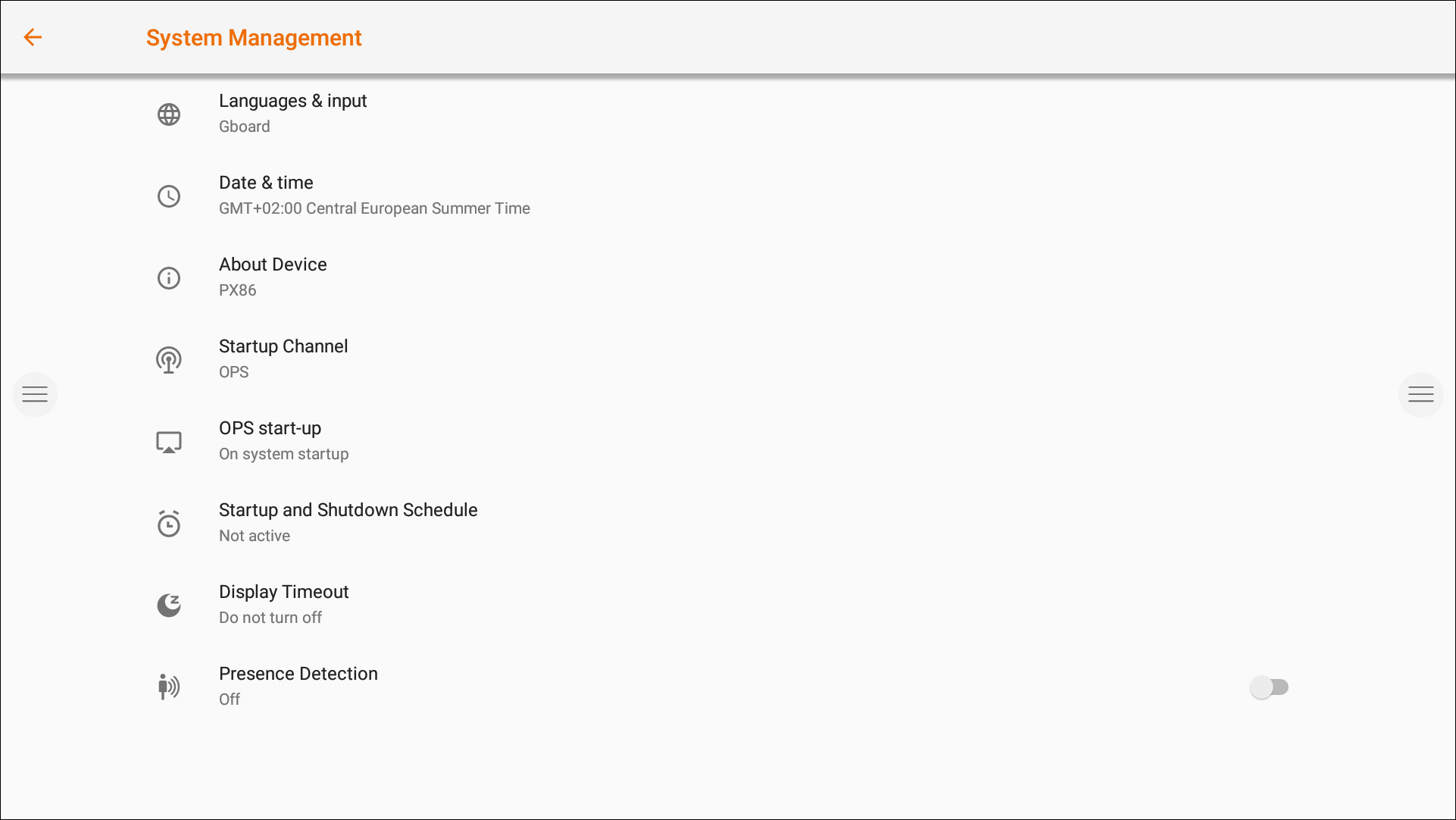
Startup and Shutdown Options
-
Define the active video channel after startup:
-
Define when the OPS Built-in computer should startup (if installed):
-
A. Only after switching to the video channel input.
-
B. Startup together with display.
-
-
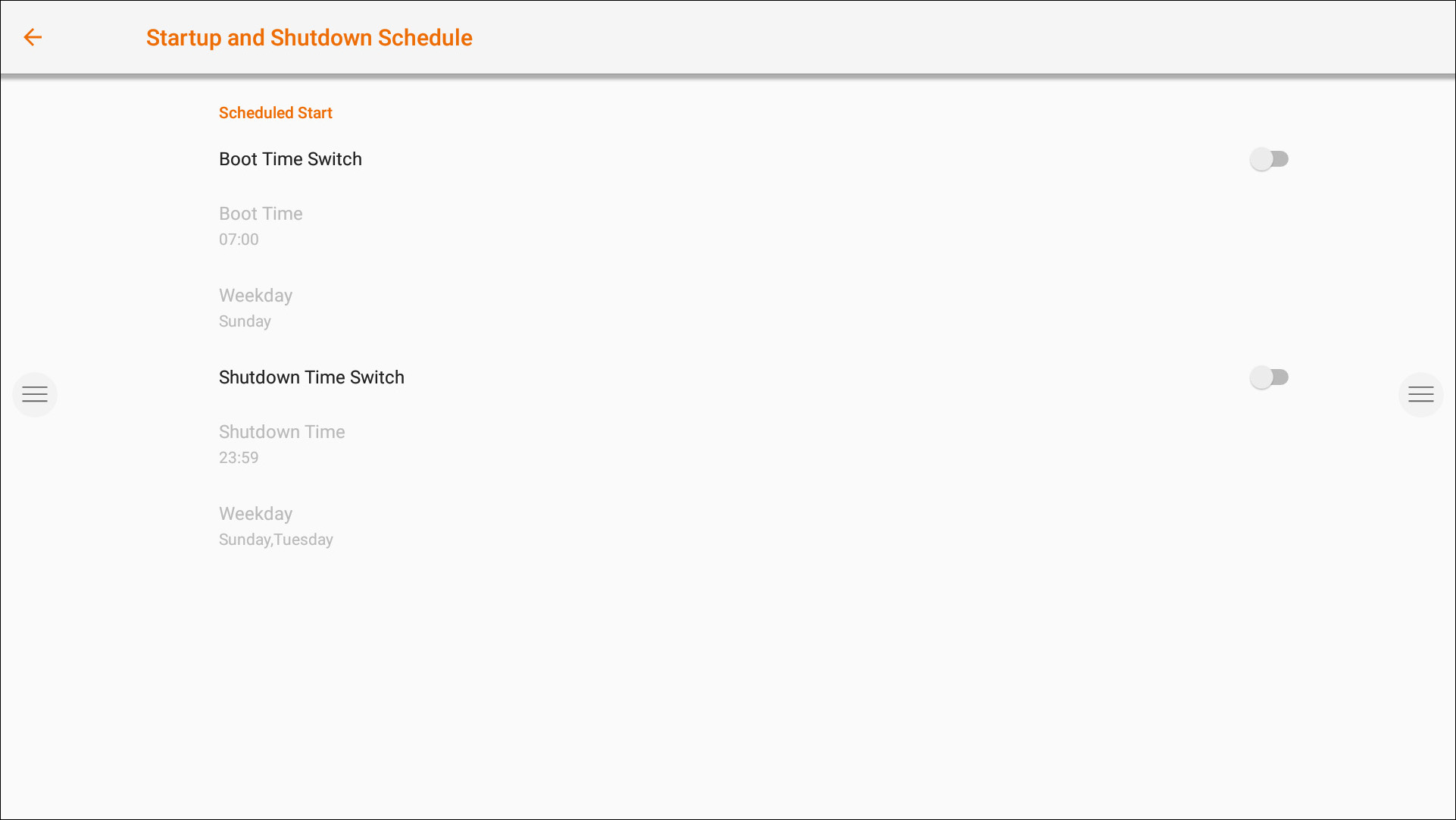
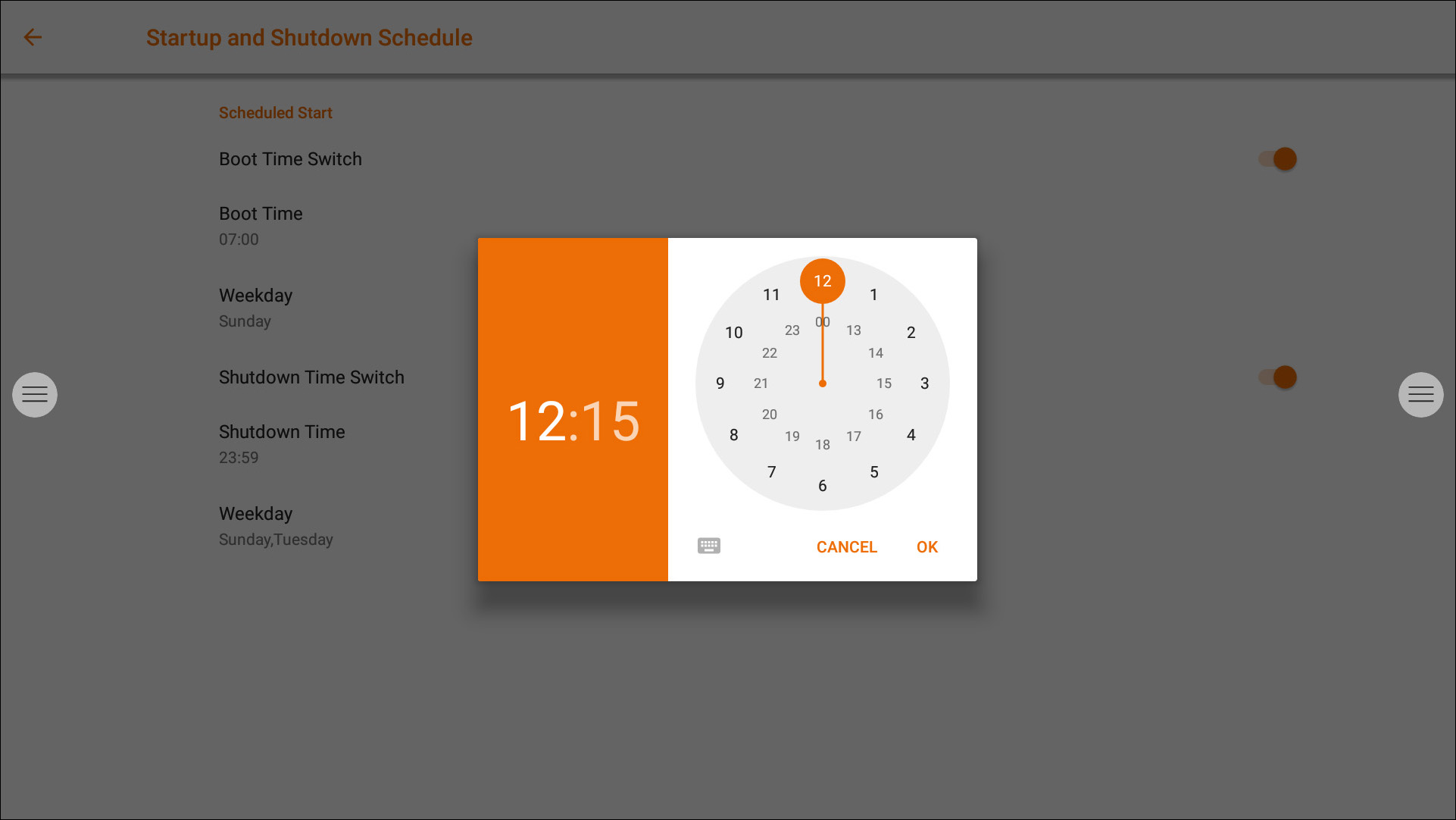
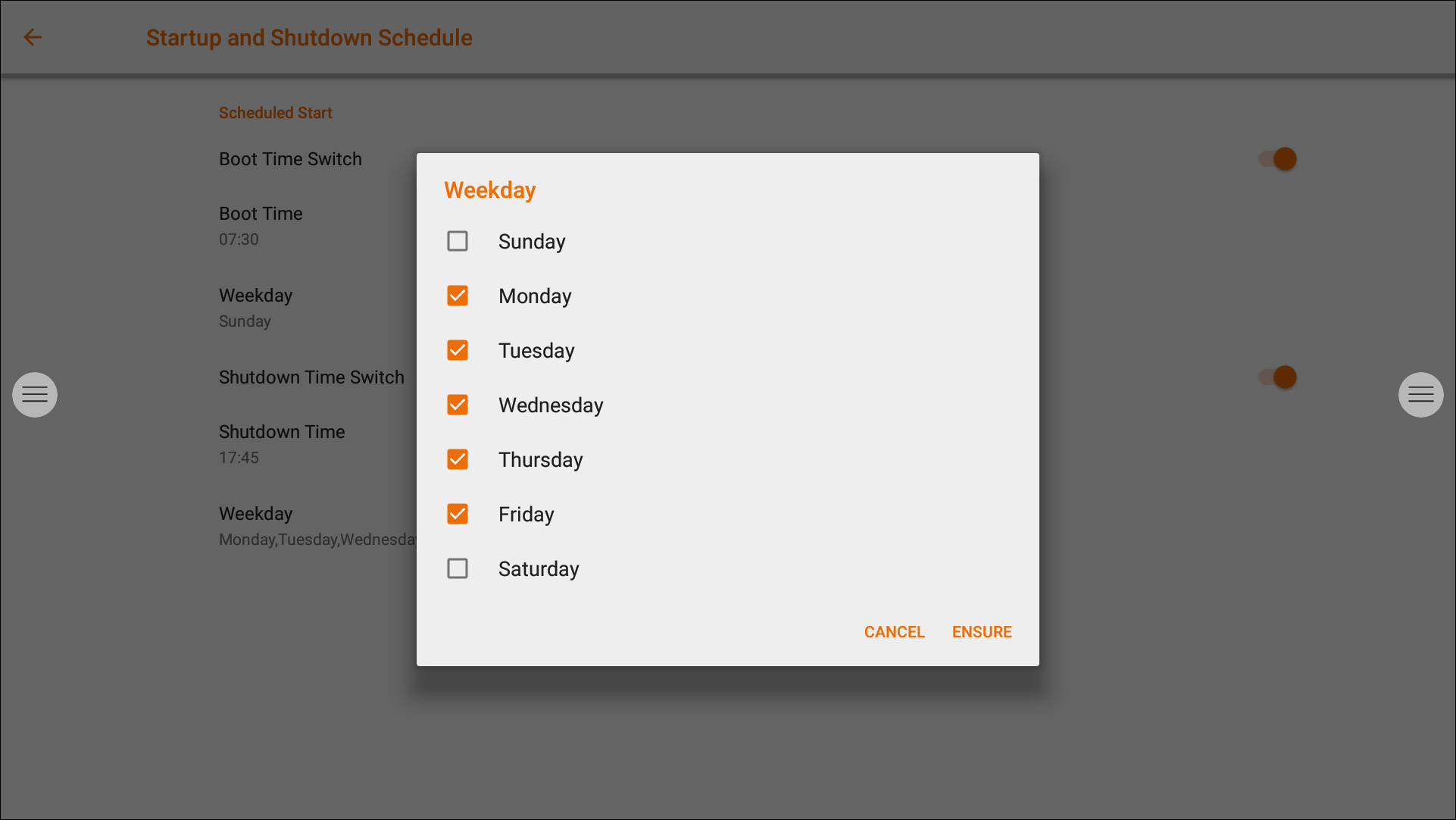
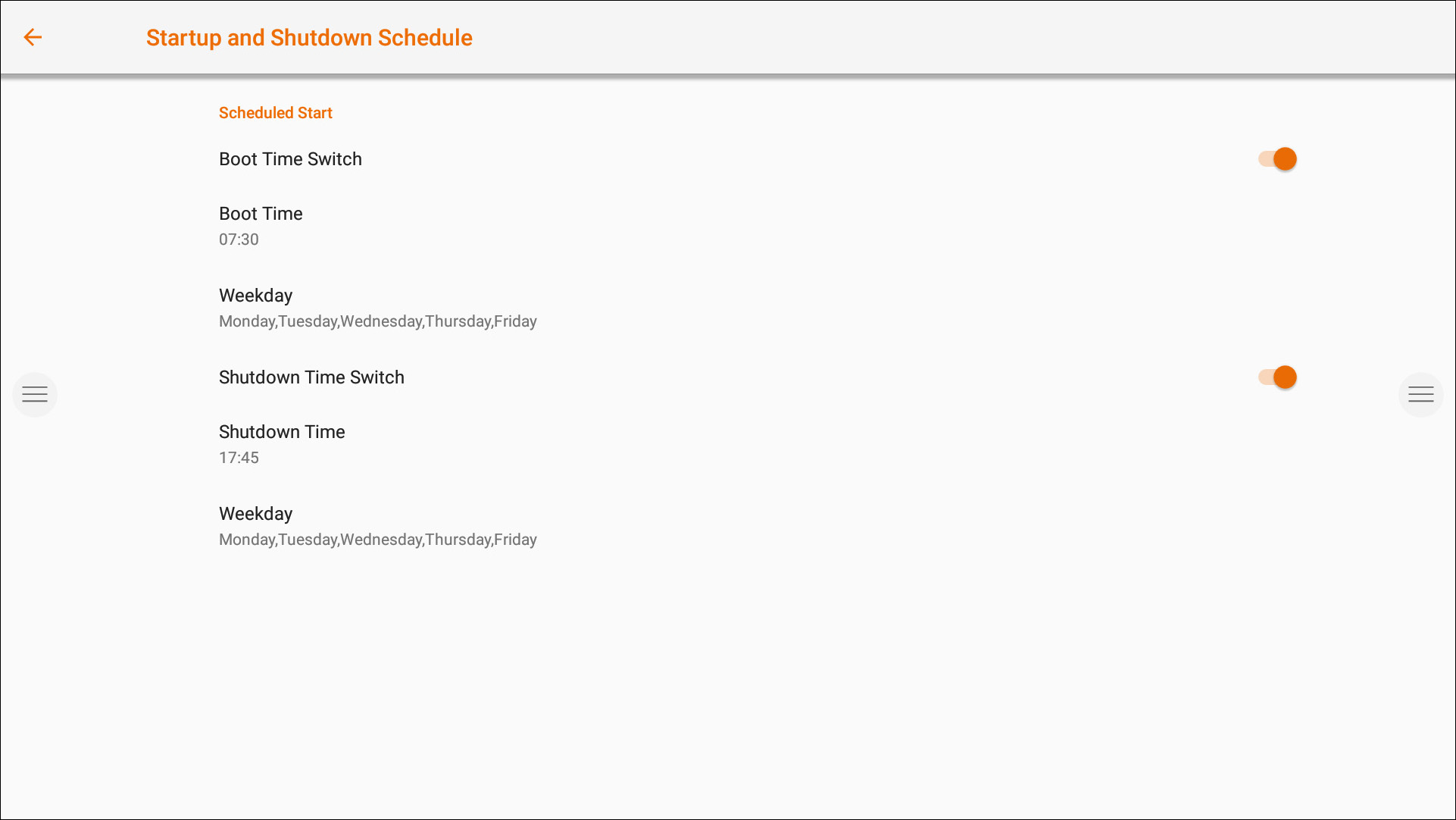
Schedule an automatically startup and shutdown schedule.
-
Set the inactivity timer of the display. Turn the display off if there is no video signal for a defined time.
-
Enable / Disable the Motion Sensor. If the motion sensor does not detect presence/movement in the room for 15 minutes, the display will automatically shut down.