
This FAQ explains what to do if the touch doesn't work at all. If the touch does work, but just not in the Flatfrog app, please follow this FAQ:
There are 2 different ways to lock/unlock the touch.
-
Via the quick menu
-
In the dealer menu (you may not have access)
Instructions: via quick menu
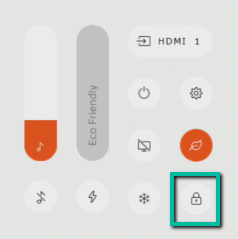
The first and easiest option is in the quick menu. The button in the right corner of the quick menu locks the touch. To unlock it you will need to use the pin code that has been installed in the settings menu of the screen.
Instructions: via the dealer menu.
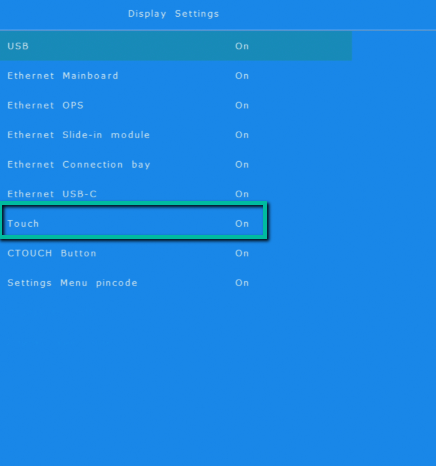
The second place you could lock/unlock the touch is in the dealer menu (this can only be entered with the code for the remote, all dealers should know this code). Under the dealer menu you can go to the sub menu "Display settings". The option "Touch" should be set to "on" if you would like to have touch on the screen.
|
Updated by |
Mandy Kwarten |
|---|---|
|
Last updated |